> ## Documentation Index
> Fetch the complete documentation index at: https://help.draftable.com/llms.txt
> Use this file to discover all available pages before exploring further.
# Fixing issues with Draftable Add-in certificates
> How to use the add-in certificate check in Draftable Legal to verify add-in certificates against your Trusted Publishers store and resolve Office add-in security warnings.
**The settings menu was reorganised in Draftable Legal 26.6.** If you are on 26.6 or later, follow the "26.6 and later" tabs below. On earlier versions, follow "Before 26.6". To check your version, open Settings. The version number shows at the bottom-left (for example, v26.6.0).
## Understanding the add-in certificate verification process
Our application provides add-ins for Word, Outlook, and Excel to enhance productivity and streamline workflow. At times, you may encounter warnings related to these add-ins if their certificates are not recognized as trusted on your device. To mitigate this, we offer an add-in certificate check that ensures these certificates are properly verified and trusted.
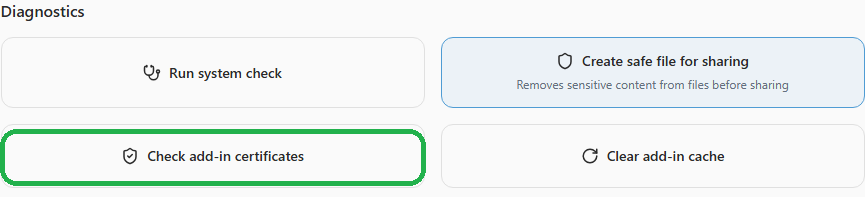
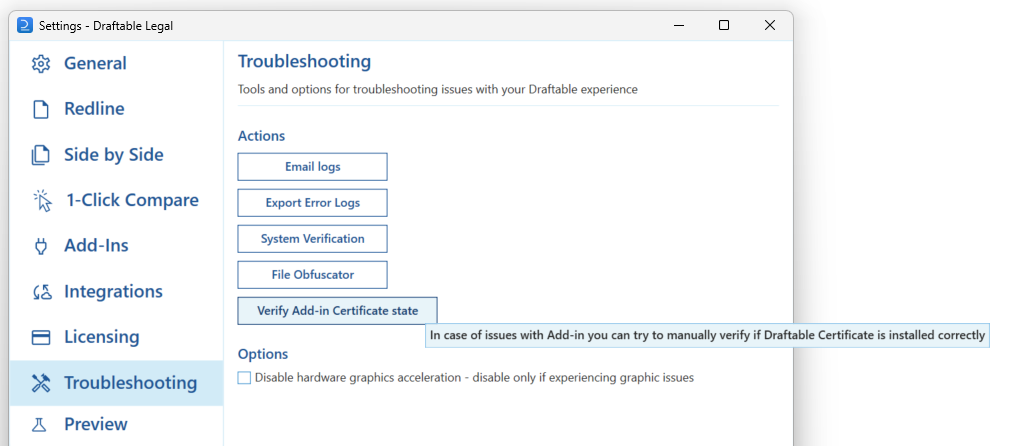
In Draftable Legal 26.6 and later this tool is called **Check add-in certificates** and lives under **Help & Troubleshooting** in the **Diagnostics** section. In versions before 26.6 it was called **Verify Add-in Certificate state** and was found under the **Troubleshooting** tab in the **Actions** section. The tool works the same way in both versions.
### What does the certificate check do?
Running the certificate check prompts our application to check the certificate status of each add-in against your system's Trusted Publishers store. Certificates act like digital IDs, confirming that software is safe and originates from a trustworthy publisher. Here is an overview of the process:
Each add-in's certificate is reviewed to verify its presence in your Trusted Publishers store. This store serves as an approved list, allowing Office to recognize trusted add-ins without security warnings.
If any certificate is missing, a prompt will appear, asking if you would like to add it. Adding the certificate ensures the add-in is recognized as a trusted source, enhancing security and performance.
If the verification process encounters an error (for example, a certificate cannot be verified or added), you will be prompted to send logs for analysis. The application will gather relevant logs and draft an email with the logs attached, which you can review before sending to our support team.
### Why certificates matter for add-ins
Microsoft Office requires all add-ins to be signed by trusted publishers to protect your data and environment from malicious code. By ensuring that each add-in's certificate is verified and stored in the Trusted Publishers list, our application provides:
* **Security**: Only verified add-ins run within your Office applications.
* **Reliability**: Add-ins from trusted publishers perform better and avoid potential security blocks by Office.
### Common reasons for missing certificates
Certificates may be missing from your Trusted Publishers store due to:
* **System changes**: Updates or changes to your system can sometimes reset the Trusted Publishers list.
* **New installations**: For fresh installs, certificates might not yet be added to your system's trusted stores.
* **Office security policies**: Strict security settings may prevent automatic certificate recognition.
### How to run the certificate check
Open the settings menu, then find the certificate check tool.
In the settings menu, select **Help & Troubleshooting**, then under **Diagnostics** select **Check add-in certificates**.
 Open the **Troubleshooting** tab, then under **Actions** select **Verify Add-in Certificate state**.
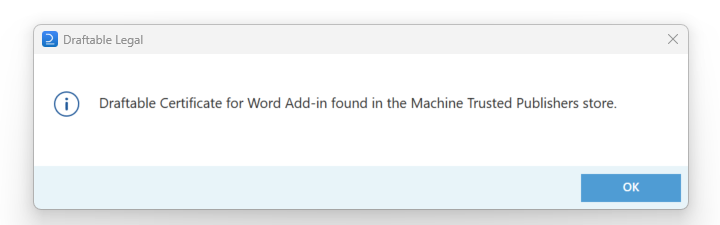
 If any certificates are missing, a prompt will appear, asking for permission to add them.
 If any step fails, you will be prompted to send logs. Approving this action drafts an email with the logs attached, which you can send to our support team for assistance.
### Clearing the add-in cache
In Draftable Legal 26.6 and later, the **Help & Troubleshooting** pane also includes a **Clear add-in cache** action under **Diagnostics**. If an add-in continues to behave unexpectedly after the certificate check, clearing the add-in cache can resolve issues caused by stale cached add-in data. You can find it next to **Check add-in certificates** in the same Diagnostics section shown above.
### Your privacy and security are a priority
We prioritize your security. The verification process and log collection are strictly for troubleshooting. Logs are only gathered and sent with your approval and contain only the necessary information for identifying issues with add-in certificate verification.
Running the certificate check helps ensure a smooth, secure experience with our Office add-ins. For further assistance, feel free to reach out to our support team.
If any step fails, you will be prompted to send logs. Approving this action drafts an email with the logs attached, which you can send to our support team for assistance.
### Clearing the add-in cache
In Draftable Legal 26.6 and later, the **Help & Troubleshooting** pane also includes a **Clear add-in cache** action under **Diagnostics**. If an add-in continues to behave unexpectedly after the certificate check, clearing the add-in cache can resolve issues caused by stale cached add-in data. You can find it next to **Check add-in certificates** in the same Diagnostics section shown above.
### Your privacy and security are a priority
We prioritize your security. The verification process and log collection are strictly for troubleshooting. Logs are only gathered and sent with your approval and contain only the necessary information for identifying issues with add-in certificate verification.
Running the certificate check helps ensure a smooth, secure experience with our Office add-ins. For further assistance, feel free to reach out to our support team.