> ## Documentation Index
> Fetch the complete documentation index at: https://help.draftable.com/llms.txt
> Use this file to discover all available pages before exploring further.
# Updating Draftable API Self Hosted
> Updating your Draftable API Self-Hosted instance means updating to use the latest image version which ensures access to the newest features, performance improvements, and security updates. This guide walks you through the steps to update your instance.
**This documentation is for API Self-Hosted Version 2 (Legacy)**
Version 2 is a legacy deployment model. All new customers **must** use Version 3, which features a modern multi-container architecture with improved security and performance.
👉 [Get started with API Self-Hosted v3](/hc/en-us/articles/51133475373465-API-Self-Hosted-v3-Quick-Start-Guide)
**Prerequisites**
1. Ensure you have administrative access to the server running the Draftable API Self-Hosted instance.
2. Verify that Docker and Docker Compose are installed on the server.
## Steps to Update the Draftable API Self-Hosted Instance
Pull the Latest Docker Image
Use the `docker pull` command to download the latest image from the Draftable repository:
`docker pull draftable/apish:latest `
This command ensures that the most recent version of the image is downloaded to your server.
Update the `docker-compose.yml` File
The `docker-compose.yml` file defines how your container is configured and deployed. Locate this file in the directory where your Draftable API instance is hosted.
* Open the file in a your preferred text editor.
* Update the `image` field under the `services` section to ensure it references the latest image:
```json theme={null}
version: '3.5'
services:
apish:
environment:
DRAFTABLE_APISH_NGINX: |-
image: draftable/apish:latest #The term 'Latest' always ensures you are using the latest version
ports:
- 80:80/tcp
- 0.0.0.0:8440:443/tcp
volumes:
- draftable-apish:/srv/draftable
- /sys/fs/cgroup:/sys/fs/cgroup
volumes:
draftable-apish:
```
* Save and exit the editor
Restart the Container
To apply the updates, restart your container with the updated configuration:
Start by shutting down the container:
`docker-compose down`
Then restart the container with:\
`docker-compose up`
To apply the updates, restart your container with the updated configuration:
Start by shutting down the container:
`docker-compose down`
Then restart the container with:\
`docker-compose up`
You should see the container begin to restart, now using the latest image specified.
Verify the Update
* Check that the container is running:
`docker ps `
* Navigate to your instance's web interface or API endpoint to confirm it is operational.
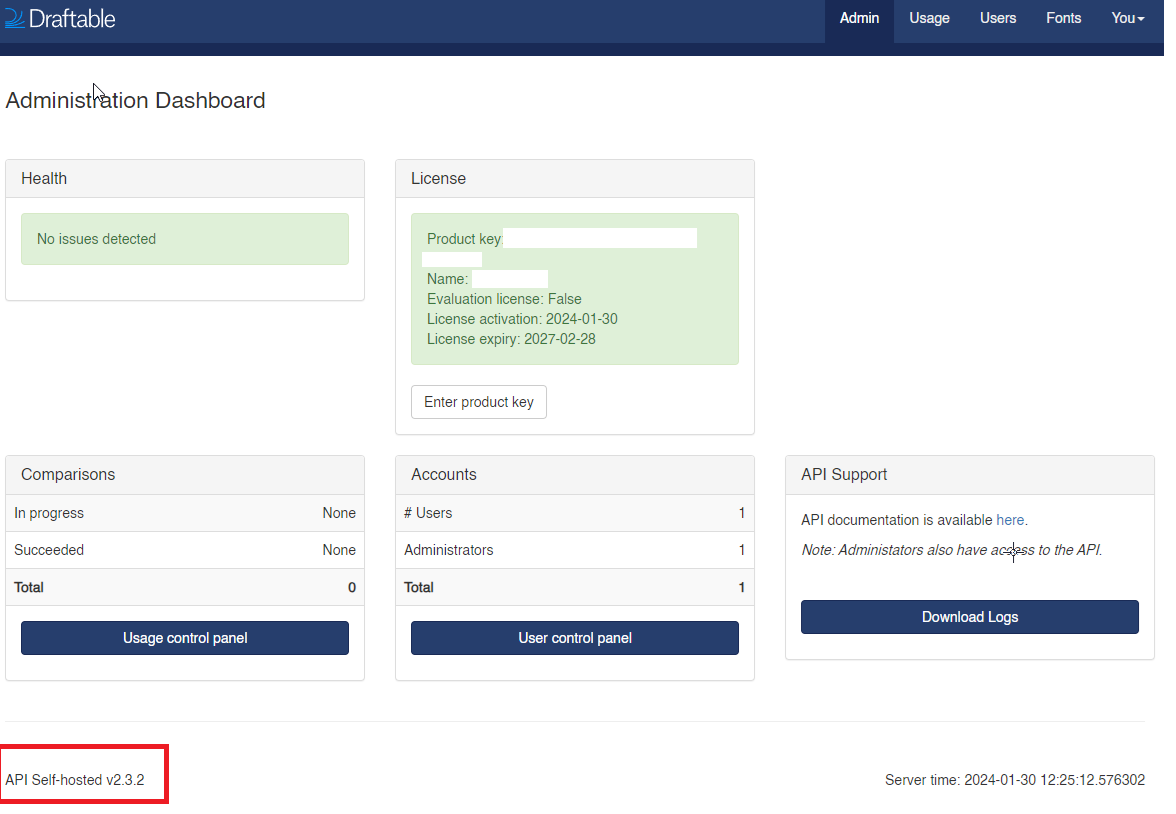
* You can also confirm the version of Self Hosted, by navigating to the Admin page and checking the bottom left corner.
 If you have any issues following the above information or questions in general, please get in contact with us at [support@draftable.com](mailto:support@draftable.com).