> ## Documentation Index
> Fetch the complete documentation index at: https://help.draftable.com/llms.txt
> Use this file to discover all available pages before exploring further.
# Using the Summary Page in Draftable Legal Exports
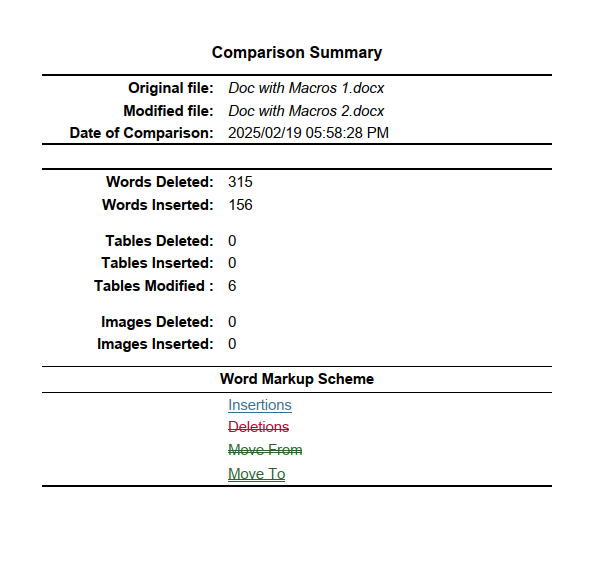
> The **Summary Page** in Draftable Legal provides an overview of key details from your document comparison. This page can be included in your export settings to help reviewers quickly understand changes without going through the full document. See below an example of what the comparison summary page looks like.
**The settings menu was reorganised in Draftable Legal 26.6.** If you are on 26.6 or later, follow the "26.6 and later" tabs below. On earlier versions, follow "Before 26.6". To check your version, open Settings. The version number shows at the bottom-left (for example, v26.6.0).
 You can control how the **Summary Page** is included in your exported comparison files by adjusting the summary page placement setting.
## Configuring the Summary Page Placement
To customize how the **Summary Page** appears in your comparison exports, there are two methods:
### Configuring the summary page at the time of export
The per-export **Options** menu shown below is opened from the comparison viewer and still works the same way in Draftable Legal 26.6 and later.
Whilst in the **comparison viewer,** select your desired export option via the ribbon menu
You can control how the **Summary Page** is included in your exported comparison files by adjusting the summary page placement setting.
## Configuring the Summary Page Placement
To customize how the **Summary Page** appears in your comparison exports, there are two methods:
### Configuring the summary page at the time of export
The per-export **Options** menu shown below is opened from the comparison viewer and still works the same way in Draftable Legal 26.6 and later.
Whilst in the **comparison viewer,** select your desired export option via the ribbon menu
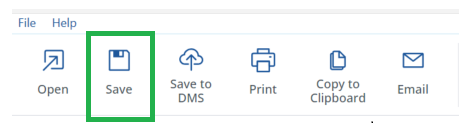 In the above example, we will select the **save option**
When the export menu opens, note that there is text marked as "Options", go ahead and click this text:
In the above example, we will select the **save option**
When the export menu opens, note that there is text marked as "Options", go ahead and click this text:
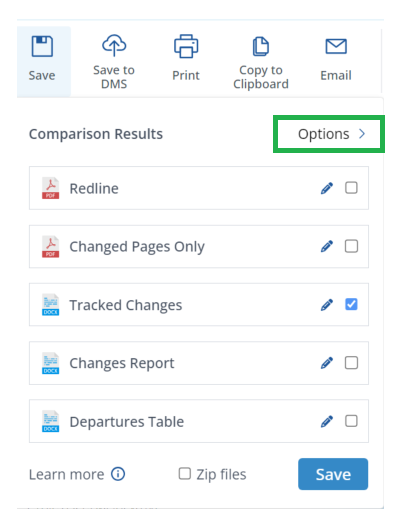 Once clicked you will have an option to set the summary page behaviour, there are four options:
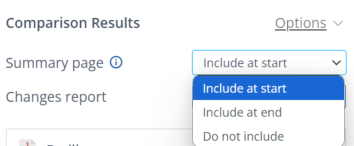 * **Do not include:** The Summary Page will **not** be added to your export.
* **Include at start:** The Summary Page appears at the **beginning** of the comparison.
* **Include at end:** The Summary Page appears at the **end** of the comparison.
* **Include at the start and end:** The Summary Page appears **both at the start and end** of the comparison.
The per-export **Options** menu uses the wording "Include at start" and "Include at end", while the settings dropdown (described below) uses "At the start" and "At the end". They control the same behaviour. The per-export menu also offers a fourth choice, "Include at the start and end", which the settings dropdown does not.
Continue with your export workflow with the summary page option selected. The export option will include the summary page if you have selected it (either at the start or end of the export).
### Configuring the summary page via the settings menu
The settings menu lets you set a default placement that applies to every comparison. You can still override this default for an individual comparison using the **Options** menu described above.
* Open the settings menu via the New Comparison Window
* Open the [New Comparison window](/hc/en-us/articles/19002140760217-Launching-a-Comparison-in-Draftable-Legal-A-Step-by-Step-Guide)
* Select **Settings** in the top right of the window
* **Do not include:** The Summary Page will **not** be added to your export.
* **Include at start:** The Summary Page appears at the **beginning** of the comparison.
* **Include at end:** The Summary Page appears at the **end** of the comparison.
* **Include at the start and end:** The Summary Page appears **both at the start and end** of the comparison.
The per-export **Options** menu uses the wording "Include at start" and "Include at end", while the settings dropdown (described below) uses "At the start" and "At the end". They control the same behaviour. The per-export menu also offers a fourth choice, "Include at the start and end", which the settings dropdown does not.
Continue with your export workflow with the summary page option selected. The export option will include the summary page if you have selected it (either at the start or end of the export).
### Configuring the summary page via the settings menu
The settings menu lets you set a default placement that applies to every comparison. You can still override this default for an individual comparison using the **Options** menu described above.
* Open the settings menu via the New Comparison Window
* Open the [New Comparison window](/hc/en-us/articles/19002140760217-Launching-a-Comparison-in-Draftable-Legal-A-Step-by-Step-Guide)
* Select **Settings** in the top right of the window
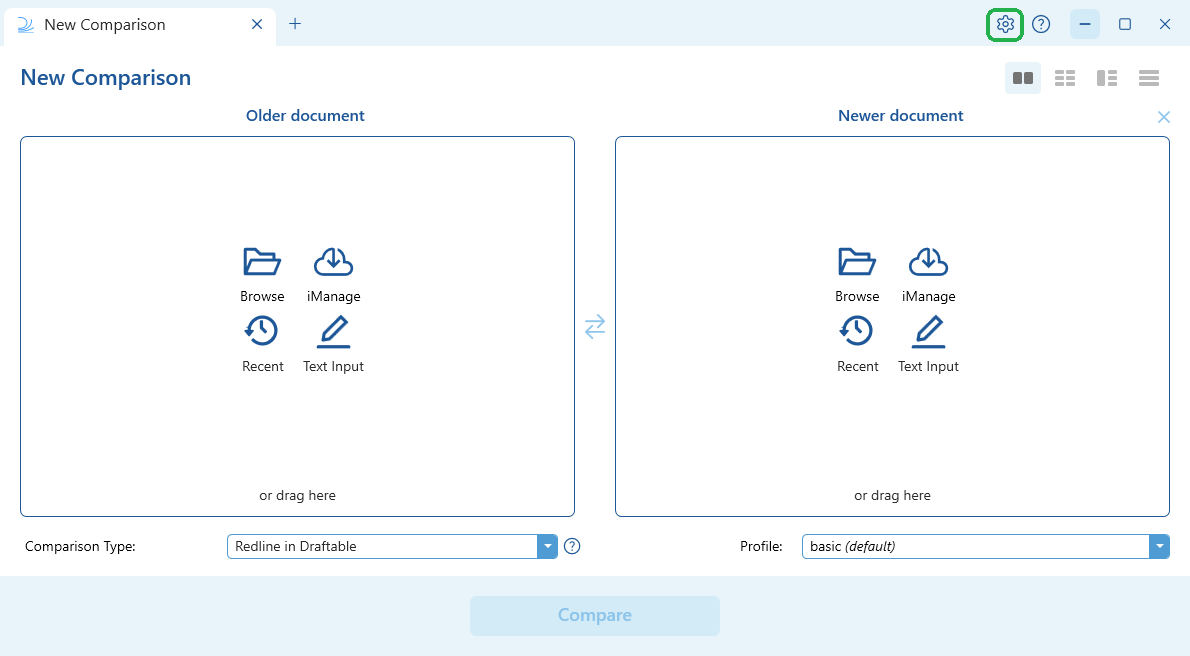
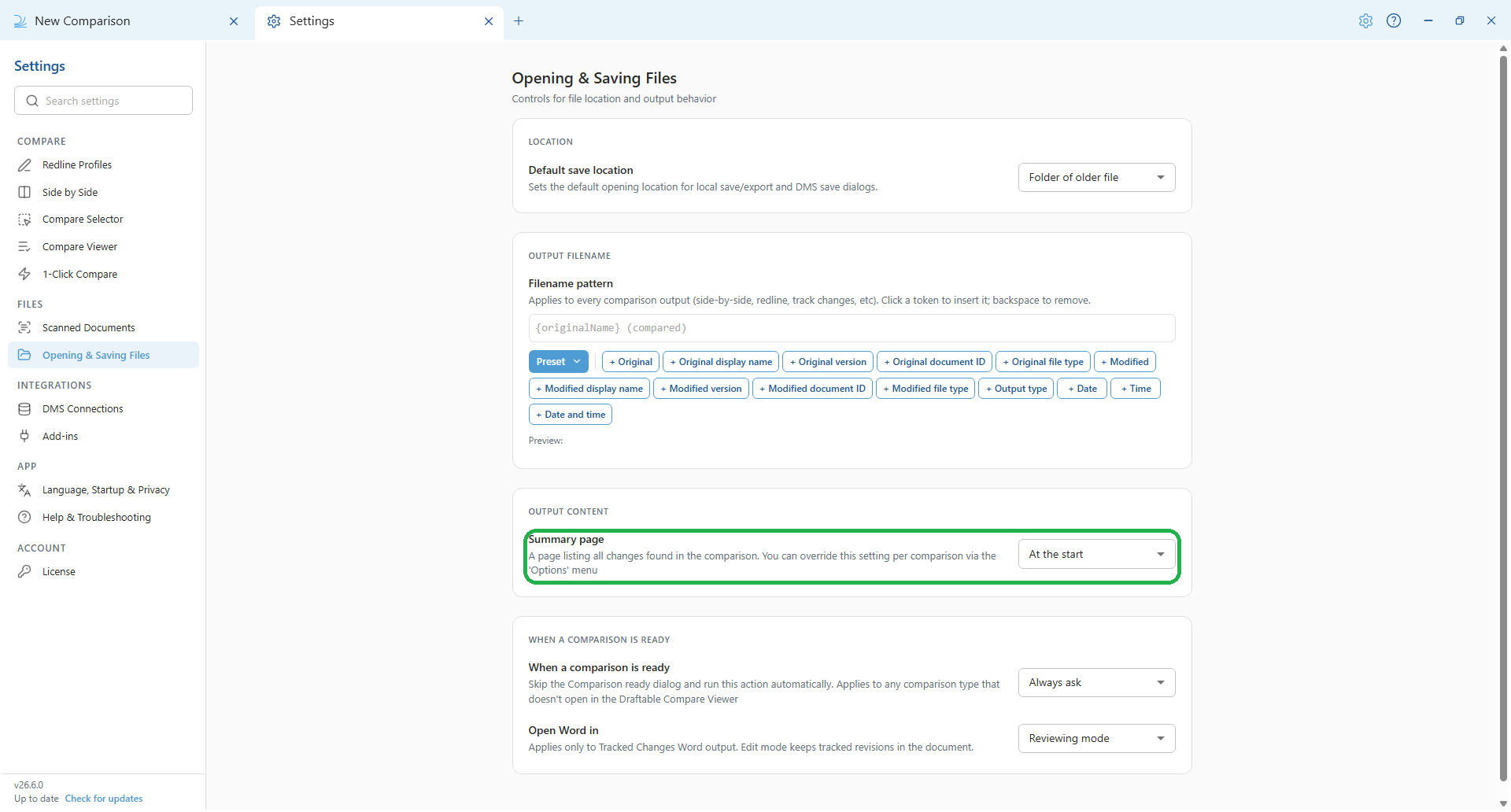
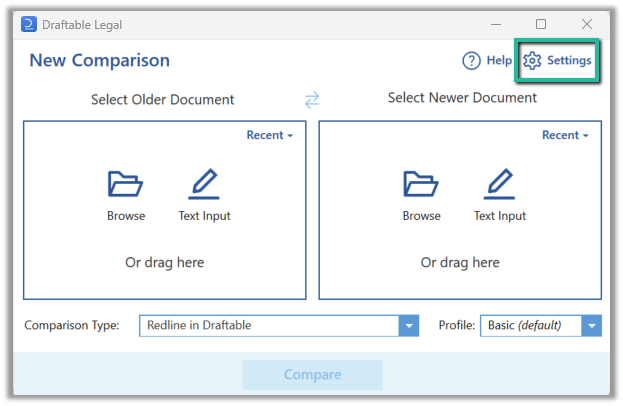 In the settings menu, select **Opening & Saving Files** (under the **Files** group), then find **Summary page** under the **Output Content** heading.
 In the **Settings** menu, go to the **Redline** section and find the **Default Summary Page Placement** setting.
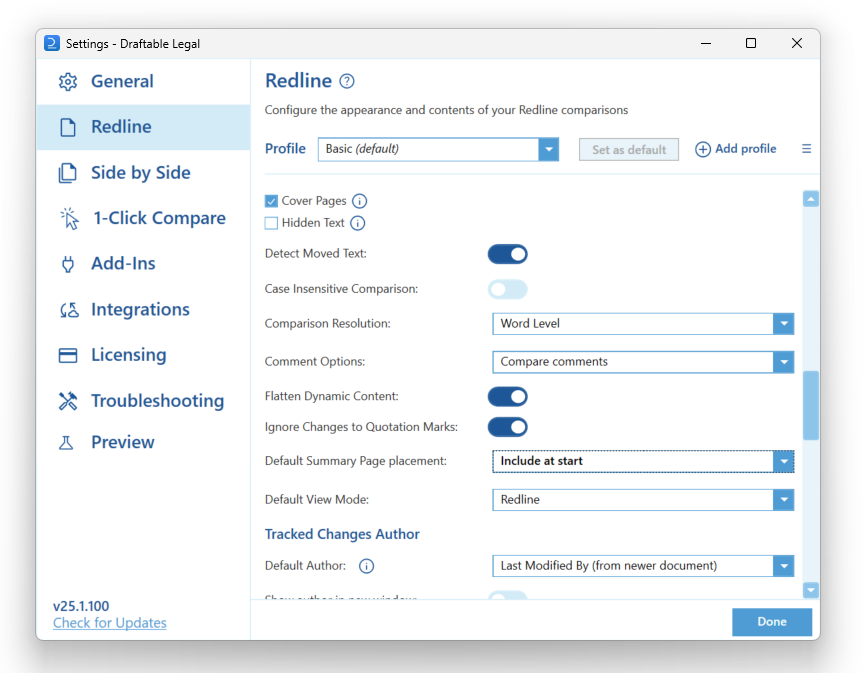 This setting controls where (or if) the **Summary Page** is included in your comparison exports.
The **Summary page** dropdown has three options:
This setting controls where (or if) the **Summary Page** is included in your comparison exports.
The **Summary page** dropdown has three options:
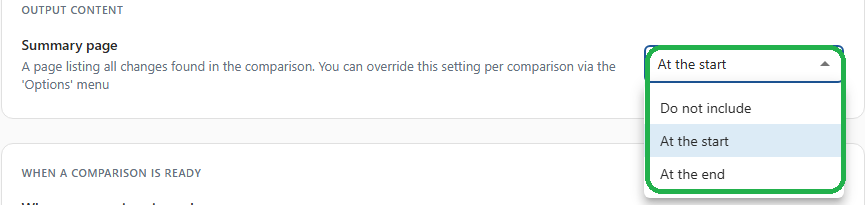 * **Do not include:** The Summary Page will **not** be added to your export.
* **At the start:** The Summary Page appears at the **beginning** of the comparison.
* **At the end:** The Summary Page appears at the **end** of the comparison.
* **Do not include:** The Summary Page will **not** be added to your export.
* **At the start:** The Summary Page appears at the **beginning** of the comparison.
* **At the end:** The Summary Page appears at the **end** of the comparison.
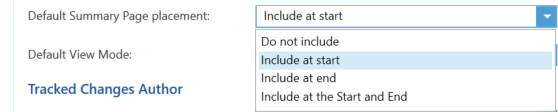 * **Do not include:** The Summary Page will **not** be added to your export.
* **Include at start:** The Summary Page appears at the **beginning** of the comparison.
* **Include at end:** The Summary Page appears at the **end** of the comparison.
* **Include at start and end:** The Summary Page appears **both at the start and end** of the comparison.
## How This Affects Your Exports
The summary page placement setting applies to all export document formats in Draftable Legal.
If your workflow requires a **quick reference summary**, including the Summary Page at the start or end of the document can help improve review efficiency.
## Need Further Assistance?
If you have any questions or need help configuring your settings, contact our support team at **[support@draftable.com](mailto:support@draftable.com)**.
* **Do not include:** The Summary Page will **not** be added to your export.
* **Include at start:** The Summary Page appears at the **beginning** of the comparison.
* **Include at end:** The Summary Page appears at the **end** of the comparison.
* **Include at start and end:** The Summary Page appears **both at the start and end** of the comparison.
## How This Affects Your Exports
The summary page placement setting applies to all export document formats in Draftable Legal.
If your workflow requires a **quick reference summary**, including the Summary Page at the start or end of the document can help improve review efficiency.
## Need Further Assistance?
If you have any questions or need help configuring your settings, contact our support team at **[support@draftable.com](mailto:support@draftable.com)**.