> ## Documentation Index
> Fetch the complete documentation index at: https://help.draftable.com/llms.txt
> Use this file to discover all available pages before exploring further.
# Using Draftable Redline in Email
> Redline in Email, a new Draftable feature that performs live email redlining for your emails, and also allows you to accept and reject redlined emails. This is all done within Outlook, meaning you never have to leave your inbox.
Once your Microsoft 365 admin has deployed the Draftable Outlook Add-in across your organization using the steps documented in this [article](/hc/en-us/articles/46382047949977-Configuring-Redline-in-Email-Outlook-with-Draftable), you will then have access to this feature in your version of Outlook.
This article will detail how to use this exciting new feature and its capabilities.
**Note:**
Please ensure that Draftable Legal is running and open in the background; otherwise, Redline in Email will not correctly operate in Outlook.
Remote desktop, Citrix, and RDP environments are supported from Redline in Email version 1.1.31.1 onwards.
The **Redline my selection** feature is available from Redline in Email version 1.1.32.0 onwards.
## Using Draftable Redline in Email
### Reply workflow - If you intend to Redline an Email or Accept and Reject changes
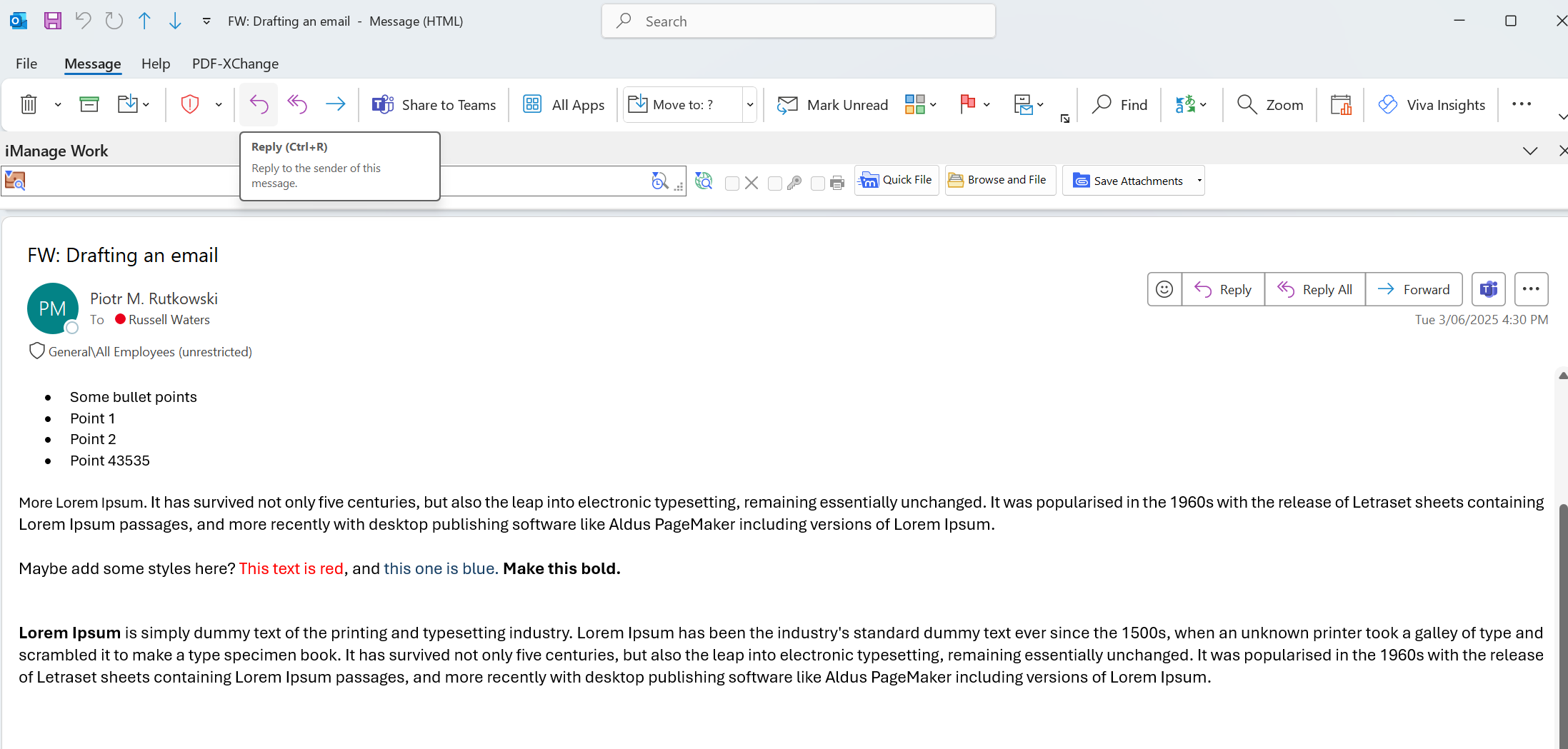
To get started, you will first need to open an **existing email** and hit the **reply/reply** **all** button.
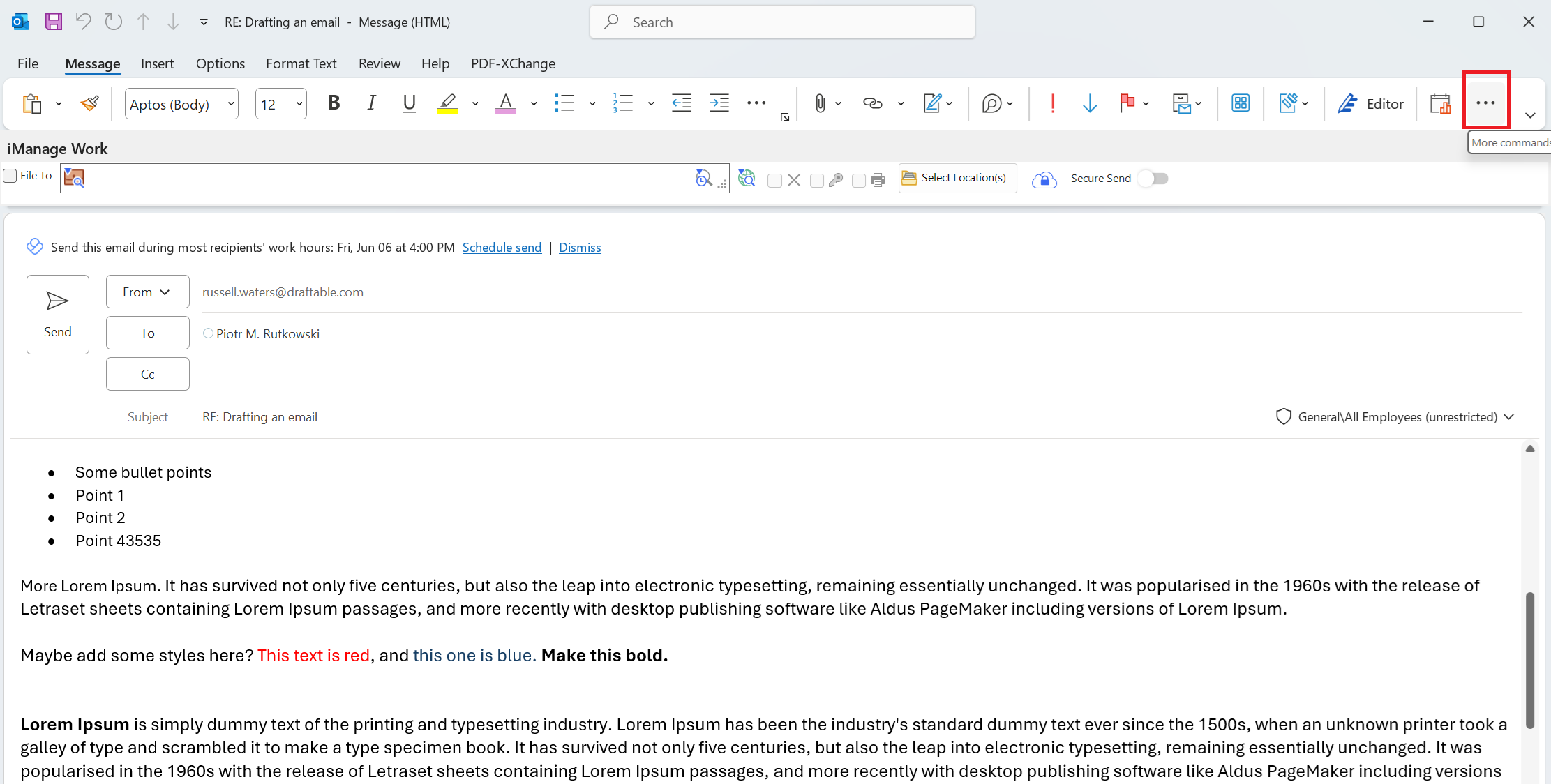
 Perform any edits needed (or don't for now) and then open up the Draftable Redlining feature by clicking the 3 dots in the top right of the toolbar:
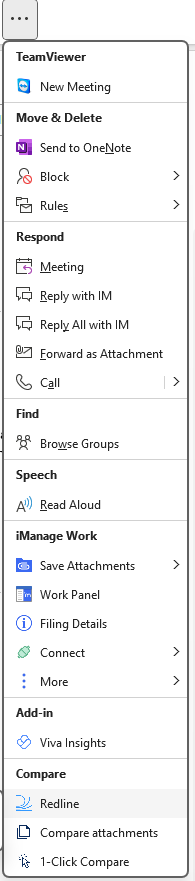
 Then select the **Redline** in Draftable option:
 **Note:**
There are also options for *Compare attachments* and *1-Click Compare* options are included as workflow options in this Add-in.
Once selected, a new menu will appear for you on the right-hand side of the email editor. You will have three options: **Redline my changes**, **Redline my selection**, or **Accept or reject changes**.
Let's first go over how "Redline my changes" works. If you want to skip to "Redline my selection", skip to step 7. If you want to skip to "Accept or Reject changes", skip to step 9.
**Note:**
There are also options for *Compare attachments* and *1-Click Compare* options are included as workflow options in this Add-in.
Once selected, a new menu will appear for you on the right-hand side of the email editor. You will have three options: **Redline my changes**, **Redline my selection**, or **Accept or reject changes**.
Let's first go over how "Redline my changes" works. If you want to skip to "Redline my selection", skip to step 7. If you want to skip to "Accept or Reject changes", skip to step 9.
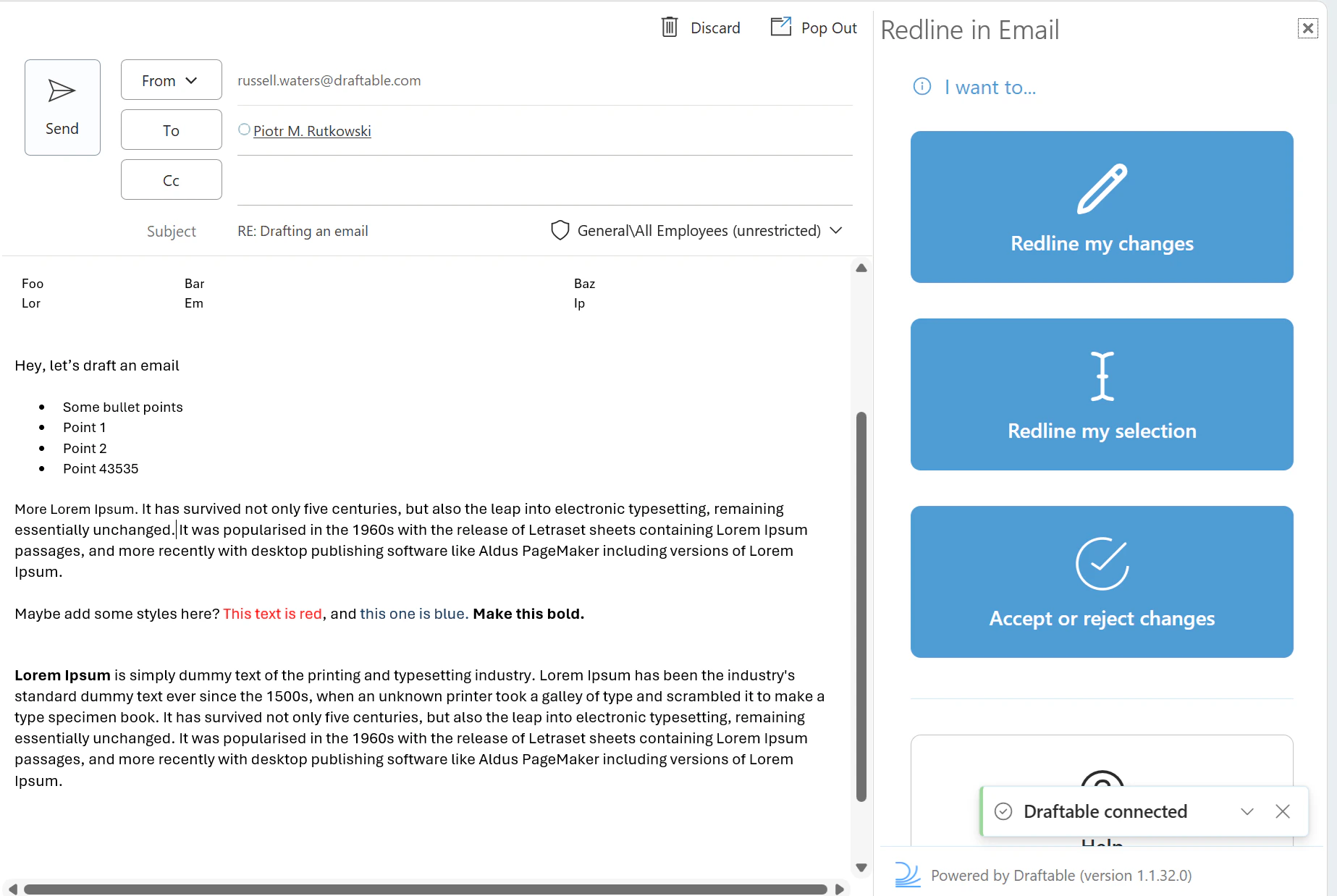 Select "Redline my changes" to begin seeing the Redline compare with your existing changes already made in the email draft.
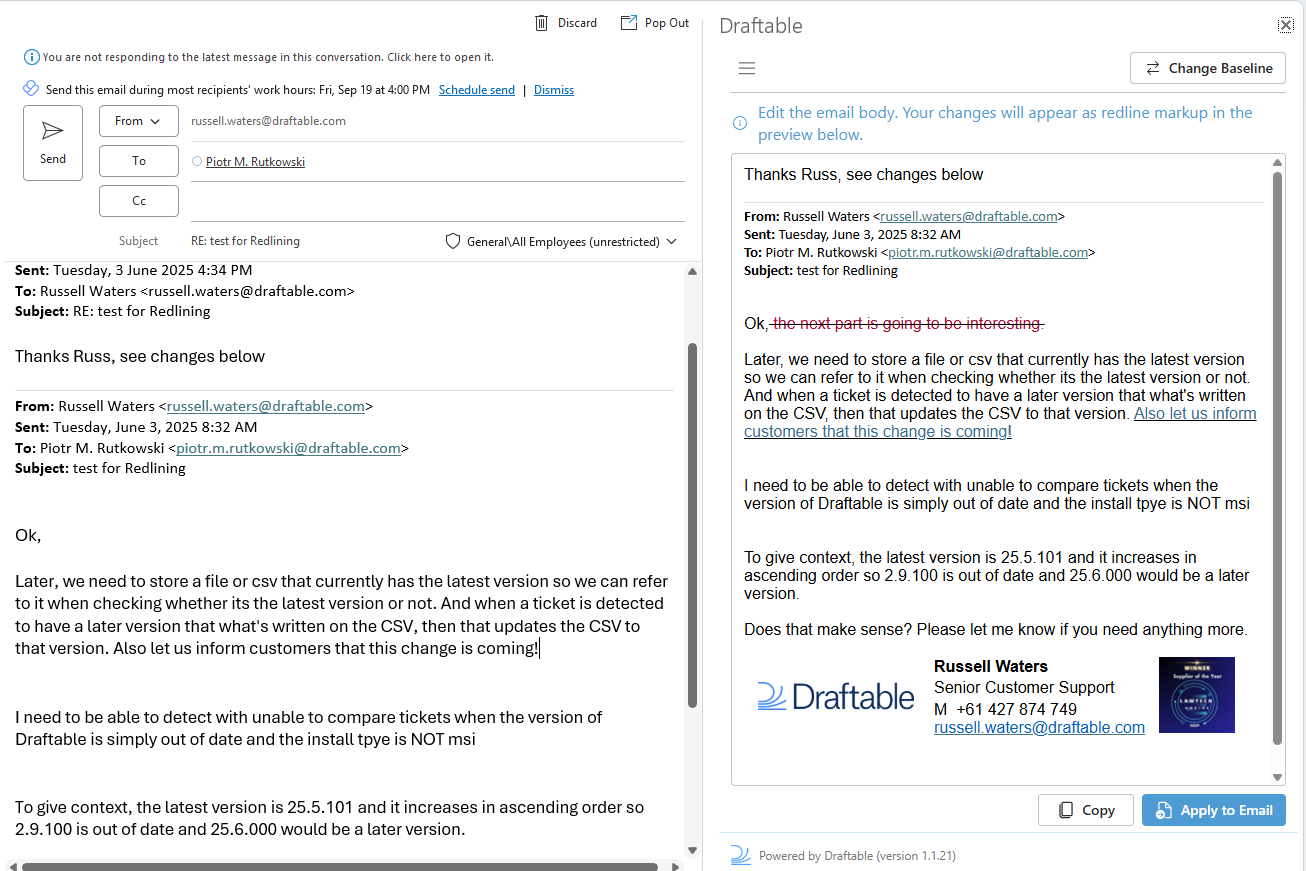 Here you also have the option to **Change Baseline** which allows you to select which baseline email is used for the Redlining of changes:
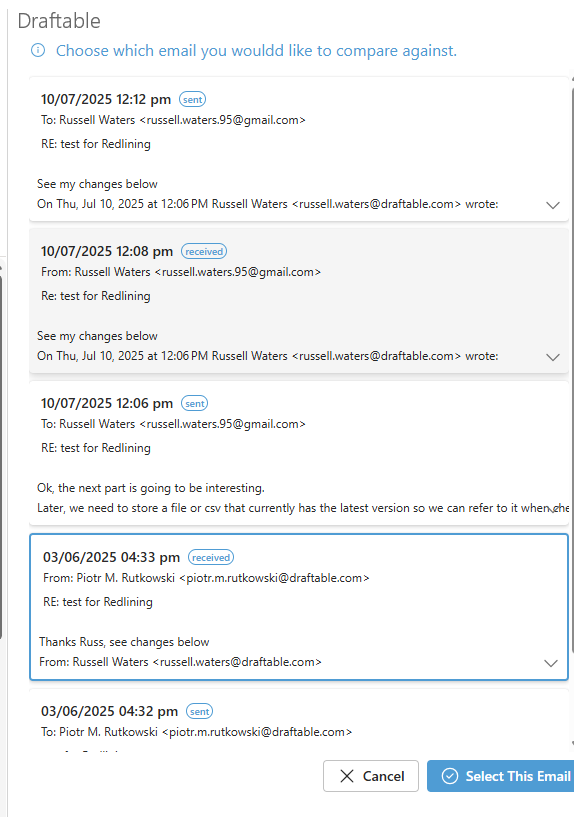 Simply select the email you wish to use as the Baseline and then continue with your workflow.
As you make changes in the email editor, these will automatically appear in the Email Redline preview window. Once you are satisfied with your changes, select "Apply to Email" on the bottom right side of the Email Redline window. Your changes will apply as below to your email draft as redline:
Simply select the email you wish to use as the Baseline and then continue with your workflow.
As you make changes in the email editor, these will automatically appear in the Email Redline preview window. Once you are satisfied with your changes, select "Apply to Email" on the bottom right side of the Email Redline window. Your changes will apply as below to your email draft as redline:
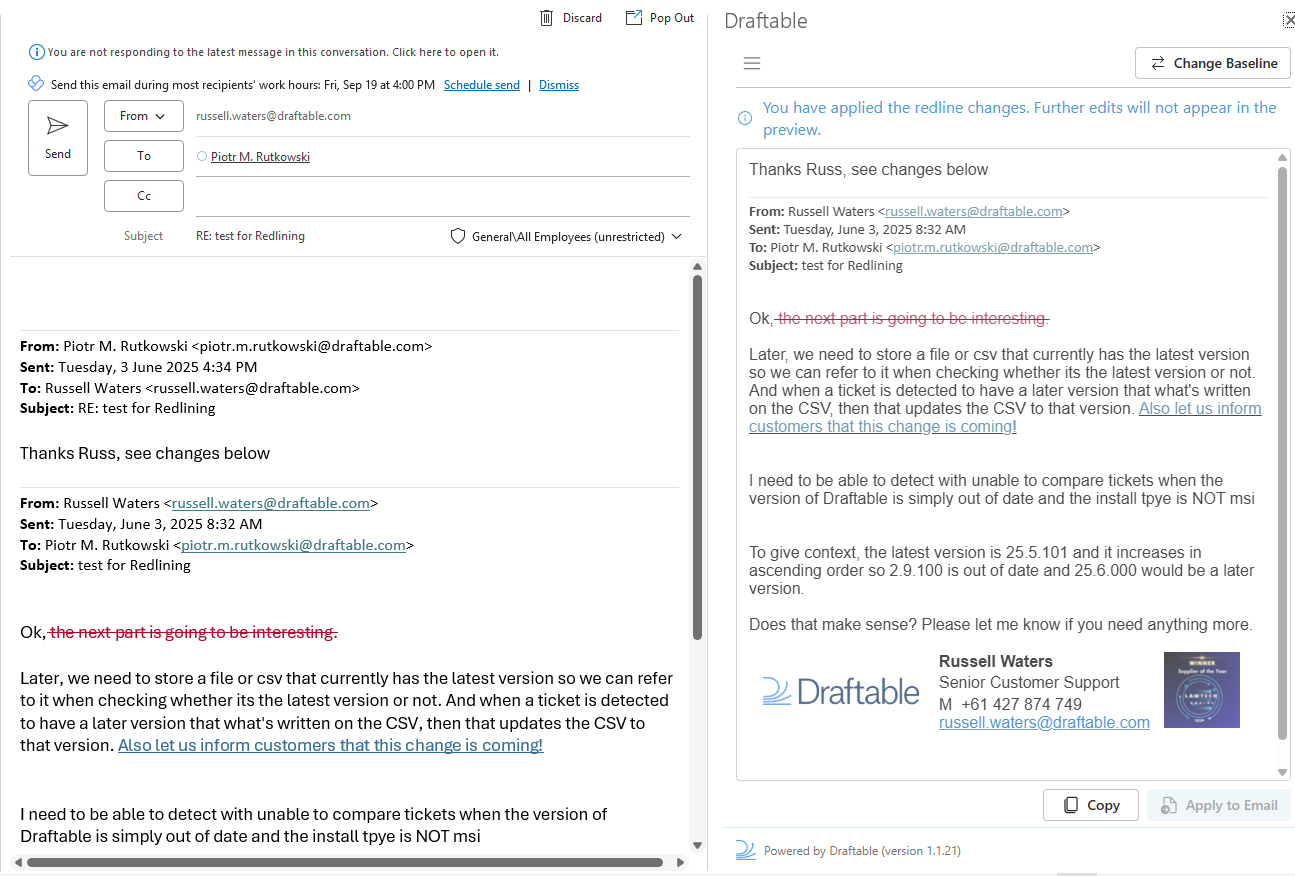 **Alternatively.** you can hit the "Copy" button to copy the contents of this change and create a new email instead.
You can then send this redlined email to your intended recipient, and they will be able to view all the changes you made to that email.
If you want to review the changes of a draft email that another person has already Redlined using the above process, this is where we would want to use the "Accept or Reject changes" option instead.
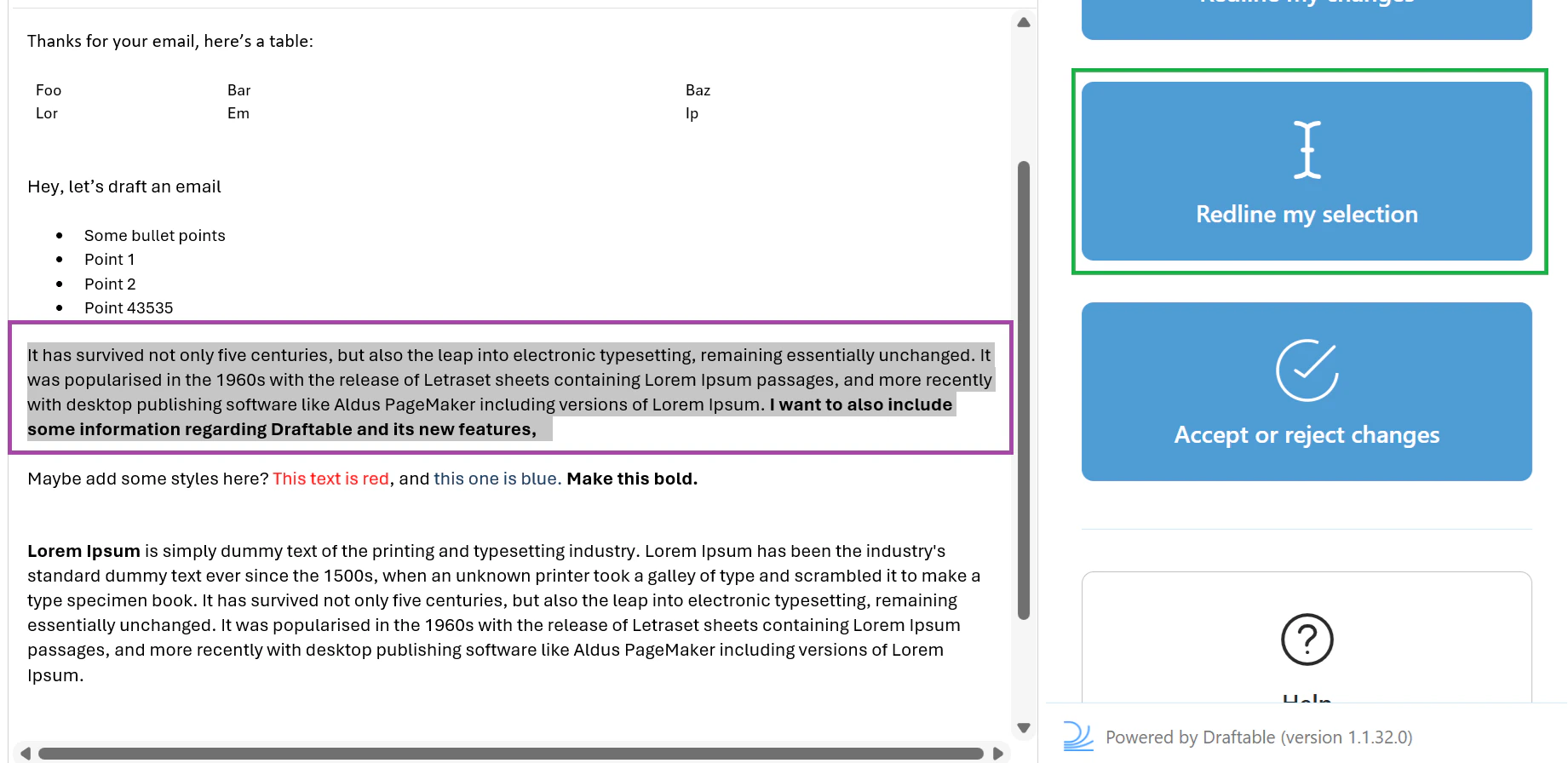
If you only want to redline a specific portion of the email rather than the entire email body, you can use **Redline my selection**. First, highlight the text in the email that you want to redline.
**Alternatively.** you can hit the "Copy" button to copy the contents of this change and create a new email instead.
You can then send this redlined email to your intended recipient, and they will be able to view all the changes you made to that email.
If you want to review the changes of a draft email that another person has already Redlined using the above process, this is where we would want to use the "Accept or Reject changes" option instead.
If you only want to redline a specific portion of the email rather than the entire email body, you can use **Redline my selection**. First, highlight the text in the email that you want to redline.
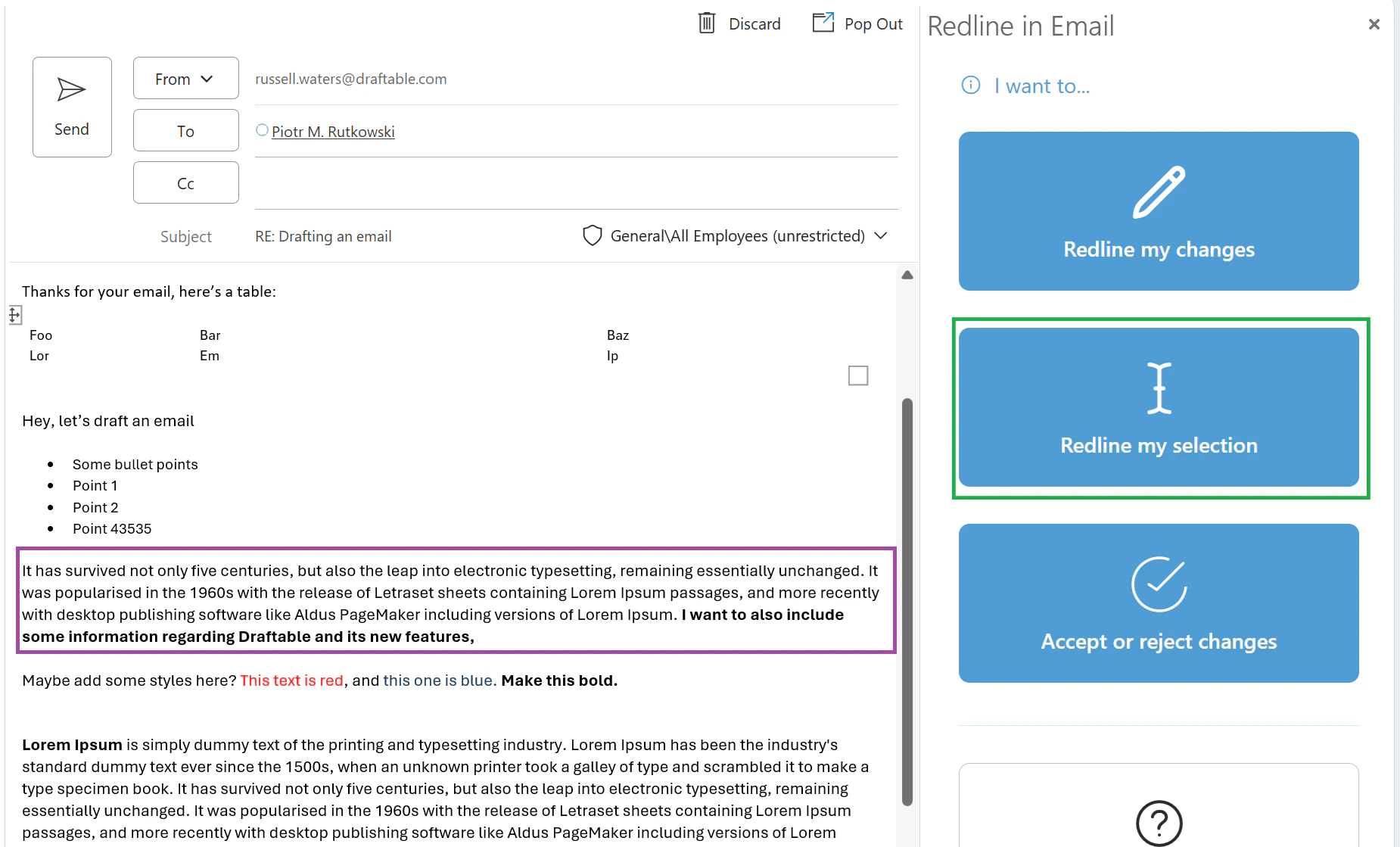 Then select **Redline my selection** from the Redline in Email panel.
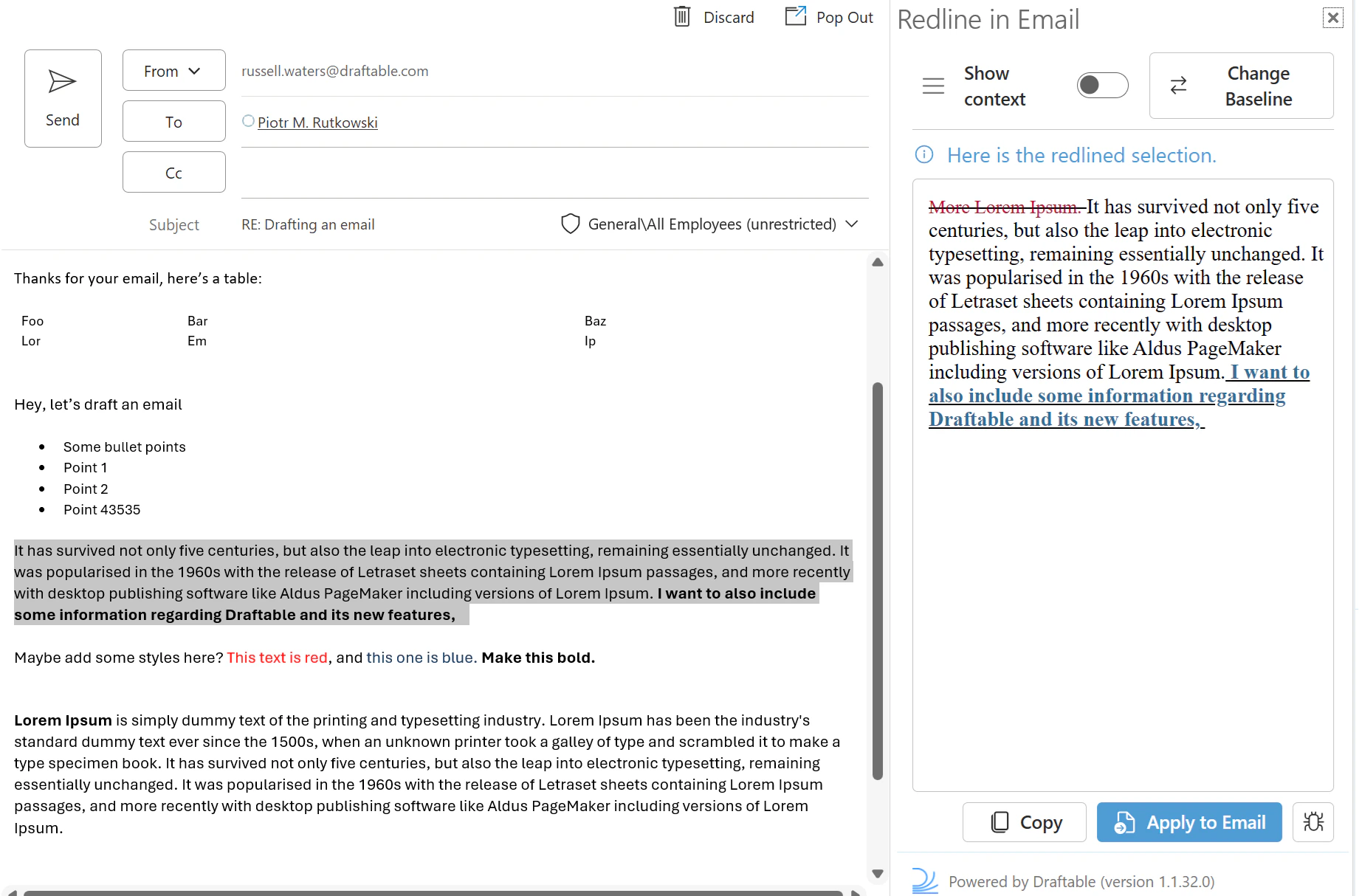
 The redlined selection will appear in the preview window, showing only the changes within your highlighted text. An info message confirms "Here is the redlined selection."
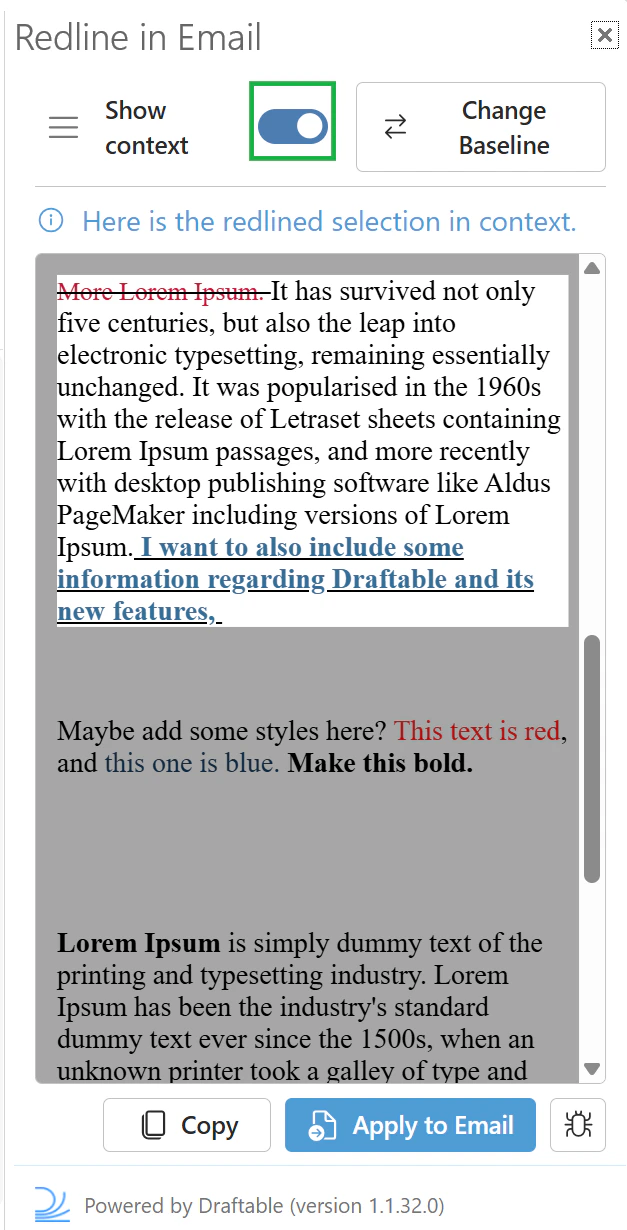
 You can toggle **Show context** to reveal changes that exist outside of your selection, giving you a broader view of the surrounding content:
 You also have the option to **Change Baseline** to select a different baseline email for comparing your selection:
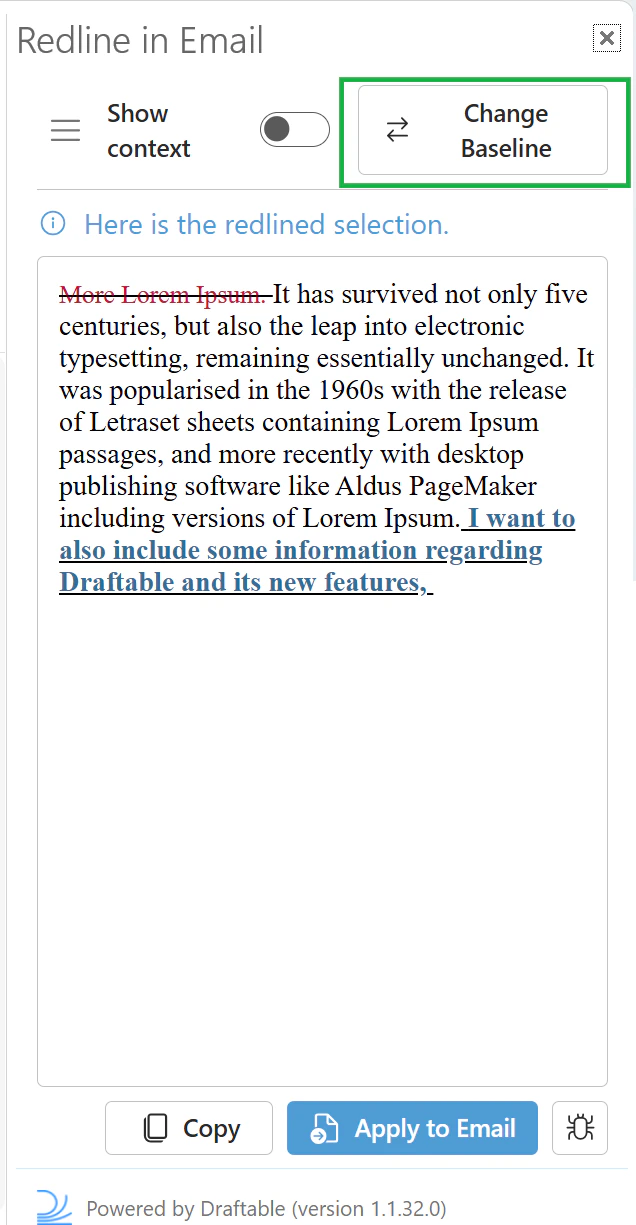 Simply select the email you wish to use as the baseline and then continue with your workflow.
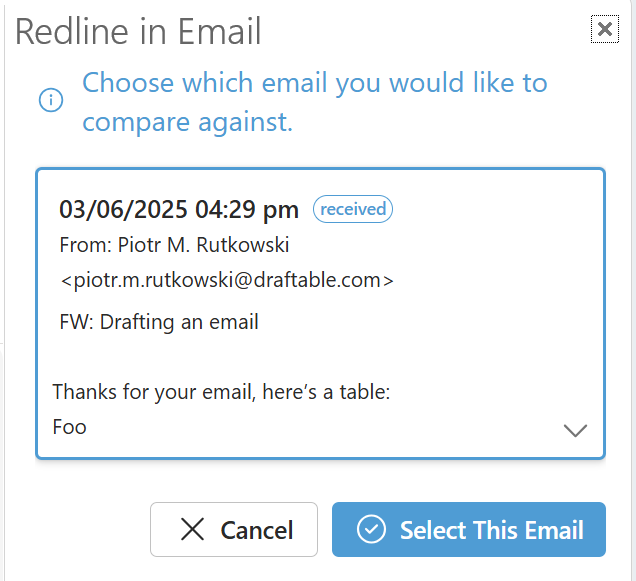 Once you are satisfied, select **Apply to Email** or **Copy** to use the redlined content, just as with the full "Redline my changes" workflow.
Open an email that has redlined changes. Ensure you open your new email, hit reply and open the Draftable Redline feature as mentioned in steps 1-4 earlier.
Once you are satisfied, select **Apply to Email** or **Copy** to use the redlined content, just as with the full "Redline my changes" workflow.
Open an email that has redlined changes. Ensure you open your new email, hit reply and open the Draftable Redline feature as mentioned in steps 1-4 earlier.
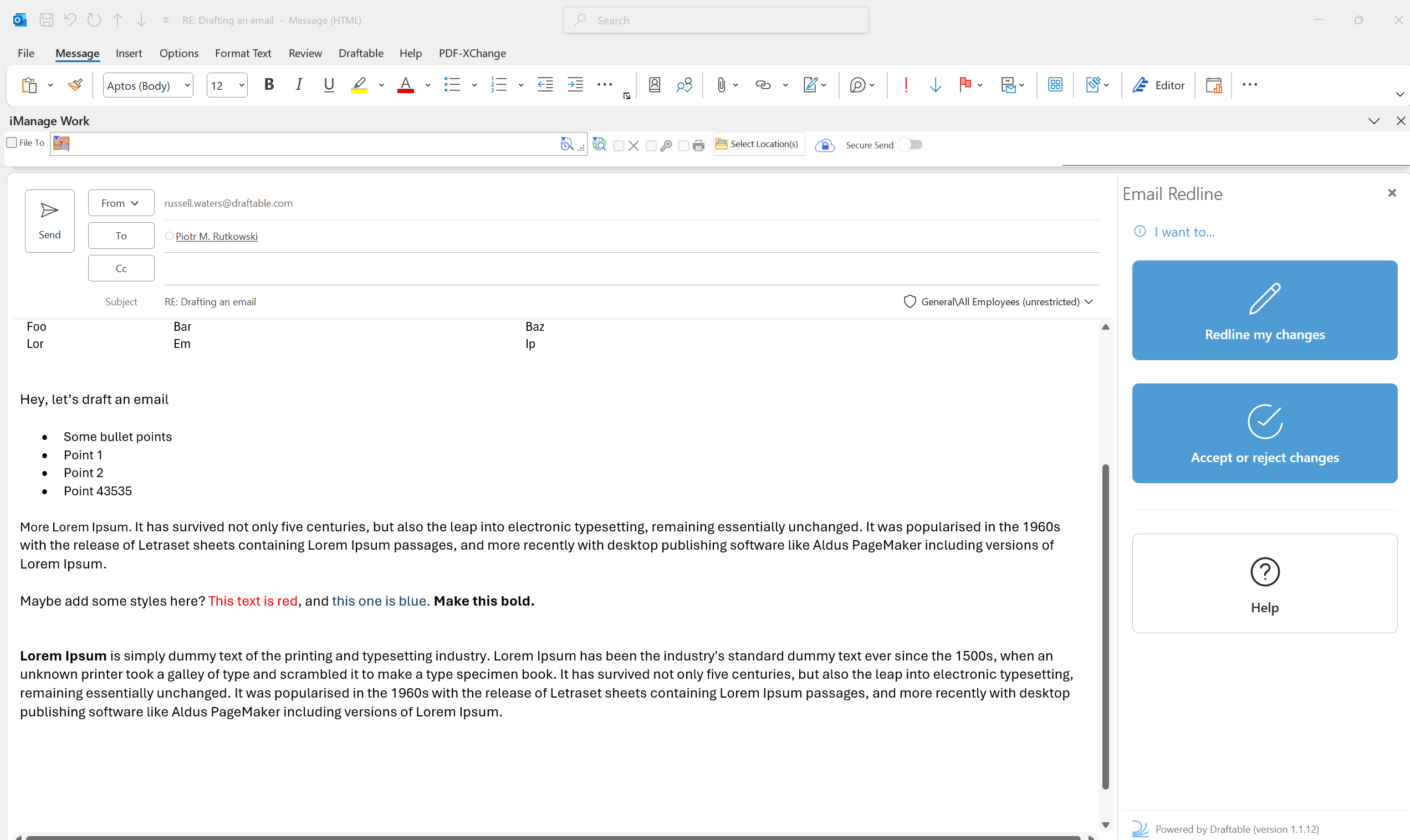 Select the "Accept or reject changes" option.
Once selected, the following window will appear. This window shows all the redlined changes that have been marked up by the sender of this email when they previously redlined the changes in their last email.
Select the "Accept or reject changes" option.
Once selected, the following window will appear. This window shows all the redlined changes that have been marked up by the sender of this email when they previously redlined the changes in their last email.
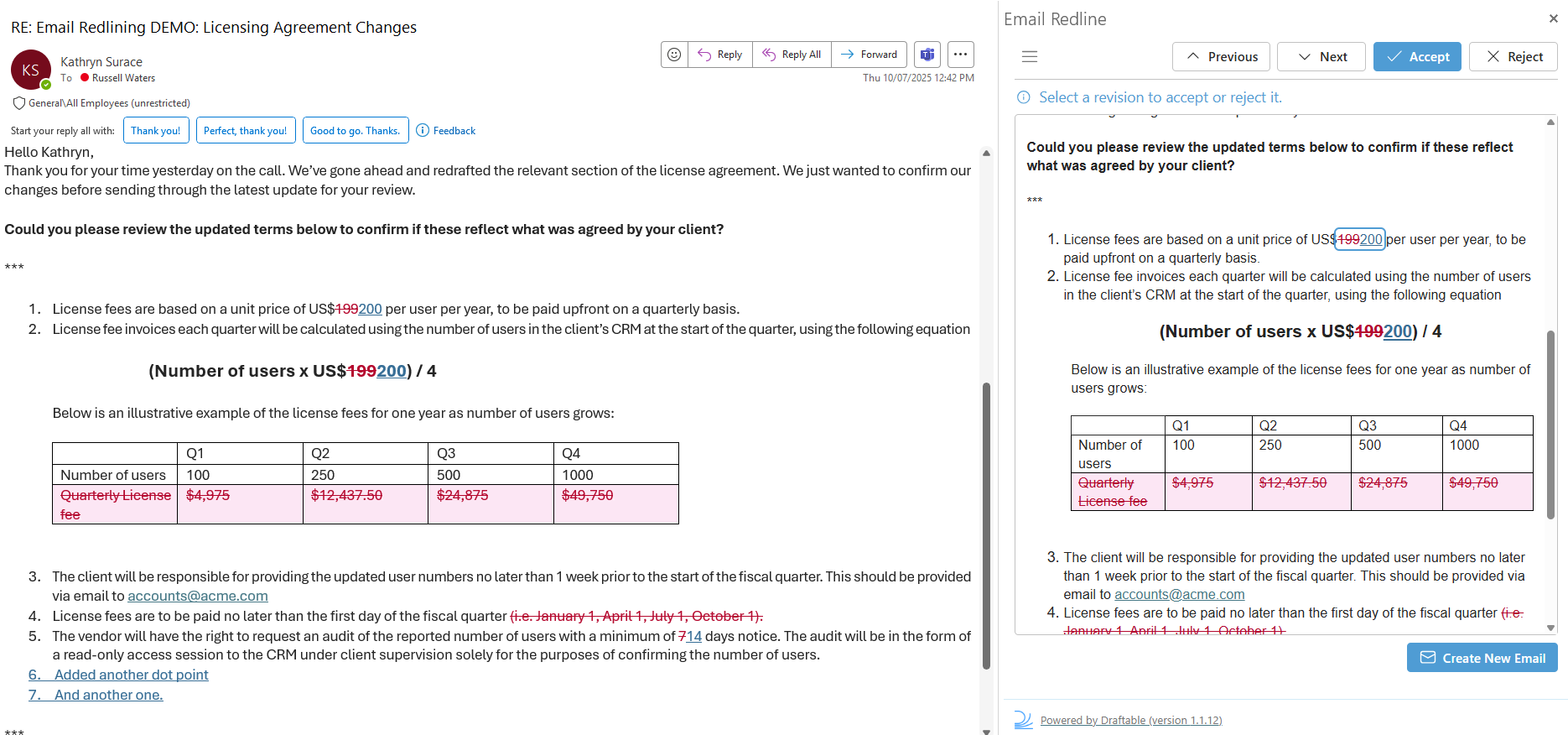 You can navigate through all the changes by selecting the **next** and **previous** buttons, and **Accept** or **Reject** changes as you review the redlined email.
**Note:**
If you **accidentally** accept or reject a change, you can hit CTRL+Z to undo it.
Continue accepting and rejecting changes until you are done, and then you are ready to reply, hit the **Create New Email** to create a new email with the accepted and rejected changes.
You can navigate through all the changes by selecting the **next** and **previous** buttons, and **Accept** or **Reject** changes as you review the redlined email.
**Note:**
If you **accidentally** accept or reject a change, you can hit CTRL+Z to undo it.
Continue accepting and rejecting changes until you are done, and then you are ready to reply, hit the **Create New Email** to create a new email with the accepted and rejected changes.
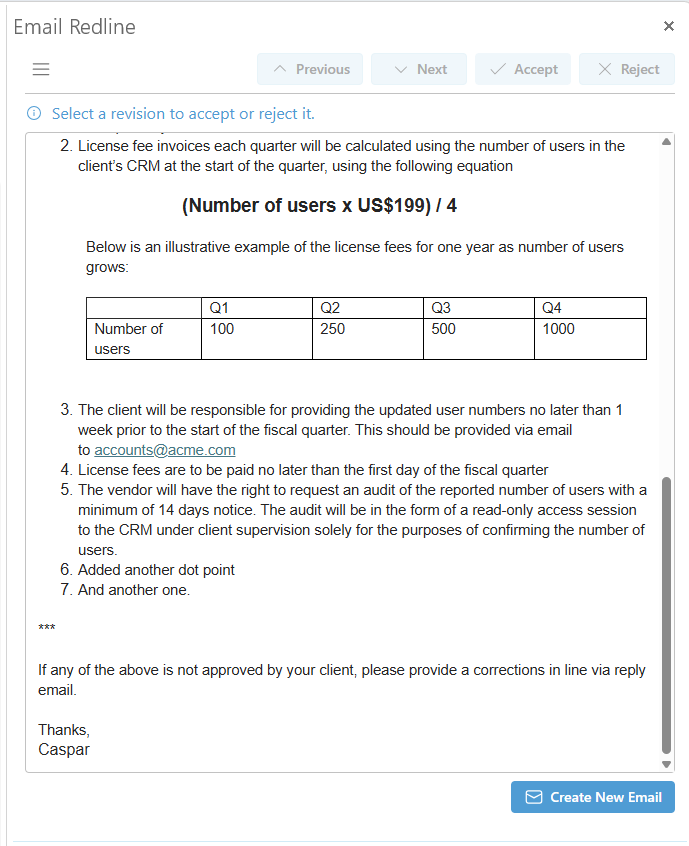 **Note:**
If you are using 'Compose' mode (editing/reply mode), there are cases where the Create New Email button does not appear as the changes are being made to your live reply.
This will open a new email with all the accepted and rejected changes made.
**Note:**
If you are using 'Compose' mode (editing/reply mode), there are cases where the Create New Email button does not appear as the changes are being made to your live reply.
This will open a new email with all the accepted and rejected changes made.
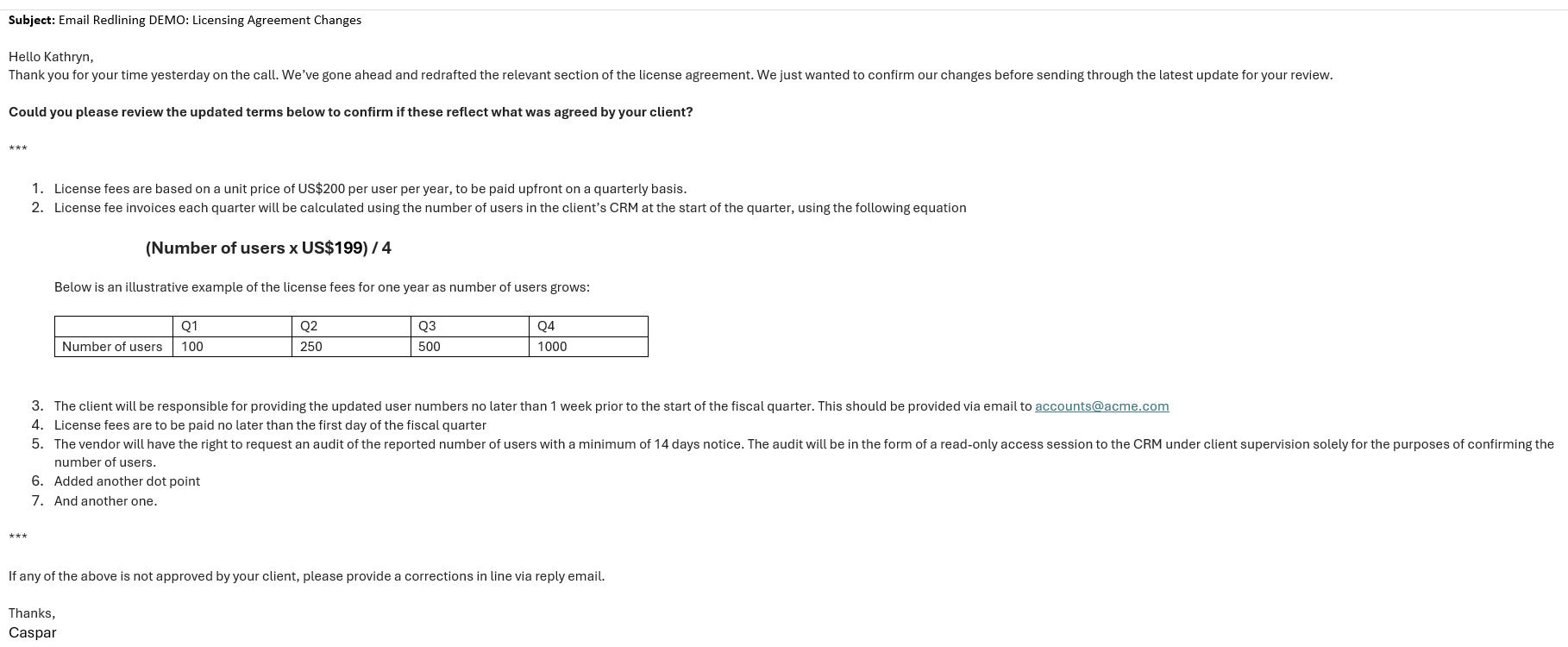 ### Compare againist email workflow - If you intend to only compare current email with another
To get started, you will first need to open an **existing email**
### Compare againist email workflow - If you intend to only compare current email with another
To get started, you will first need to open an **existing email**
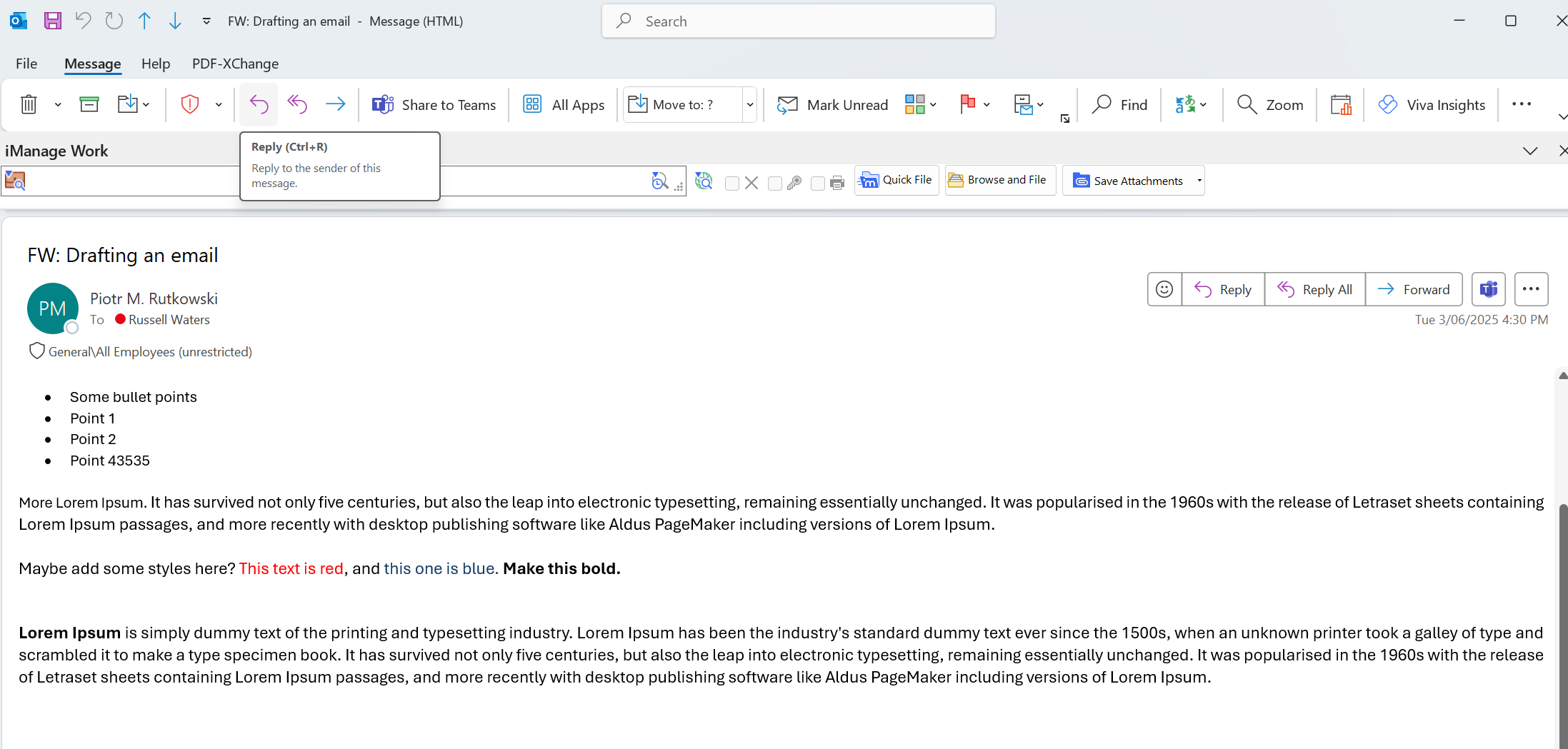 Then open up the Draftable Redlining feature by clicking the 3 dots in the top right of the toolbar:
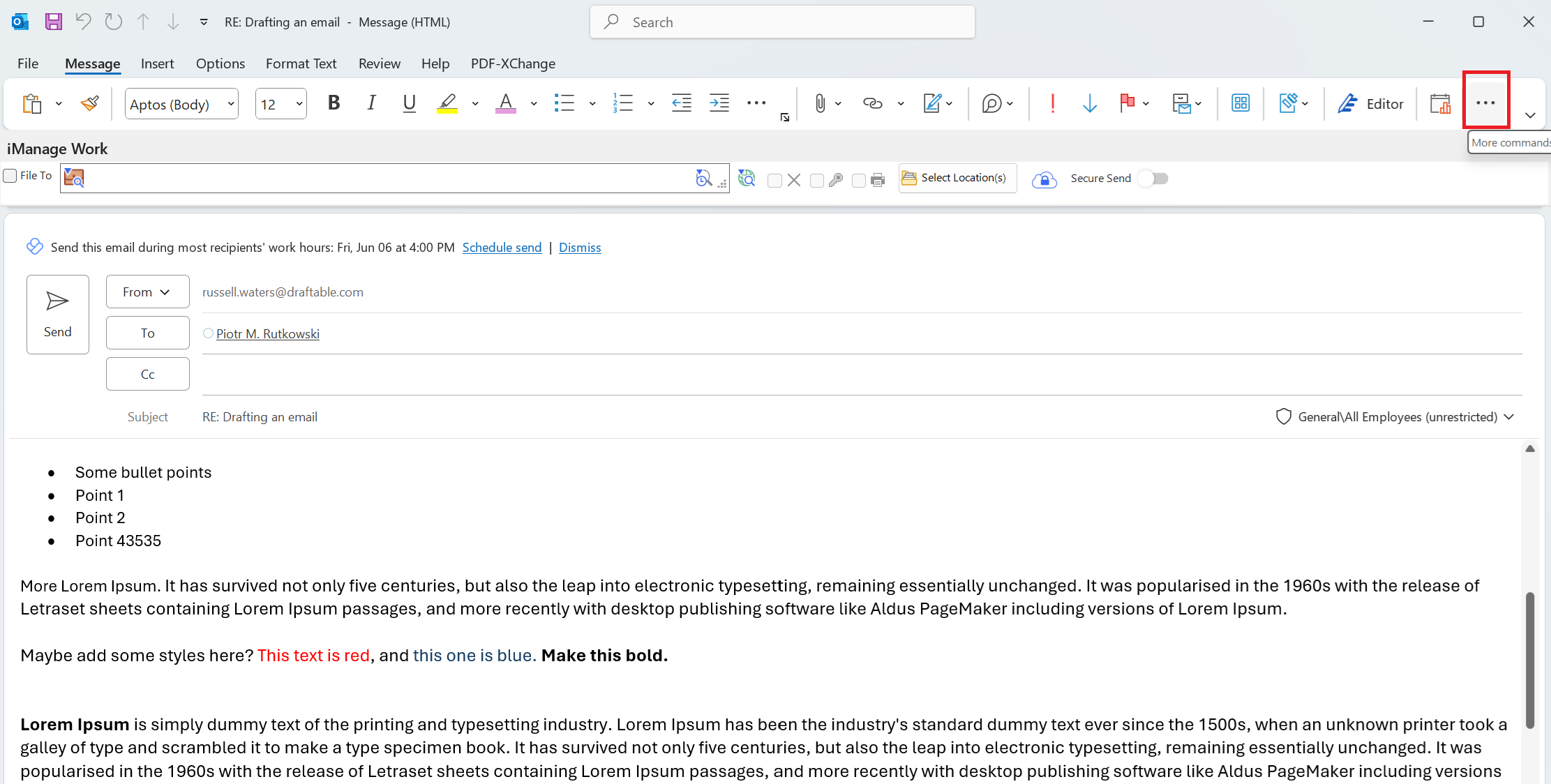 Then select the **Redline** in Draftable option:
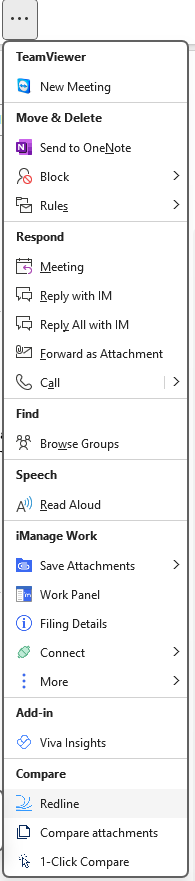 You will be presented with the following screen which offers you the ability to "Compare againist an earlier email". Select this option
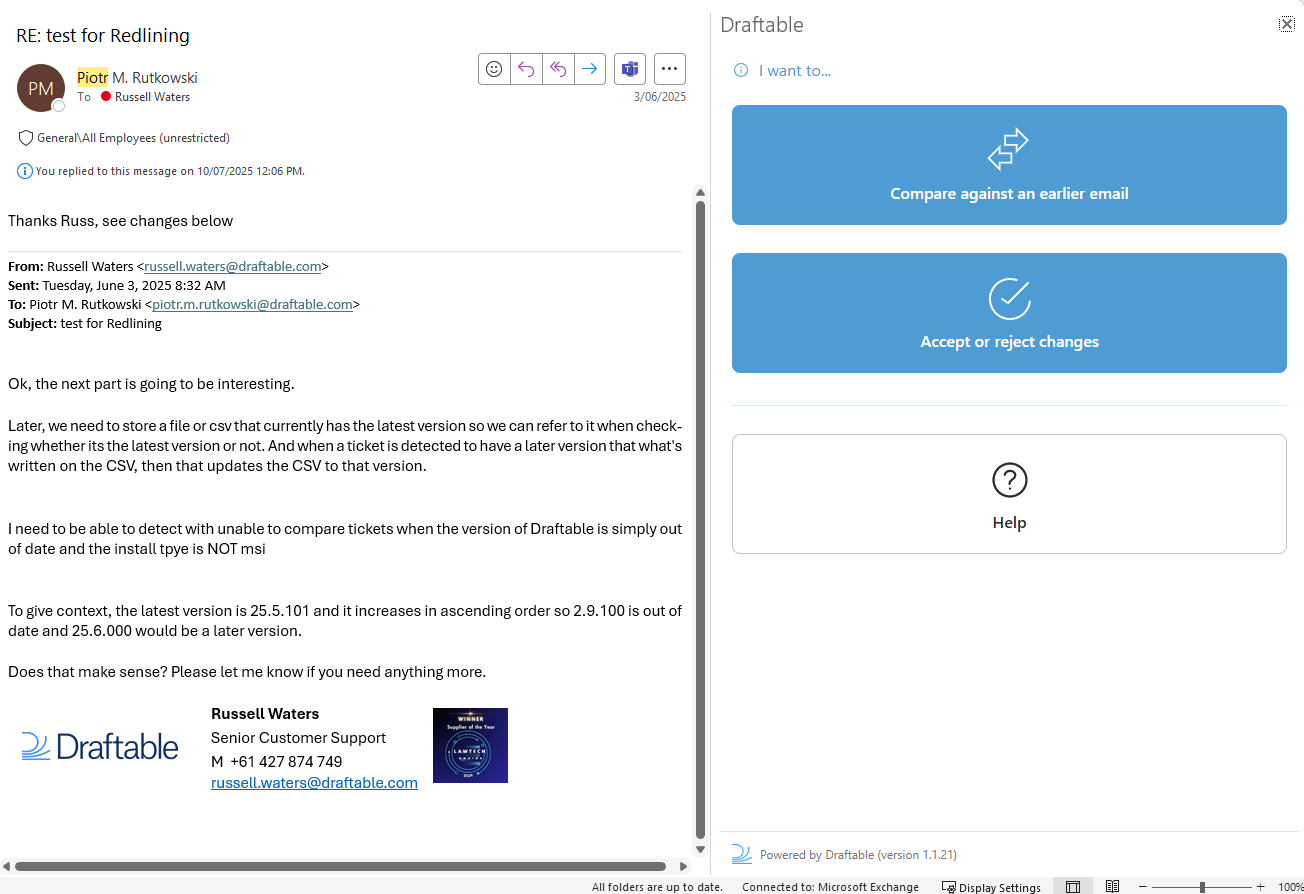 This will allow you to compare the current email againist earlier versions. This is useful when you just want to see changes but not necessarily need to Redline.
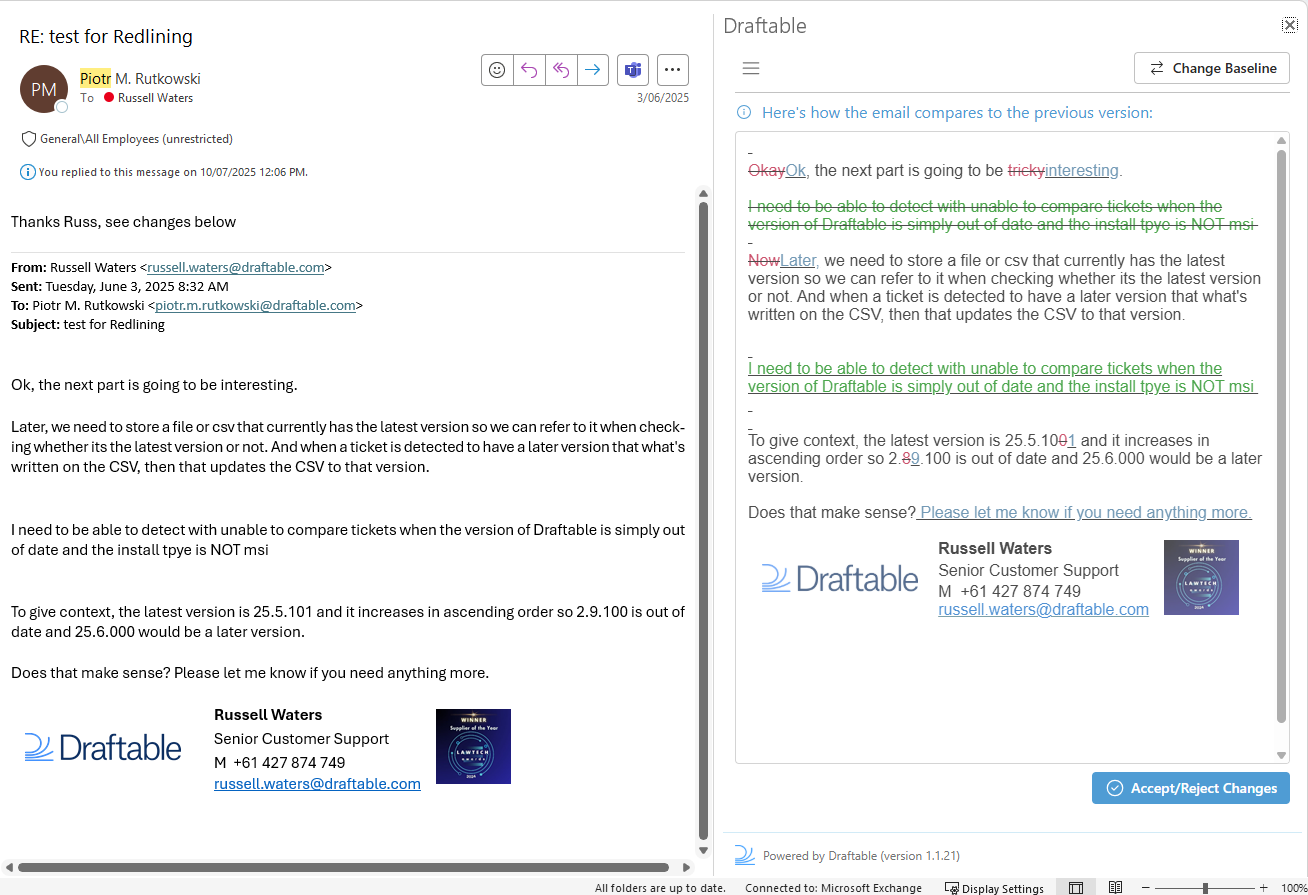 Here you also have the option to **Change Baseline** which allows you to select which baseline email is used for comparing againist the current email.
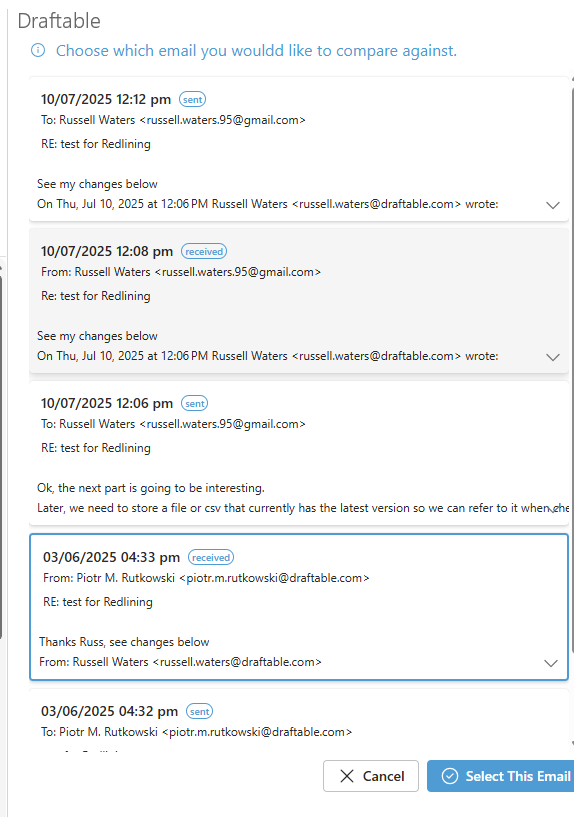 Once you have finished comparing, you can continue by selecting **Accept/Reject changes**, to proceed with the workflow.
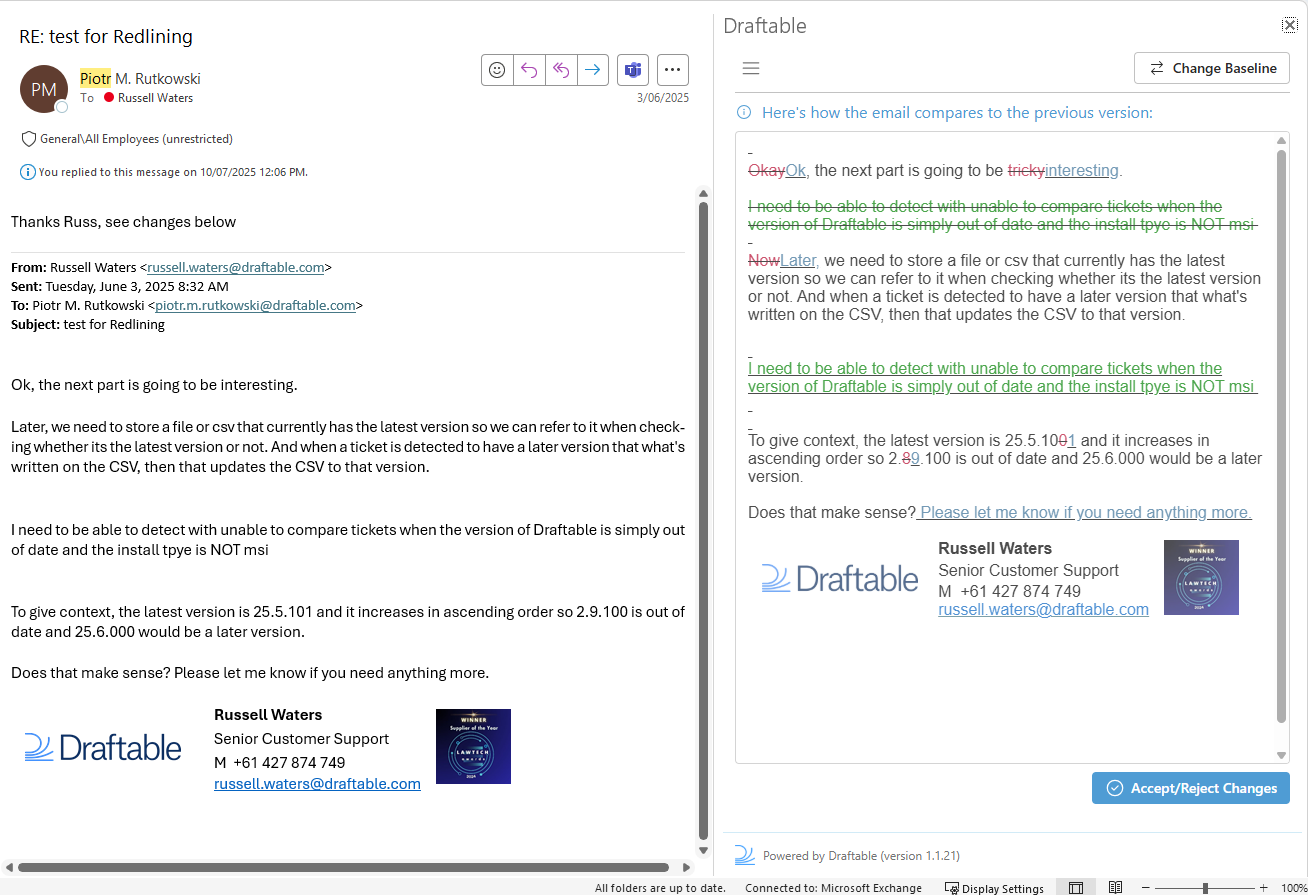 This window shows all the redlined changes that have been marked up by the sender of this email when they previously redlined the changes in their last email.
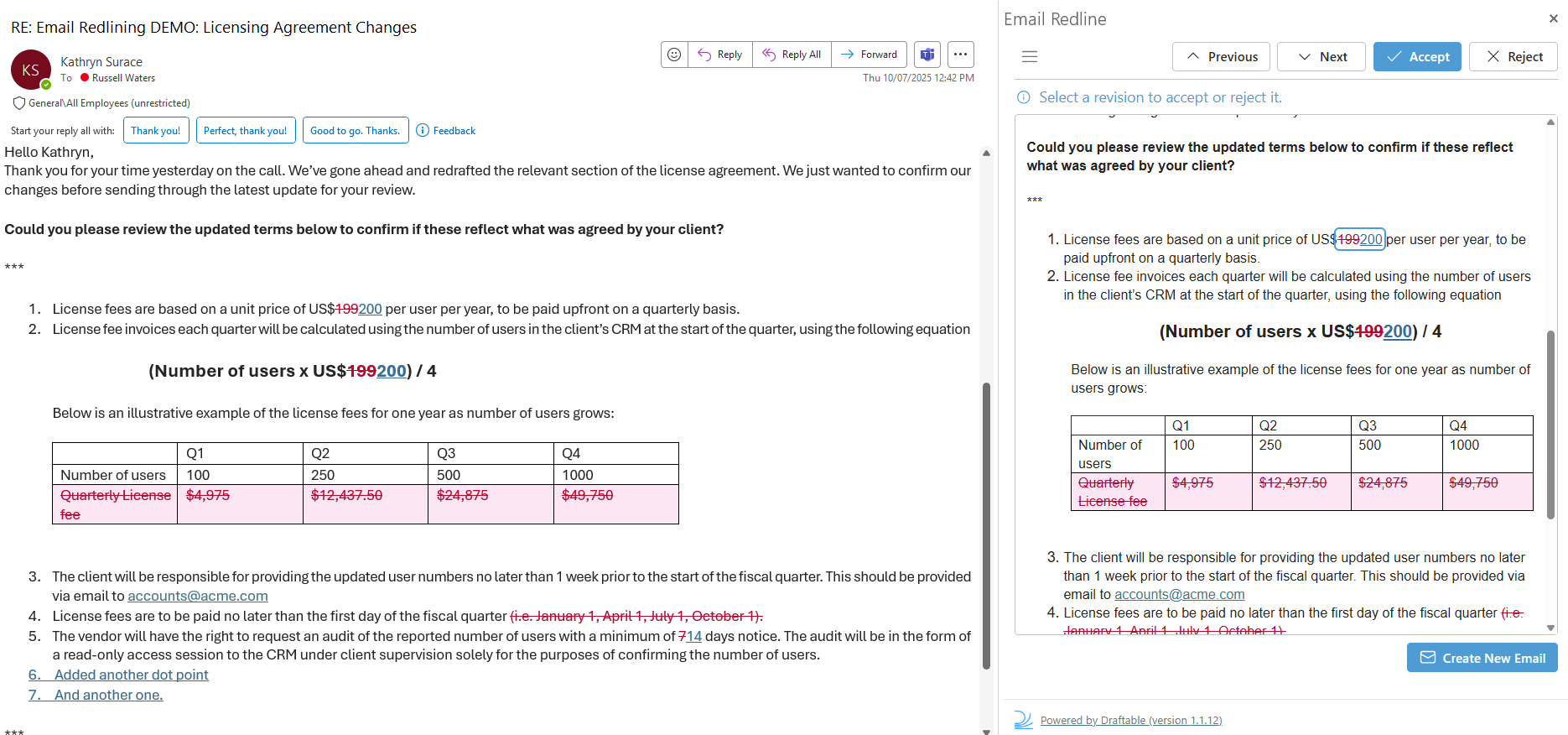 You can navigate through all the changes by selecting the **next** and **previous** buttons, and **Accept** or **Reject** changes as you review the redlined email.
**Note:**
If you **accidentally** accept or reject a change, you can hit CTRL+Z to undo it.
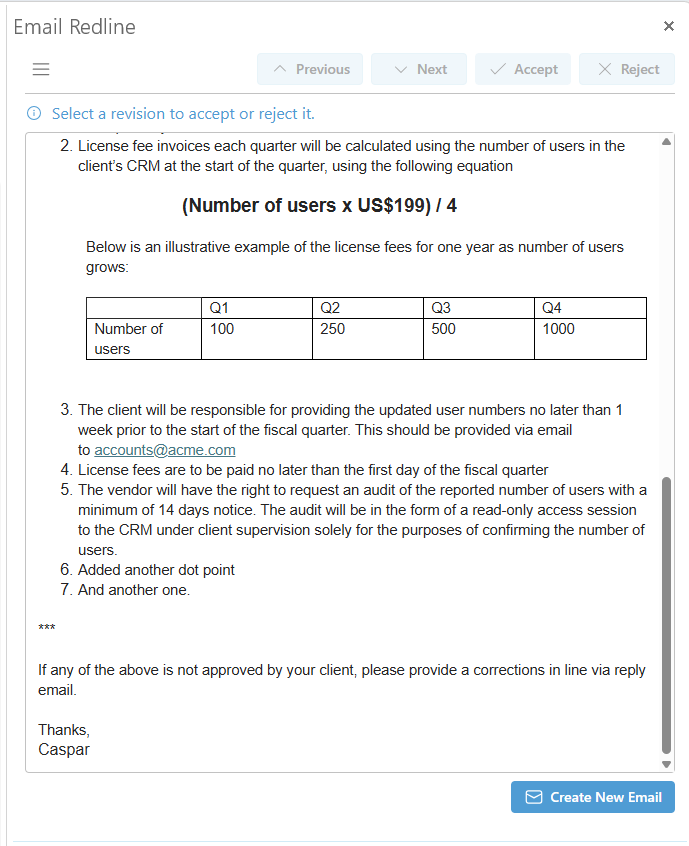
Continue accepting and rejecting changes until you are done, and then you are ready to reply, hit the **Create New Email** to create a new email with the accepted and rejected changes.
You can navigate through all the changes by selecting the **next** and **previous** buttons, and **Accept** or **Reject** changes as you review the redlined email.
**Note:**
If you **accidentally** accept or reject a change, you can hit CTRL+Z to undo it.
Continue accepting and rejecting changes until you are done, and then you are ready to reply, hit the **Create New Email** to create a new email with the accepted and rejected changes.
 **Note:**
If you are using 'Compose' mode (editing/reply mode), there are cases where the Create New Email button does not appear as the changes are being made to your live reply.
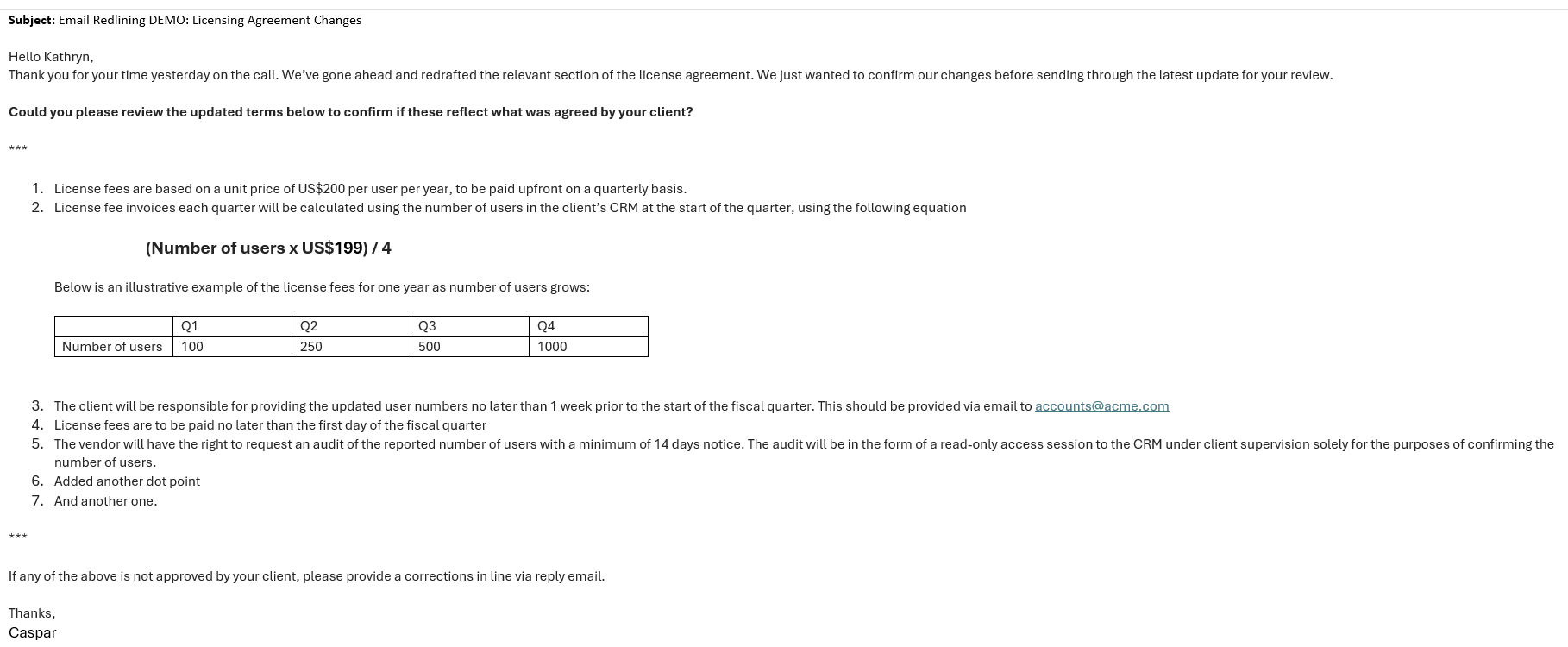
This will open a new email with all the accepted and rejected changes made.
**Note:**
If you are using 'Compose' mode (editing/reply mode), there are cases where the Create New Email button does not appear as the changes are being made to your live reply.
This will open a new email with all the accepted and rejected changes made.
 That's how we can use Draftable Redline in email. If you have any questions or issues, please get in touch with the support team at [support@draftable.com](mailto:support@draftable.com)