> ## Documentation Index
> Fetch the complete documentation index at: https://help.draftable.com/llms.txt
> Use this file to discover all available pages before exploring further.
# Configuring Redline in Email (Outlook) with Draftable
> Draftable's Redline in Email is a Microsoft Outlook Add-in that enables users to run Draftable Redline comparisons directly from within their Outlook inbox. By deploying this add-in across your Microsoft 365 organization, you empower your users to Redline their drafted emails efficiently without needing to leave their email client.
This guide provides step-by-step instructions for Microsoft 365 administrators to deploy the Draftable Outlook Add-in organization-wide.
Remote desktop, Citrix, and RDP environments are supported from Redline in Email version 1.1.31.1 onwards.
## Prerequisites
* You must have admin privileges for Microsoft 365 (**you will need a Microsoft 365 Business account)**
* Ensure your environment supports Office Add-ins via the Microsoft 365 admin center.
* You must have **at least Draftable Desktop 26.6.0** for this Add-in to correctly function.
## Step-by-Step Setup
### 1. Go to the Integrated Apps Portal
Visit the [Integrated Apps section of the Microsoft 365 Admin Center](https://admin.microsoft.com/#/Settings/IntegratedApps).
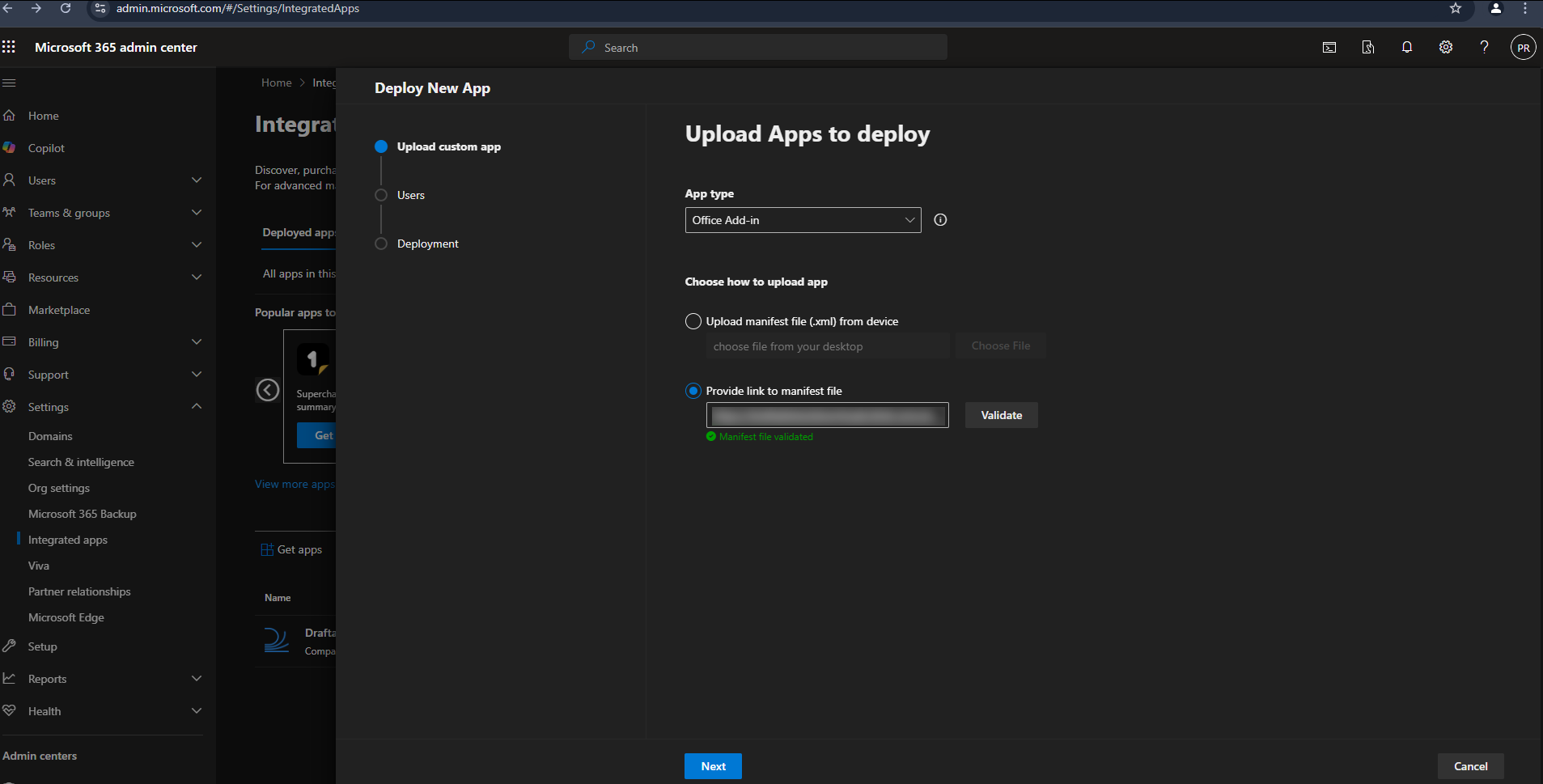
Click **Upload custom apps**.
### 2. Upload the Draftable Outlook Add-in
Under **App type**, select **Office Add-in** from the drop down menu.
When prompted for the manifest, provide one of the following **manifest URLs** as a link (rather than uploading a downloaded, fixed copy). Choose based on how you want updates handled:
**Latest manifest (v2) — recommended:**
[https://dl.draftable.com/addins/outlook/latest/v2/manifest.xml](https://dl.draftable.com/addins/outlook/latest/v2/manifest.xml)
Use this to receive Redline in Email updates automatically within the version 2 major release. The URL always points to the most recent v2 release, so you no longer need to retrieve and re-upload a new manifest for each update.
**Pinned manifest — for change-controlled environments:**
[https://dl.draftable.com/addins/outlook/2.0.0.1/manifest.xml](https://dl.draftable.com/addins/outlook/2.0.0.1/manifest.xml)
Use this to stay on this exact release. Updates are applied manually by deploying the next pinned version when you are ready.
Click **Validate**.
 ### 3. Configure Delivery to Users
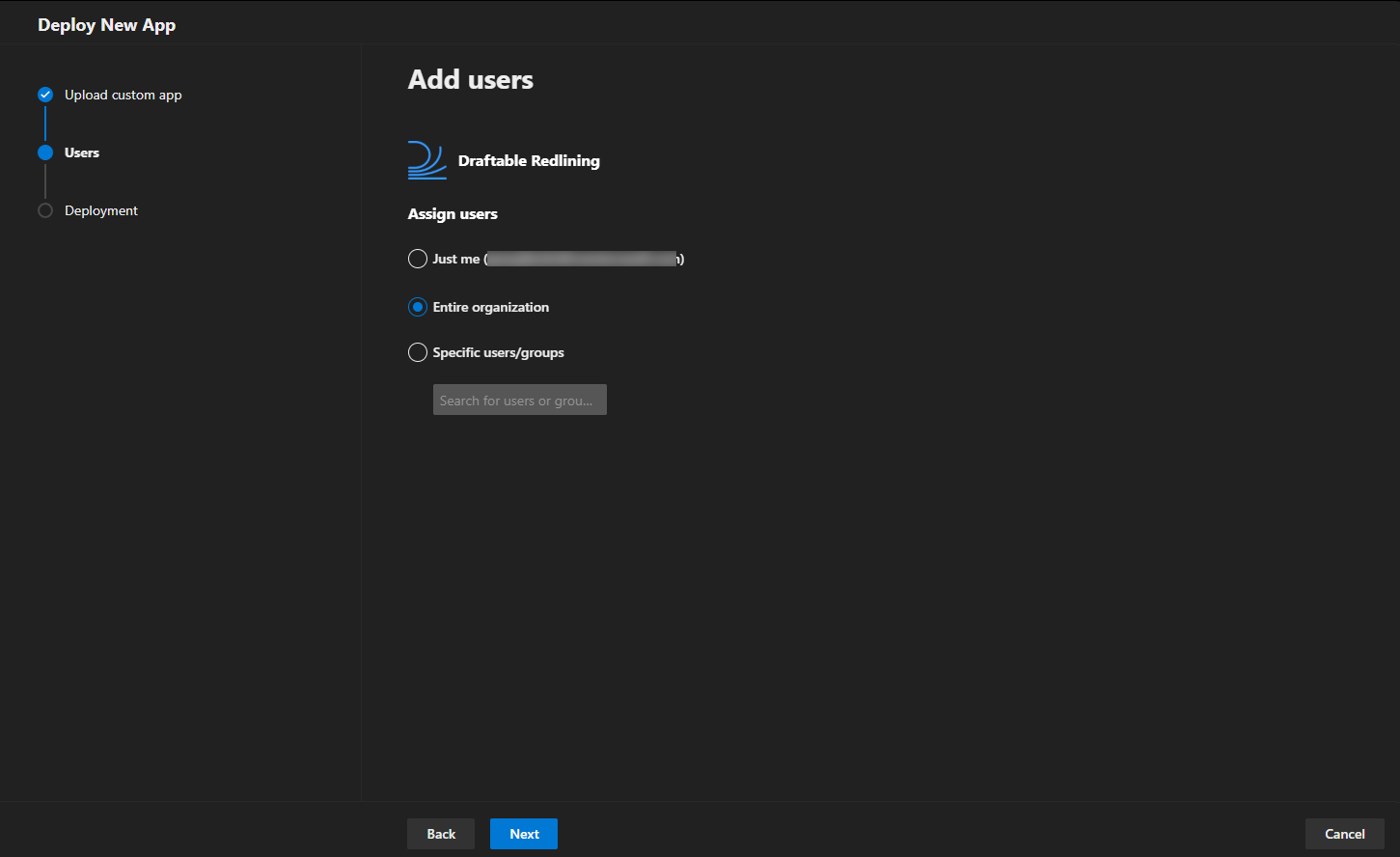
You will be asked how the add-in should be deployed across your organization:
* Assign to **Entire organization**, **Specific users**, or **Groups** depending on your use case.
* Choose whether the add-in should be **automatically installed** or **available for users to install manually**.
### 3. Configure Delivery to Users
You will be asked how the add-in should be deployed across your organization:
* Assign to **Entire organization**, **Specific users**, or **Groups** depending on your use case.
* Choose whether the add-in should be **automatically installed** or **available for users to install manually**.
 ### 4. Accept Permissions
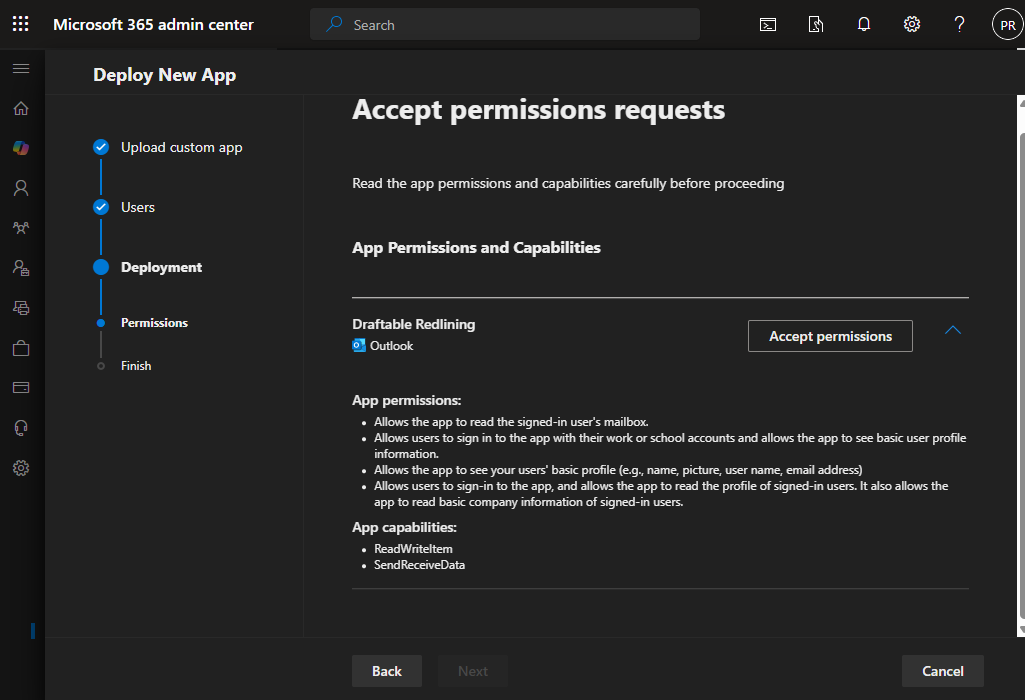
You will be prompted to accept and approve the required permissions on behalf of your users.
### 4. Accept Permissions
You will be prompted to accept and approve the required permissions on behalf of your users.
 #### Required Permissions Overview
**App Permissions:**
* Read the signed-in user's mailbox.
* Sign in and read users’ basic profile information.
* Access user profile details including name, picture, username, and email address.
* Read basic company information for signed-in users.
**App Capabilities:**
* `ReadWriteItem`: Allows the app to read and write the contents of an email item.
* `SendReceiveData`: Enables the app to communicate with the Draftable application for comparison processing.
### 5. Finish Setup
Once permissions are approved and the app is assigned to your selected users, the Draftable Redline Add-in will be available within Outlook. It will appear in the ribbon when composing emails.
**Please note:** The Application installation and update can **take up to 72 hours (and in some cases longer)**.. For more information about it, please visit Microsoft Documentation - [Deploy add-ins in the admin center - Microsoft 365 admin | Microsoft Learn](https://learn.microsoft.com/en-us/microsoft-365/admin/manage/manage-deployment-of-add-ins?view=o365-worldwide "https://learn.microsoft.com/en-us/microsoft-365/admin/manage/manage-deployment-of-add-ins?view=o365-worldwide")
We recommend that if the Add-in hasn't been deployed in this time, you should get users to restart Outlook and their Machine to **prompt** the Add-in to be added.
## Need Help?
If you experience issues with deployment or setup, please contact [support@draftable.com](mailto:support@draftable.com).
#### Required Permissions Overview
**App Permissions:**
* Read the signed-in user's mailbox.
* Sign in and read users’ basic profile information.
* Access user profile details including name, picture, username, and email address.
* Read basic company information for signed-in users.
**App Capabilities:**
* `ReadWriteItem`: Allows the app to read and write the contents of an email item.
* `SendReceiveData`: Enables the app to communicate with the Draftable application for comparison processing.
### 5. Finish Setup
Once permissions are approved and the app is assigned to your selected users, the Draftable Redline Add-in will be available within Outlook. It will appear in the ribbon when composing emails.
**Please note:** The Application installation and update can **take up to 72 hours (and in some cases longer)**.. For more information about it, please visit Microsoft Documentation - [Deploy add-ins in the admin center - Microsoft 365 admin | Microsoft Learn](https://learn.microsoft.com/en-us/microsoft-365/admin/manage/manage-deployment-of-add-ins?view=o365-worldwide "https://learn.microsoft.com/en-us/microsoft-365/admin/manage/manage-deployment-of-add-ins?view=o365-worldwide")
We recommend that if the Add-in hasn't been deployed in this time, you should get users to restart Outlook and their Machine to **prompt** the Add-in to be added.
## Need Help?
If you experience issues with deployment or setup, please contact [support@draftable.com](mailto:support@draftable.com).