> ## Documentation Index
> Fetch the complete documentation index at: https://help.draftable.com/llms.txt
> Use this file to discover all available pages before exploring further.
# Make “Keep Source Formatting” the default paste option in Outlook (for your Redline in Outlook workflow)
> As part of the new Redline in Outlook feature, when you copy Draftable redlined content into a new email, pasting as plain text removes the coloured insertions, deletions, and comments, making it impossible for recipients to see your changes.
Follow the steps below to set **Keep Source Formatting** (also called **Paste with Source Formatting**) as the default paste behaviour in Outlook, so your redline markup is always preserved.
## 1. Outlook for Windows (classic)
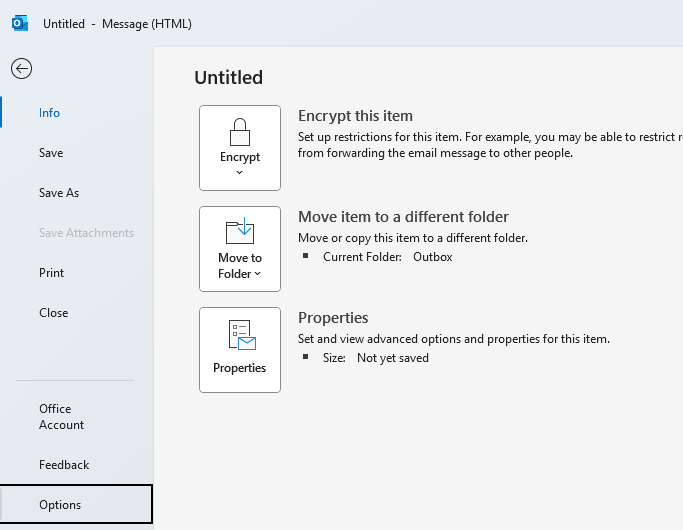
**Open a blank message** and click **File,** and then **Options**.
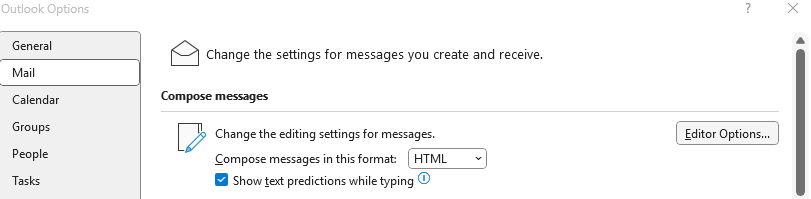
 Select **Mail,** and then under the section **Compose messages,** select **Editor Options**.
 Once the Editor options page opens, navigate to the **Advanced** tab.
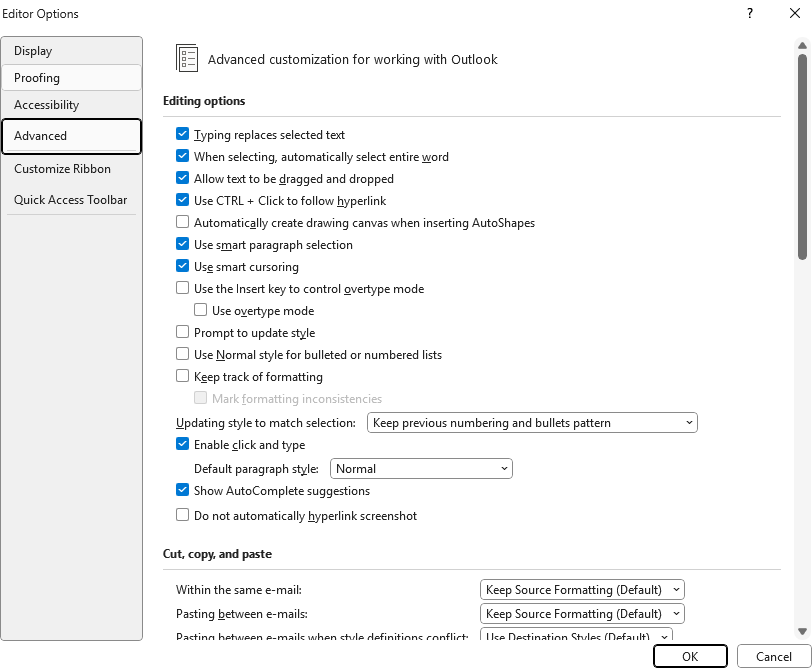 Scroll to **Cut, copy, and paste**.
For each scenario, choose **Keep Source Formatting** from the drop-down list:
* **Within the same email**
* **Pasting between emails**
* **Pasting between emails when style definitions conflict**
* **Pasting from other programs**
Scroll to **Cut, copy, and paste**.
For each scenario, choose **Keep Source Formatting** from the drop-down list:
* **Within the same email**
* **Pasting between emails**
* **Pasting between emails when style definitions conflict**
* **Pasting from other programs**
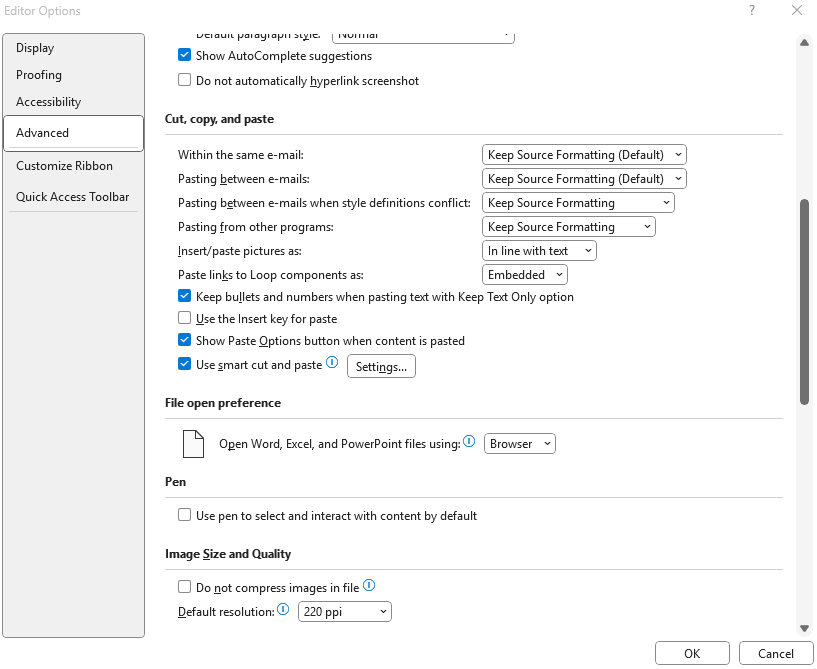 Make sure **Show Paste Options button when content is pasted** remains ticked (this lets you override the default if needed).
Click **OK** on all windows to save.
Outlook will now retain all Draftable markup whenever you paste.
## 2. Outlook for Windows (New Outlook)
Navigate to the top of New Outlook to the settings icon, which is depicted as a gear below, and click it.
Make sure **Show Paste Options button when content is pasted** remains ticked (this lets you override the default if needed).
Click **OK** on all windows to save.
Outlook will now retain all Draftable markup whenever you paste.
## 2. Outlook for Windows (New Outlook)
Navigate to the top of New Outlook to the settings icon, which is depicted as a gear below, and click it.
 This will open your settings menu as depicted below
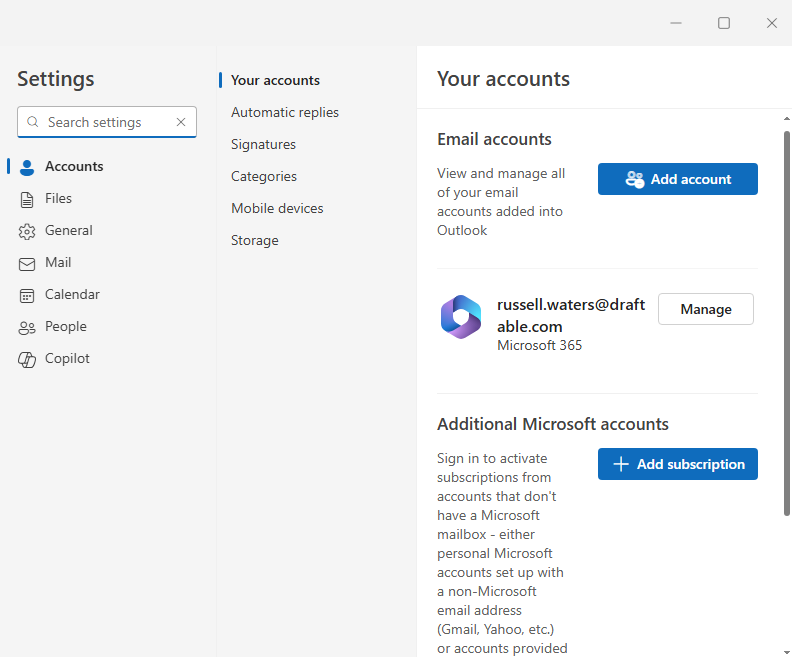 Select the **Mail** option on the left-hand side, and then select the **Compose and reply** option. The below window should match what your seeing:
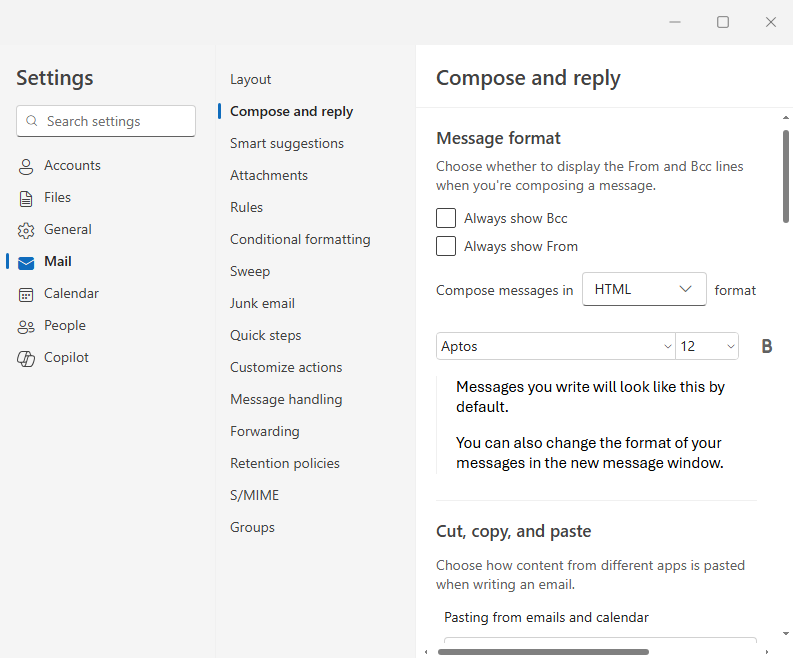 In the **Compose and reply** section, scroll down to the **Cut, copy and paste** section and ensure that **Keep source formatting** is selected for both drop-down menu options.
 Click **Save** on all windows to save.
New Outlook will now retain all Draftable markup whenever you paste.
## 3. Administrator options to enforce via Group Policy
If your organisation manages Office settings centrally:
* Deploy the **Office ADMX** templates.
* Navigate to **User Configuration ► Administrative Templates ► Microsoft Outlook ► Outlook Options ► Editor Options ► Advanced ► Cut, copy, and paste**.
* Pre-set each dropdown to **Keep Source Formatting (like seen above but for Group Policy)**, then deploy the policy or configuration profile.
This ensures every user inherits the correct setting without manual steps.
## Need more help?
If you still can’t retain Draftable markup when emailing, contact **[support@draftable.com](mailto:support@draftable.com)** with screenshots of your Outlook settings section as shown above, included in the email, and we’ll be happy to assist.
Click **Save** on all windows to save.
New Outlook will now retain all Draftable markup whenever you paste.
## 3. Administrator options to enforce via Group Policy
If your organisation manages Office settings centrally:
* Deploy the **Office ADMX** templates.
* Navigate to **User Configuration ► Administrative Templates ► Microsoft Outlook ► Outlook Options ► Editor Options ► Advanced ► Cut, copy, and paste**.
* Pre-set each dropdown to **Keep Source Formatting (like seen above but for Group Policy)**, then deploy the policy or configuration profile.
This ensures every user inherits the correct setting without manual steps.
## Need more help?
If you still can’t retain Draftable markup when emailing, contact **[support@draftable.com](mailto:support@draftable.com)** with screenshots of your Outlook settings section as shown above, included in the email, and we’ll be happy to assist.