> ## Documentation Index
> Fetch the complete documentation index at: https://help.draftable.com/llms.txt
> Use this file to discover all available pages before exploring further.
# Verifying Draftable Legal licence activation across user machines
> Draftable Legal stores a tiny piece of licence data locally the first time a user activates the product.
Because no per-user telemetry is sent to Draftable, and a centralised administrator portal for license and usage monitoring does not exist for Draftable, the Windows Registry is the most reliable way for administrators to confirm whether **this** workstation (and account/user) is already activated.
This article explains:
* **Where to look** in the Registry for both per-user and machine-wide installs.
* **What each value means** (activated vs not-yet-activated).
* A ready-to-run **PowerShell script** that can audit one PC, or many PCs by reading those keys remotely.
### How Draftable decides which key to read
When Draftable starts, it first checks the current user hive (**HKCU**).\
If the required value is **not** present, it falls back to the machine-wide hive (**HKLM)**.
**Machine-wide note:** all system-scope keys live under\
`HKLM\Software\Policies\Draftable` rather than `HKLM\Software\Draftable`.
### Registry locations and meanings
| Installer scope | Hive & path | Value name | Meaning |
| :--------------------------- | :----------------------------------------- | :---------------------------- | :------------------------------------------------------------------------- |
| Per-user (Default EXE / MSI) | `HKCU\Software\Draftable\Compare` | `ActivatedProductKey` | Present ⇒ this profile **is activated** |
| Per-user (Default EXE / MSI) | `HKCU\Software\Draftable\Compare` | `ProductKey` | Present but **ActivatedProductKey missing** ⇒ user *has not activated yet* |
| Machine-wide MSI | `HKLM\Software\Policies\Draftable\Compare` | Same two value names as above | Same meaning, but applies to **all** users on the device |
**Example screenshot of a user who has Draftable activated**
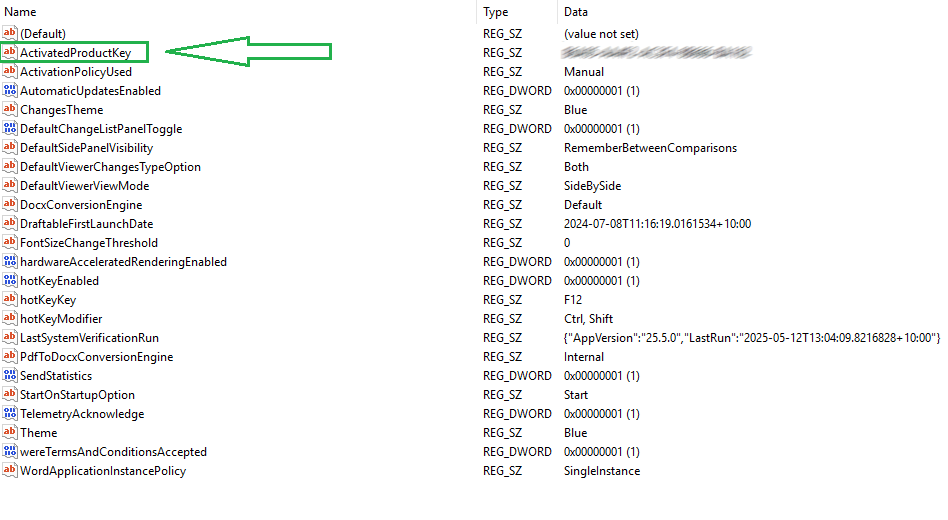 The `ProductKey` entry is also where administrators can pre-set a licence before first launch.
### Manual, one-off check
**Win + R →** `regedit`
Browse to the relevant path from the table above.
Look for `ActivatedProductKey` (activated) or only `ProductKey` (not yet activated).
### Automated audit with PowerShell
Save this as `Check-DraftableActivation.ps1` and run it in an elevated PowerShell window.\
It defaults to the local machine; add `-ComputerName` to scan remote PCs (requires the **Remote Registry** service).
```powershell expandable theme={null}
<#
Check-DraftableActivation.ps1
Purpose: List Draftable licence status for one or more computers.
Usage:
.\Check-DraftableActivation.ps1 # local machine
.\Check-DraftableActivation.ps1 -ComputerName PC01,PC02
#>
param(
[string[]]$ComputerName = $env:COMPUTERNAME
)
function Get-DraftableStatus {
param($Computer)
# Open HKU (per-user hives) on the target
$reg = [Microsoft.Win32.RegistryKey]::OpenRemoteBaseKey(
[Microsoft.Win32.RegistryHive]::Users, $Computer)
foreach ($sid in $reg.GetSubKeyNames()) {
$sub = $reg.OpenSubKey("$sid\Software\Draftable\Compare")
if (-not $sub) { continue }
$activated = $sub.GetValue('ActivatedProductKey',$null)
$pending = $sub.GetValue('ProductKey',$null)
[pscustomobject]@{
Computer = $Computer
UserSID = $sid
Activated = [bool]$activated
ProductKey = $activated ?? $pending
}
}
}
$results = $ComputerName | ForEach-Object { Get-DraftableStatus $_ }
$results | Format-Table -AutoSize
```
**What the script does**
* Enumerates each profile under **HKU**.
* Reports `Activated = True` if `ActivatedProductKey` exists; otherwise `False`.
* Works locally or remotely (requires network connectivity and permissions).
* Pipe the last line to `Export-Csv` for a spreadsheet-friendly report:
```powershell theme={null}
$results | Export-Csv .\DraftableActivationAudit.csv -NoTypeInformation
```
### Troubleshooting
| Symptom | Likely cause | Fix |
| :---------------------------------- | :------------------------------------------------------- | :-------------------------------------------------------- |
| No keys found for a user | Draftable has never been launched under that profile | Ask user to open Draftable once, or pre-seed a ProductKey |
| Neither HKCU nor HKLM keys exist | App installed but never run, or incorrect installer path | Verify correct installer (per-user vs machine-wide) |
| Remote script returns access errors | Remote Registry service disabled or insufficient rights | Start the service or run with elevated domain credentials |
### Next steps or further questions?
* Use the PowerShell script to audit your users' activation status, and make changes to the code for easier automation where required.
* Pair this check with Draftable’s [Group Policy templates](/hc/en-us/articles/28666057117721-Draftable-Legal-Group-Policy-Template-Files) to automate licence rollout and other settings.
* Still have questions? Contact **[support@draftable.com](mailto:support@draftable.com)** — centralised usage telemetry is on our roadmap and feedback is welcome.
The `ProductKey` entry is also where administrators can pre-set a licence before first launch.
### Manual, one-off check
**Win + R →** `regedit`
Browse to the relevant path from the table above.
Look for `ActivatedProductKey` (activated) or only `ProductKey` (not yet activated).
### Automated audit with PowerShell
Save this as `Check-DraftableActivation.ps1` and run it in an elevated PowerShell window.\
It defaults to the local machine; add `-ComputerName` to scan remote PCs (requires the **Remote Registry** service).
```powershell expandable theme={null}
<#
Check-DraftableActivation.ps1
Purpose: List Draftable licence status for one or more computers.
Usage:
.\Check-DraftableActivation.ps1 # local machine
.\Check-DraftableActivation.ps1 -ComputerName PC01,PC02
#>
param(
[string[]]$ComputerName = $env:COMPUTERNAME
)
function Get-DraftableStatus {
param($Computer)
# Open HKU (per-user hives) on the target
$reg = [Microsoft.Win32.RegistryKey]::OpenRemoteBaseKey(
[Microsoft.Win32.RegistryHive]::Users, $Computer)
foreach ($sid in $reg.GetSubKeyNames()) {
$sub = $reg.OpenSubKey("$sid\Software\Draftable\Compare")
if (-not $sub) { continue }
$activated = $sub.GetValue('ActivatedProductKey',$null)
$pending = $sub.GetValue('ProductKey',$null)
[pscustomobject]@{
Computer = $Computer
UserSID = $sid
Activated = [bool]$activated
ProductKey = $activated ?? $pending
}
}
}
$results = $ComputerName | ForEach-Object { Get-DraftableStatus $_ }
$results | Format-Table -AutoSize
```
**What the script does**
* Enumerates each profile under **HKU**.
* Reports `Activated = True` if `ActivatedProductKey` exists; otherwise `False`.
* Works locally or remotely (requires network connectivity and permissions).
* Pipe the last line to `Export-Csv` for a spreadsheet-friendly report:
```powershell theme={null}
$results | Export-Csv .\DraftableActivationAudit.csv -NoTypeInformation
```
### Troubleshooting
| Symptom | Likely cause | Fix |
| :---------------------------------- | :------------------------------------------------------- | :-------------------------------------------------------- |
| No keys found for a user | Draftable has never been launched under that profile | Ask user to open Draftable once, or pre-seed a ProductKey |
| Neither HKCU nor HKLM keys exist | App installed but never run, or incorrect installer path | Verify correct installer (per-user vs machine-wide) |
| Remote script returns access errors | Remote Registry service disabled or insufficient rights | Start the service or run with elevated domain credentials |
### Next steps or further questions?
* Use the PowerShell script to audit your users' activation status, and make changes to the code for easier automation where required.
* Pair this check with Draftable’s [Group Policy templates](/hc/en-us/articles/28666057117721-Draftable-Legal-Group-Policy-Template-Files) to automate licence rollout and other settings.
* Still have questions? Contact **[support@draftable.com](mailto:support@draftable.com)** — centralised usage telemetry is on our roadmap and feedback is welcome.