> ## Documentation Index
> Fetch the complete documentation index at: https://help.draftable.com/llms.txt
> Use this file to discover all available pages before exploring further.
# Retrieve & export logs from API Self-Hosted v3
> This article shows how to view and export logs for your **API Self-Hosted v3** stack from the console. It covers per-service log streaming, time-range filters, and simple export recipes for Linux/macOS and Windows.
 ## Before you start
* Open a terminal **in the directory containing your** `**docker-compose.yml**`.
* Ensure Docker Desktop / Docker Engine is running.
* If you’re unsure of service names, run:
```bash theme={null}
docker compose config --services
```
or to see what’s running:
```bash theme={null}
docker compose ps
```
## Service names you can target
Use any of the following service names in place of `api` in the examples below:
```bash theme={null}
db
rabbitmq
redis
celery_beat
celery_worker
converter
web_init
web
compare
server
```
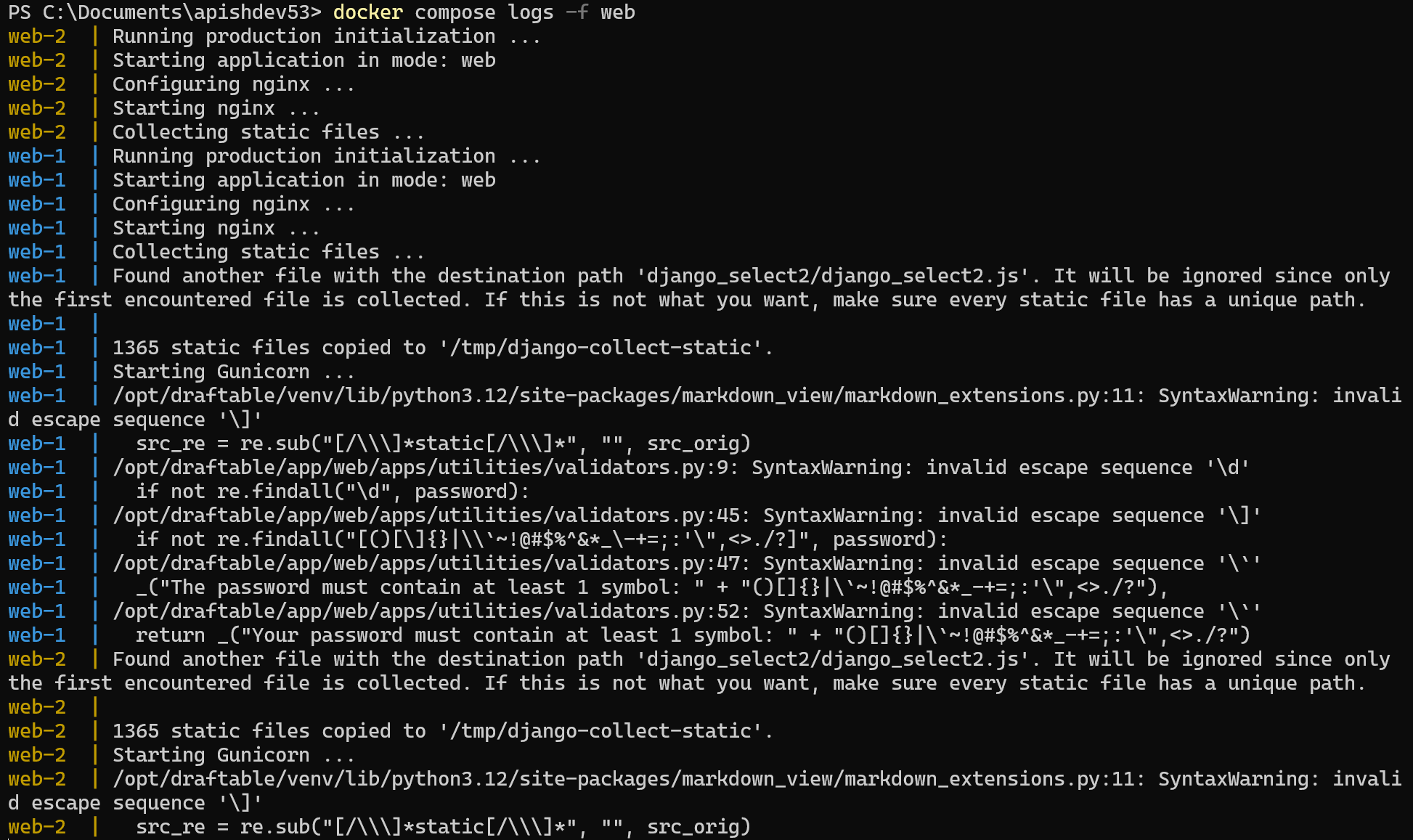
## Stream live logs (follow mode)
Stream logs for a specific service:
```bash theme={null}
docker compose logs -f web
```
Press **Ctrl+C** to stop following.
**Common filters**
```bash theme={null}
# Only the last 200 lines
docker compose logs --tail=200 web
# Since a relative time window (e.g., last 2 hours)
docker compose logs --since=2h web
# Since/until absolute timestamps (ISO 8601)
docker compose logs --since="2025-09-30T01:00:00" --until="2025-09-30T03:00:00" web
# Include timestamps in each line
docker compose logs -f --timestamps web
```
**All services at once**
```bash theme={null}
docker compose logs -f
```
## Export logs to files (Linux/macOS)
**Entire history (can be large):**
```bash theme={null}
docker compose logs web > web.log
```
**Recent logs with timestamps (recommended for support):**
```bash theme={null}
docker compose logs --since=24h --timestamps web > "web-$(date +%Y%m%d-%H%M).log"
```
**Compress for sharing:**
```bash theme={null}
gzip -9 web-*.log
# produces e.g. web-20250930-1042.log.gz
```
**Stream & save simultaneously:**
```bash theme={null}
docker compose logs -f --since=30m --timestamps web | tee "web-live-$(date +%Y%m%d-%H%M).log"
```
## Export logs for **all services** (copy/paste)
### Linux/macOS
```bash theme={null}
services=(db rabbitmq redis celery_beat celery_worker converter web_init web compare server)
stamp=$(date +%Y%m%d-%H%M)
for s in "${services[@]}"; do
docker compose logs --since=24h --timestamps "$s" > "${s}-${stamp}.log"
done
tar -czf "api-selfhosted-logs-${stamp}.tar.gz" *-"${stamp}".log
```
## Per-container logs (scaled services)
If a service is scaled (e.g., `web` has multiple replicas), you can export each container’s logs:
```bash theme={null}
# List running containers and their service
docker compose ps
# Export per-container (replace with actual container name, e.g., stack_web_1)
docker logs --since=24h --timestamps stack_web_1 > stack_web_1.log
```
Container names are typically `__`. For ad-hoc viewing, `docker compose logs ` is simpler; for per-instance analysis, use `docker logs `.
## What should I collect for Support?
When requested, please provide:
1. The `.log`, `.tar.gz`, or `.zip` files you created above (ideally limited with `--since` and/or `--tail`).
2. The **time window** during which the issue occurred.
3. The **service name(s)** involved (e.g., `web`, `compare`, `server`).
4. Any noteworthy steps just before the issue (deploy, restart, config change, etc.).
## Troubleshooting tips
* **Keep it concise:** Use `--since` (e.g., `2h`, `24h`) and `--tail` to reduce noise and file size.
* **Timestamps help:** Add `--timestamps` so lines can be correlated across services.
* **Startup issues:** Check `web_init` and `server` first; they often surface misconfigurations early.
* **Dependencies:** If the app looks healthy but jobs stall, review `celery_worker` and `celery_beat`. For connectivity or persistence problems, check `db`, `redis`, and `rabbitmq`.
* **Redaction:** Logs may contain URLs or IDs. Skim before sharing externally.
## FAQ
Yes. `docker compose` resolves services from the `docker-compose.yml` in the current directory (or use `--file` to point to the correct one).
`docker compose logs` prints plain text from the Docker log driver. If your services emit JSON lines, they’ll appear as such. For structured querying, consider a central log stack (e.g., Loki/ELK) in addition to these ad-hoc exports.
Narrow with `--since`, `--until`, and `--tail`. For example:
```bash theme={null}
docker compose logs --since=90m --tail=1000 --timestamps web > web-window.log
```
Get in touch with our support team at [support@draftable.com](mailto:support@draftable.com) and we will do our best to help you.
## Before you start
* Open a terminal **in the directory containing your** `**docker-compose.yml**`.
* Ensure Docker Desktop / Docker Engine is running.
* If you’re unsure of service names, run:
```bash theme={null}
docker compose config --services
```
or to see what’s running:
```bash theme={null}
docker compose ps
```
## Service names you can target
Use any of the following service names in place of `api` in the examples below:
```bash theme={null}
db
rabbitmq
redis
celery_beat
celery_worker
converter
web_init
web
compare
server
```
## Stream live logs (follow mode)
Stream logs for a specific service:
```bash theme={null}
docker compose logs -f web
```
Press **Ctrl+C** to stop following.
**Common filters**
```bash theme={null}
# Only the last 200 lines
docker compose logs --tail=200 web
# Since a relative time window (e.g., last 2 hours)
docker compose logs --since=2h web
# Since/until absolute timestamps (ISO 8601)
docker compose logs --since="2025-09-30T01:00:00" --until="2025-09-30T03:00:00" web
# Include timestamps in each line
docker compose logs -f --timestamps web
```
**All services at once**
```bash theme={null}
docker compose logs -f
```
## Export logs to files (Linux/macOS)
**Entire history (can be large):**
```bash theme={null}
docker compose logs web > web.log
```
**Recent logs with timestamps (recommended for support):**
```bash theme={null}
docker compose logs --since=24h --timestamps web > "web-$(date +%Y%m%d-%H%M).log"
```
**Compress for sharing:**
```bash theme={null}
gzip -9 web-*.log
# produces e.g. web-20250930-1042.log.gz
```
**Stream & save simultaneously:**
```bash theme={null}
docker compose logs -f --since=30m --timestamps web | tee "web-live-$(date +%Y%m%d-%H%M).log"
```
## Export logs for **all services** (copy/paste)
### Linux/macOS
```bash theme={null}
services=(db rabbitmq redis celery_beat celery_worker converter web_init web compare server)
stamp=$(date +%Y%m%d-%H%M)
for s in "${services[@]}"; do
docker compose logs --since=24h --timestamps "$s" > "${s}-${stamp}.log"
done
tar -czf "api-selfhosted-logs-${stamp}.tar.gz" *-"${stamp}".log
```
## Per-container logs (scaled services)
If a service is scaled (e.g., `web` has multiple replicas), you can export each container’s logs:
```bash theme={null}
# List running containers and their service
docker compose ps
# Export per-container (replace with actual container name, e.g., stack_web_1)
docker logs --since=24h --timestamps stack_web_1 > stack_web_1.log
```
Container names are typically `__`. For ad-hoc viewing, `docker compose logs ` is simpler; for per-instance analysis, use `docker logs `.
## What should I collect for Support?
When requested, please provide:
1. The `.log`, `.tar.gz`, or `.zip` files you created above (ideally limited with `--since` and/or `--tail`).
2. The **time window** during which the issue occurred.
3. The **service name(s)** involved (e.g., `web`, `compare`, `server`).
4. Any noteworthy steps just before the issue (deploy, restart, config change, etc.).
## Troubleshooting tips
* **Keep it concise:** Use `--since` (e.g., `2h`, `24h`) and `--tail` to reduce noise and file size.
* **Timestamps help:** Add `--timestamps` so lines can be correlated across services.
* **Startup issues:** Check `web_init` and `server` first; they often surface misconfigurations early.
* **Dependencies:** If the app looks healthy but jobs stall, review `celery_worker` and `celery_beat`. For connectivity or persistence problems, check `db`, `redis`, and `rabbitmq`.
* **Redaction:** Logs may contain URLs or IDs. Skim before sharing externally.
## FAQ
Yes. `docker compose` resolves services from the `docker-compose.yml` in the current directory (or use `--file` to point to the correct one).
`docker compose logs` prints plain text from the Docker log driver. If your services emit JSON lines, they’ll appear as such. For structured querying, consider a central log stack (e.g., Loki/ELK) in addition to these ad-hoc exports.
Narrow with `--since`, `--until`, and `--tail`. For example:
```bash theme={null}
docker compose logs --since=90m --tail=1000 --timestamps web > web-window.log
```
Get in touch with our support team at [support@draftable.com](mailto:support@draftable.com) and we will do our best to help you.