> ## Documentation Index
> Fetch the complete documentation index at: https://help.draftable.com/llms.txt
> Use this file to discover all available pages before exploring further.
# API Self Hosted v3 – Quick Start Guide
> This guide will help you set up and run API Self Hosted v3 in a Docker-based environment. Follow the steps below to get up and running in minutes.
## Pre-requisites
### Software
Before you begin, make sure you have the following installed on your Linux server:
* A Linux distribution that supports Docker (or equivalent container runtime)
* Docker is installed and running
* Docker Compose plugin installed
### Hardware
Your server should meet the following minimum requirements:
* **Processor**: 4 cores running at 2.5 GHz (Intel Xeon 8000 series or better)
* **Memory**: 8 GB RAM minimum
* **Storage**: 20 GB free disk space
## Configuration Files
You can find the Docker Compose file and a sample `.env` configuration file at our GitHub repository:
## Initial Deployment
On your Linux server, create a dedicated folder that contains your `.env` file and the Docker Compose file. Adjust the settings in the `.env` file to suit your use case.
**Note:** You can pre-configure your product key in the `.env` file.
Example:
```bash theme={null}
DRAFTABLE_PRODUCT_KEY=XXXXX-XXXXX-XXXXX-XXXXX-XXXXX
```
**Upgrading from v2?** Your existing v2 product key is fully compatible with v3. No new key is required.
First ensure you are currently operating within the directory where the compose file and .env exists.
```bash theme={null}
cd /location_of_your_directory
```
Run the following command from inside your deployment folder:
```bash theme={null}
docker compose up
```
Add the `-d` flag if you want to run the container in the background:
```bash theme={null}
docker compose up -d
```
Open your browser and navigate to the HTTPS address you configured in your `.env` and Compose files.
Example:
 On first launch, you will be prompted to create an Administrator account.
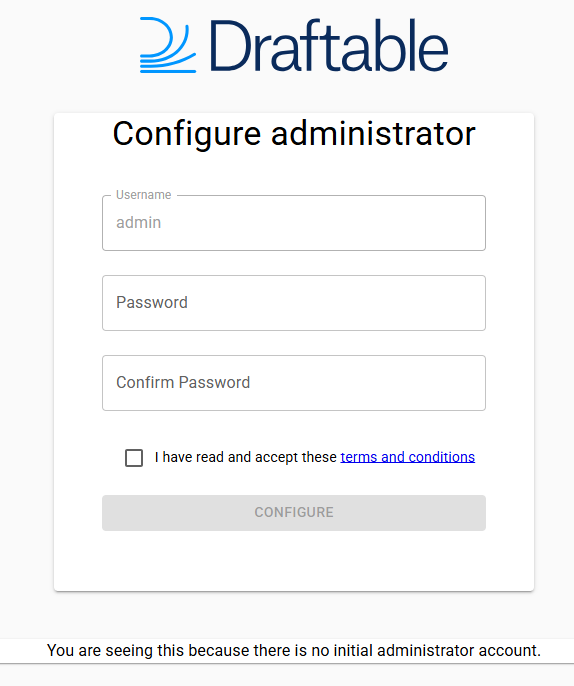
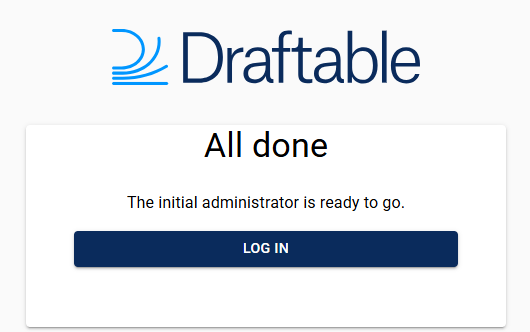 After creating your account, log in with the Administrator credentials.
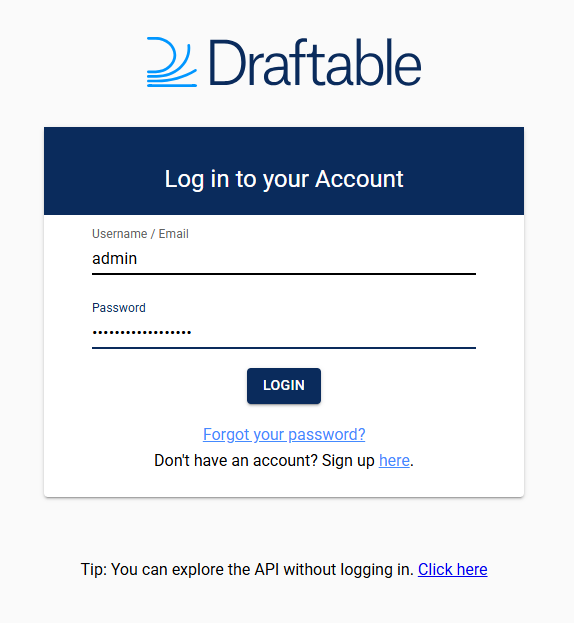
You now have full UI access to the container.
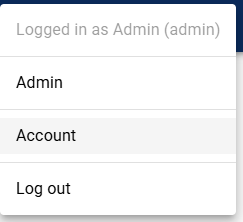
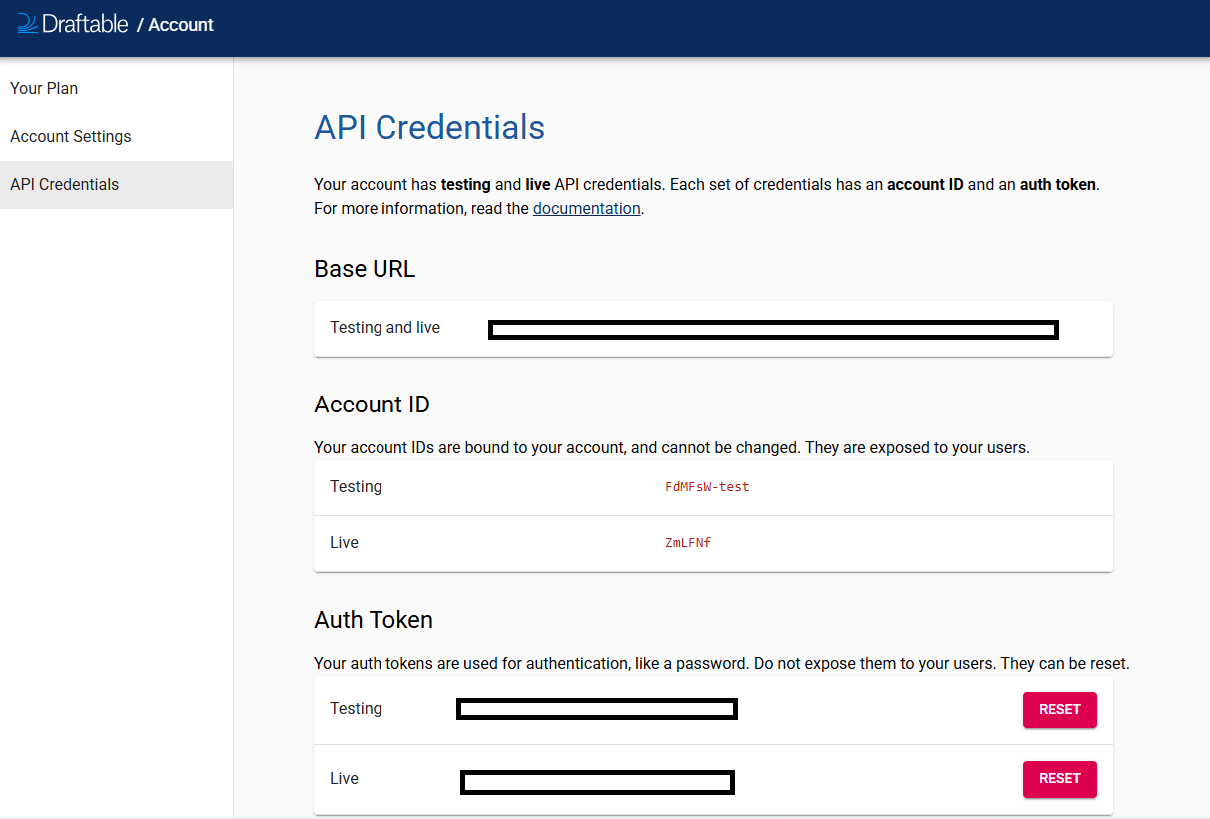
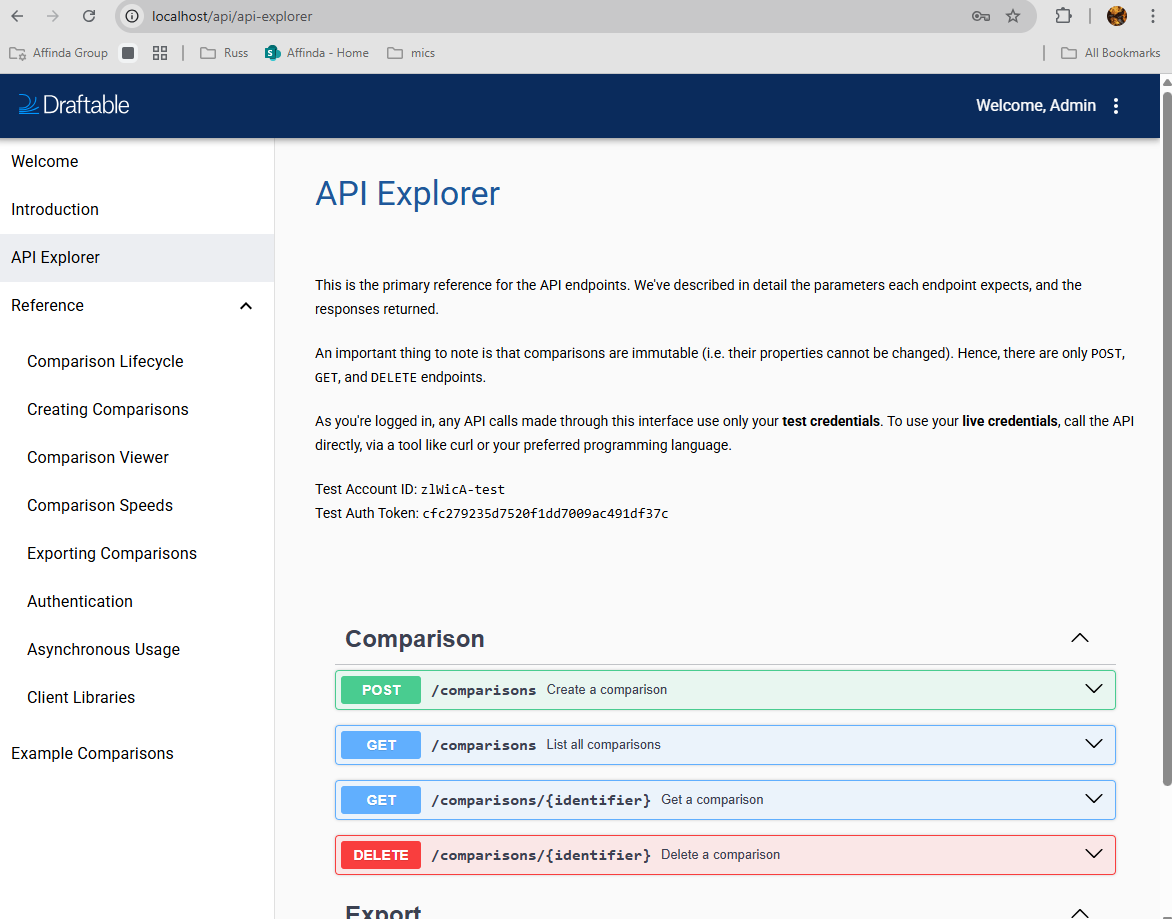 Navigate to **Account Settings** within the Administrator portal to view your API credentials.
 With these credentials, you can now start using the API.
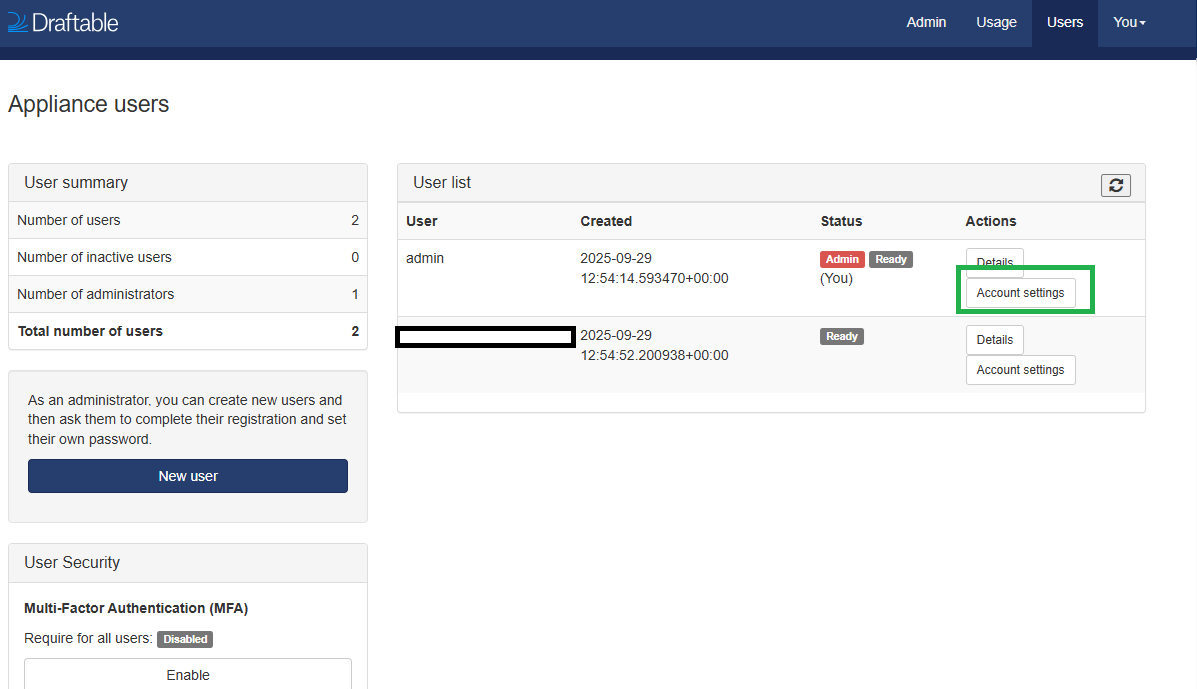
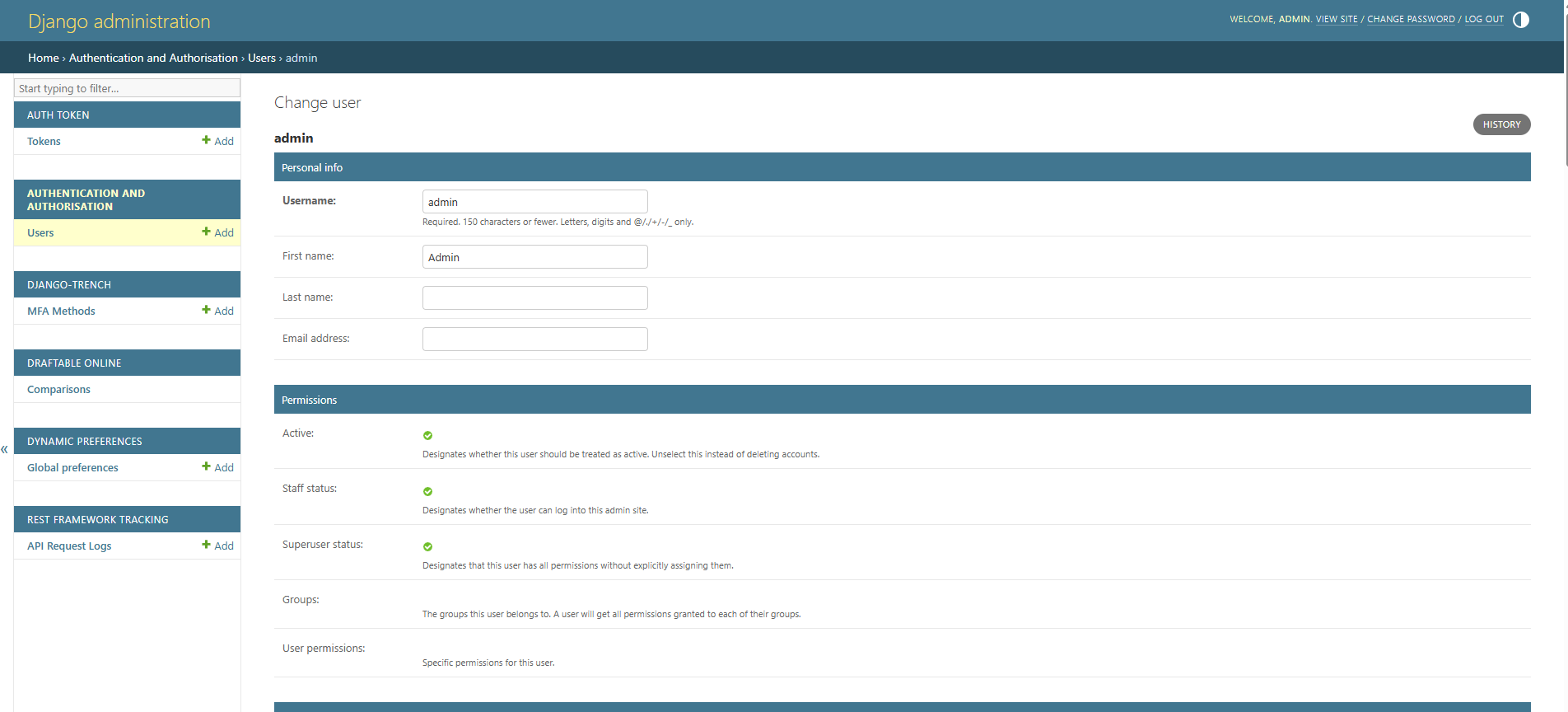
 Use the Administrator portal to modify user accounts, update settings, and manage your deployment. Selecting the **Account settings** of the user you wish to configure will open the Django administration page.
 Here you can configure the settings for the user account. These settings impact things like file size limitations, UI configuration and default values with comparison UI.
 ✅ You are now ready to use API Self Hosted v3! If you are having any issues deploying or problems related to the new image version, please get in touch at [support@draftable.com](mailto:support@draftable.com).
✅ You are now ready to use API Self Hosted v3! If you are having any issues deploying or problems related to the new image version, please get in touch at [support@draftable.com](mailto:support@draftable.com).
✅ You are now ready to use API Self Hosted v3! If you are having any issues deploying or problems related to the new image version, please get in touch at [support@draftable.com](mailto:support@draftable.com).