> ## Documentation Index
> Fetch the complete documentation index at: https://help.draftable.com/llms.txt
> Use this file to discover all available pages before exploring further.
# Departures Table: Summarizing a table of changes for review
> The Departures Table is a structured Word document that summarizes all changes between two document versions, organized by clause. Learn how to generate, filter and customize Departures Tables in Draftable Legal.
**The settings menu was reorganised in Draftable Legal 26.6.** If you are on 26.6 or later, follow the "26.6 and later" tabs below. On earlier versions, follow "Before 26.6". To check your version, open Settings. The version number shows at the bottom-left (for example, v26.6.0).
 ## What is a Departures Table?
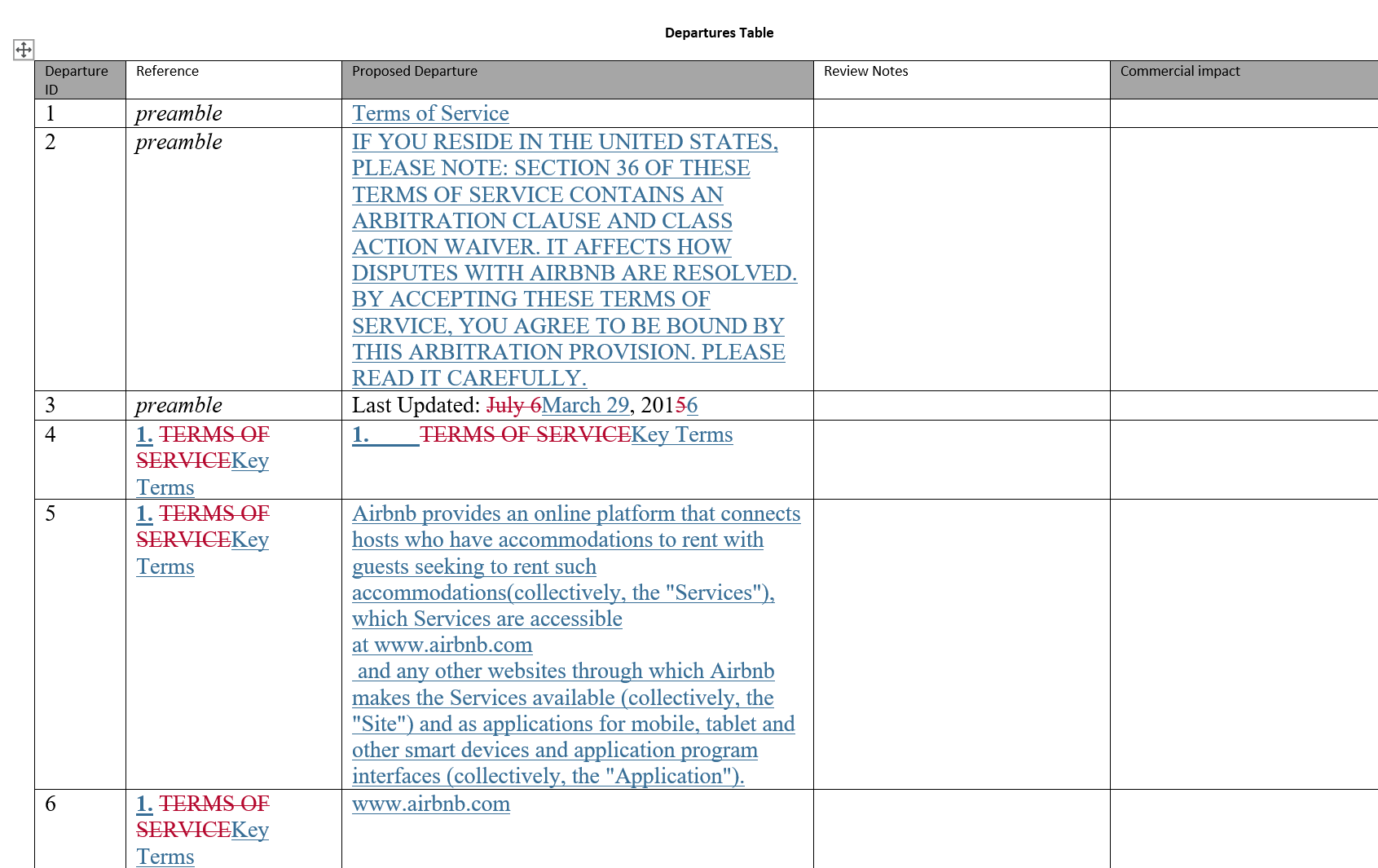
A **Departures Table** is a Microsoft Word document that presents a structured, clause-by-clause summary of all changes detected between two versions of a document. Rather than showing changes inline as a traditional redline does, the Departures Table organizes each change into a table row under its relevant **clause or subclause heading**, making it easy to review, discuss and share with colleagues and counterparties.
Each row in the Departures Table includes:
| Column | Description |
| :--------------------- | :----------------------------------------------------------------------------------------------------- |
| **Departure ID** | A sequential number identifying the change |
| **Reference** | The clause or subclause where the change was detected (e.g. "1.2(a)") |
| **Proposed Departure** | The full clause text with redline markup showing insertions and deletions |
| **Review Notes** | A column for review commentary — automatically populated with any tags, notes and comments (see below) |
| **Commercial Impact** | An additional column for team collaboration (empty by default) |
The Departures Table output format is **DOCX only**. It can be opened directly in Word, saved, emailed as an attachment, or embedded into an email body.
## When to use a Departures Table
The Departures Table is designed for scenarios where you need a **concise, structured summary** of changes rather than a full redline document. It is particularly useful when:
* **Preparing for negotiations** — present a clear list of departures from the original terms to discuss with counterparties
* **Internal review meetings** — share a focused summary of changes with stakeholders who need to understand the scope of modifications without reading the full document
* **Contract management** — maintain a record of how each clause has changed between versions for compliance or audit purposes
* **Delegating review work** — distribute specific clauses to different team members using the structured table format
## How to create a Departures Table
There are three ways to generate a Departures Table in Draftable Legal:
### Method 1: Select Departures Table as your comparison type
If you only need the Departures Table output (and do not need to review the redline in the viewer first), you can select **Departures Table** directly as your comparison type.
Load your older and newer documents in the **New Comparison** window.
From the **Comparison Type** dropdown, select **Departures Table**.
## What is a Departures Table?
A **Departures Table** is a Microsoft Word document that presents a structured, clause-by-clause summary of all changes detected between two versions of a document. Rather than showing changes inline as a traditional redline does, the Departures Table organizes each change into a table row under its relevant **clause or subclause heading**, making it easy to review, discuss and share with colleagues and counterparties.
Each row in the Departures Table includes:
| Column | Description |
| :--------------------- | :----------------------------------------------------------------------------------------------------- |
| **Departure ID** | A sequential number identifying the change |
| **Reference** | The clause or subclause where the change was detected (e.g. "1.2(a)") |
| **Proposed Departure** | The full clause text with redline markup showing insertions and deletions |
| **Review Notes** | A column for review commentary — automatically populated with any tags, notes and comments (see below) |
| **Commercial Impact** | An additional column for team collaboration (empty by default) |
The Departures Table output format is **DOCX only**. It can be opened directly in Word, saved, emailed as an attachment, or embedded into an email body.
## When to use a Departures Table
The Departures Table is designed for scenarios where you need a **concise, structured summary** of changes rather than a full redline document. It is particularly useful when:
* **Preparing for negotiations** — present a clear list of departures from the original terms to discuss with counterparties
* **Internal review meetings** — share a focused summary of changes with stakeholders who need to understand the scope of modifications without reading the full document
* **Contract management** — maintain a record of how each clause has changed between versions for compliance or audit purposes
* **Delegating review work** — distribute specific clauses to different team members using the structured table format
## How to create a Departures Table
There are three ways to generate a Departures Table in Draftable Legal:
### Method 1: Select Departures Table as your comparison type
If you only need the Departures Table output (and do not need to review the redline in the viewer first), you can select **Departures Table** directly as your comparison type.
Load your older and newer documents in the **New Comparison** window.
From the **Comparison Type** dropdown, select **Departures Table**.
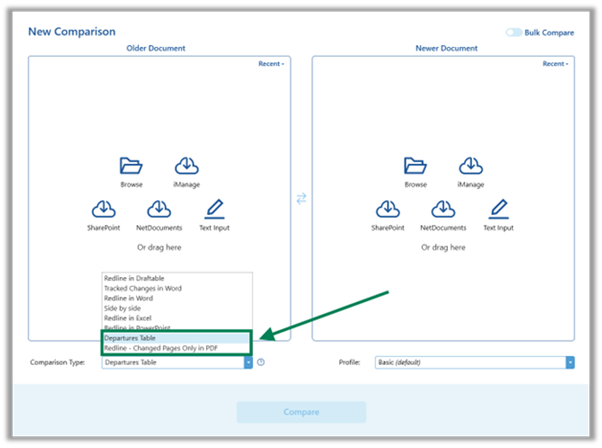 Click **Compare**. Draftable will generate the Departures Table directly and present you with the option to **Open** it in Word or **Save** it.
This method is the fastest way to get a Departures Table. However, it does not open the Redline viewer, so you will not be able to add tags, notes or filters before generating the table. If you need to review and annotate changes first, use **Method 2** below.
### Method 2: Export from the Redline viewer
If you want to **review, tag, add notes to and filter your changes** before generating the Departures Table, first run a **Redline in Draftable** comparison. You can then export the Departures Table from the viewer's export menu — and any tags, notes and filters you have applied will carry through into the table output.
Load your documents in the **New Comparison** window, select **Redline in Draftable** as your comparison type and click **Compare**.
In the Redline viewer, use the **Change List** on the right-hand side to review your changes. You can:
* **Tag** changes with status labels (e.g. Reviewed, Needs Review, High Priority)
* **Add notes** to individual changes
* **Filter** the Change List to focus on specific change types, content types or locations
Any tags and notes you add will be included in the **Review Notes** column of the Departures Table. See [Redline Change List: Review, filter, tag, add notes and export changes](/hc/en-us/articles/32514479509785-Using-the-Redline-Change-List-to-review-filter-tag-add-notes-and-export-your-changes) for a detailed guide.
In the comparison viewer, select **Save**, **Open**, **Email**, **Copy to Clipboard** or **Print** from the top ribbon menu to access the export options.
Click **Compare**. Draftable will generate the Departures Table directly and present you with the option to **Open** it in Word or **Save** it.
This method is the fastest way to get a Departures Table. However, it does not open the Redline viewer, so you will not be able to add tags, notes or filters before generating the table. If you need to review and annotate changes first, use **Method 2** below.
### Method 2: Export from the Redline viewer
If you want to **review, tag, add notes to and filter your changes** before generating the Departures Table, first run a **Redline in Draftable** comparison. You can then export the Departures Table from the viewer's export menu — and any tags, notes and filters you have applied will carry through into the table output.
Load your documents in the **New Comparison** window, select **Redline in Draftable** as your comparison type and click **Compare**.
In the Redline viewer, use the **Change List** on the right-hand side to review your changes. You can:
* **Tag** changes with status labels (e.g. Reviewed, Needs Review, High Priority)
* **Add notes** to individual changes
* **Filter** the Change List to focus on specific change types, content types or locations
Any tags and notes you add will be included in the **Review Notes** column of the Departures Table. See [Redline Change List: Review, filter, tag, add notes and export changes](/hc/en-us/articles/32514479509785-Using-the-Redline-Change-List-to-review-filter-tag-add-notes-and-export-your-changes) for a detailed guide.
In the comparison viewer, select **Save**, **Open**, **Email**, **Copy to Clipboard** or **Print** from the top ribbon menu to access the export options.
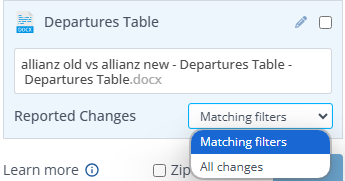
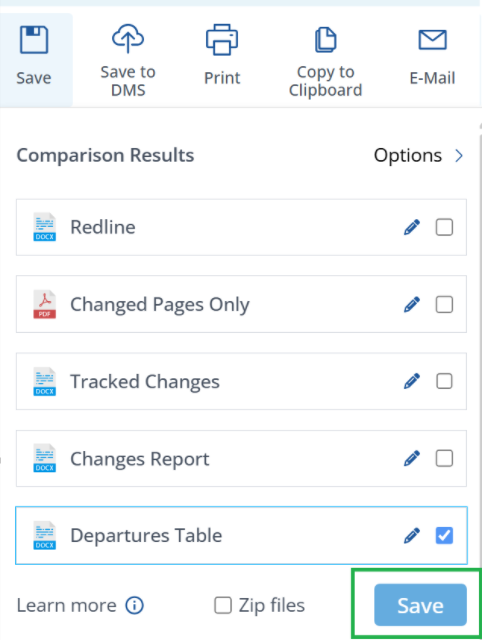
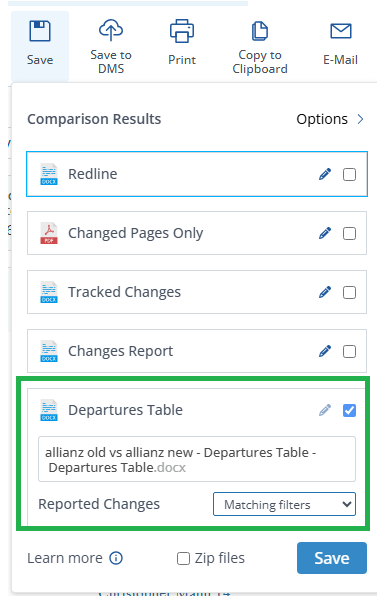 Check the **Departures Table** checkbox in the export list. Click the **pen icon** to expand the export options where you can rename the output file and choose which changes to include.
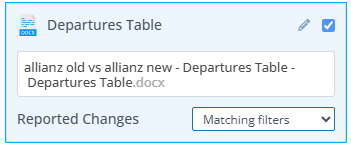 Use the **Reported Changes** dropdown to select:
* **All changes** — includes every change detected in the comparison
* **Matching filters** — includes only changes that match your current Change List filters (see [Exporting only filtered changes](#exporting-only-filtered-changes) below)
Use the **Reported Changes** dropdown to select:
* **All changes** — includes every change detected in the comparison
* **Matching filters** — includes only changes that match your current Change List filters (see [Exporting only filtered changes](#exporting-only-filtered-changes) below)
 Click **Save**, **Open**, **Email** or your chosen next action to generate the Departures Table.
 ### Method 3: Via 1-Click Compare
You can also configure **1-Click Compare** to generate a Departures Table as its default output. This allows you to go straight from selecting your files to receiving the Departures Table without any intermediate steps.
To set this up, open the Draftable Desktop **Settings** menu, navigate to the **1-Click Compare** tab and select **Departures Table** as your comparison type. See [Using 1-Click Compare](/hc/en-us/articles/31611819497753-Using-1-Click-Compare-to-run-comparisons-with-your-preferred-default-workflow) for a full setup guide.
## Understanding the Departures Table output
### How changes are organized by clause
Draftable analyzes the document structure and groups changes under their relevant **clause and subclause headings**. The **Reference** column displays the clause numbering as it appears in the document (e.g. "1.1", "1.1(a)", "4.2(b)(iii)").
When changes are detected within a clause, the **Proposed Departure** column shows the full clause text with redline markup:
* Deleted text is shown with strikethrough formatting
* **Inserted text** is shown in a contrasting style
This gives reviewers the full context of each change within its clause, rather than isolated word-level edits.
### Preamble content
Any text that appears **before the first numbered clause** in the document is labeled as **"preamble"** in the Reference column. This typically includes introductory paragraphs, recitals, definitions sections and any other content that precedes the numbered body of the agreement.
### Inline comments from input documents
If your input documents contain **inline comments** — text enclosed in square brackets such as `[Proponent Note: ...]` or `[Proponent Comment: ...]` — Draftable will detect these and include them in the **Review Notes** column of the Departures Table rather than in the Proposed Departure column. This separates commentary from the substantive clause text, making it easier to distinguish between document changes and reviewer annotations.
### Document comments
If either input document contains **Word comments** (i.e. comments added via Word's Review > New Comment feature), these are also captured and included in the **Review Notes** column. Each comment displays the **author name** and **comment text**, helping you see feedback from previous reviewers alongside the relevant clause changes.
### Tags and notes from the Change List
When you export a Departures Table from the **Redline viewer** (Method 2 above), any **tags** and **notes** you have applied to changes in the Change List are included in the **Review Notes** column. Tags are displayed as formatted labels (e.g. **NEEDS REVIEW**, **REVIEWED**) and notes appear as text beneath them.
### Method 3: Via 1-Click Compare
You can also configure **1-Click Compare** to generate a Departures Table as its default output. This allows you to go straight from selecting your files to receiving the Departures Table without any intermediate steps.
To set this up, open the Draftable Desktop **Settings** menu, navigate to the **1-Click Compare** tab and select **Departures Table** as your comparison type. See [Using 1-Click Compare](/hc/en-us/articles/31611819497753-Using-1-Click-Compare-to-run-comparisons-with-your-preferred-default-workflow) for a full setup guide.
## Understanding the Departures Table output
### How changes are organized by clause
Draftable analyzes the document structure and groups changes under their relevant **clause and subclause headings**. The **Reference** column displays the clause numbering as it appears in the document (e.g. "1.1", "1.1(a)", "4.2(b)(iii)").
When changes are detected within a clause, the **Proposed Departure** column shows the full clause text with redline markup:
* Deleted text is shown with strikethrough formatting
* **Inserted text** is shown in a contrasting style
This gives reviewers the full context of each change within its clause, rather than isolated word-level edits.
### Preamble content
Any text that appears **before the first numbered clause** in the document is labeled as **"preamble"** in the Reference column. This typically includes introductory paragraphs, recitals, definitions sections and any other content that precedes the numbered body of the agreement.
### Inline comments from input documents
If your input documents contain **inline comments** — text enclosed in square brackets such as `[Proponent Note: ...]` or `[Proponent Comment: ...]` — Draftable will detect these and include them in the **Review Notes** column of the Departures Table rather than in the Proposed Departure column. This separates commentary from the substantive clause text, making it easier to distinguish between document changes and reviewer annotations.
### Document comments
If either input document contains **Word comments** (i.e. comments added via Word's Review > New Comment feature), these are also captured and included in the **Review Notes** column. Each comment displays the **author name** and **comment text**, helping you see feedback from previous reviewers alongside the relevant clause changes.
### Tags and notes from the Change List
When you export a Departures Table from the **Redline viewer** (Method 2 above), any **tags** and **notes** you have applied to changes in the Change List are included in the **Review Notes** column. Tags are displayed as formatted labels (e.g. **NEEDS REVIEW**, **REVIEWED**) and notes appear as text beneath them.
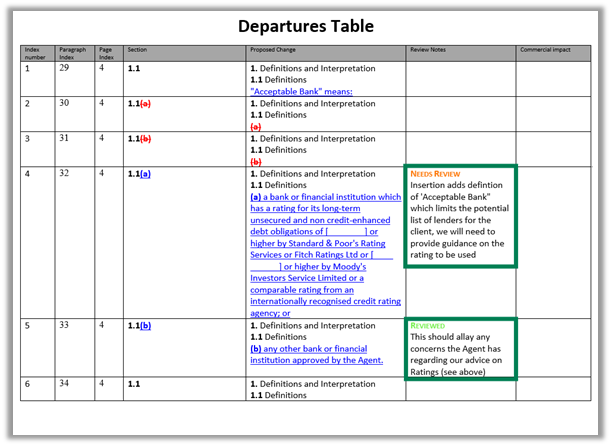 Tags and notes are only available when exporting from the Redline viewer. If you generate the Departures Table directly via the **Departures Table** comparison type (Method 1), the Review Notes column will not contain tags or notes since the viewer is not opened.
## Exporting only filtered changes
You can generate a Departures Table that includes **only a subset of changes** by applying filters in the Change List before exporting.
In the Redline viewer, open the **filter menu** at the top of the Change List. You can filter by:
* **Change Type** — insertions, deletions, moved text, replacements, format changes
* **Content Type** — text, numbering, table of contents, images, tables, comments
* **Change Location** — main document, headers, footers, footnotes, endnotes
* **Tags** — Reviewed, Needs Review, High Priority, Low Priority, Action Required, No Action Required
* **Notes** — changes with or without notes
Tags and notes are only available when exporting from the Redline viewer. If you generate the Departures Table directly via the **Departures Table** comparison type (Method 1), the Review Notes column will not contain tags or notes since the viewer is not opened.
## Exporting only filtered changes
You can generate a Departures Table that includes **only a subset of changes** by applying filters in the Change List before exporting.
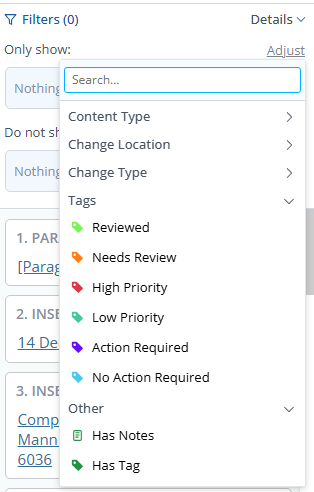
In the Redline viewer, open the **filter menu** at the top of the Change List. You can filter by:
* **Change Type** — insertions, deletions, moved text, replacements, format changes
* **Content Type** — text, numbering, table of contents, images, tables, comments
* **Change Location** — main document, headers, footers, footnotes, endnotes
* **Tags** — Reviewed, Needs Review, High Priority, Low Priority, Action Required, No Action Required
* **Notes** — changes with or without notes
 When exporting the Departures Table, click the **pen icon** to expand the options and set **Reported Changes** to **Matching filters**.
The resulting Departures Table will only include clauses that contain changes matching your active filters. Clauses with no matching changes are excluded entirely.
This is useful when you want to focus your review on specific types of changes — for example, generating a Departures Table that only includes **substantive text changes** while excluding formatting, numbering or table of contents changes.
## Embedding a Departures Table in an email body
In addition to saving or opening the Departures Table as a DOCX file, you can embed it directly into an **email body** for quick sharing.
In the comparison viewer, select **Email** from the top ribbon menu.
When exporting the Departures Table, click the **pen icon** to expand the options and set **Reported Changes** to **Matching filters**.
The resulting Departures Table will only include clauses that contain changes matching your active filters. Clauses with no matching changes are excluded entirely.
This is useful when you want to focus your review on specific types of changes — for example, generating a Departures Table that only includes **substantive text changes** while excluding formatting, numbering or table of contents changes.
## Embedding a Departures Table in an email body
In addition to saving or opening the Departures Table as a DOCX file, you can embed it directly into an **email body** for quick sharing.
In the comparison viewer, select **Email** from the top ribbon menu.
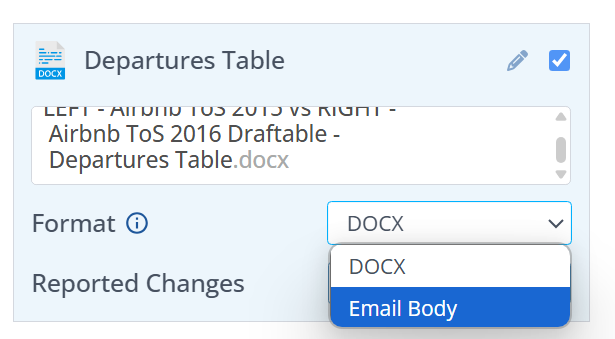
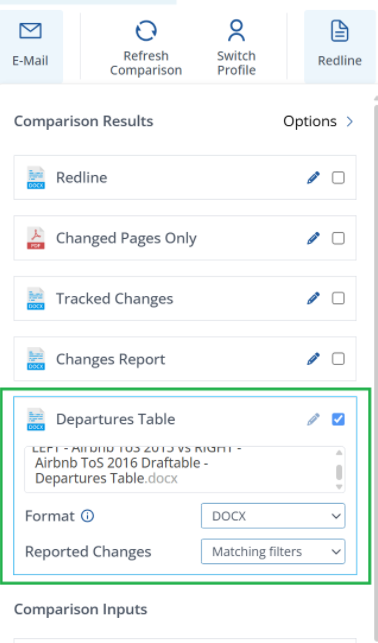 Check the **Departures Table** checkbox, then click the **pen icon** to expand the options. Change the **Format** dropdown from **DOCX** to **Email Body**.
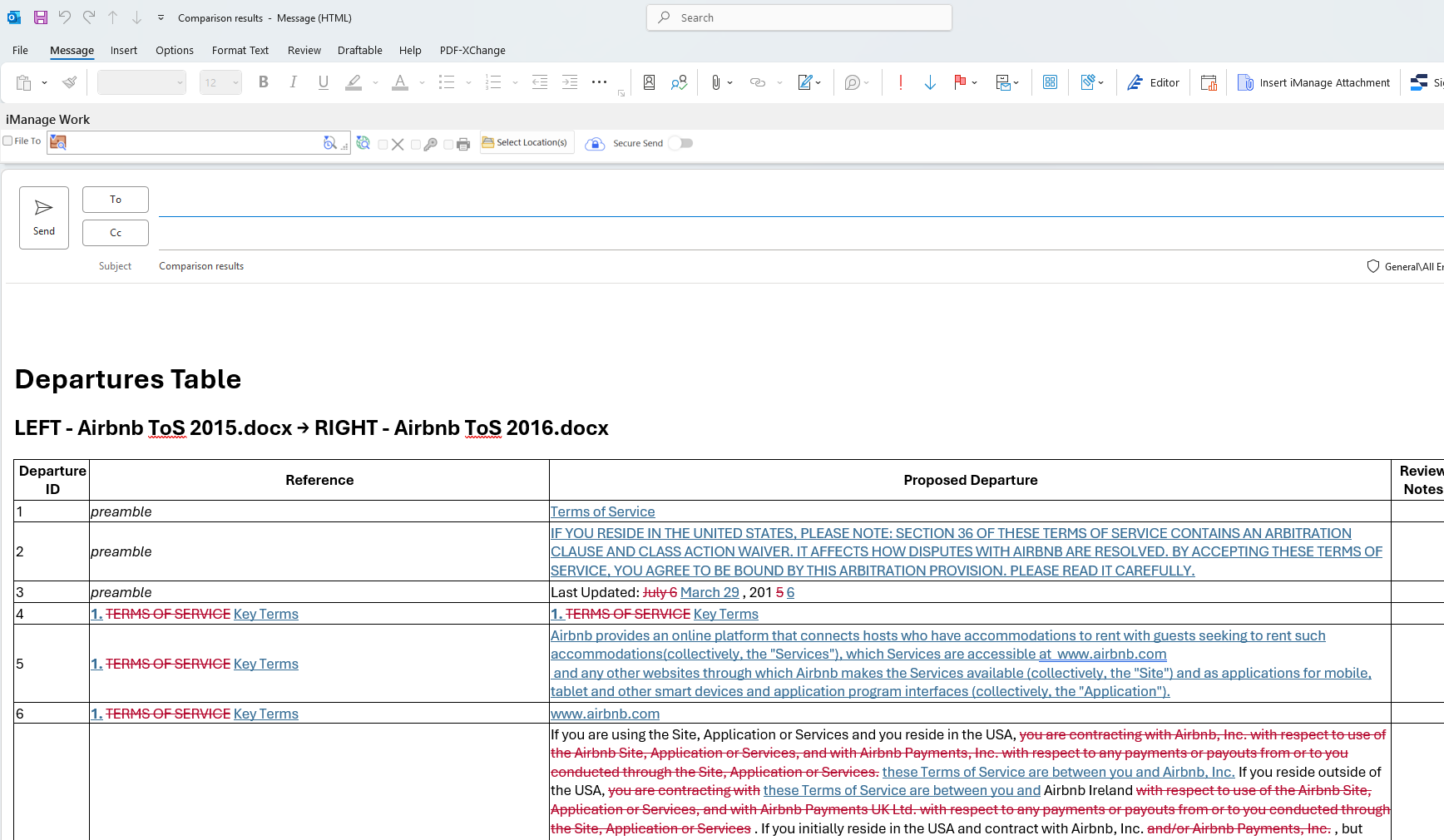
 Click **Email** to generate a new email with the Departures Table embedded directly in the email body.
 ## Customizing your Departures Table template
The Departures Table is generated from a **Word template** that controls the table structure, column headings, branding, headers, footers and formatting. You can customize this template to match your organization's requirements — for example, adding your firm's logo, renaming columns or adding additional columns for specific review workflows.
For a full guide on creating and deploying a custom Departures Table template, see [How to configure a custom Departures Table template](/hc/en-us/articles/46349329328281-How-to-configure-a-custom-Departures-Table-template).
## Frequently asked questions
The Departures Table is generated from comparisons of **Word (doc, docx)** and **PDF** input files. The output is always a **DOCX** file (or embedded HTML when using the Email Body format).
No. Departures Tables are available from **Redline** comparisons only. You can either select **Departures Table** as the comparison type directly, or run a **Redline in Draftable** comparison and export the table from the viewer.
Not at this time. Departures Table export is available for individual comparisons only.
Yes. Draftable Legal supports fully customizable Word templates (.dotx) for the Departures Table. See [How to configure a custom Departures Table template](/hc/en-us/articles/46349329328281-How-to-configure-a-custom-Departures-Table-template) for setup instructions.
Draftable analyzes the paragraph structure and numbering within the document to identify clause and subclause boundaries. It builds a hierarchical structure based on the document's numbering scheme and indentation levels. If a section of text appears before any numbered clause, it is labeled as "preamble".
Yes, but only when exporting from the **Redline viewer** (Method 2). Tags and notes from the Change List are included in the **Review Notes** column. If you generate the Departures Table directly via the Departures Table comparison type, the viewer is not opened and tags/notes cannot be applied.
## Customizing your Departures Table template
The Departures Table is generated from a **Word template** that controls the table structure, column headings, branding, headers, footers and formatting. You can customize this template to match your organization's requirements — for example, adding your firm's logo, renaming columns or adding additional columns for specific review workflows.
For a full guide on creating and deploying a custom Departures Table template, see [How to configure a custom Departures Table template](/hc/en-us/articles/46349329328281-How-to-configure-a-custom-Departures-Table-template).
## Frequently asked questions
The Departures Table is generated from comparisons of **Word (doc, docx)** and **PDF** input files. The output is always a **DOCX** file (or embedded HTML when using the Email Body format).
No. Departures Tables are available from **Redline** comparisons only. You can either select **Departures Table** as the comparison type directly, or run a **Redline in Draftable** comparison and export the table from the viewer.
Not at this time. Departures Table export is available for individual comparisons only.
Yes. Draftable Legal supports fully customizable Word templates (.dotx) for the Departures Table. See [How to configure a custom Departures Table template](/hc/en-us/articles/46349329328281-How-to-configure-a-custom-Departures-Table-template) for setup instructions.
Draftable analyzes the paragraph structure and numbering within the document to identify clause and subclause boundaries. It builds a hierarchical structure based on the document's numbering scheme and indentation levels. If a section of text appears before any numbered clause, it is labeled as "preamble".
Yes, but only when exporting from the **Redline viewer** (Method 2). Tags and notes from the Change List are included in the **Review Notes** column. If you generate the Departures Table directly via the Departures Table comparison type, the viewer is not opened and tags/notes cannot be applied.