> ## Documentation Index
> Fetch the complete documentation index at: https://help.draftable.com/llms.txt
> Use this file to discover all available pages before exploring further.
# Draftable Self-hosted instance first time configuration
> When you have first launched an instance, there is a first time configuration that is required to setup the administrator account for that instance. This article will detail a clear procedure for configuring your instance for the first time.
**This documentation is for API Self-Hosted Version 2 (Legacy)**
Version 2 is a legacy deployment model. All new customers **must** use Version 3, which features a modern multi-container architecture with improved security and performance.
👉 [Get started with API Self-Hosted v3](/hc/en-us/articles/51133475373465-API-Self-Hosted-v3-Quick-Start-Guide)
## Before you start
Ensure the following before you begin the configuration steps:
1. You have launched your instance using [*docker-compose*](/hc/en-us/articles/6140153331993-Using-docker-compose-to-launch-instances)
2. The IP address of the instance to put into your browser
## Configuration steps
Connect to your instance webpage, then navigate to the instance webpage by using your browser and connecting to the address.\*\*
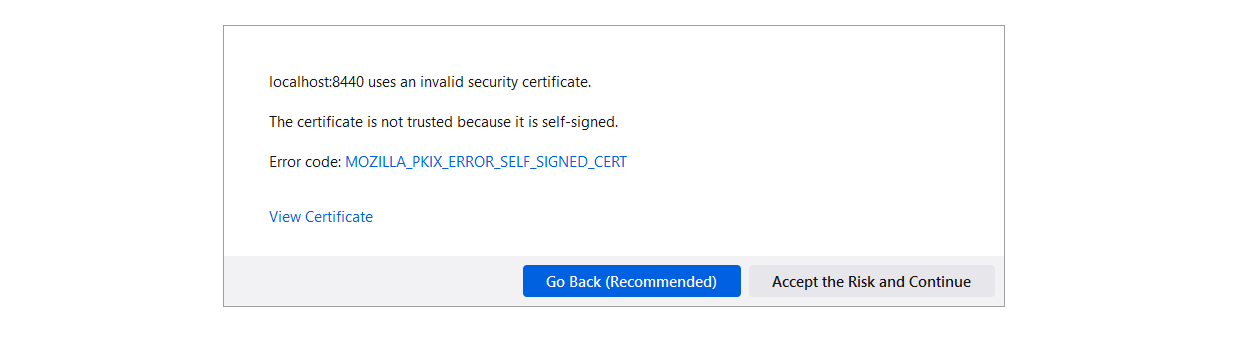
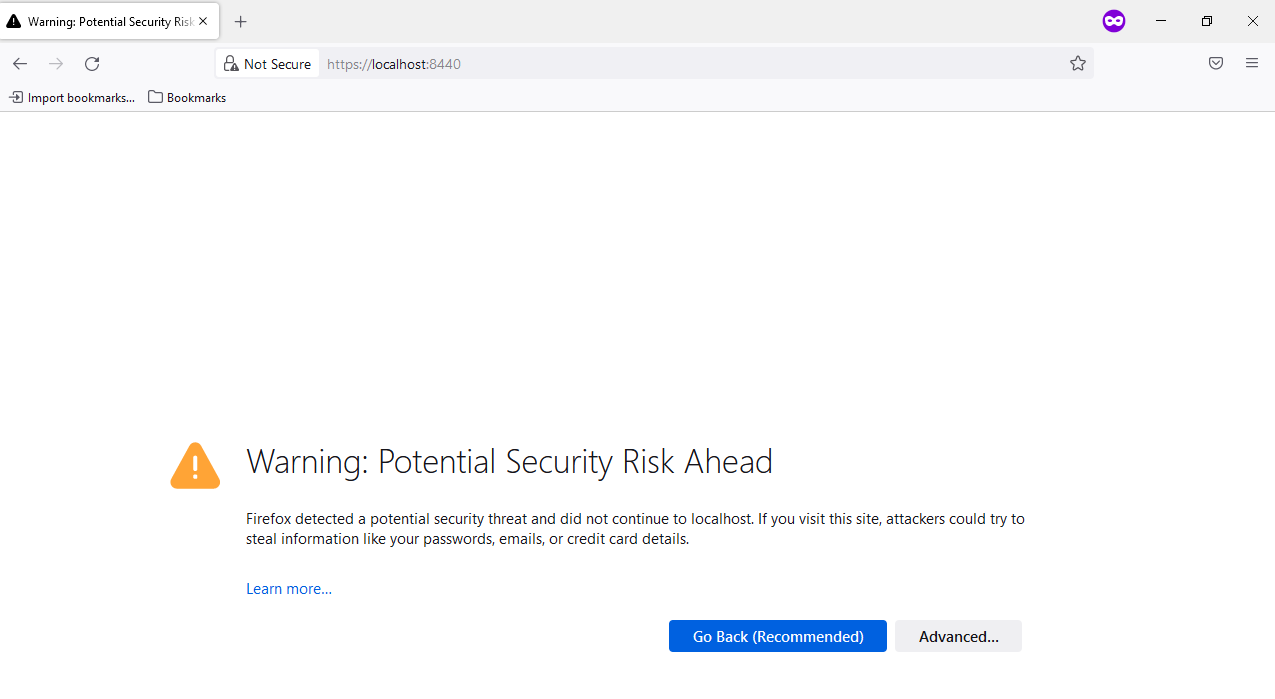 You may see this warning if you have not installed trusted certificates onto the instance. You can navigate around this by clicking **advanced** then click on **Accept the Risk and Continue (warning this does mean you are typically trusting an self signed certificate)**.
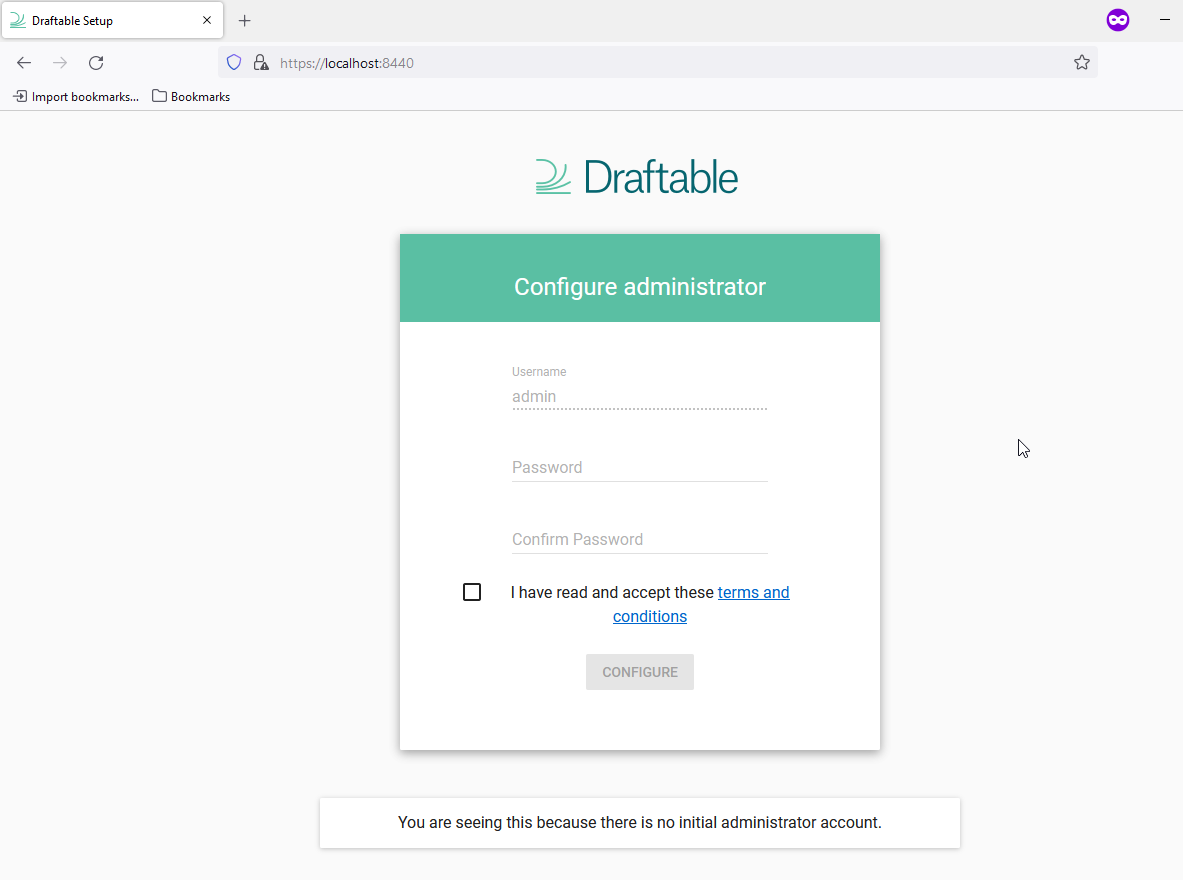
 Go through and complete the first time setup for the administrator account.
 Once you have entered the admin user password, log back in with the same credentials.
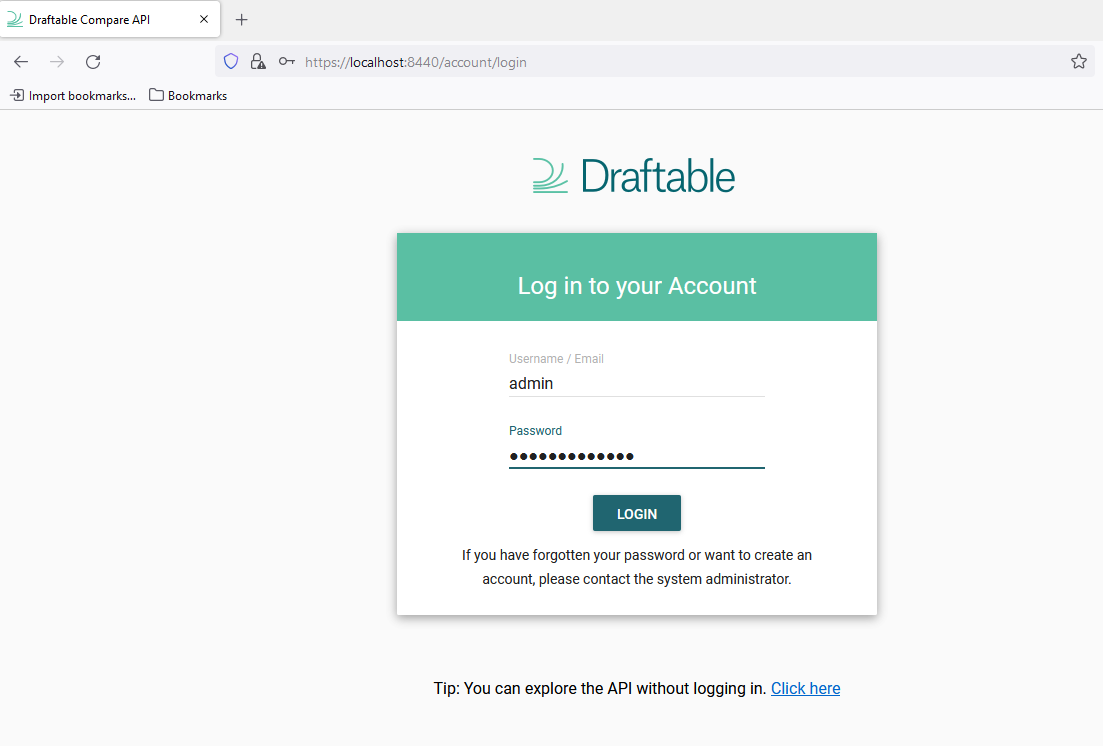 Your instance (and administrator) account has been successfully set up.
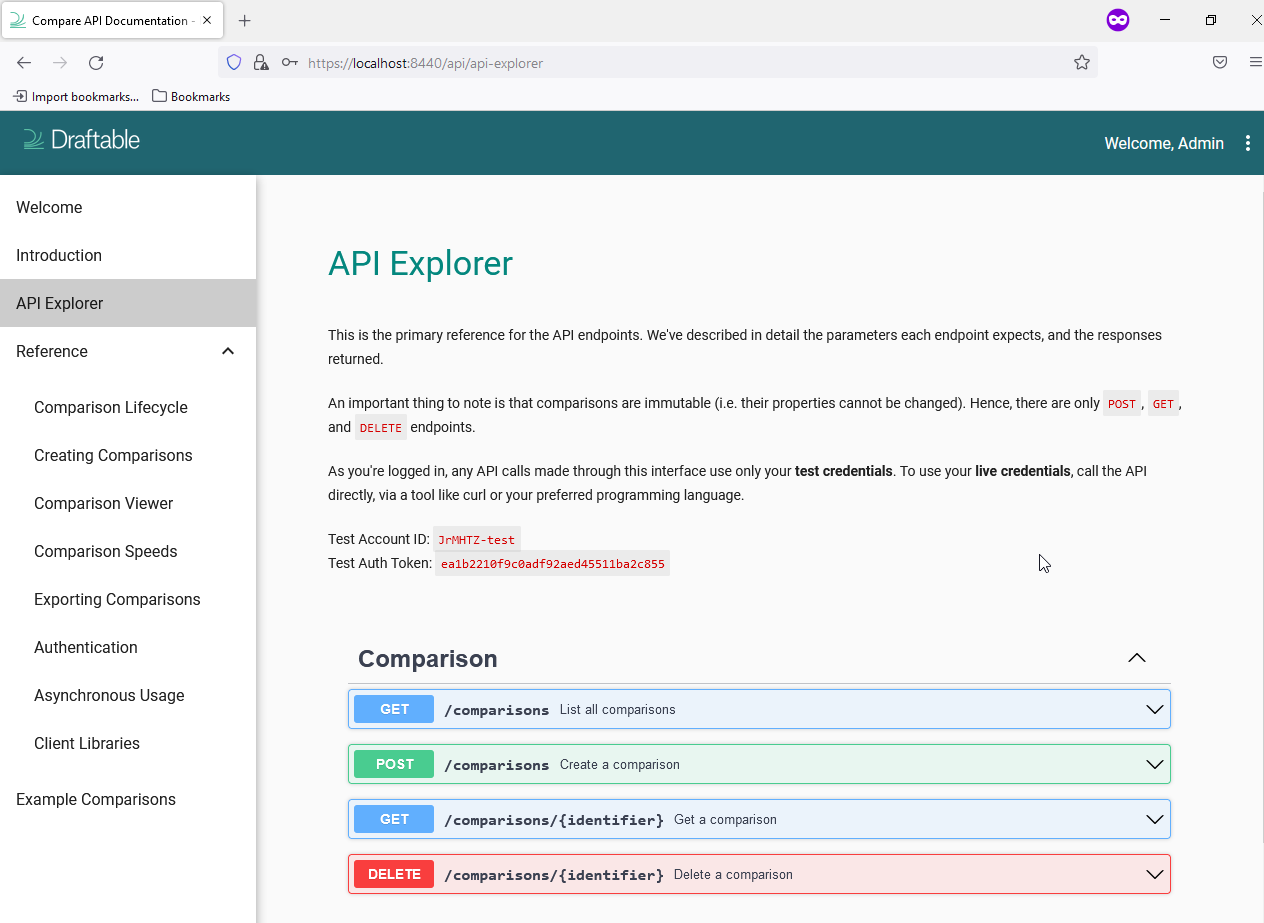 Navigate to the admin section (found in the top right corner of the webpage) and enter your product key. This completes first time configuration.