> ## Documentation Index
> Fetch the complete documentation index at: https://help.draftable.com/llms.txt
> Use this file to discover all available pages before exploring further.
# Adjust Comparison: Modify comparison settings directly in the viewer
> Learn how to use the Adjust Comparison feature in Draftable Legal to switch document versions, swap files, refresh from source, and change Redline profiles - all without leaving the comparison viewer.
The **Adjust Comparison** control allows you to modify your comparison settings directly from within the Draftable Redline Viewer. This feature streamlines your workflow by enabling quick corrections and adjustments without needing to close the viewer and start a new comparison from scratch.
With Adjust Comparison, you can:
* **Reload documents from source** to get the latest version
* **Switch document versions** (e.g., selecting a different version from your DMS)
* **Swap the older and newer documents** if you loaded them in the wrong order
* **Change Redline Profiles** to apply different markup configurations
* **Re-run the comparison** in the same tab or open it in a new tab
## Opening the Adjust Comparison panel
After running a comparison, locate the **Adjust Comparison** button in the ribbon toolbar at the top of the viewer.
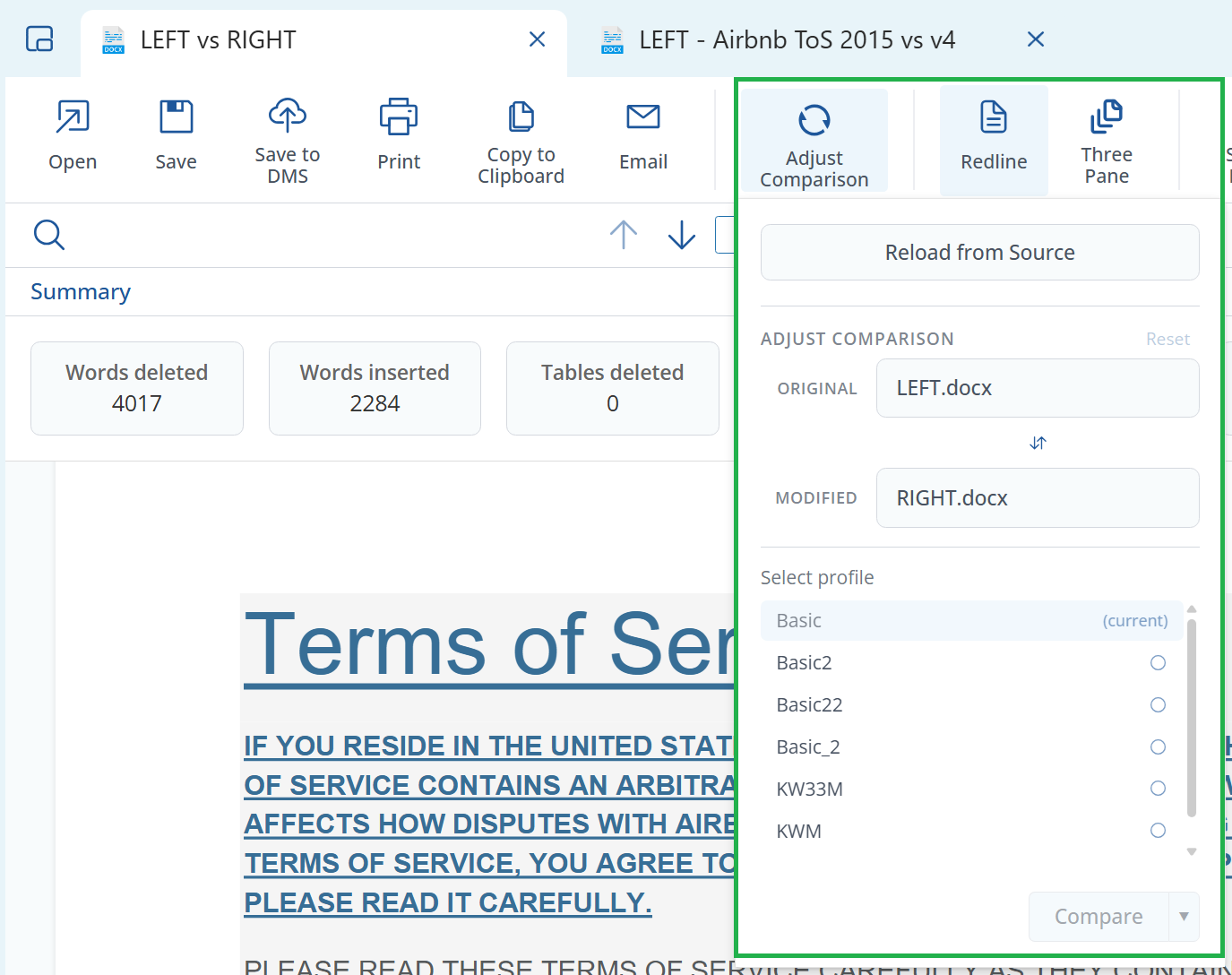
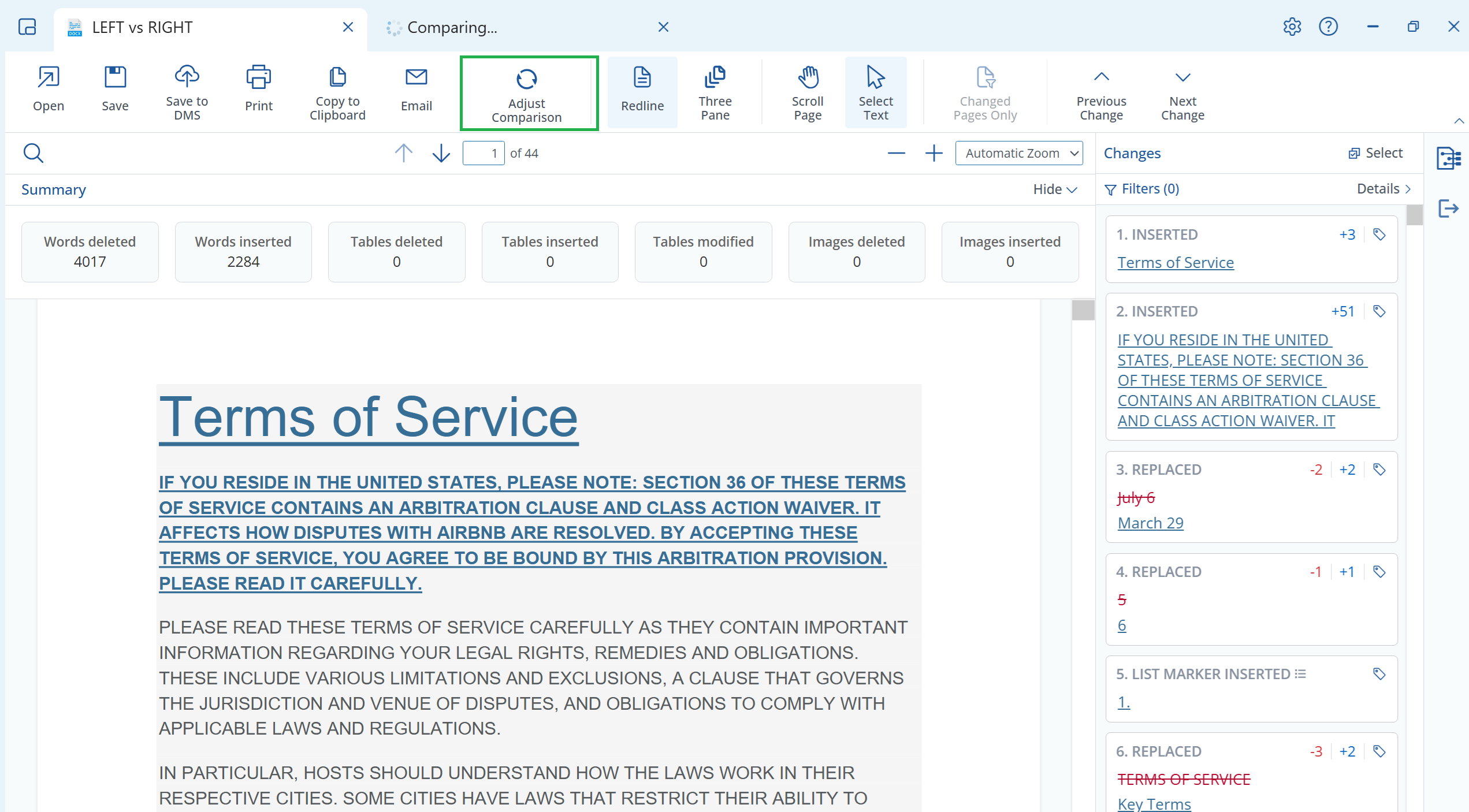 Click **Adjust Comparison** to open the adjustment panel. This panel displays all available options for modifying your current comparison.
 ## Reload from Source
If you're working with documents from a DMS or shared location and suspect they may have been updated since you started your comparison, you can refresh them to ensure you're comparing the latest versions.
Open the **Adjust Comparison** panel by clicking the button in the toolbar.
Click the **Reload from Source** button at the top of the panel. This will fetch the latest version of both documents from their original locations.
## Reload from Source
If you're working with documents from a DMS or shared location and suspect they may have been updated since you started your comparison, you can refresh them to ensure you're comparing the latest versions.
Open the **Adjust Comparison** panel by clicking the button in the toolbar.
Click the **Reload from Source** button at the top of the panel. This will fetch the latest version of both documents from their original locations.
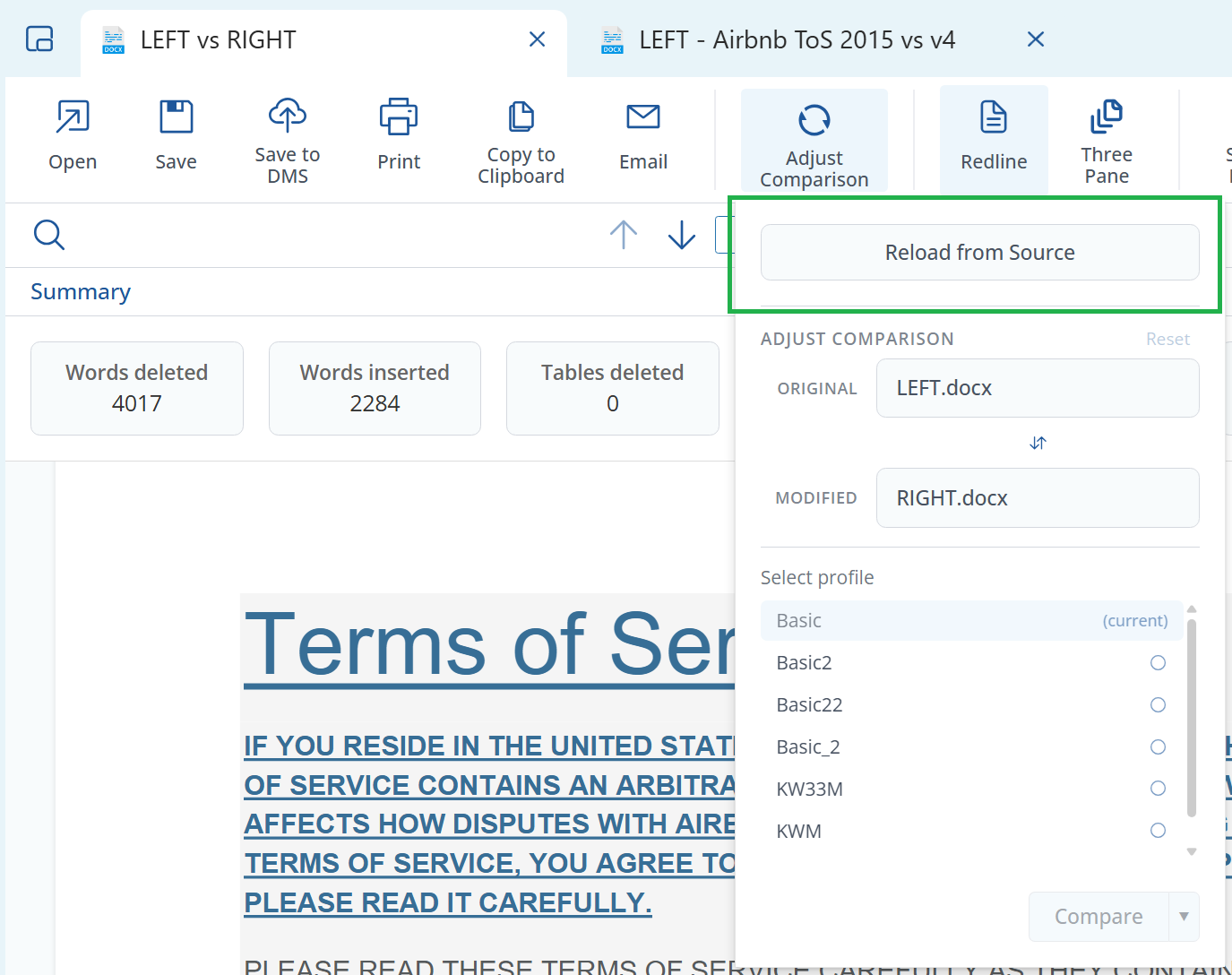 Reload from Source is particularly useful when comparing documents stored in iManage, NetDocuments, SharePoint, or other document management systems where files may be updated by colleagues during your review.
## Switching document versions
When working with documents from a DMS that supports versioning, you can switch to a different version of either the original or modified document directly from the Adjust Comparison panel.
Open the **Adjust Comparison** panel.
Click on the dropdown next to either **ORIGINAL** or **MODIFIED** to see available versions.
Reload from Source is particularly useful when comparing documents stored in iManage, NetDocuments, SharePoint, or other document management systems where files may be updated by colleagues during your review.
## Switching document versions
When working with documents from a DMS that supports versioning, you can switch to a different version of either the original or modified document directly from the Adjust Comparison panel.
Open the **Adjust Comparison** panel.
Click on the dropdown next to either **ORIGINAL** or **MODIFIED** to see available versions.
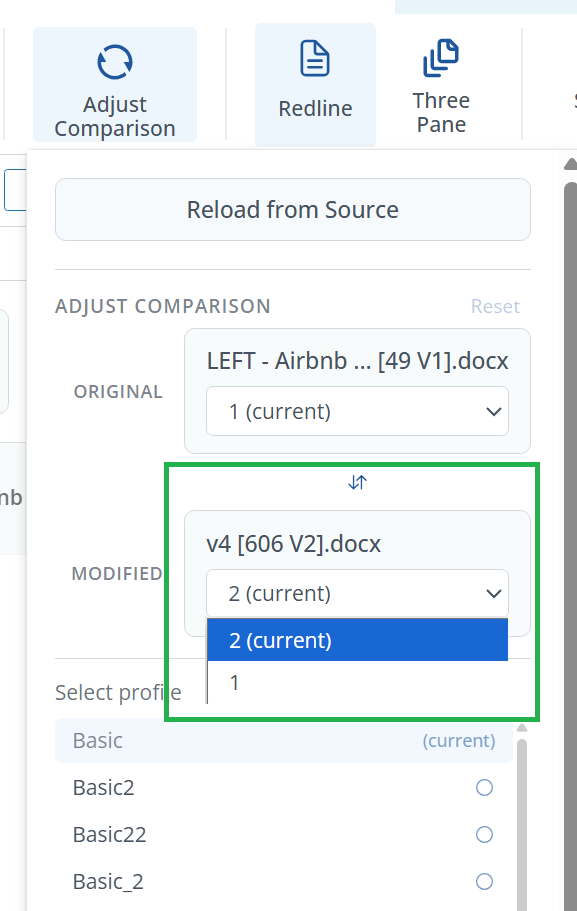 Select the version you want to compare. The dropdown shows the current version and any other available versions from your DMS.
## Swapping older and newer documents
If you accidentally loaded documents in the wrong order (older as newer, or vice versa), you can quickly swap them without starting over.
Open the **Adjust Comparison** panel.
Locate the **swap button** (double-arrow icon) between the ORIGINAL and MODIFIED file fields.
Select the version you want to compare. The dropdown shows the current version and any other available versions from your DMS.
## Swapping older and newer documents
If you accidentally loaded documents in the wrong order (older as newer, or vice versa), you can quickly swap them without starting over.
Open the **Adjust Comparison** panel.
Locate the **swap button** (double-arrow icon) between the ORIGINAL and MODIFIED file fields.
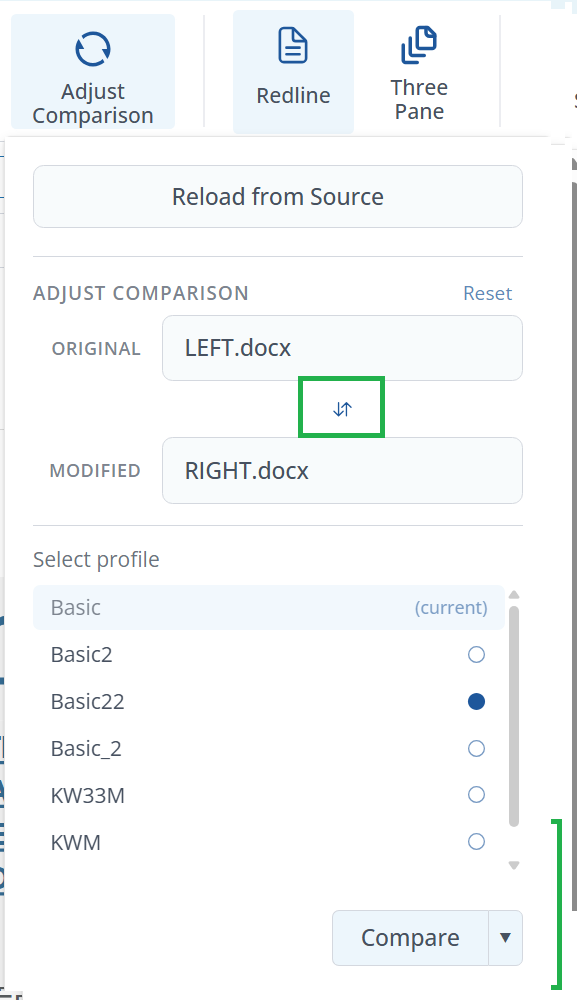 Click the swap button to switch the positions of the two documents. The original will become the modified, and vice versa.
## Changing Redline Profiles
You may want to apply a different markup configuration to your comparison - for example, switching from a basic profile to one with more detailed change tracking, or using a profile configured for a specific client or matter.
Open the **Adjust Comparison** panel.
In the **Select profile** section, you'll see a list of available Redline profiles. The currently active profile is marked as "(current)".
Click the swap button to switch the positions of the two documents. The original will become the modified, and vice versa.
## Changing Redline Profiles
You may want to apply a different markup configuration to your comparison - for example, switching from a basic profile to one with more detailed change tracking, or using a profile configured for a specific client or matter.
Open the **Adjust Comparison** panel.
In the **Select profile** section, you'll see a list of available Redline profiles. The currently active profile is marked as "(current)".
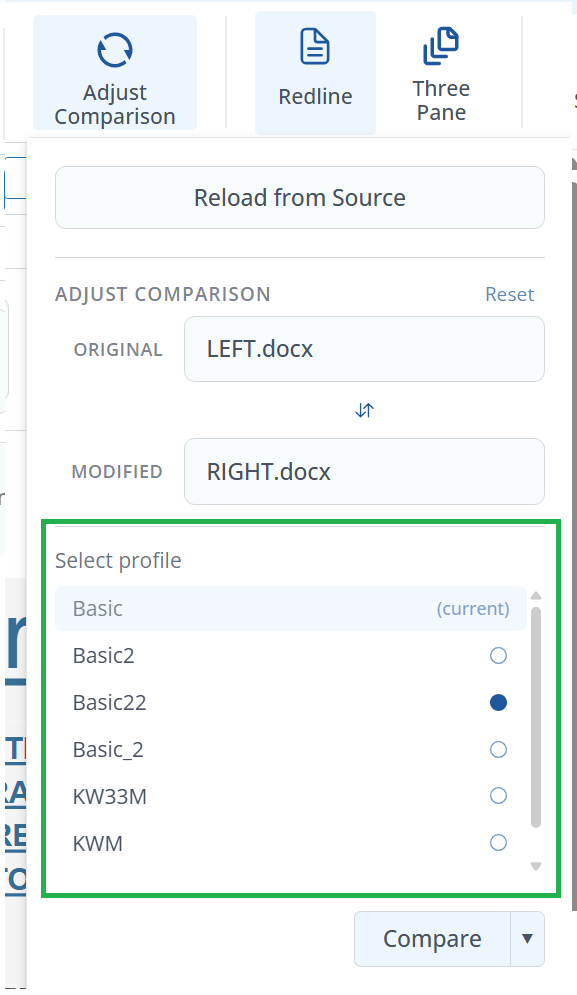 Click on a different profile to select it. The radio button will fill to indicate your selection.
Redline profiles can be configured to show or hide specific types of changes, use different colors and formatting, and apply various comparison algorithms. See [Managing profiles for Redline settings](/hc/en-us/articles/19002240548249-Managing-profiles-for-Redline-settings) for more information on creating and customizing profiles.
## Running the adjusted comparison
Once you've made your adjustments, you can re-run the comparison either in the current tab or in a new tab.
After making your desired changes (version, profile, etc.), locate the **Compare** button at the bottom of the Adjust Comparison panel.
To run the comparison in the **current tab**, simply click **Compare**.
To run the comparison in a **new tab**, click the dropdown arrow next to the Compare button and select **Compare in a new tab**.
Click on a different profile to select it. The radio button will fill to indicate your selection.
Redline profiles can be configured to show or hide specific types of changes, use different colors and formatting, and apply various comparison algorithms. See [Managing profiles for Redline settings](/hc/en-us/articles/19002240548249-Managing-profiles-for-Redline-settings) for more information on creating and customizing profiles.
## Running the adjusted comparison
Once you've made your adjustments, you can re-run the comparison either in the current tab or in a new tab.
After making your desired changes (version, profile, etc.), locate the **Compare** button at the bottom of the Adjust Comparison panel.
To run the comparison in the **current tab**, simply click **Compare**.
To run the comparison in a **new tab**, click the dropdown arrow next to the Compare button and select **Compare in a new tab**.
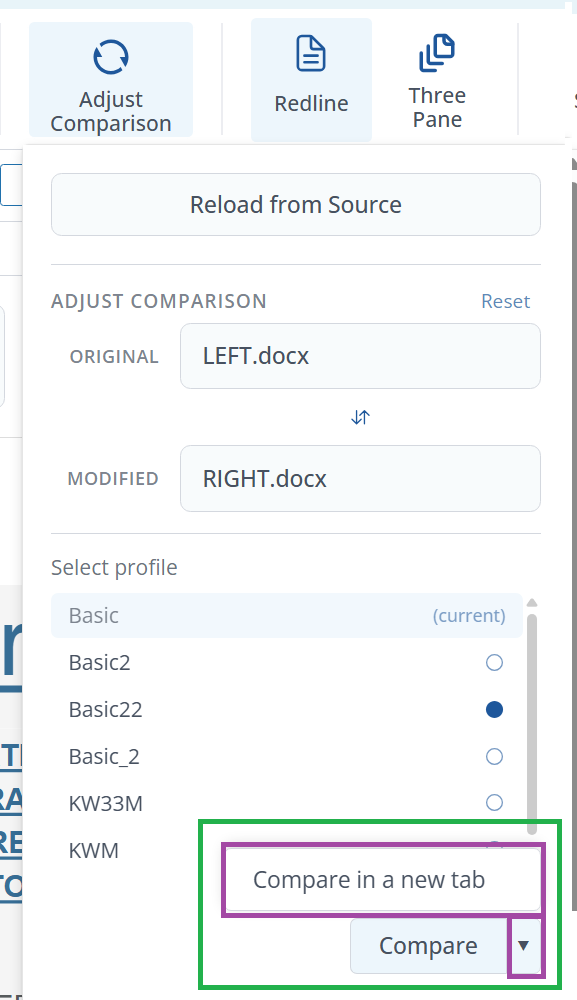 Opening in a new tab is useful when you want to compare the results of different settings side by side, or when you want to preserve your current comparison while exploring alternatives.
## Summary
The Adjust Comparison feature provides a quick and efficient way to fine-tune your comparisons without disrupting your workflow. Whether you need to reload updated documents, switch versions, fix file order, or try different Redline profiles, all adjustments can be made directly within the viewer in just a few clicks.
Opening in a new tab is useful when you want to compare the results of different settings side by side, or when you want to preserve your current comparison while exploring alternatives.
## Summary
The Adjust Comparison feature provides a quick and efficient way to fine-tune your comparisons without disrupting your workflow. Whether you need to reload updated documents, switch versions, fix file order, or try different Redline profiles, all adjustments can be made directly within the viewer in just a few clicks.