> ## Documentation Index
> Fetch the complete documentation index at: https://help.draftable.com/llms.txt
> Use this file to discover all available pages before exploring further.
# Using Draftable for Outlook
> Draftable for Outlook is an Outlook add-in that enables users to send email attachments and text directly to Draftable Desktop for comparison. This feature allows comparison workflows to start from Outlook rather than requiring users to download attachments separately.
**Draftable for Outlook** is an Outlook add-in that sends email attachments and text directly to Draftable Desktop for comparison. This add-in allows you to start comparison workflows from within Outlook, eliminating the need to manually download attachments and navigate to them in Draftable.
**Note:**
Draftable for Outlook requires **Draftable version 25.10.000 or later** to be installed and running on the user's system.
**New Outlook — Drag and drop not supported:**
Dragging and dropping email attachments from Microsoft's **New Outlook** into Draftable is not supported. This is due to a Microsoft limitation — New Outlook does not expose file attachment data in a way that external applications can consume. If you are using New Outlook, please use the **Draftable for Outlook** add-in workflows described on this page to compare email attachments instead of drag and drop. See [Microsoft's documentation](https://learn.microsoft.com/en-us/answers/questions/5535929/new-outlook-drag-drop-support-in-winforms) for further details.
## Accessing Draftable for Outlook
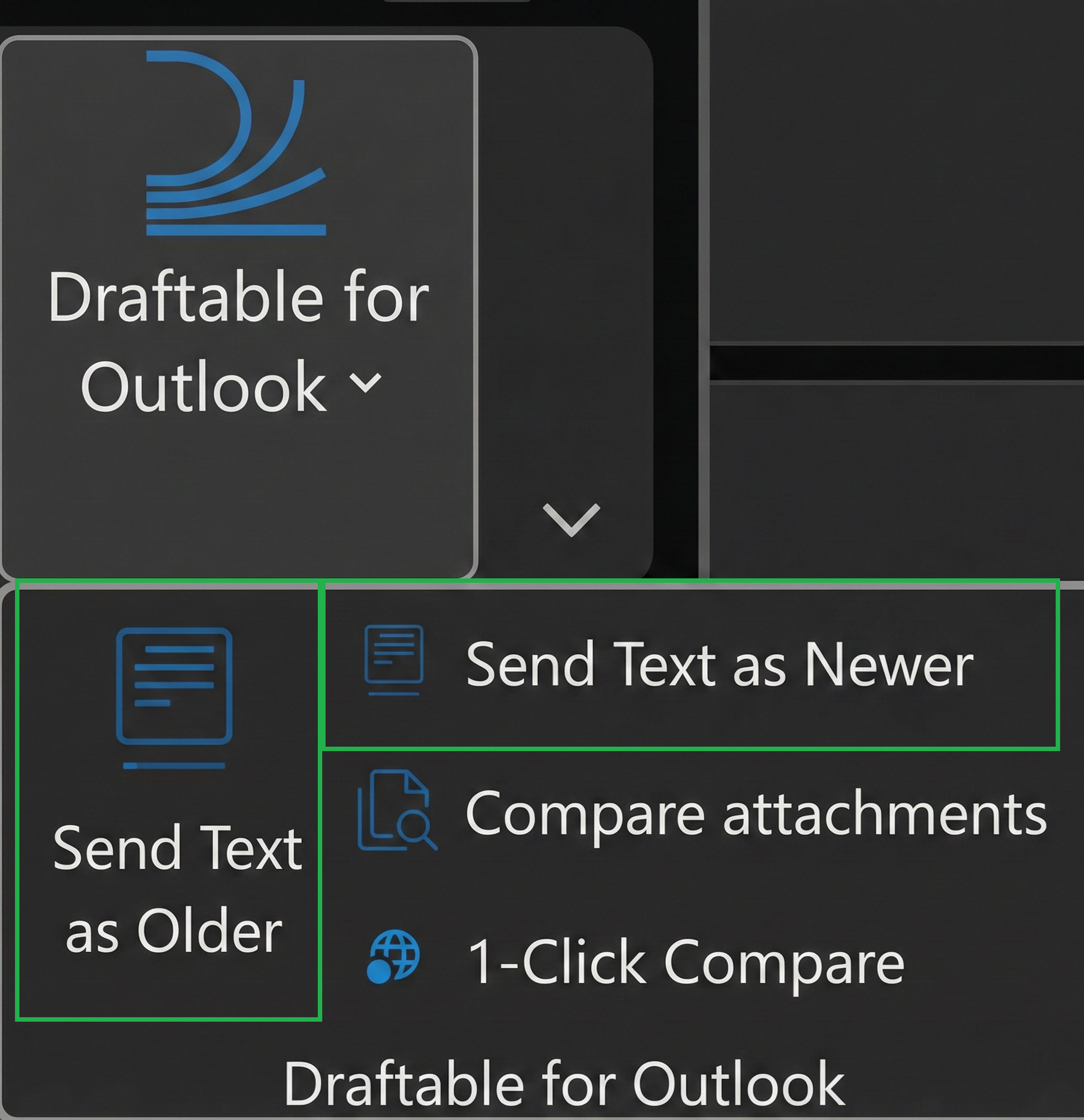
Draftable for Outlook is accessible via the **Draftable for Outlook** button in the Outlook ribbon. When you open or reply to an email, you'll find the button on the right-hand side of the **Message** tab.
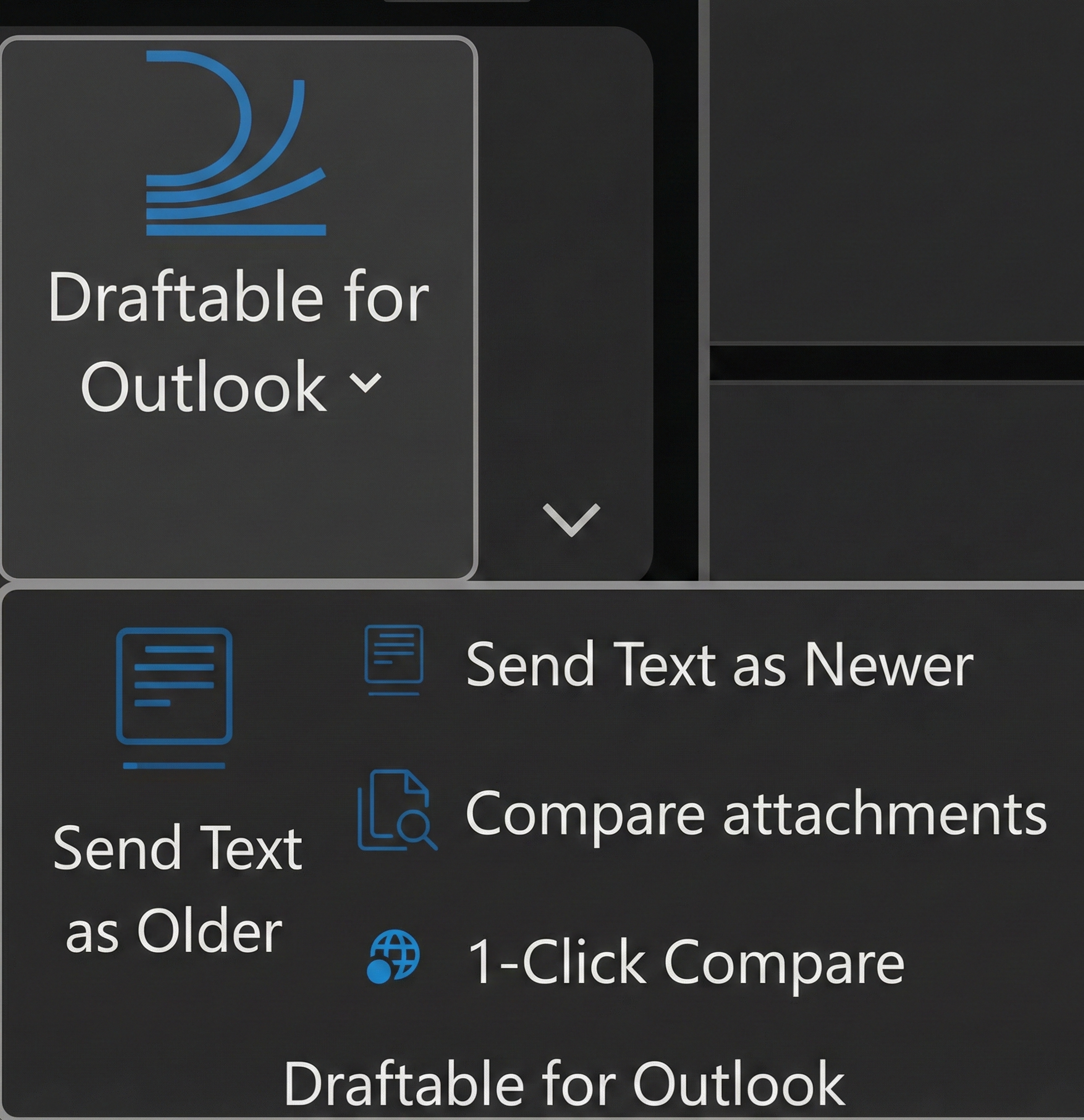
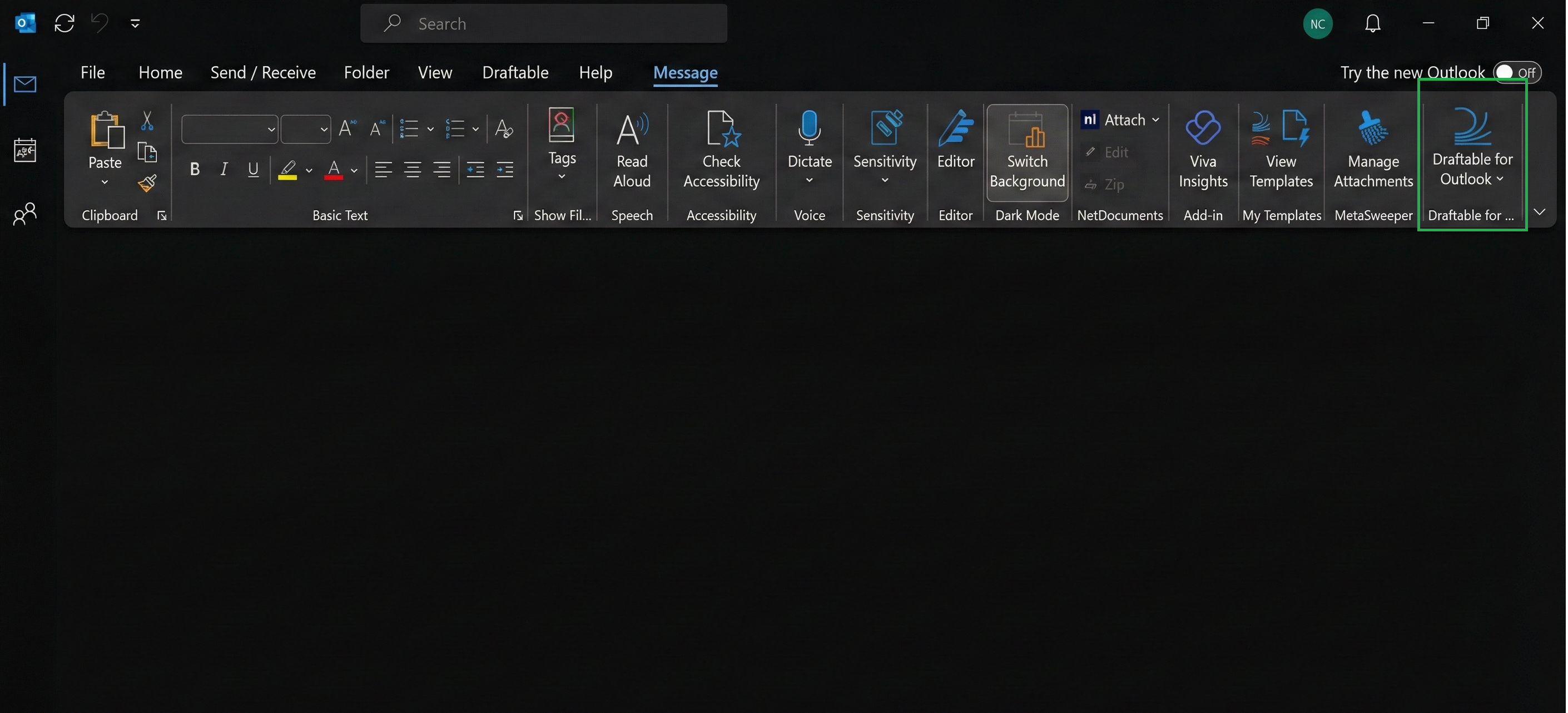 Clicking the button opens a dropdown menu with four options:
* **Compare attachments**
* **1-Click Compare**
* **Send Text as Newer**
* **Send Text as Older**
Clicking the button opens a dropdown menu with four options:
* **Compare attachments**
* **1-Click Compare**
* **Send Text as Newer**
* **Send Text as Older**
 ## Draftable for Outlook Workflow
The Draftable for Outlook workflow integrates directly into Microsoft Outlook, allowing you to send email attachments and text to Draftable Desktop for comparison — without needing to download files manually.
All comparisons are performed in **Draftable Desktop**, providing full access to advanced features, local files, and profiles.
**Please note:**
Ensure that **Draftable is open in the background** when using Draftable for Outlook, otherwise documents will not be loaded correctly or at all into Draftable.
### Comparison Options
#### 1. Compare attachments
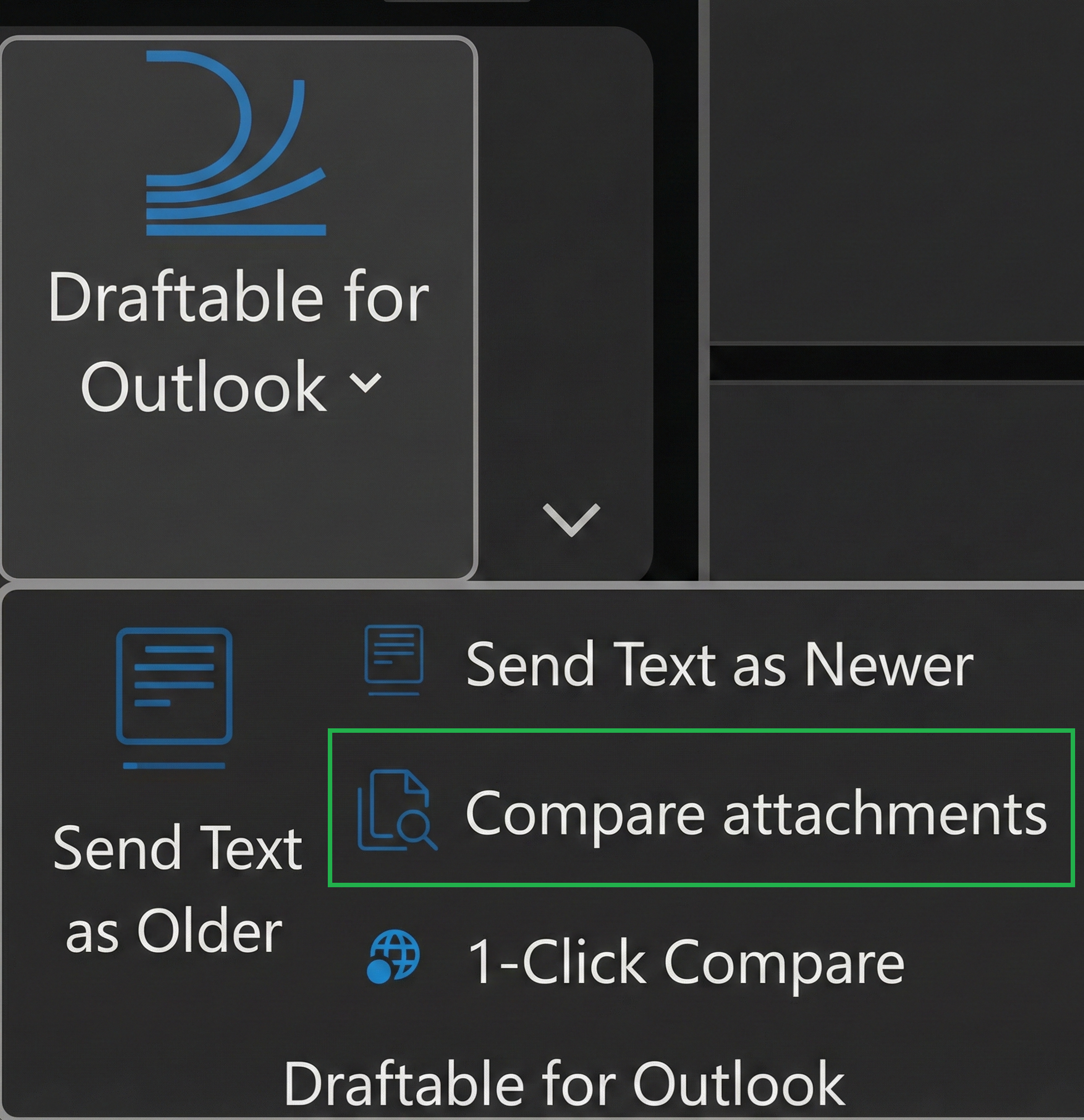
The **Compare attachments** option opens an attachment selector, allowing you to choose specific files from the email to send to Draftable Desktop for comparison.
## Draftable for Outlook Workflow
The Draftable for Outlook workflow integrates directly into Microsoft Outlook, allowing you to send email attachments and text to Draftable Desktop for comparison — without needing to download files manually.
All comparisons are performed in **Draftable Desktop**, providing full access to advanced features, local files, and profiles.
**Please note:**
Ensure that **Draftable is open in the background** when using Draftable for Outlook, otherwise documents will not be loaded correctly or at all into Draftable.
### Comparison Options
#### 1. Compare attachments
The **Compare attachments** option opens an attachment selector, allowing you to choose specific files from the email to send to Draftable Desktop for comparison.
 This is useful when:
* The email contains multiple attachments and you only want to compare specific ones
* You want to select which attachment should be the older vs. newer document
* The email contains non-document files you want to exclude
Once you click "Compare Selected", the chosen documents will open in the Draftable New Comparison window.
#### 2. 1-Click Compare
The **1-Click Compare** option sends all email attachments to Draftable Desktop with a single click. This is the fastest way to start a comparison when an email contains the documents you want to compare.
This is useful when:
* The email contains multiple attachments and you only want to compare specific ones
* You want to select which attachment should be the older vs. newer document
* The email contains non-document files you want to exclude
Once you click "Compare Selected", the chosen documents will open in the Draftable New Comparison window.
#### 2. 1-Click Compare
The **1-Click Compare** option sends all email attachments to Draftable Desktop with a single click. This is the fastest way to start a comparison when an email contains the documents you want to compare.
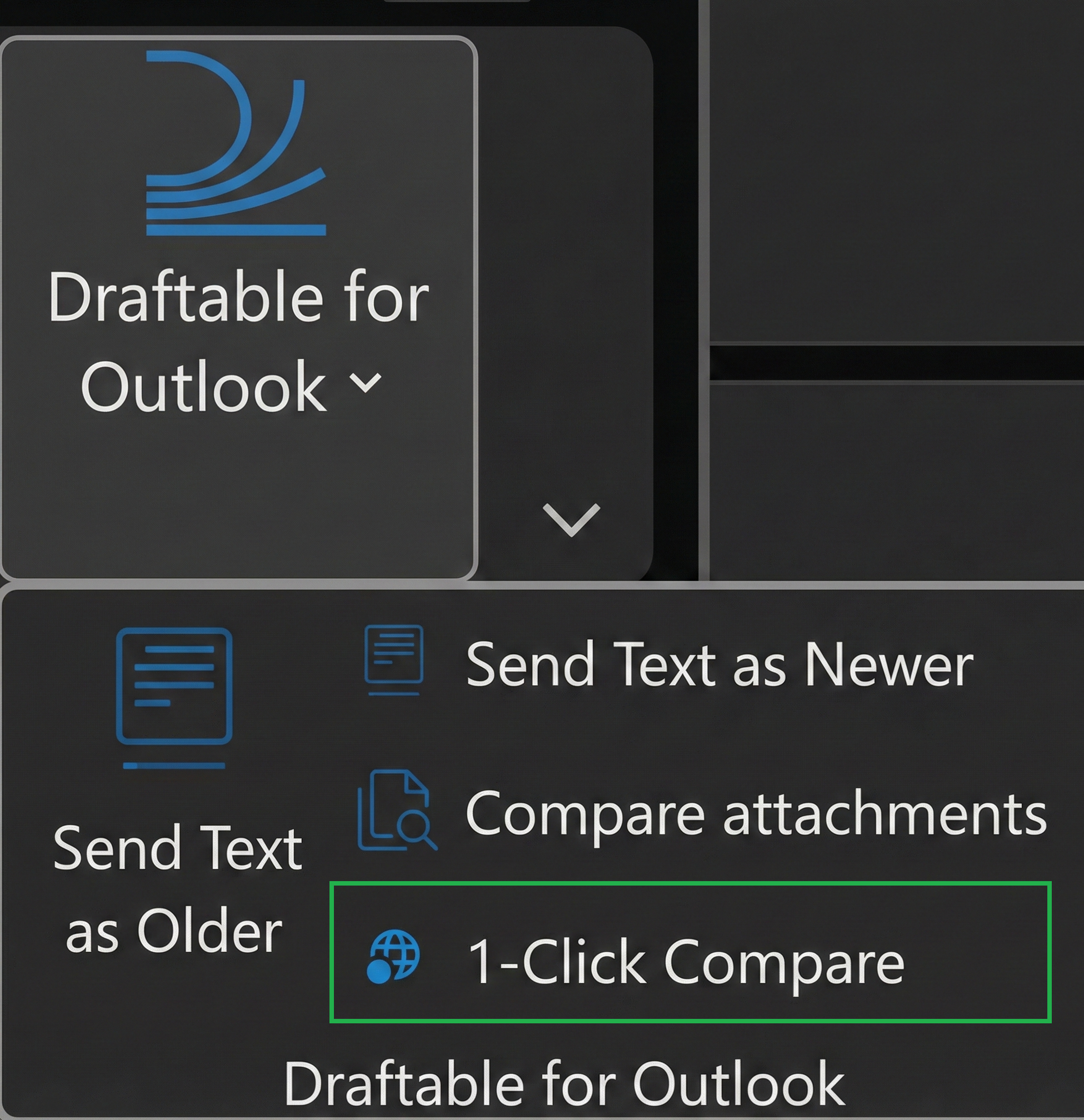 When clicked, all attachments from the current email are sent to Draftable Desktop's New Comparison window, ready for you to arrange and run the comparison.
#### 3. Send Text as Newer / Send Text as Older
The **Send Text as Newer** and **Send Text as Older** options allow you to select text from the email body and send it directly to Draftable Desktop as either the newer or older document in a comparison.
When clicked, all attachments from the current email are sent to Draftable Desktop's New Comparison window, ready for you to arrange and run the comparison.
#### 3. Send Text as Newer / Send Text as Older
The **Send Text as Newer** and **Send Text as Older** options allow you to select text from the email body and send it directly to Draftable Desktop as either the newer or older document in a comparison.
 This is useful for:
* Comparing quoted text from different email threads
* Comparing text snippets without needing full document files
* Quick text-based comparisons directly from email content
To use this feature, select the text you want to compare in the email body:
This is useful for:
* Comparing quoted text from different email threads
* Comparing text snippets without needing full document files
* Quick text-based comparisons directly from email content
To use this feature, select the text you want to compare in the email body:
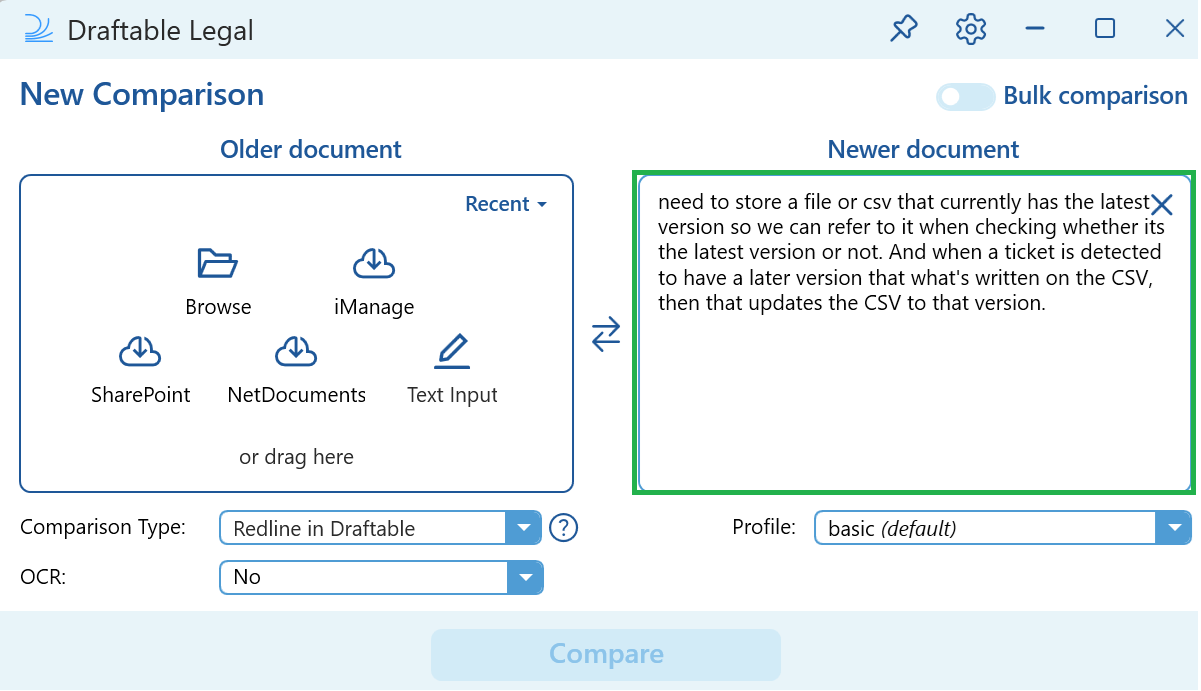
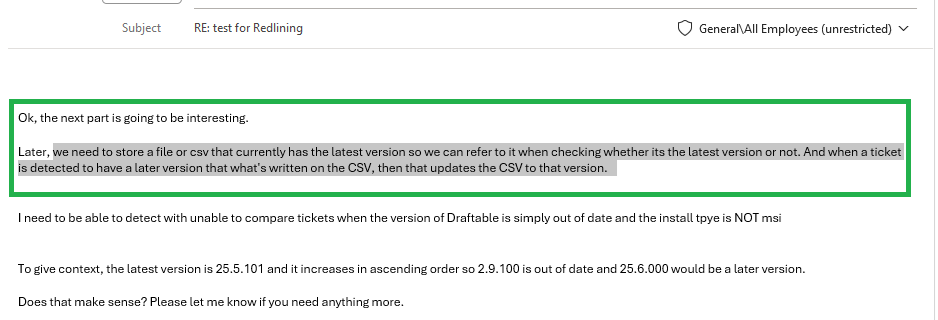 Then click **Send Text as Newer** or **Send Text as Older** depending on which side of the comparison the selected text should appear. The text will be sent to Draftable Desktop's New Comparison window:
 ## Notes
* Draftable for Outlook requires **Draftable version 25.10.000 or later** to be installed and running on the user's device.
* Comparisons are performed in Draftable Desktop, ensuring full access to all features, profiles, and local file access.
* Make sure Draftable Desktop is running before using the add-in.
* If you need further assistance or support for Draftable for Outlook, please reach out to [support@draftable.com](mailto:support@draftable.com)
## Notes
* Draftable for Outlook requires **Draftable version 25.10.000 or later** to be installed and running on the user's device.
* Comparisons are performed in Draftable Desktop, ensuring full access to all features, profiles, and local file access.
* Make sure Draftable Desktop is running before using the add-in.
* If you need further assistance or support for Draftable for Outlook, please reach out to [support@draftable.com](mailto:support@draftable.com)