> ## Documentation Index
> Fetch the complete documentation index at: https://help.draftable.com/llms.txt
> Use this file to discover all available pages before exploring further.
# Using Draftable in Outlook
> Bringing Outlook and Draftable closer together for more efficient workflows.
**Draftable in Outlook** is a modern Outlook add-in that brings Draftable's powerful document comparison functionality directly into Microsoft Outlook. This feature enables users to perform comparisons, manage versions, and review results — all within the familiar Outlook interface.
Draftable in Outlook requires **Draftable version 25.10.000 or later** to be installed and running on the user's system.
**New Outlook — Drag and drop not supported:**
Dragging and dropping email attachments from Microsoft's **New Outlook** into Draftable is not supported. This is due to a Microsoft limitation — New Outlook does not expose file attachment data in a way that external applications can consume. If you are using New Outlook, please use the **Draftable in Outlook** add-in workflows described on this page to compare email attachments instead of drag and drop. See [Microsoft's documentation](https://learn.microsoft.com/en-us/answers/questions/5535929/new-outlook-drag-drop-support-in-winforms) for further details.
## Accessing Draftable in Outlook
To access Draftable in Outlook, follow these steps:
### Step 1: Open the More Options Menu
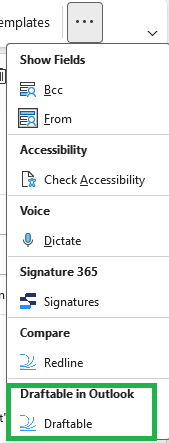
When viewing or composing an email, locate the **"..."** (more options) button in the **Message** tab ribbon.
 ### Step 2: Select Draftable in Outlook
Click the **"..."** button to reveal a dropdown menu. Under the **Draftable in Outlook** header, select **Draftable** to open the full Draftable panel within Outlook.
### Step 2: Select Draftable in Outlook
Click the **"..."** button to reveal a dropdown menu. Under the **Draftable in Outlook** header, select **Draftable** to open the full Draftable panel within Outlook.
 ### Step 3: The Draftable in Outlook Panel
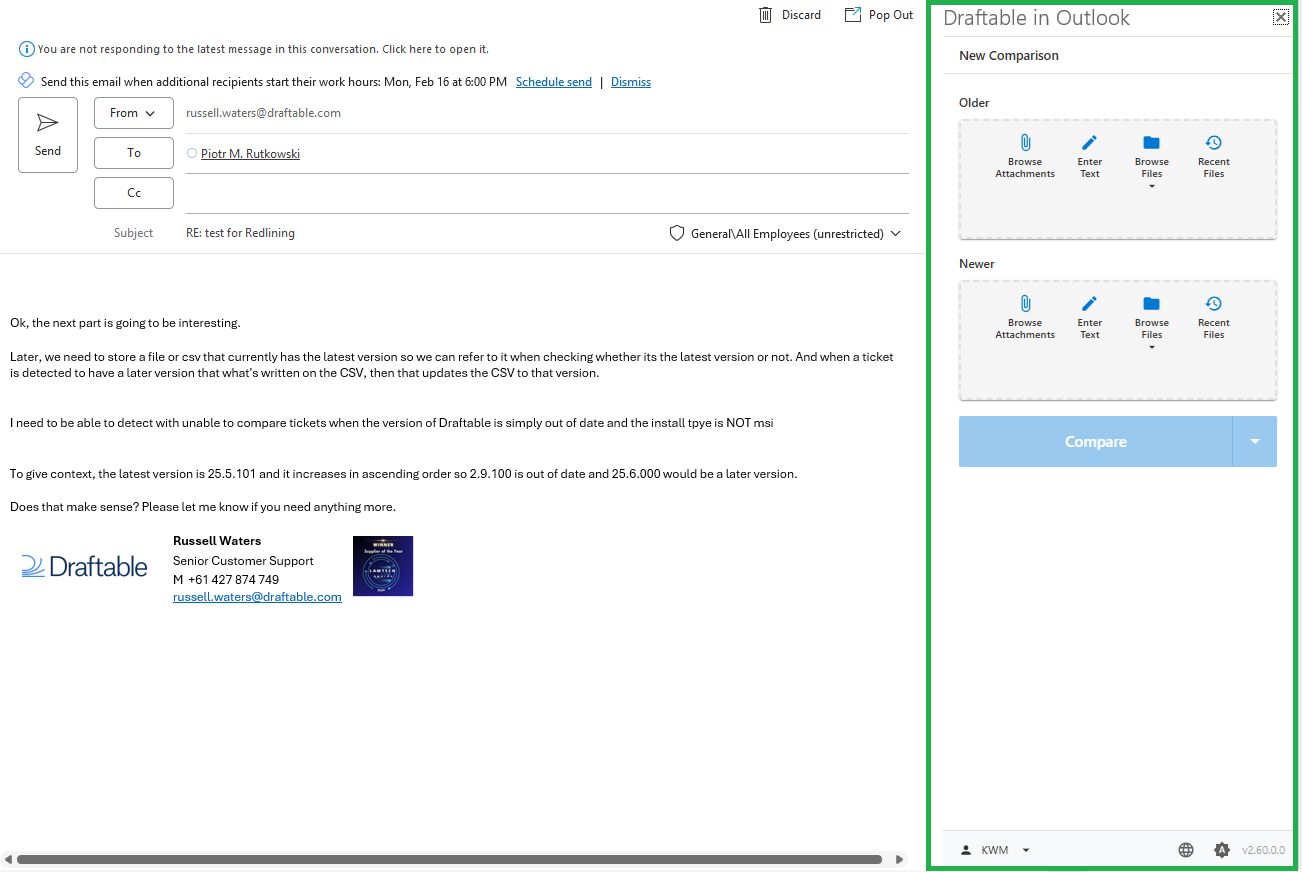
Selecting **Draftable** opens the Draftable panel on the right-hand side of the Outlook window.
### Step 3: The Draftable in Outlook Panel
Selecting **Draftable** opens the Draftable panel on the right-hand side of the Outlook window.
 ## Draftable in Outlook Workflow
The Draftable in Outlook workflow integrates directly into Microsoft Outlook, allowing you to compare email attachments, recent files, and versions — without needing to leave Outlook. The add-in opens a **Draftable interface panel** on the right-hand side of the Outlook window, where users can select files, run comparisons, and view results.
### Workflow options using Draftable within Outlook
#### 1. Draftable in Outlook
From the Draftable panel, you can choose which documents or content to use for comparison on the **Older** and **Newer** sides.
## Draftable in Outlook Workflow
The Draftable in Outlook workflow integrates directly into Microsoft Outlook, allowing you to compare email attachments, recent files, and versions — without needing to leave Outlook. The add-in opens a **Draftable interface panel** on the right-hand side of the Outlook window, where users can select files, run comparisons, and view results.
### Workflow options using Draftable within Outlook
#### 1. Draftable in Outlook
From the Draftable panel, you can choose which documents or content to use for comparison on the **Older** and **Newer** sides.
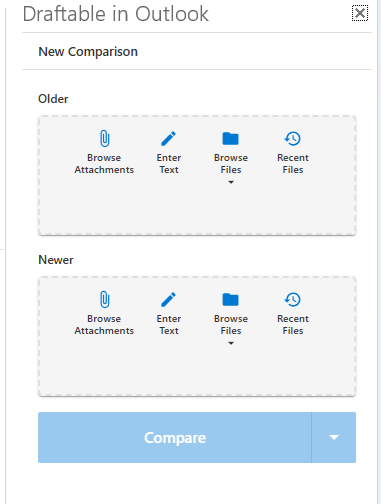 Each side offers the following options:
| Option | Description |
| ---------------------- | ---------------------------------------------------------------------------- |
| **Browse Attachments** | Browse and select email attachments from the current message for comparison. |
| **Enter text** | Allows manual entry of raw text for comparison. |
| **Browse files** | Opens a file browser for selecting files, including DMS integrations. |
| **Recent files** | Displays recently compared documents for quick selection. |
Comparisons run **directly from email attachments** within Outlook are not added to the **Recent files** list. Attachment contents are passed straight into the comparison rather than saved as a standalone file, so there is no permanent location for the recent list to link back to. Only files with a stable location — saved on your computer, a synced folder, or a connected DMS — appear under **Recent**. To keep an attachment handy for re-comparison, save it to your computer or DMS first, then compare it from there. See [Recent Documents](/hc/en-us/articles/24732362072473-How-to-select-from-recently-used-documents) for details.
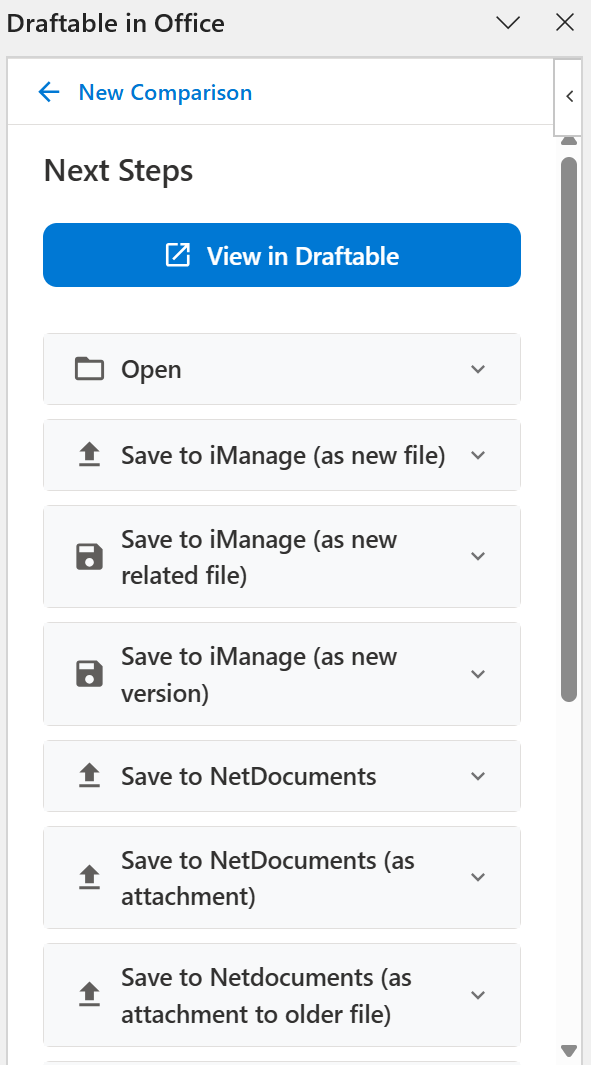
After selecting your documents and running the comparison, you can open the result in Draftable Legal or use one of the export options to **save**, **email**, **copy**, or **print** the comparison.
Each side offers the following options:
| Option | Description |
| ---------------------- | ---------------------------------------------------------------------------- |
| **Browse Attachments** | Browse and select email attachments from the current message for comparison. |
| **Enter text** | Allows manual entry of raw text for comparison. |
| **Browse files** | Opens a file browser for selecting files, including DMS integrations. |
| **Recent files** | Displays recently compared documents for quick selection. |
Comparisons run **directly from email attachments** within Outlook are not added to the **Recent files** list. Attachment contents are passed straight into the comparison rather than saved as a standalone file, so there is no permanent location for the recent list to link back to. Only files with a stable location — saved on your computer, a synced folder, or a connected DMS — appear under **Recent**. To keep an attachment handy for re-comparison, save it to your computer or DMS first, then compare it from there. See [Recent Documents](/hc/en-us/articles/24732362072473-How-to-select-from-recently-used-documents) for details.
After selecting your documents and running the comparison, you can open the result in Draftable Legal or use one of the export options to **save**, **email**, **copy**, or **print** the comparison.
 #### 2. Compare Open Documents
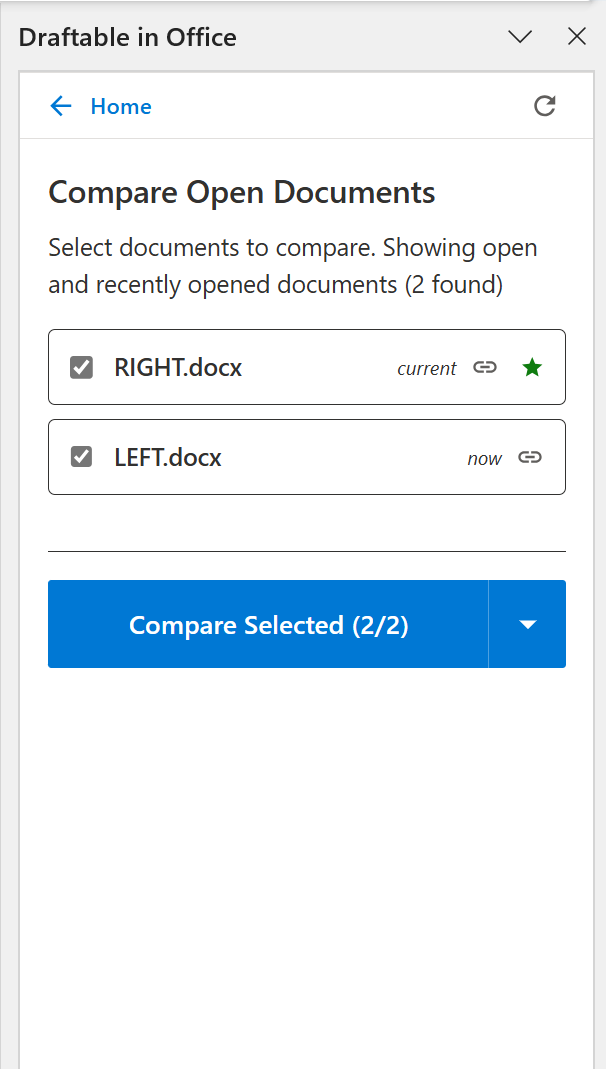
The **Compare Open** option lists documents available for comparison, including email attachments from the current message. This is useful when working with multiple attachments simultaneously.
Recent documents are also displayed for convenience. Once the comparison is complete, the same export workflows (open, save, email, copy, or print) are available.
#### 2. Compare Open Documents
The **Compare Open** option lists documents available for comparison, including email attachments from the current message. This is useful when working with multiple attachments simultaneously.
Recent documents are also displayed for convenience. Once the comparison is complete, the same export workflows (open, save, email, copy, or print) are available.
 #### 3. Compare Versions
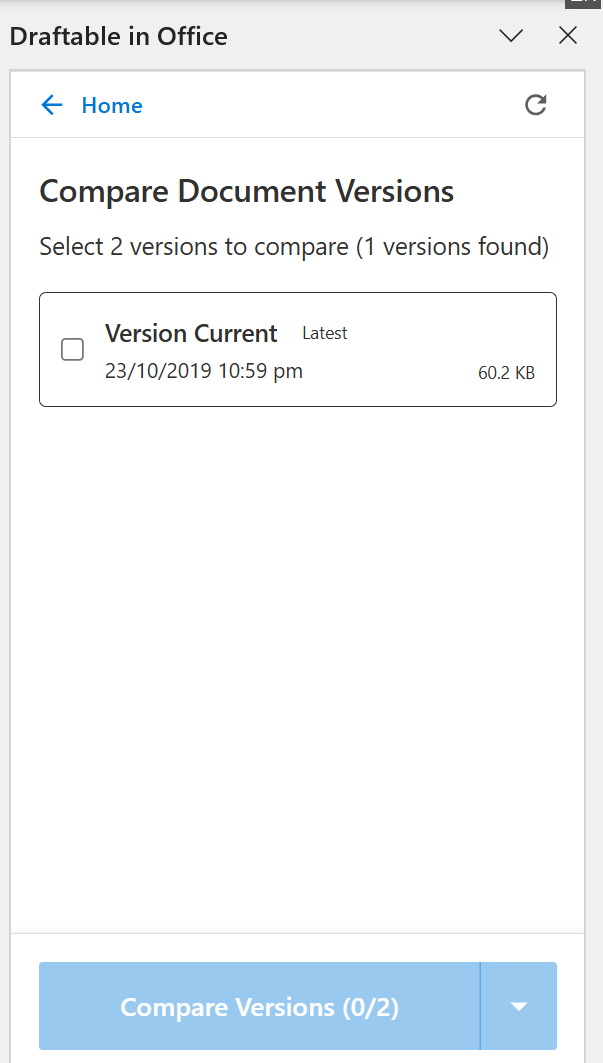
The **Compare Versions** feature allows you to easily compare different versions of the same document — ideal for version-controlled files (e.g., from iManage, NetDocuments, or SharePoint).
You can also **refresh versions** if a new version has been saved or published.
Just like other comparison modes, results can be opened in Draftable Legal or exported using the available workflows.
#### 3. Compare Versions
The **Compare Versions** feature allows you to easily compare different versions of the same document — ideal for version-controlled files (e.g., from iManage, NetDocuments, or SharePoint).
You can also **refresh versions** if a new version has been saved or published.
Just like other comparison modes, results can be opened in Draftable Legal or exported using the available workflows.
 ### Direct to Draftable Options
You don't have to work directly within Outlook if you don't want to; you can still send documents directly to the Draftable application.
### Direct to Draftable Options
You don't have to work directly within Outlook if you don't want to; you can still send documents directly to the Draftable application.
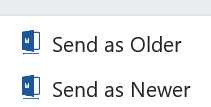 #### Send as Older
Opens the **Draftable New Comparison window** with the selected document preloaded as the **older (left)** document. You can then select the newer document in Draftable to complete the comparison.
#### Send as Newer
Opens the **Draftable New Comparison window** with the selected document preloaded as the **newer (right)** document. You can then select the older document to complete the comparison.
## Additional Settings
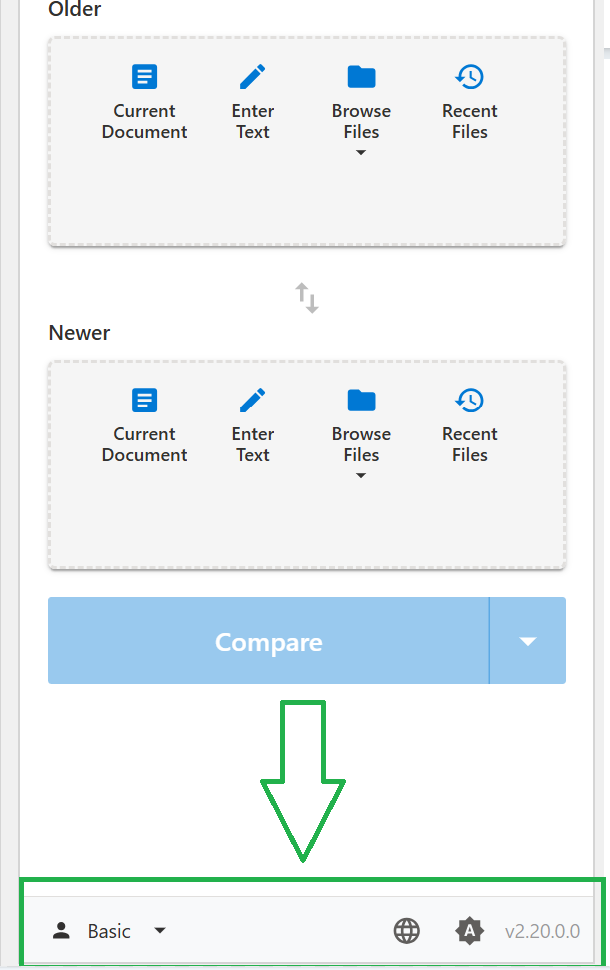
Within the **Draftable in Outlook** panel, you'll find several configuration options that help personalize your in-Outlook comparison experience.
#### Send as Older
Opens the **Draftable New Comparison window** with the selected document preloaded as the **older (left)** document. You can then select the newer document in Draftable to complete the comparison.
#### Send as Newer
Opens the **Draftable New Comparison window** with the selected document preloaded as the **newer (right)** document. You can then select the older document to complete the comparison.
## Additional Settings
Within the **Draftable in Outlook** panel, you'll find several configuration options that help personalize your in-Outlook comparison experience.
 ### Profiles
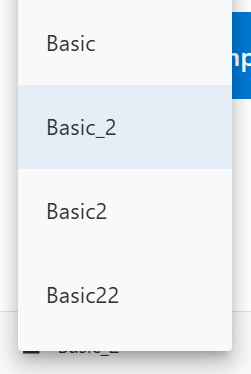
You can select which **comparison profile** to use for your comparisons directly within the Outlook add-in. Profiles allow administrators or users to predefine comparison settings such as markup style, color scheme, and formatting preferences.
### Profiles
You can select which **comparison profile** to use for your comparisons directly within the Outlook add-in. Profiles allow administrators or users to predefine comparison settings such as markup style, color scheme, and formatting preferences.
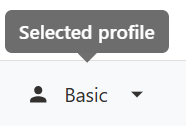 Select from the drop-down menu the available profiles that already exist in Draftable.
 ### Light/Dark Modes
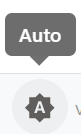
Next to the profile selector is a theme toggle, allowing you to switch between **Light**, **Dark**, and **Auto** color modes to suit your preference or Outlook theme.
### Light/Dark Modes
Next to the profile selector is a theme toggle, allowing you to switch between **Light**, **Dark**, and **Auto** color modes to suit your preference or Outlook theme.
 ### Language
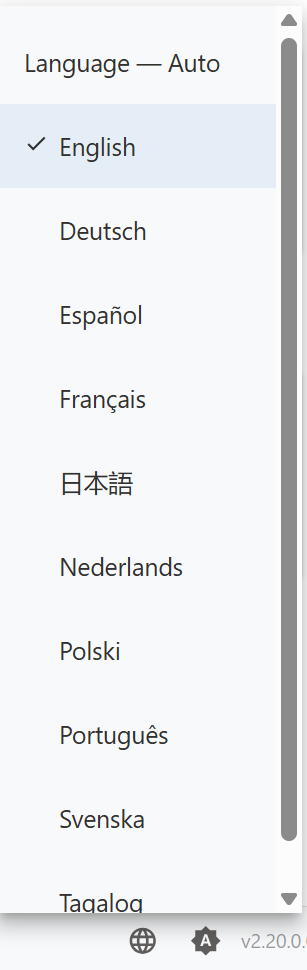
In the same section, you can also choose the **language** that Draftable in Outlook operates in. This setting affects the add-in's interface and messages within Outlook.
### Language
In the same section, you can also choose the **language** that Draftable in Outlook operates in. This setting affects the add-in's interface and messages within Outlook.
 ## Notes
* Draftable in Outlook requires **Draftable version 25.10.000 or later** to be installed and running on the user's device. We recommend running **25.12.000 or later** if possible.
* Comparisons performed in Outlook use the same engine as Draftable Legal, ensuring identical accuracy and output consistency.
* You can continue working within Outlook while running comparisons in the Draftable pane.
* When multiple comparisons are active, they can be managed or switched between via tabs in the right-hand pane.
## Notes
* Draftable in Outlook requires **Draftable version 25.10.000 or later** to be installed and running on the user's device. We recommend running **25.12.000 or later** if possible.
* Comparisons performed in Outlook use the same engine as Draftable Legal, ensuring identical accuracy and output consistency.
* You can continue working within Outlook while running comparisons in the Draftable pane.
* When multiple comparisons are active, they can be managed or switched between via tabs in the right-hand pane.