> ## Documentation Index
> Fetch the complete documentation index at: https://help.draftable.com/llms.txt
> Use this file to discover all available pages before exploring further.
# Exporting all open tabs at once
> Save, copy or email comparison results together, choose outputs for each comparison type, and see why some tabs are excluded.
## Export several comparisons together
*Available from version 26.10.0*
Use **Export all open tabs** to save, copy or email results from several comparisons in one operation. You can choose which comparisons and output files to include, and optionally package them in a zipped folder. This feature is available in Draftable Legal and Draftable Business, with outputs appropriate to your comparisons and licence.
Before you start, open the comparison results you want to export in the same Draftable window.
The export covers only the tabs in the window where you start it. Tabs in other windows, including windows created by dragging out a tab, are neither included nor listed under **Not included**. Move those tabs into the same window first, or export from each window separately. See [Working with tabs and windows](/hc/en-us/articles/Working-with-tabs-and-windows-in-Draftable-Legal).
## Choose and export your results
Click **All tabs** at the far left of the tab strip, then **Export all open tabs** at the bottom of the menu. Alternatively, right-click an empty area of the title bar and choose **Export all open tabs**.
The **Export all open tabs** dialog groups your comparisons by comparison type. Clear the checkbox beside any comparison you want to leave out, then select the output files you want for each group.
The output choices apply to the selected comparisons in that group. Available formats depend on the comparison type and the documents compared.
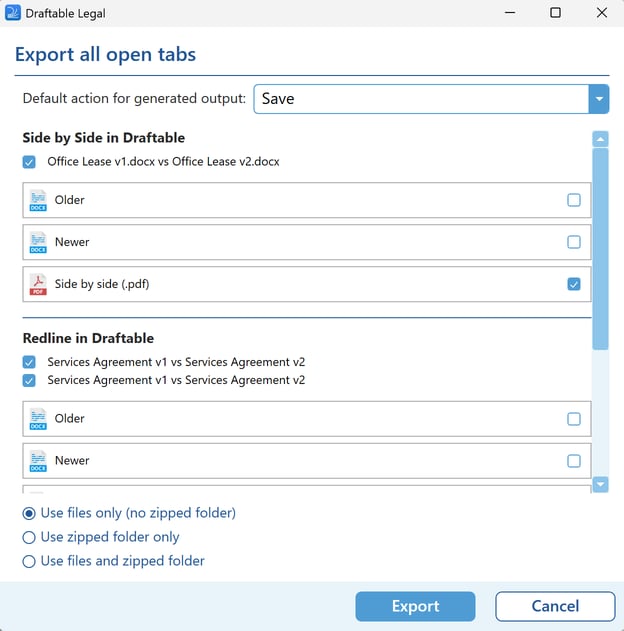 In **Default action for generated output:**, choose:
* **Save** to save the files to your computer.
* **Copy to Clipboard** to copy the output files for pasting elsewhere.
* **Email** to prepare an email with the files attached.
Choose **Use files only (no zipped folder)**, **Use zipped folder only**, or **Use files and zipped folder**.
Check **Not included** for any tabs that cannot be exported, then click **Export**. Follow the save or email prompts for your selected action. **Cancel** closes the dialog without exporting.
The **Export** button is enabled only when you have selected at least one comparison and at least one output for its group.
## Understand the Not included list
The dialog lists tabs from the current window that cannot take part in the export, with one of these reasons:
| Reason | Meaning |
| - | - |
| **No comparison to export** | The tab does not contain a comparison result. Examples include New Comparison, Settings, Logs, Bulk Compare and a combined departures table. |
| **Still comparing** | The comparison has not finished. Wait for it to complete, then open the export dialog again. |
| **This output can't be exported** | The comparison result has no supported export path for this feature. |
A single departures-table comparison can be exported; a combined departures table is a separate view and is not included.
In **Default action for generated output:**, choose:
* **Save** to save the files to your computer.
* **Copy to Clipboard** to copy the output files for pasting elsewhere.
* **Email** to prepare an email with the files attached.
Choose **Use files only (no zipped folder)**, **Use zipped folder only**, or **Use files and zipped folder**.
Check **Not included** for any tabs that cannot be exported, then click **Export**. Follow the save or email prompts for your selected action. **Cancel** closes the dialog without exporting.
The **Export** button is enabled only when you have selected at least one comparison and at least one output for its group.
## Understand the Not included list
The dialog lists tabs from the current window that cannot take part in the export, with one of these reasons:
| Reason | Meaning |
| - | - |
| **No comparison to export** | The tab does not contain a comparison result. Examples include New Comparison, Settings, Logs, Bulk Compare and a combined departures table. |
| **Still comparing** | The comparison has not finished. Wait for it to complete, then open the export dialog again. |
| **This output can't be exported** | The comparison result has no supported export path for this feature. |
A single departures-table comparison can be exported; a combined departures table is a separate view and is not included.
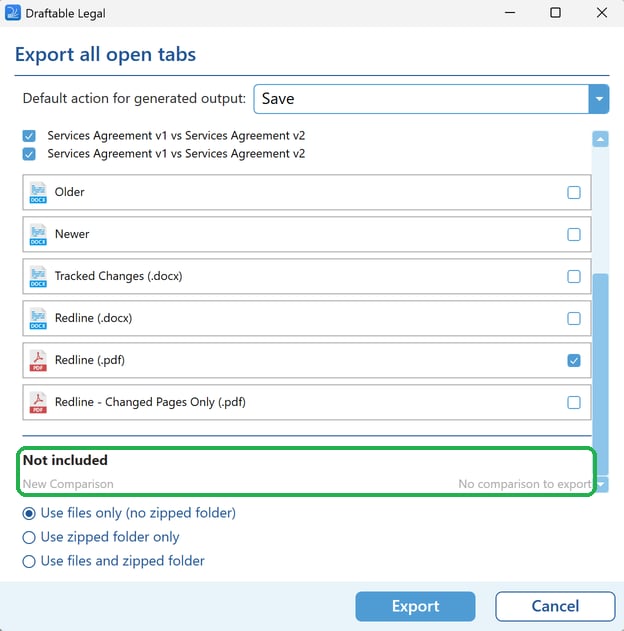 You can open the dialog even when none of the current window's tabs can be exported, so you can see the reasons. Comparisons you manually untick remain in their comparison-type group rather than moving to **Not included**.
This documentation is built and hosted on [Mintlify](https://mintlify.com), a developer documentation platform.
You can open the dialog even when none of the current window's tabs can be exported, so you can see the reasons. Comparisons you manually untick remain in their comparison-type group rather than moving to **Not included**.
This documentation is built and hosted on [Mintlify](https://mintlify.com), a developer documentation platform.