> ## Documentation Index
> Fetch the complete documentation index at: https://help.draftable.com/llms.txt
> Use this file to discover all available pages before exploring further.
# How to customize email body and subject text for comparison exports
> Administrators can configure a custom default email body and subject line for comparison outputs exported via the Email option in Draftable Legal, using Group Policy or registry settings.
Administrators can customize the default email body and subject line that Draftable uses when users export comparison outputs via the Email option. This allows your organisation to include standard text such as disclaimers, instructions, or reference information in every comparison email sent from Draftable.
## How it works
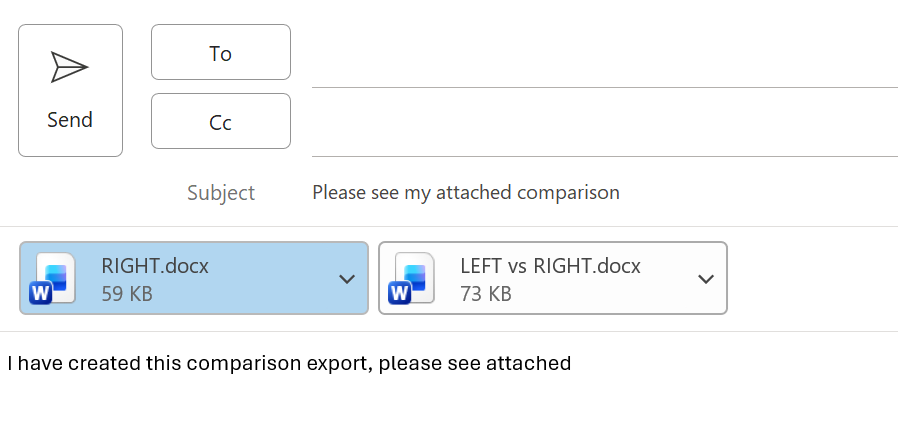
When a user exports a comparison output using the **Email** option in Draftable Legal, an Outlook email is generated with the selected outputs attached. By default, the email body and subject line are blank (aside from any outputs the user chooses to embed in the body).
With this configuration, you can set:
* A **custom email body** — default text that appears in the email body. If the user also chooses to include export outputs in the email body, those outputs will be appended to your custom text.
* A **custom email subject** — default text that appears in the email subject line.
The screenshot below shows the resulting Outlook email with both a custom subject line and custom body text applied, along with the comparison outputs attached.
 The email export workflow is not supported for users using 'New' Outlook. For more details on emailing comparison outputs, see [Emailing comparison outputs](/hc/en-us/articles/16115297005849-Emailing-comparison-outputs).
## Configuring via Group Policy
Ensure you are using the latest Group Policy template files, which can be found [here](/hc/en-us/articles/28666057117721-Draftable-Legal-Group-Policy-Template-Files).
### Configure custom email body for exports
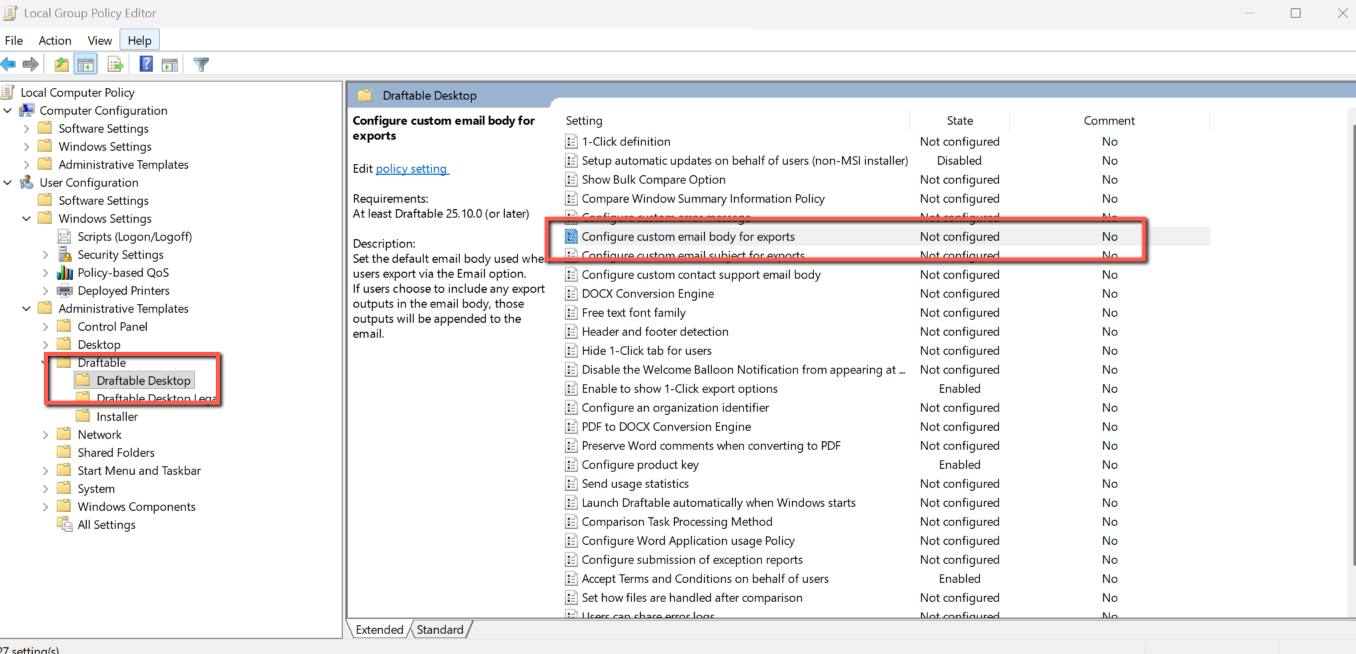
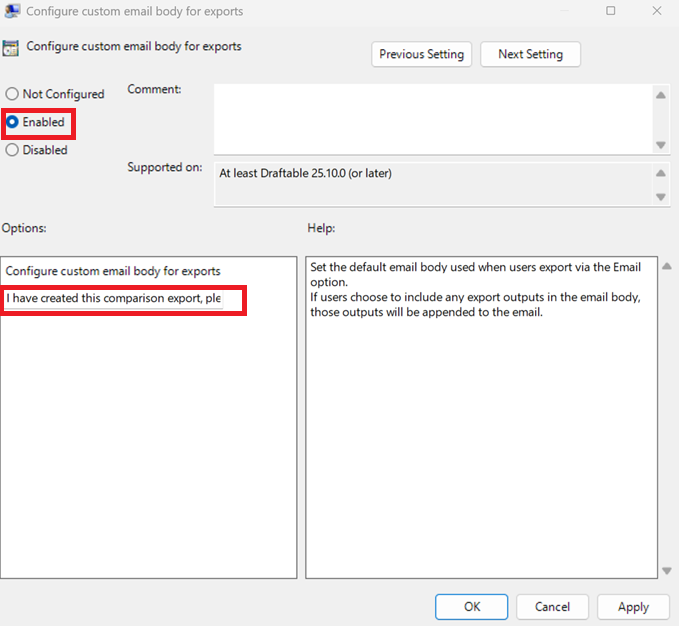
This Group Policy object sets the default email body used when users export via the Email option.
Policy Location: User Configuration > Administrative Templates > Draftable > Draftable Desktop
Object Name: Configure custom email body for exports
Description: Set the default email body used when users export via the Email option. If users choose to include any export outputs in the email body, those outputs will be appended to the email.
The email export workflow is not supported for users using 'New' Outlook. For more details on emailing comparison outputs, see [Emailing comparison outputs](/hc/en-us/articles/16115297005849-Emailing-comparison-outputs).
## Configuring via Group Policy
Ensure you are using the latest Group Policy template files, which can be found [here](/hc/en-us/articles/28666057117721-Draftable-Legal-Group-Policy-Template-Files).
### Configure custom email body for exports
This Group Policy object sets the default email body used when users export via the Email option.
Policy Location: User Configuration > Administrative Templates > Draftable > Draftable Desktop
Object Name: Configure custom email body for exports
Description: Set the default email body used when users export via the Email option. If users choose to include any export outputs in the email body, those outputs will be appended to the email.
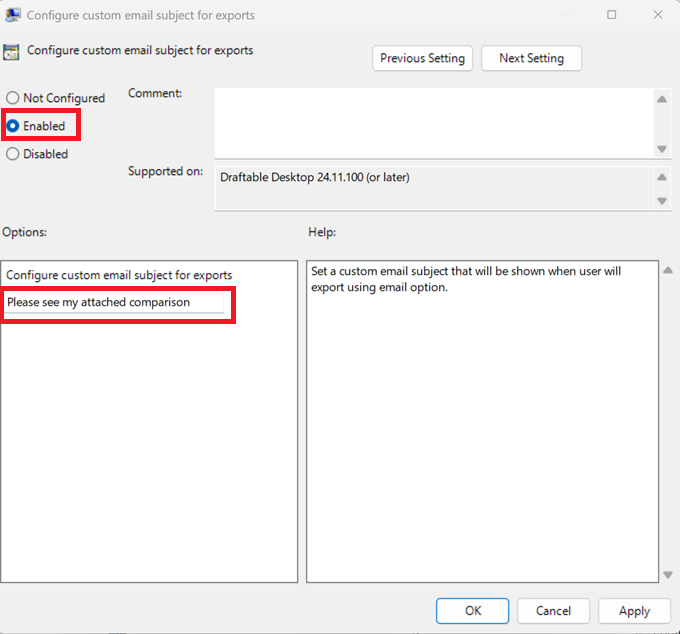
 ### Configure custom email subject for exports
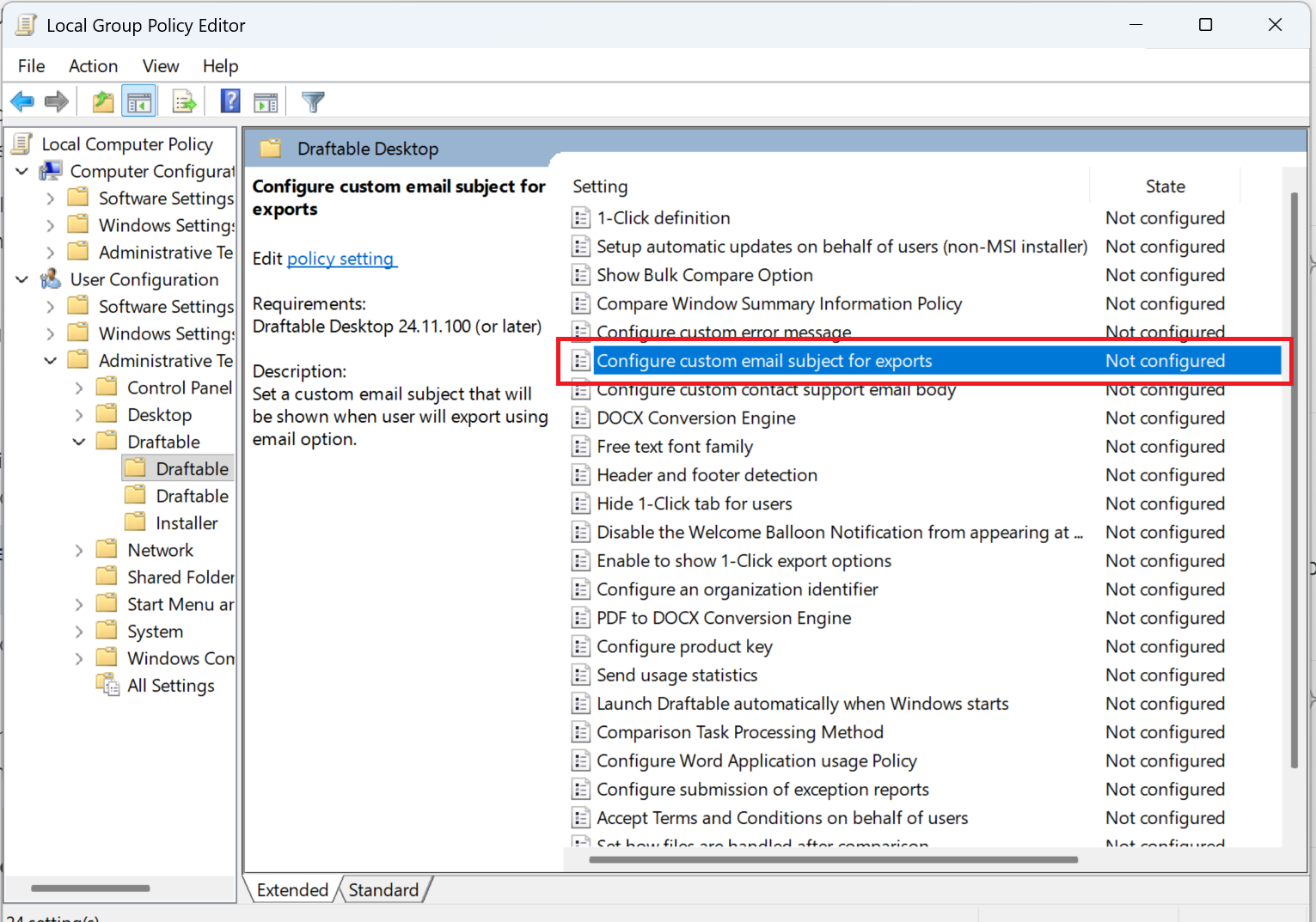
This Group Policy object sets the default email subject line used when users export via the Email option.
Policy Location: User Configuration > Administrative Templates > Draftable > Draftable Desktop
Object Name: Configure custom email subject for exports
Description: Set a custom email subject that will be shown when the user exports using the email option.
### Configure custom email subject for exports
This Group Policy object sets the default email subject line used when users export via the Email option.
Policy Location: User Configuration > Administrative Templates > Draftable > Draftable Desktop
Object Name: Configure custom email subject for exports
Description: Set a custom email subject that will be shown when the user exports using the email option.
 The email body setting requires Draftable Desktop 2.15.200 or later. The email subject setting requires Draftable Desktop 24.11.100 or later.
## Configuring via registry
You can also configure these settings directly via registry keys. All keys should be created under `HKCU:\Software\Policies\Draftable\Feature` and should be of type REG\_SZ.
### Custom email body for exports
Set the default email body text used when users export via the Email option. If users choose to include export outputs in the email body, those outputs will be appended to this text.
```bash theme={null}
Key: HKCU:\Software\Policies\Draftable\Feature
Value name: CustomEmailBody
Value type: REG_SZ
Value data:
```
For the value ``, enter the desired default email body text.
### Custom email subject for exports
Set the default email subject line used when users export via the Email option.
```bash theme={null}
Key: HKCU:\Software\Policies\Draftable\Feature
Value name: CustomEmailSubject
Value type: REG_SZ
Value data:
```
For the value ``, enter the desired default email subject text.
Restart Draftable Legal after applying registry changes for them to take effect.
The email body setting requires Draftable Desktop 2.15.200 or later. The email subject setting requires Draftable Desktop 24.11.100 or later.
## Configuring via registry
You can also configure these settings directly via registry keys. All keys should be created under `HKCU:\Software\Policies\Draftable\Feature` and should be of type REG\_SZ.
### Custom email body for exports
Set the default email body text used when users export via the Email option. If users choose to include export outputs in the email body, those outputs will be appended to this text.
```bash theme={null}
Key: HKCU:\Software\Policies\Draftable\Feature
Value name: CustomEmailBody
Value type: REG_SZ
Value data:
```
For the value ``, enter the desired default email body text.
### Custom email subject for exports
Set the default email subject line used when users export via the Email option.
```bash theme={null}
Key: HKCU:\Software\Policies\Draftable\Feature
Value name: CustomEmailSubject
Value type: REG_SZ
Value data:
```
For the value ``, enter the desired default email subject text.
Restart Draftable Legal after applying registry changes for them to take effect.