> ## Documentation Index
> Fetch the complete documentation index at: https://help.draftable.com/llms.txt
> Use this file to discover all available pages before exploring further.
# Installing Draftable for Outlook
> Draftable for Outlook is a Microsoft Outlook Add-in that enables users to send email attachments and text directly to Draftable Desktop for comparison. By deploying this add-in across your Microsoft 365 organization, you empower your users to start comparison workflows directly from Outlook.
This guide provides step-by-step instructions for Microsoft 365 administrators to deploy the Draftable for Outlook Add-in organization-wide.
Remote desktop, Citrix, and RDP environments are supported from add-in version 2.62.0.1 onwards.
For the latest version of Chrome (142.0.7444), these add-ins do not work for Microsoft 365 in Chrome.
## Overview
Draftable for Outlook adds commands into Outlook for sending email attachments and text directly to Draftable Desktop for comparison. It allows comparison workflows to start from Outlook rather than requiring users to download attachments and open Draftable Desktop separately.
**Key Features:**
* **1-Click Compare**: Sends all email attachments to Draftable Desktop with a single click
* **Compare Attachments**: Opens attachment selector to choose specific files to send to Draftable Desktop for comparison
* **Compare Text**: Extracts and sends selected text from email body to Draftable Desktop for comparison
* **DMS link support**: Automatically detects and handles DMS document links in emails (iManage, NetDocuments, etc.)
* **Message read and compose modes**: Works seamlessly in both reading and composing emails
* **Desktop integration**: All comparisons happen in Draftable Desktop, providing full access to advanced features, local files, and profiles
## Prerequisites
* You must have admin privileges for Microsoft 365 (**you will need a Microsoft 365 Business account**)
* Ensure your environment supports Office Add-ins via the Microsoft 365 admin center.
* You must have **at least Draftable v25.10.000** for this Add-in to correctly function.
## Step-by-Step Setup
### 1. Go to the Integrated Apps Portal
Visit the [Integrated Apps section of the Microsoft 365 Admin Center](https://admin.microsoft.com/#/Settings/IntegratedApps).
Click **Upload custom apps**.
### 2. Upload the Draftable for Outlook Add-in
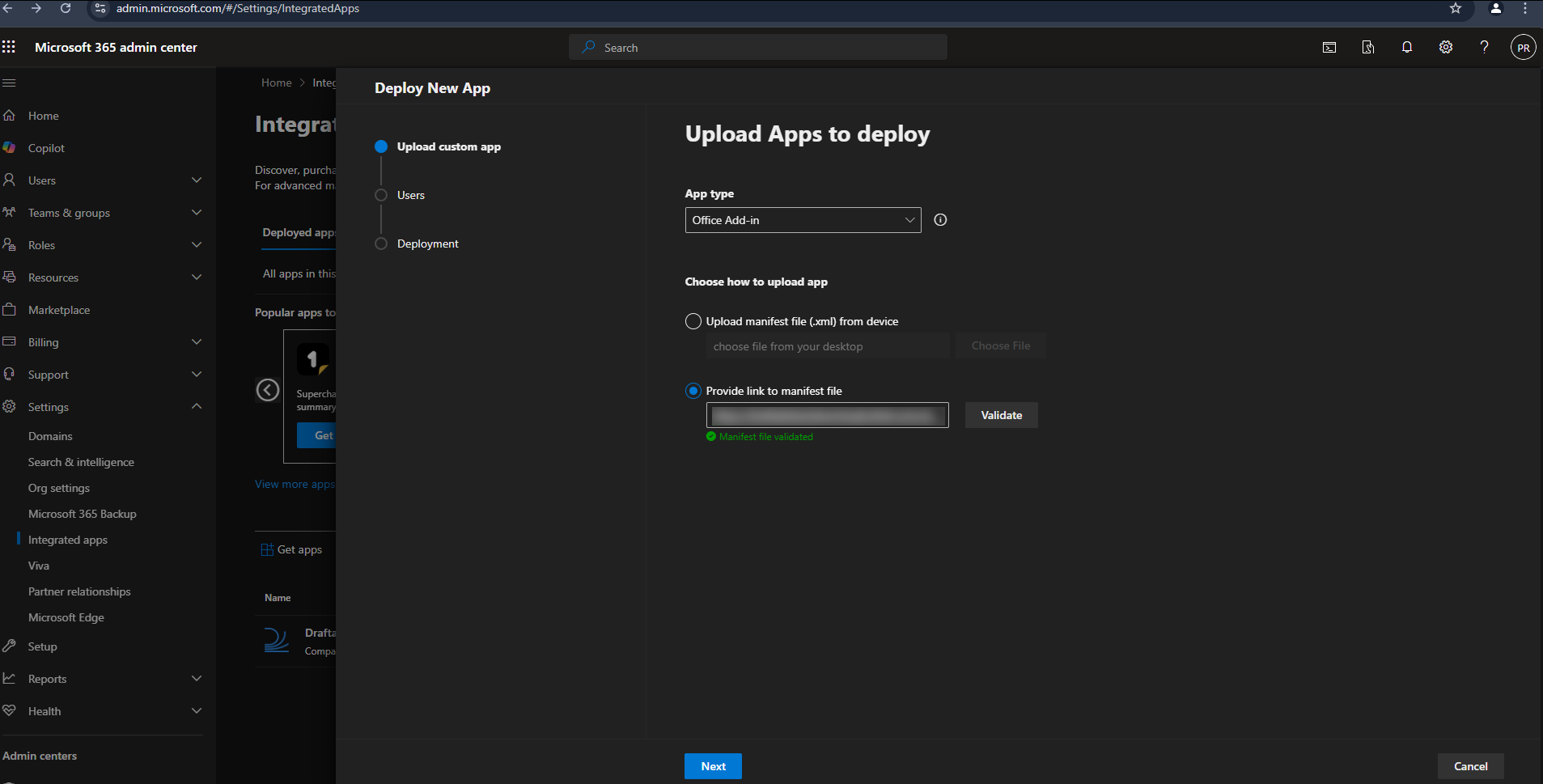
Under **App type**, select **Office Add-in** from the dropdown menu.
Download the **latest manifest file** by following the below URL:\
[https://dl.draftable.com/addins/outlook-simple/2.62.0.1/manifest.xml](https://dl.draftable.com/addins/outlook-simple/2.62.0.1/manifest.xml)
**Note:** The Draftable for Outlook Add-in **does not auto-update**. You will need to retrieve the latest manifest file when you wish to update your version of the Add-in.
This URL will always point to the latest version of the Draftable Add-in manifest.
Click **Validate**.
 ### 3. Configure Delivery to Users
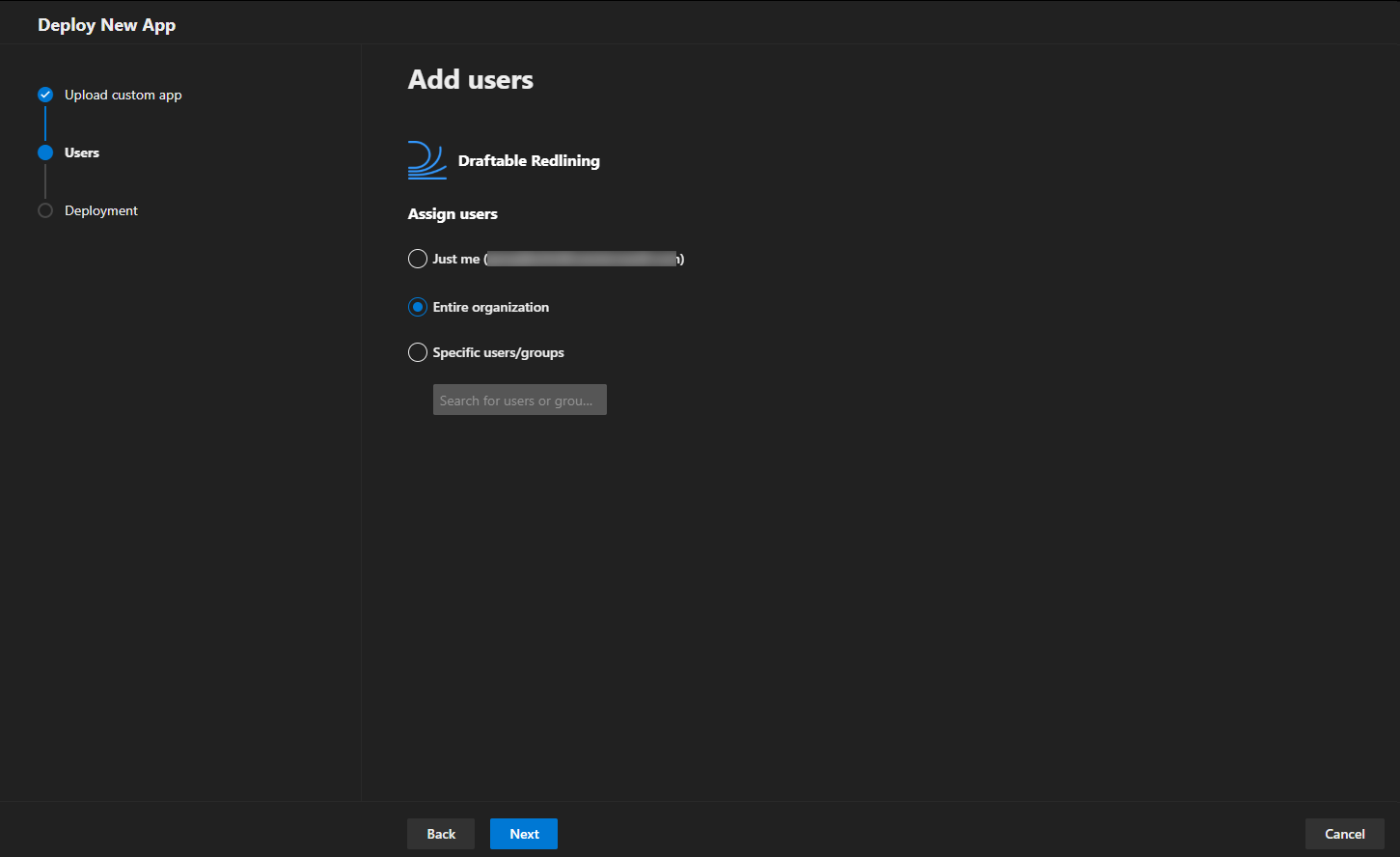
You will be asked how the add-in should be deployed across your organization:
* Assign to **Entire organization**, **Specific users**, or **Groups** depending on your use case.
* Choose whether the add-in should be **automatically installed** or **available for users to install manually**.
**Deployment methods:**
* **Fixed** - Add-in is automatically installed and users cannot remove it
* **Available** - Add-in is available for users to install from their Office apps
* **Optional** - Add-in is automatically installed but users can remove it
### 3. Configure Delivery to Users
You will be asked how the add-in should be deployed across your organization:
* Assign to **Entire organization**, **Specific users**, or **Groups** depending on your use case.
* Choose whether the add-in should be **automatically installed** or **available for users to install manually**.
**Deployment methods:**
* **Fixed** - Add-in is automatically installed and users cannot remove it
* **Available** - Add-in is available for users to install from their Office apps
* **Optional** - Add-in is automatically installed but users can remove it
 ### 4. Accept Permissions
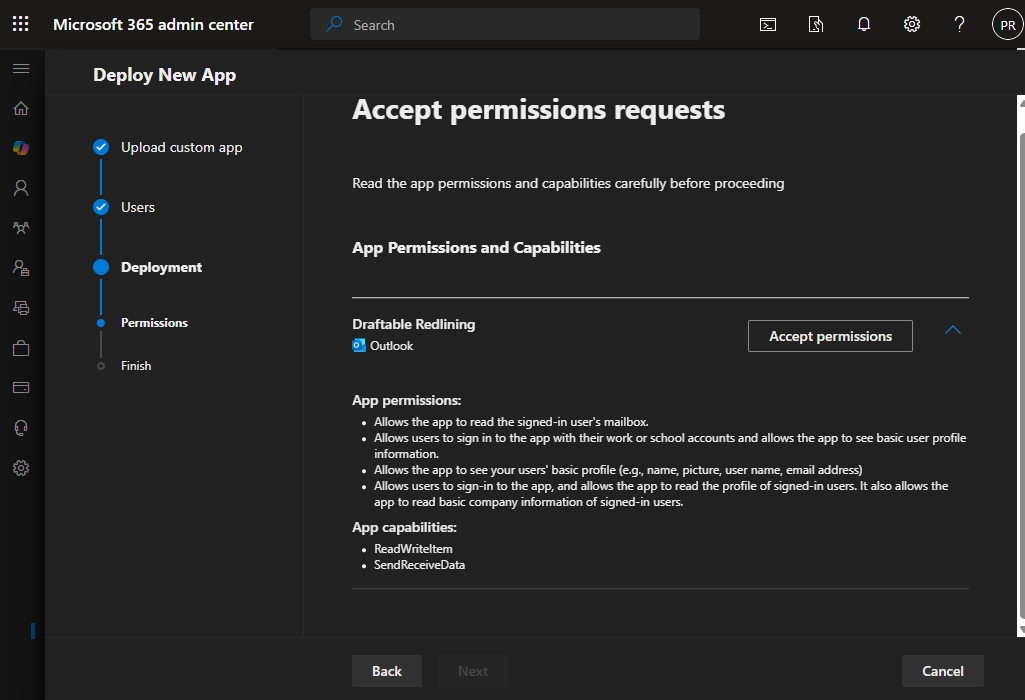
You will be prompted to accept and approve the required permissions on behalf of your users.
### 4. Accept Permissions
You will be prompted to accept and approve the required permissions on behalf of your users.
 #### Required Permissions Overview
**App Permissions:**
* Sign in and read users' basic profile information.
* Access user profile details including name, picture, username, and email address.
* Read basic company information for signed-in users.
**App Capabilities:**
* `ReadWriteItem`: Allows the app to read the contents of email messages and attachments.
* `SendReceiveData`: Enables the app to communicate with the Draftable Desktop application for comparison processing.
### 5. Finish Setup
Once permissions are approved and the app is assigned to your selected users, the Draftable for Outlook Add-in will be available within Outlook.
**Please note:** The Application installation and update can **take up to 24 hours**. In most cases, it appears within minutes. For more information about it, please visit Microsoft Documentation - [Deploy add-ins in the admin center - Microsoft 365 admin | Microsoft Learn](https://learn.microsoft.com/en-us/microsoft-365/admin/manage/manage-deployment-of-add-ins?view=o365-worldwide)
We recommend that if the Add-in hasn't been deployed in this time, you should get users to restart Outlook and their Machine to **prompt** the Add-in to be added.
### 6. Verify Deployment
1. Open Outlook
2. Go to the **Home** tab
3. Look for the **Draftable** section in the ribbon
4. The add-in buttons should appear in the ribbon or under **My Add-ins**
## Troubleshooting
* Wait up to 24 hours for deployment to fully propagate
* Verify users are in the correct security group (if using group-based deployment)
* Have users restart their Office applications
* Check that users have active Microsoft 365 subscriptions with Office apps
* Ensure users are signed in with their organizational account
* Ensure you copied the complete URL without extra spaces or line breaks
* Verify the URL is accessible from your network (not blocked by firewall or proxy)
* Check that `dl.draftable.com` is not blocked by your organization's web filter
* Try accessing the URL directly in a browser to confirm it's reachable
* Return to **Integrated apps** in the Admin Center
* Find the existing Draftable add-in in the list and click on it
* Look for an **Update** option and provide the new manifest URL
* The updated version will roll out to users automatically
* Users may need to restart Office apps to see the update
* Go to **Integrated apps** in the Admin Center
* Click on the Draftable add-in
* Select **Remove** or **Delete**
* Confirm the removal
* The add-in will be removed from users' Office apps within 24 hours
## Need Help?
If you experience issues with deployment or setup, please contact [support@draftable.com](mailto:support@draftable.com).
#### Required Permissions Overview
**App Permissions:**
* Sign in and read users' basic profile information.
* Access user profile details including name, picture, username, and email address.
* Read basic company information for signed-in users.
**App Capabilities:**
* `ReadWriteItem`: Allows the app to read the contents of email messages and attachments.
* `SendReceiveData`: Enables the app to communicate with the Draftable Desktop application for comparison processing.
### 5. Finish Setup
Once permissions are approved and the app is assigned to your selected users, the Draftable for Outlook Add-in will be available within Outlook.
**Please note:** The Application installation and update can **take up to 24 hours**. In most cases, it appears within minutes. For more information about it, please visit Microsoft Documentation - [Deploy add-ins in the admin center - Microsoft 365 admin | Microsoft Learn](https://learn.microsoft.com/en-us/microsoft-365/admin/manage/manage-deployment-of-add-ins?view=o365-worldwide)
We recommend that if the Add-in hasn't been deployed in this time, you should get users to restart Outlook and their Machine to **prompt** the Add-in to be added.
### 6. Verify Deployment
1. Open Outlook
2. Go to the **Home** tab
3. Look for the **Draftable** section in the ribbon
4. The add-in buttons should appear in the ribbon or under **My Add-ins**
## Troubleshooting
* Wait up to 24 hours for deployment to fully propagate
* Verify users are in the correct security group (if using group-based deployment)
* Have users restart their Office applications
* Check that users have active Microsoft 365 subscriptions with Office apps
* Ensure users are signed in with their organizational account
* Ensure you copied the complete URL without extra spaces or line breaks
* Verify the URL is accessible from your network (not blocked by firewall or proxy)
* Check that `dl.draftable.com` is not blocked by your organization's web filter
* Try accessing the URL directly in a browser to confirm it's reachable
* Return to **Integrated apps** in the Admin Center
* Find the existing Draftable add-in in the list and click on it
* Look for an **Update** option and provide the new manifest URL
* The updated version will roll out to users automatically
* Users may need to restart Office apps to see the update
* Go to **Integrated apps** in the Admin Center
* Click on the Draftable add-in
* Select **Remove** or **Delete**
* Confirm the removal
* The add-in will be removed from users' Office apps within 24 hours
## Need Help?
If you experience issues with deployment or setup, please contact [support@draftable.com](mailto:support@draftable.com).