> ## Documentation Index
> Fetch the complete documentation index at: https://help.draftable.com/llms.txt
> Use this file to discover all available pages before exploring further.
# Live Redline Preview: Instantly compare text inputs
> Live Redline Preview displays changes between two text inputs instantly in the Compare Selector without running a full comparison — perfect for quick clause, email, and snippet comparisons.
Live Redline Preview lets you instantly see changes between two pieces of text directly in the Compare Selector — without needing to run a full comparison. This is ideal for fast, lightweight comparisons of clauses, emails, or content snippets.
## What is Live Redline Preview?
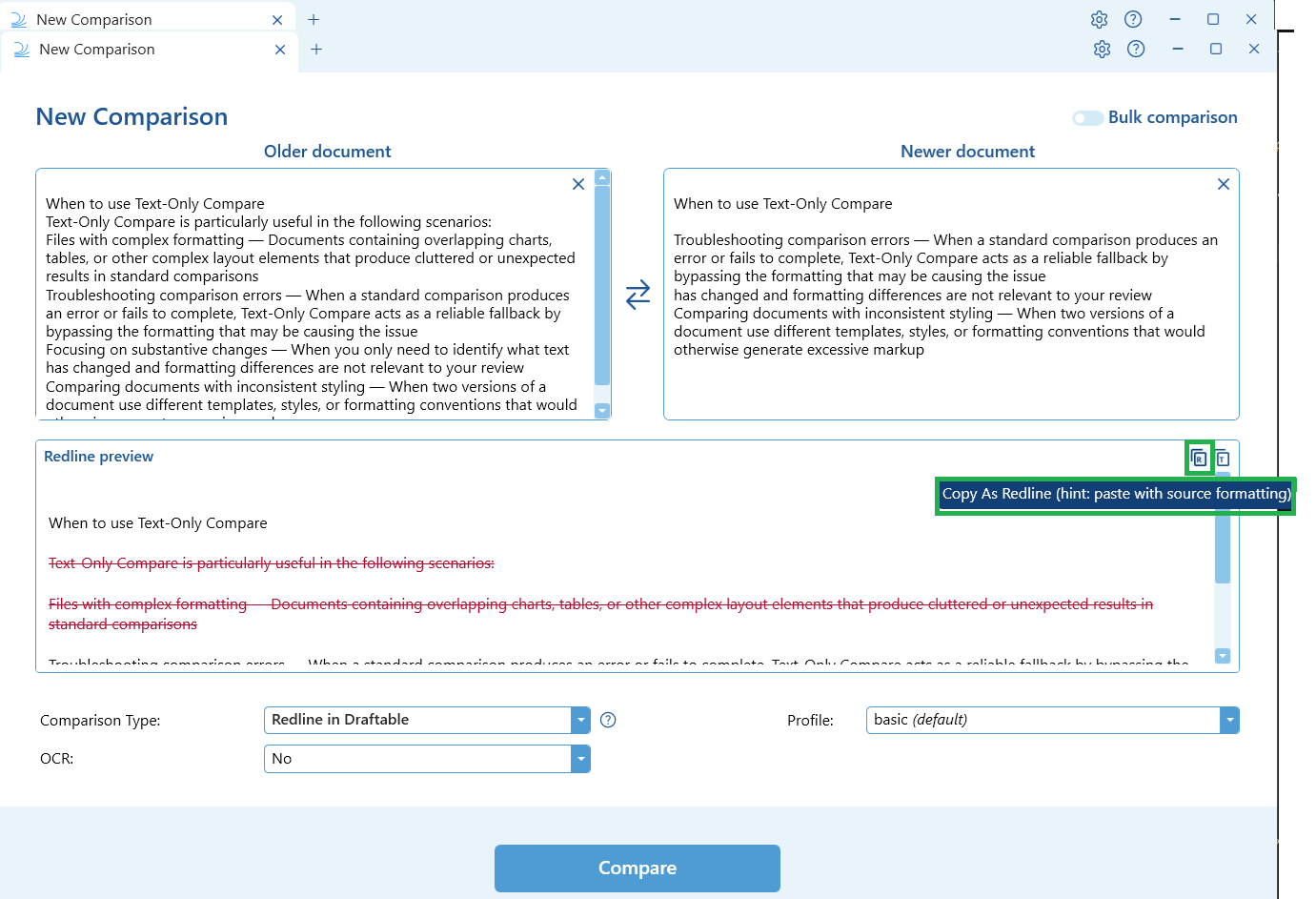
When you use free-text input for both the older and newer content in the Compare Selector, Draftable automatically displays a live redline preview of the differences. This preview uses Draftable's redline algorithm to show changes instantly as you type or paste content.
Unlike a standard comparison, Live Redline Preview does not require you to click Compare or wait for a full comparison to complete. The changes appear in real time directly within the Compare Selector.
## When to use Live Redline Preview
Live Redline Preview is designed for quick, short-form comparisons where you need to see changes immediately. Common use cases include:
* **Comparing clauses** — Paste two versions of a contract clause to quickly spot the differences
* **Reviewing email content** — Compare original and revised email text shared by colleagues
* **Checking content snippets** — Verify changes in short passages of text without running a full document comparison
* **Quick quality checks** — Confirm that edits were applied correctly to a specific section of text
## How to use Live Redline Preview
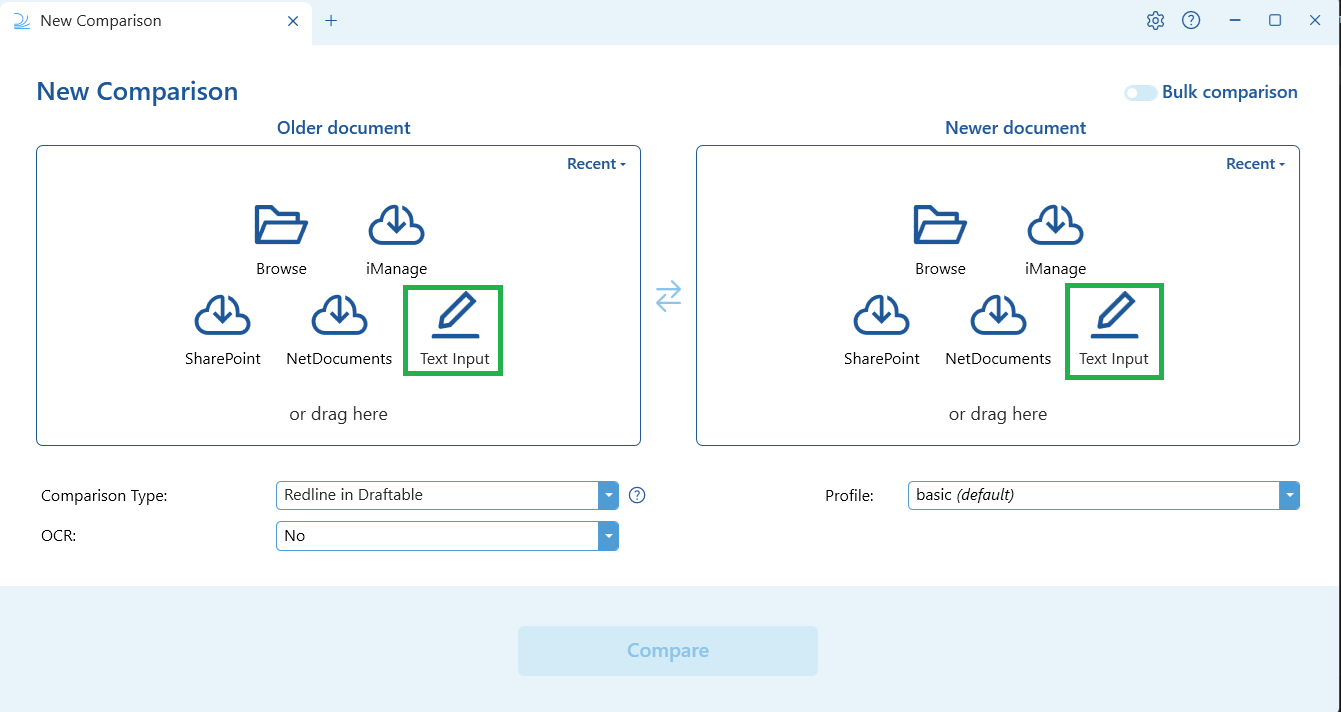
Open the [Draftable Legal New Comparison window](/hc/en-us/articles/19002140760217-Launching-a-Comparison-in-Draftable-Legal-A-Step-by-Step-Guide). Select **Text Input** as the input source for both the older and newer document.
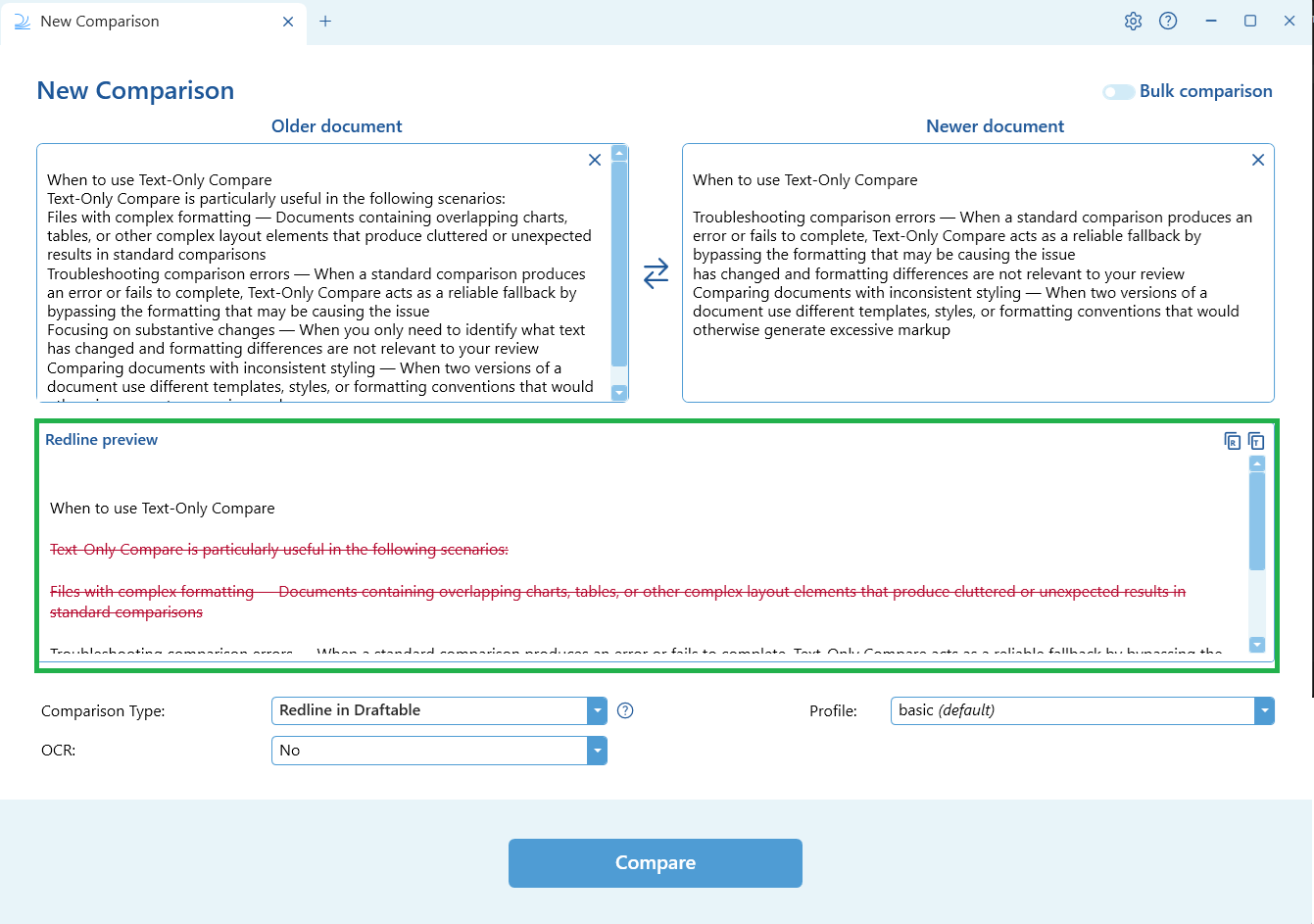
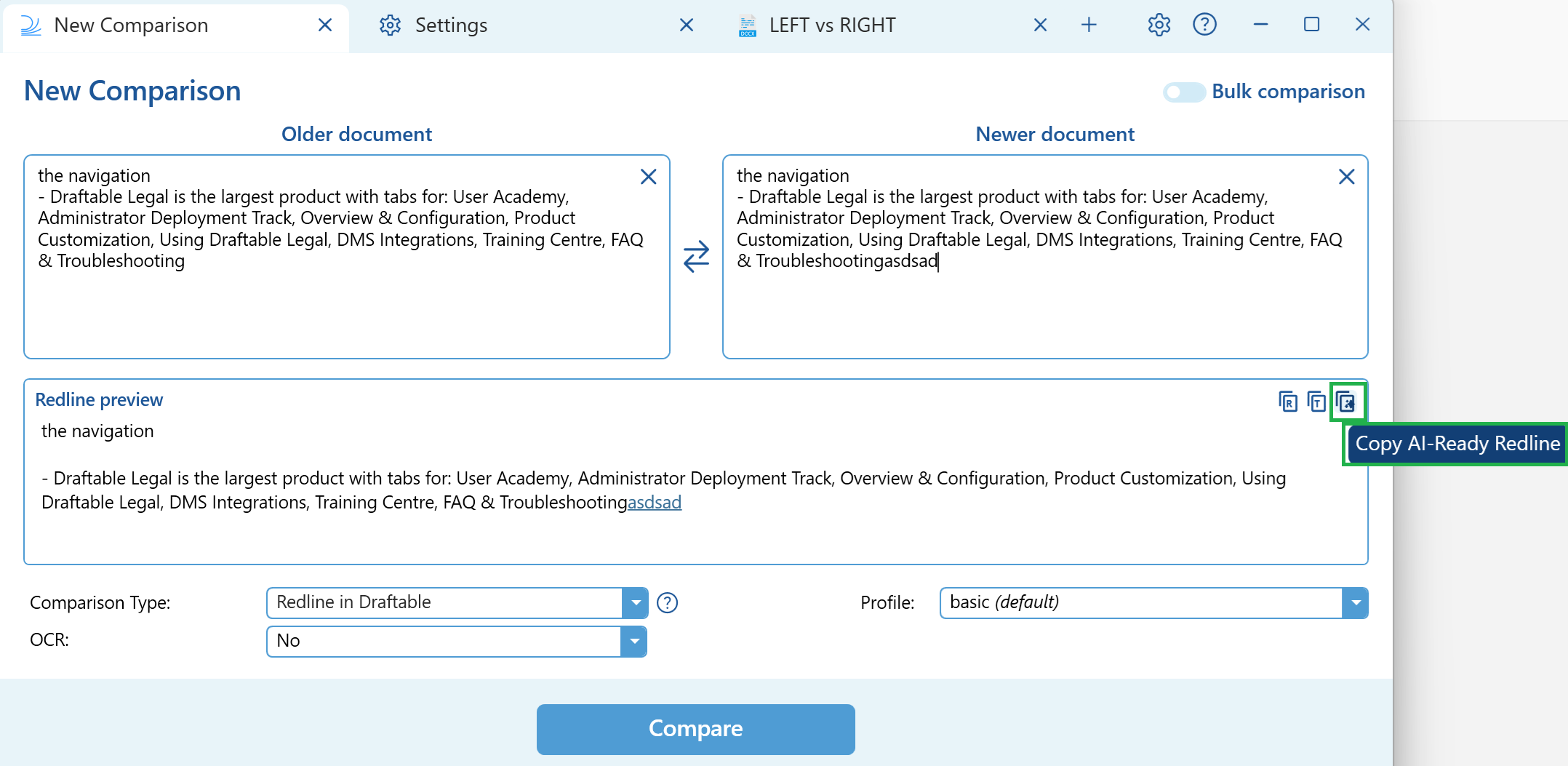
 Paste or type the original text into the older document field, and the revised text into the newer document field. The Redline preview area will appear below the input fields.
 Draftable will instantly display a redline preview showing the differences between the two text inputs directly in the Compare Selector. No need to click Compare — the preview appears automatically.
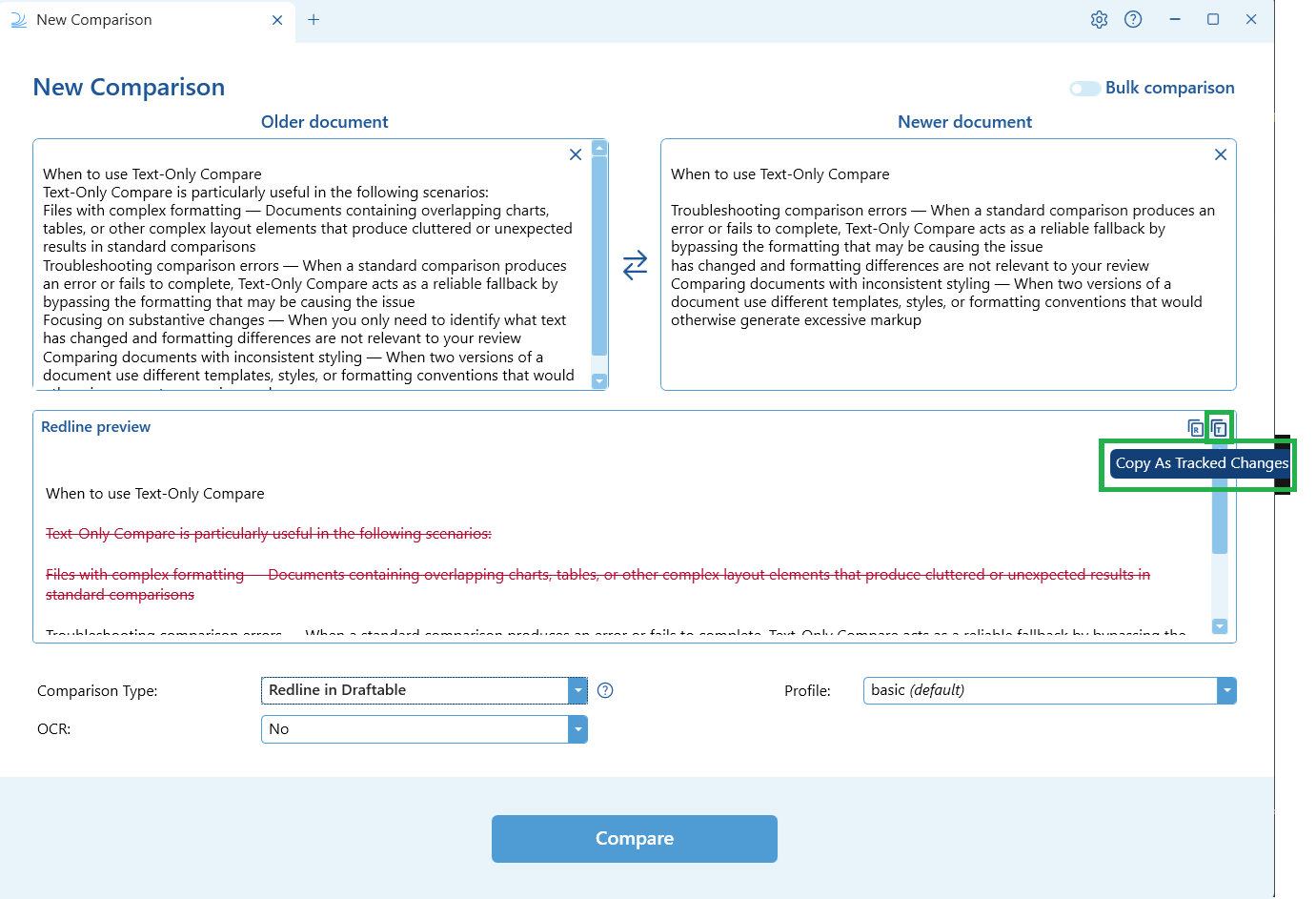
 You can copy the output directly from the preview using the buttons in the top-right corner of the Redline preview area:
* **Copy As Tracked Changes** — Copy the output as a tracked changes version for use in Word
You can copy the output directly from the preview using the buttons in the top-right corner of the Redline preview area:
* **Copy As Tracked Changes** — Copy the output as a tracked changes version for use in Word
 * **Copy As Redline** — Copy the redlined text with markup showing insertions and deletions. For best results, paste with source formatting.
 * **Copy AI-Ready Redline** — Copy a portable text representation of all changes (moves, insertions, and deletions) formatted for use with generative AI tools. Paste the output into any AI tool to analyse, summarise, or review the changes. See our dedicated article on [AI-Ready Redline](/hc/en-us/articles/AI-Ready-Redline-Export-for-generative-AI-tools) for full details.
 Live Redline Preview is only available when both the older and newer inputs are set to free-text mode. If either input is a file (DOCX, PDF, etc.), the preview will not appear and you will need to run a standard comparison.
## Performance with large text inputs
Draftable has been optimised to handle large text inputs in the Live Redline Preview without performance degradation. You can paste extensive clauses, schedules, or long-form content and scroll, search, and compare without interruption or lag.
Live Redline Preview was introduced in the [December 2025 (v25.12) release](/hc/en-us/articles/Draftable-Legal-December-2025-Updates-v25-12-series), with performance improvements for large text inputs added in the [January 2026 (v26.1) release](/hc/en-us/articles/Release-Notes-Draftable-Legal-January-2026-v26-1-Series).
Live Redline Preview is only available when both the older and newer inputs are set to free-text mode. If either input is a file (DOCX, PDF, etc.), the preview will not appear and you will need to run a standard comparison.
## Performance with large text inputs
Draftable has been optimised to handle large text inputs in the Live Redline Preview without performance degradation. You can paste extensive clauses, schedules, or long-form content and scroll, search, and compare without interruption or lag.
Live Redline Preview was introduced in the [December 2025 (v25.12) release](/hc/en-us/articles/Draftable-Legal-December-2025-Updates-v25-12-series), with performance improvements for large text inputs added in the [January 2026 (v26.1) release](/hc/en-us/articles/Release-Notes-Draftable-Legal-January-2026-v26-1-Series).