> ## Documentation Index
> Fetch the complete documentation index at: https://help.draftable.com/llms.txt
> Use this file to discover all available pages before exploring further.
# Text-Only Compare: How to compare documents without formatting
> Text-Only Compare mode strips formatting, styles, and layout from DOCX and PDF files to focus purely on substantive text changes — ideal for troubleshooting comparison errors or cutting through formatting noise.
Text-Only Compare mode allows you to run comparisons that focus purely on document text — stripping out all formatting, styles, numbering, and layout details. This gives you a clean, distraction-free view of the substantive changes between two documents.
## What is Text-Only Compare?
Text-Only Compare is a comparison type in Draftable Legal that extracts and compares only the text content (including comments) from DOCX and PDF files. All formatting, styles, numbering, and layout information is removed before the comparison runs.
This produces a simplified redline output that highlights what has actually changed in the document's content, without any formatting-related noise.
## When to use Text-Only Compare
Text-Only Compare is particularly useful in the following scenarios:
* **Files with complex formatting** — Documents containing overlapping charts, tables, or other complex layout elements that produce cluttered or unexpected results in standard comparisons
* **Troubleshooting comparison errors** — When a standard comparison produces an error or fails to complete, Text-Only Compare acts as a reliable fallback by bypassing the formatting that may be causing the issue
* **Focusing on substantive changes** — When you only need to identify what text has changed and formatting differences are not relevant to your review
* **Comparing documents with inconsistent styling** — When two versions of a document use different templates, styles, or formatting conventions that would otherwise generate excessive markup
Combine Text-Only Compare with [Three Pane View](/hc/en-us/articles/31975077731226-Three-Pane-View-See-changes-in-context-with-older-newer-and-redlined-documents-in-one-screen) to view the text-only redline output alongside the original source documents for full context.
## How to run a Text-Only Compare
Open the [Draftable Legal New Comparison window](/hc/en-us/articles/19002140760217-Launching-a-Comparison-in-Draftable-Legal-A-Step-by-Step-Guide).
Select the two DOCX or PDF documents you want to compare, either by browsing your files or dragging and dropping them into the comparison window.
In the Comparison Type dropdown, select **Text-Only in Draftable**.
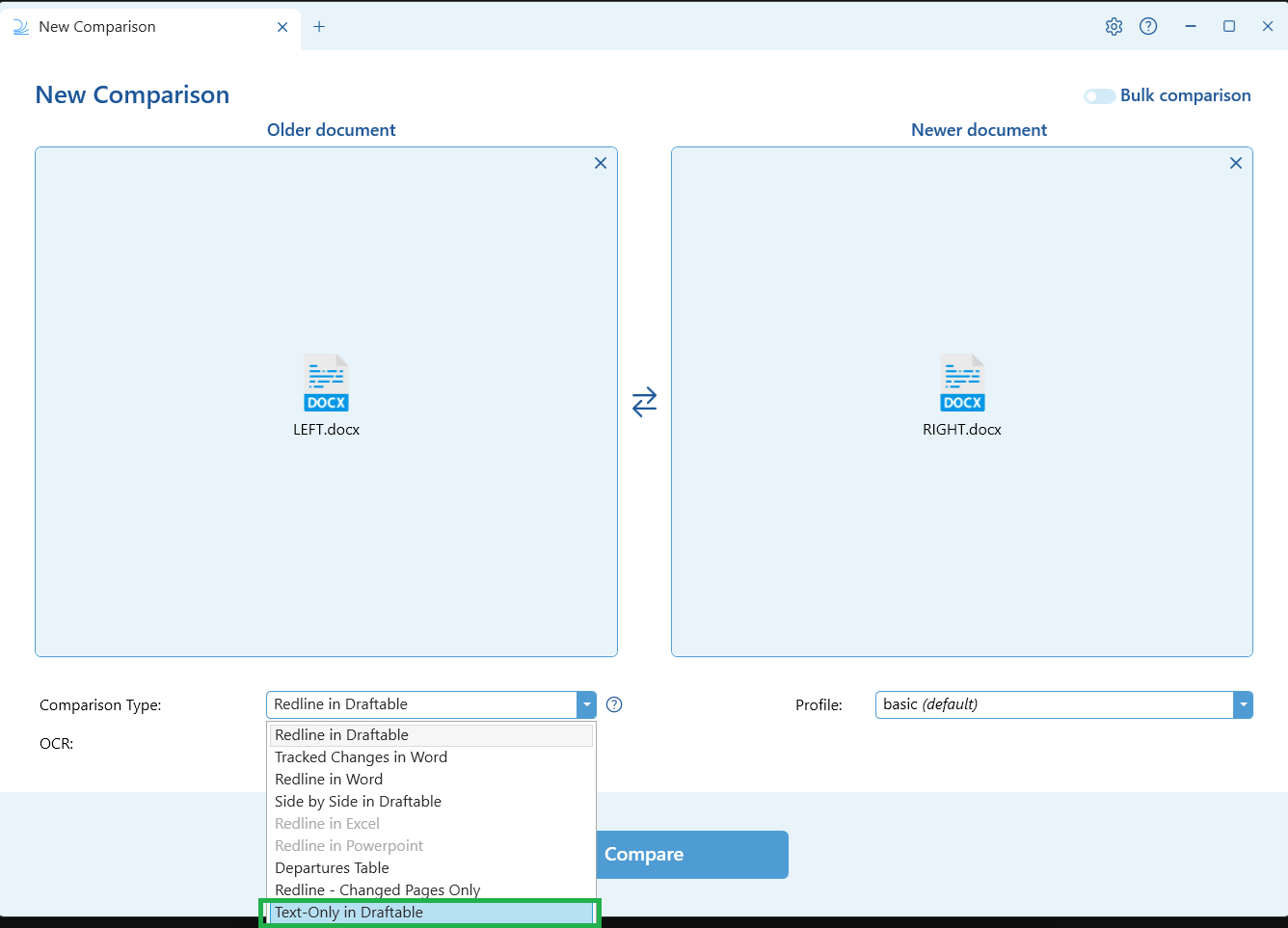 Click the **Compare** button to run the comparison. Draftable will strip the formatting from both documents and compare the text content only.
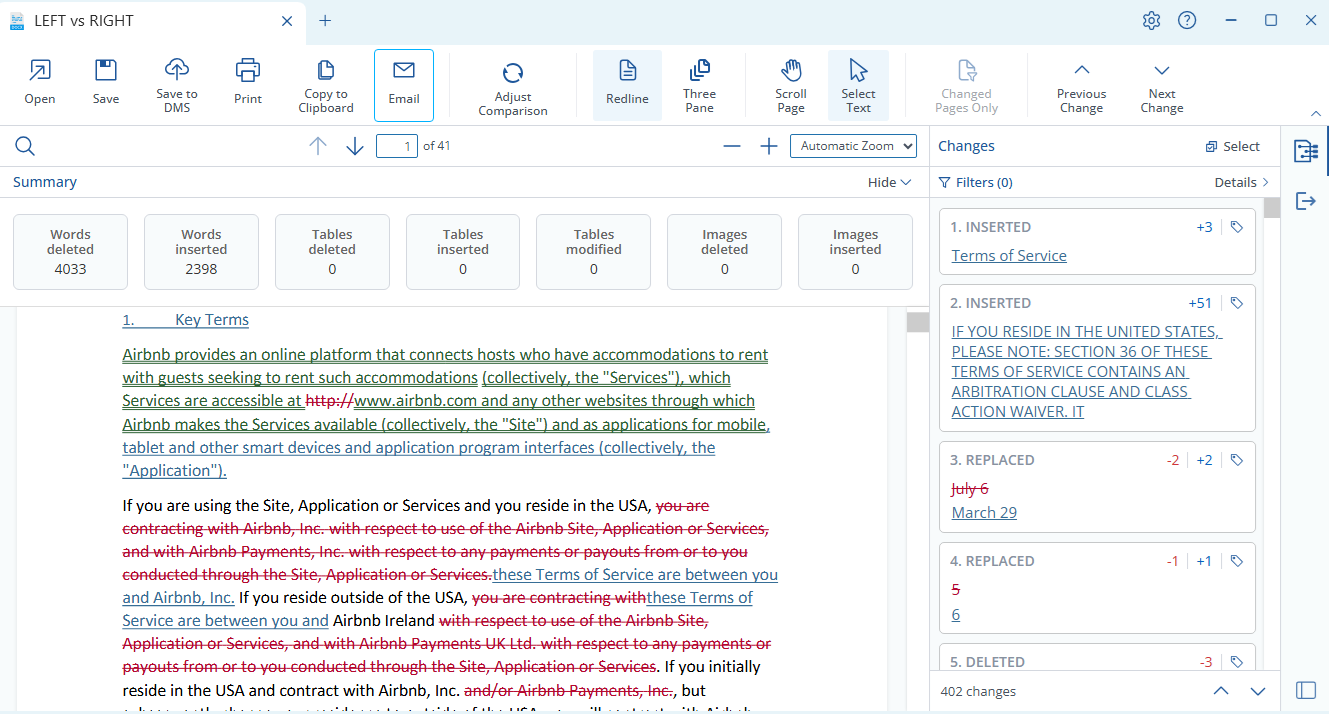
The text-only redline output will open in the Draftable Comparison Viewer. You can review the changes using the same viewer features available for standard redline comparisons, including the interactive Change List, tagging, filtering, and export options.
Click the **Compare** button to run the comparison. Draftable will strip the formatting from both documents and compare the text content only.
The text-only redline output will open in the Draftable Comparison Viewer. You can review the changes using the same viewer features available for standard redline comparisons, including the interactive Change List, tagging, filtering, and export options.
 ## What is included and excluded
| Included in comparison | Excluded from comparison |
| :--------------------- | :------------------------------------------ |
| Document text content | Formatting and styles |
| Comments | Numbering and list formatting |
| | Layout and page structure |
| | Charts, images, and other non-text elements |
## Administrator configuration
Administrators can enable or disable Text-Only Compare for their organisation using Group Policy.
```bash theme={null}
Key: HKCU:\Software\Policies\Draftable\Feature
Value name: IsTextOnlyCompareOutputEnabled
Value type: Boolean
Value data: true (default) / false
```
When disabled, the Text-Only Compare option will not appear in the Compare Selector or [1-Click Compare](/hc/en-us/articles/31611819497754-Using-1-Click-Compare-to-run-comparisons-with-your-preferred-default-workflow) operations.
Text-Only Compare was introduced in the [January 2026 (v26.1) release](/hc/en-us/articles/Release-Notes-Draftable-Legal-January-2026-v26-1-Series).
## What is included and excluded
| Included in comparison | Excluded from comparison |
| :--------------------- | :------------------------------------------ |
| Document text content | Formatting and styles |
| Comments | Numbering and list formatting |
| | Layout and page structure |
| | Charts, images, and other non-text elements |
## Administrator configuration
Administrators can enable or disable Text-Only Compare for their organisation using Group Policy.
```bash theme={null}
Key: HKCU:\Software\Policies\Draftable\Feature
Value name: IsTextOnlyCompareOutputEnabled
Value type: Boolean
Value data: true (default) / false
```
When disabled, the Text-Only Compare option will not appear in the Compare Selector or [1-Click Compare](/hc/en-us/articles/31611819497754-Using-1-Click-Compare-to-run-comparisons-with-your-preferred-default-workflow) operations.
Text-Only Compare was introduced in the [January 2026 (v26.1) release](/hc/en-us/articles/Release-Notes-Draftable-Legal-January-2026-v26-1-Series).