> ## Documentation Index
> Fetch the complete documentation index at: https://help.draftable.com/llms.txt
> Use this file to discover all available pages before exploring further.
# Using Timeline mode to compare document versions in sequence
> How to use Timeline mode in Draftable Legal to compare several versions of a document in order — v1 to v2, v2 to v3 and so on — and export a Combined Departures Table summarising every change.
Timeline mode lets you compare several versions of the same document **in sequence** — each version against the one after it (v1 → v2, v2 → v3, v3 → v4, and so on). It's designed for documents that evolve through many drafts, such as contracts, policies, or pleadings, where you want to see exactly how the document changed at each step.
Timeline is one of Draftable Legal's three Bulk Compare modes, alongside [Matched Pairs and One-to-Many](/hc/en-us/articles/30062521598361-Bulk-Compare-How-to-load-and-run-multiple-comparisons-at-once). Each step in the timeline runs as its own independent comparison, so you can open and review each transition separately, and export them all at once.
Timeline mode is available from **Draftable Legal v26.4.0** onwards. The Bulk Compare layout icons are always shown in the top-right of the New Comparison window — if you don't see them, you may be on an older version.
## Comparing versions with Timeline mode
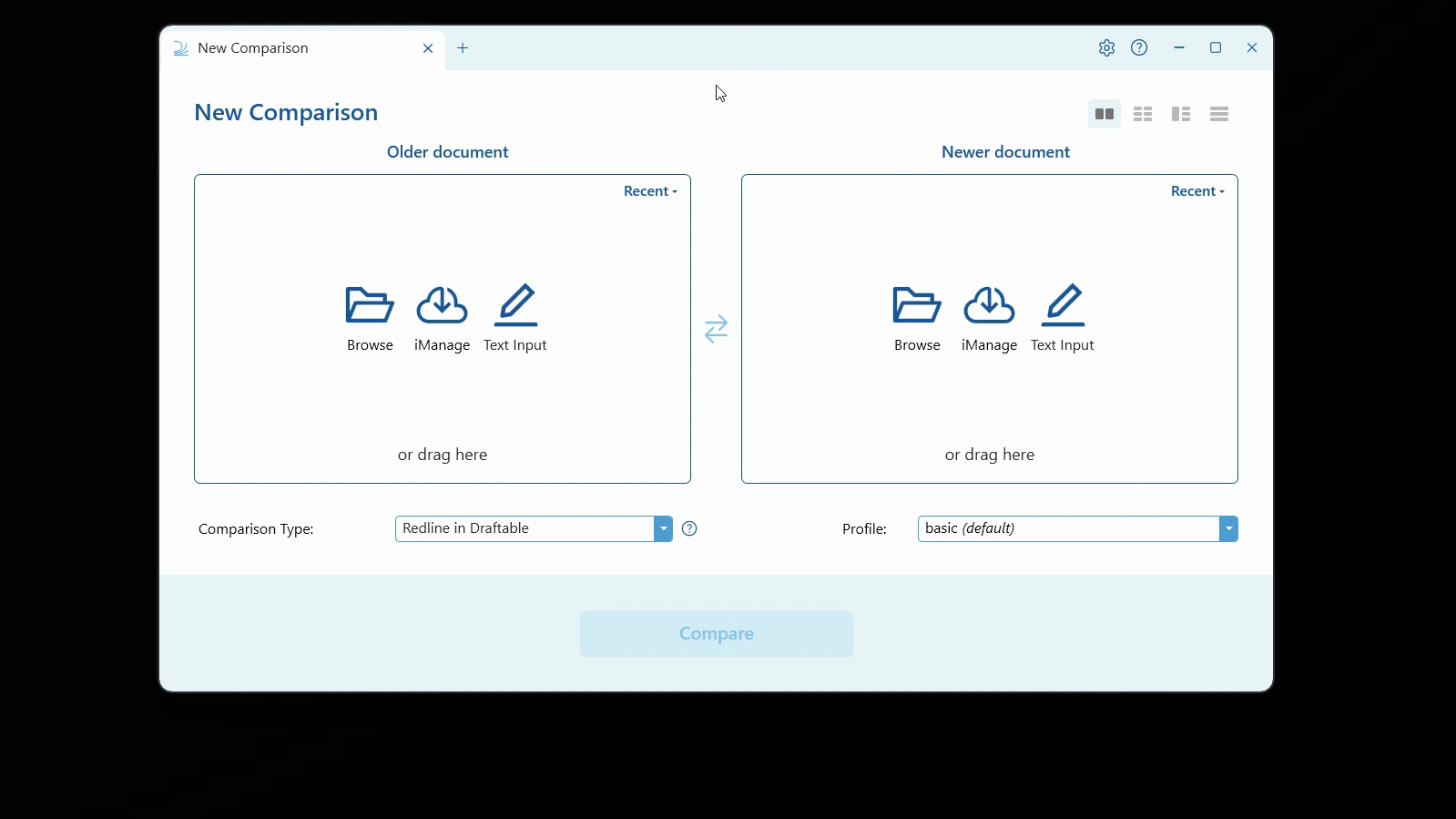
Start in the **New Comparison** window. In the top-right corner you'll see a row of layout icons — these let you switch between the standard single comparison and the three Bulk Compare modes (Matched Pairs, One-to-Many, and Timeline).
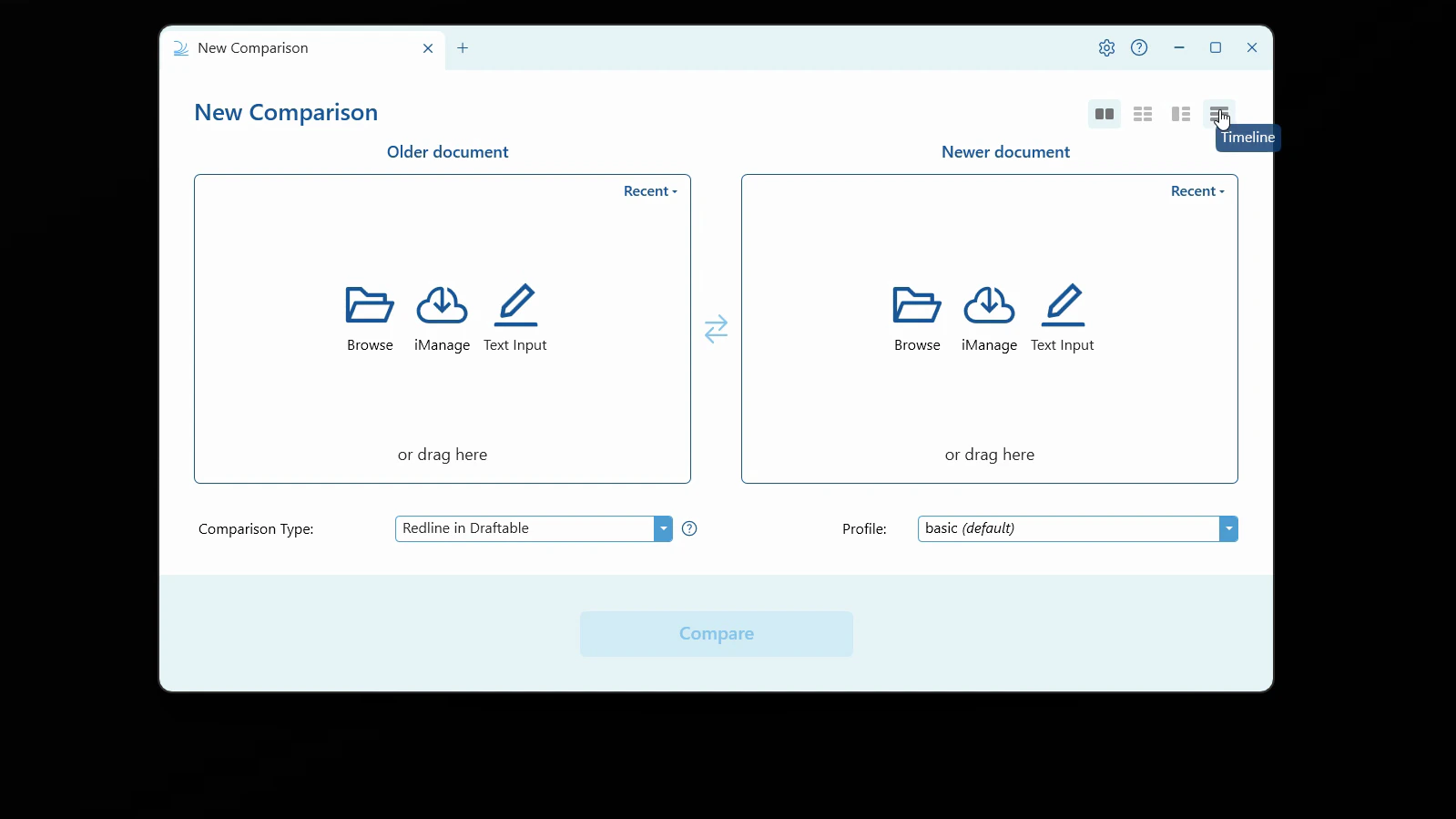
 Click the **Timeline** icon (the right-most layout icon). Hovering over it shows the "Timeline" tooltip.
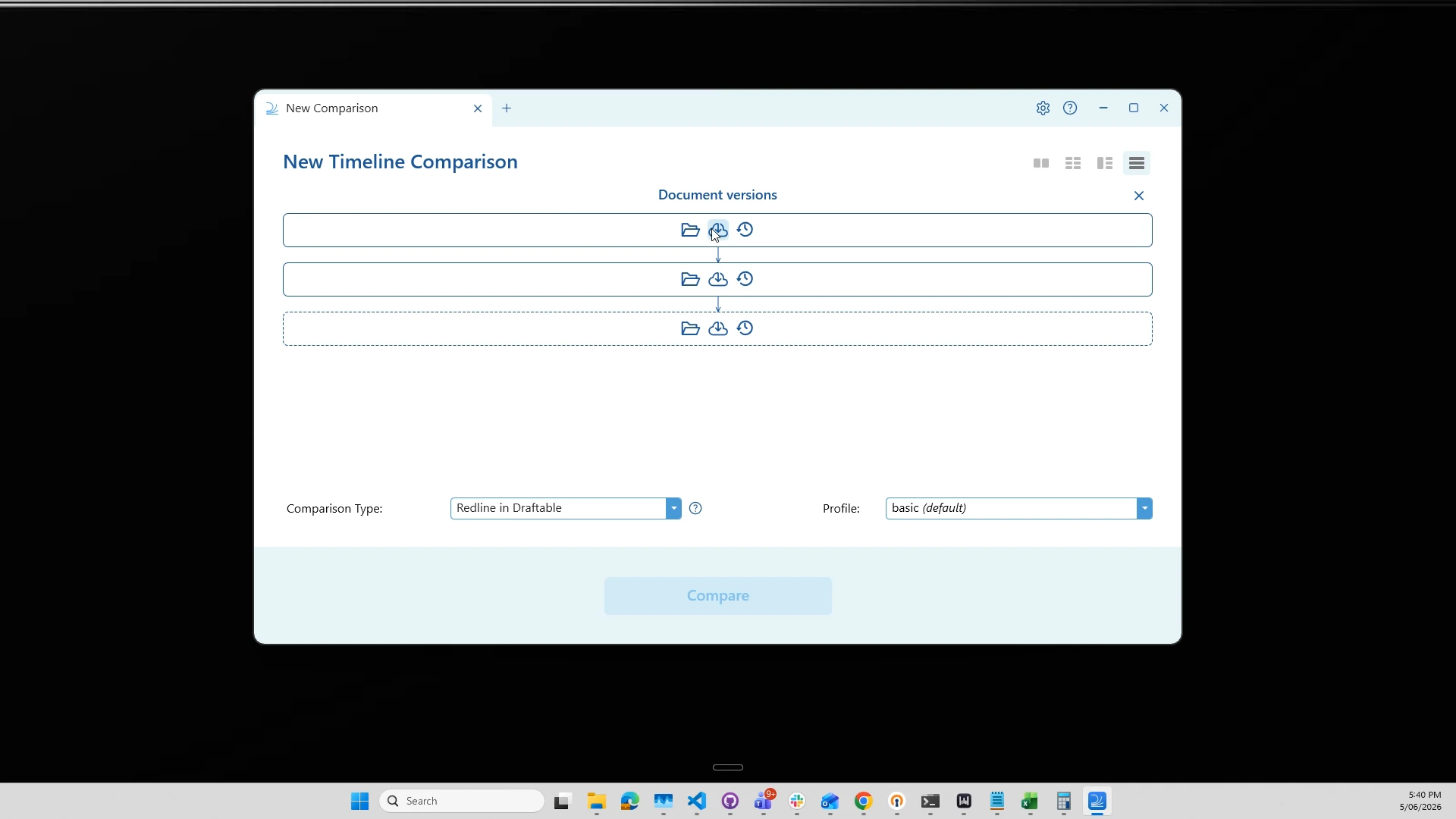
 The window changes to **New Timeline Comparison**, showing a stack of document slots connected by downward arrows. Each slot can be filled by browsing your computer, loading from your Document Management System (DMS), or selecting from recent files.
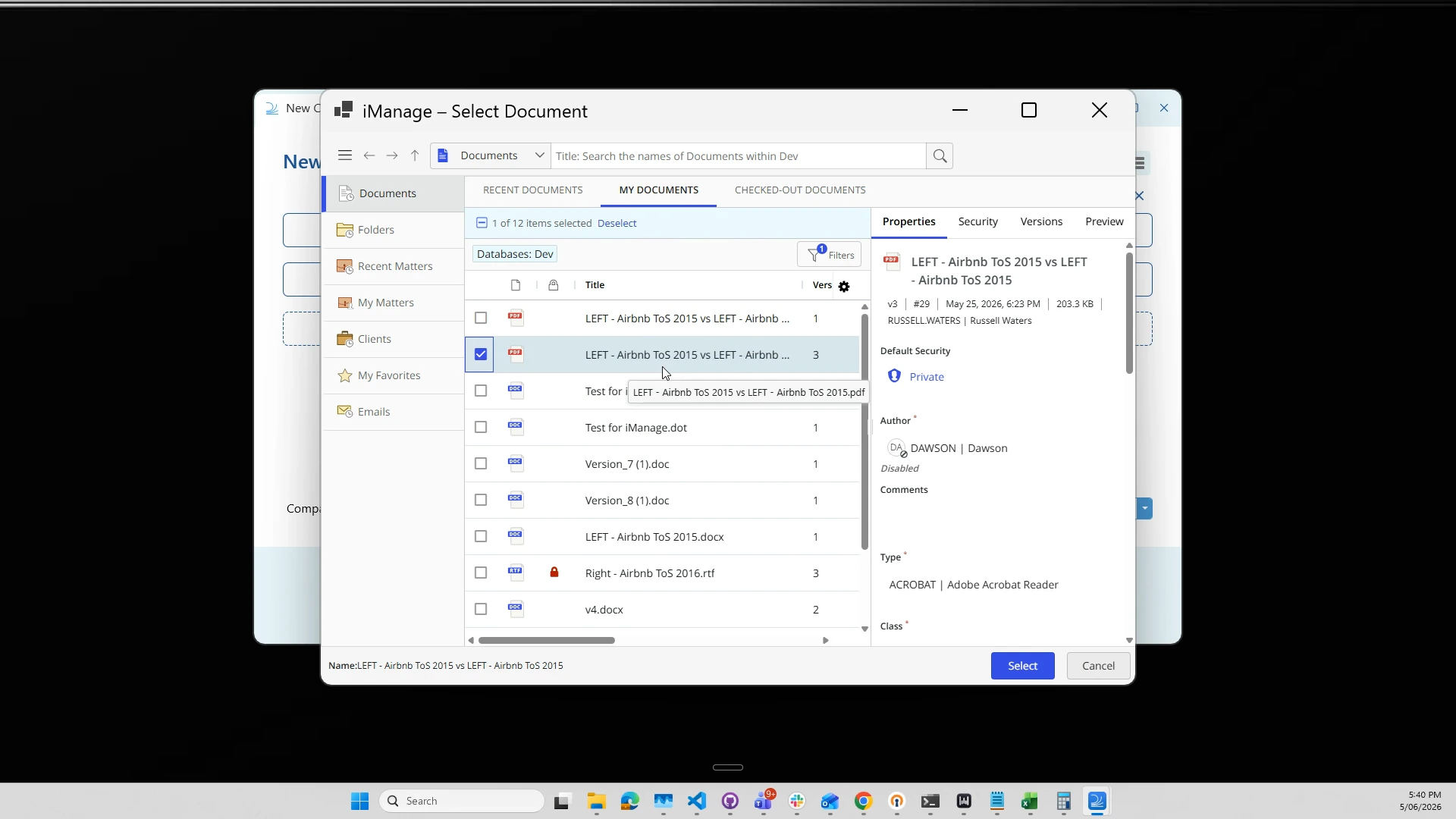
 Add your versions to the slots, **oldest at the top**, working down to the newest. You can add files via:
* **Browse** — select files from your computer
* **DMS** (e.g. iManage, NetDocuments, SharePoint) — select files and specific versions directly from your document management system
* **Recent** — pick from recently compared files
* **Drag and drop** — drop one or more files straight onto the slots
A new empty slot appears automatically each time you fill the last one, so you can keep adding as many versions as you need.
Add your versions to the slots, **oldest at the top**, working down to the newest. You can add files via:
* **Browse** — select files from your computer
* **DMS** (e.g. iManage, NetDocuments, SharePoint) — select files and specific versions directly from your document management system
* **Recent** — pick from recently compared files
* **Drag and drop** — drop one or more files straight onto the slots
A new empty slot appears automatically each time you fill the last one, so you can keep adding as many versions as you need.
 Once your versions are loaded, Draftable shows a summary of the comparisons it will run — for example, **"2 comparisons: v0–v1, v1–v2"** for three versions. The downward arrows confirm that each version will be compared against the next one in the sequence.
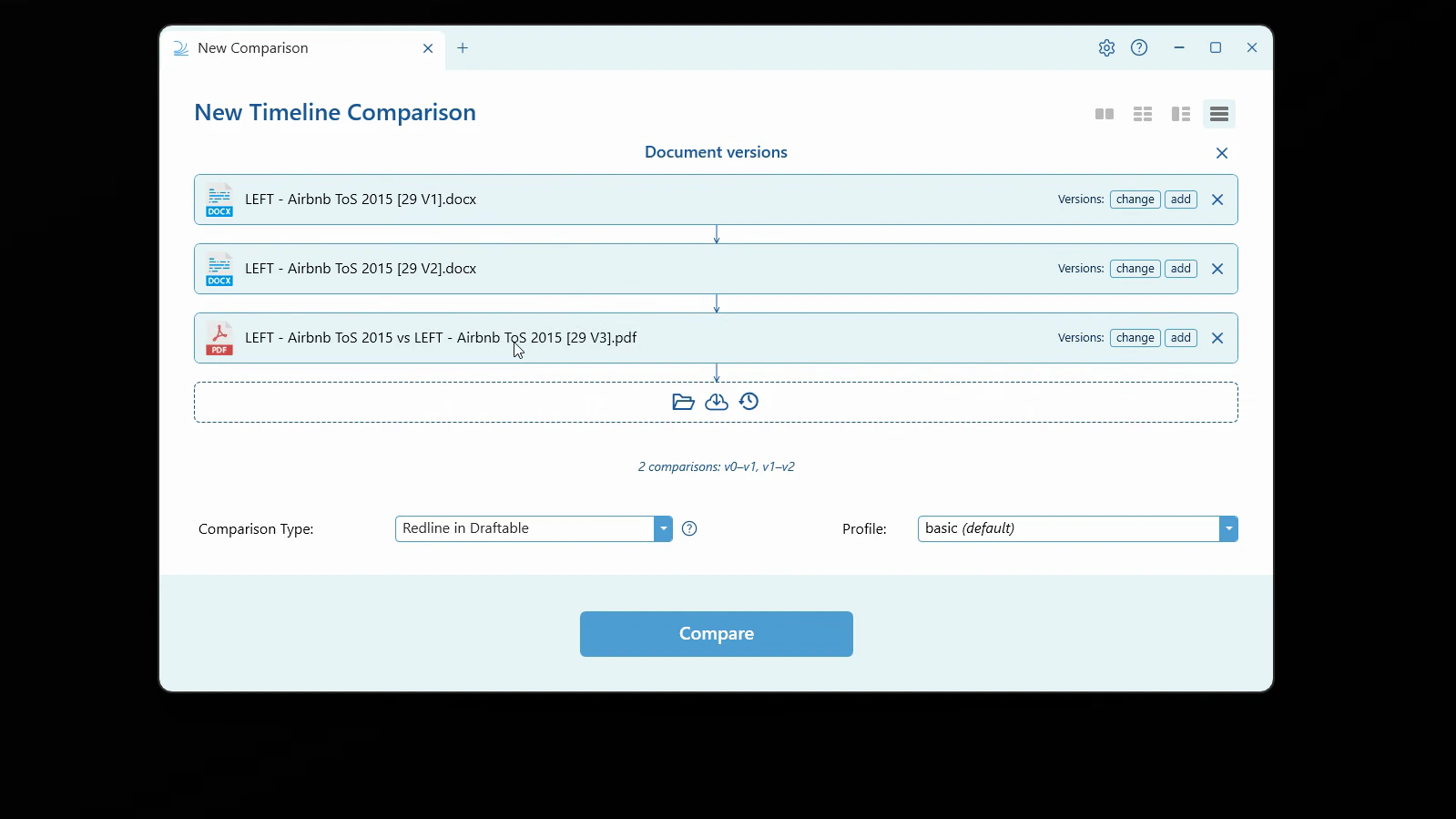 If the order isn't right, **drag any slot** to rearrange it. You can also use the per-row **Versions** controls to **change** the version in a slot or **add** further versions from your DMS, and remove a file with the **×** button.
You can mix file types in a timeline (for example, `.docx` versions followed by a `.pdf`). Draftable checks that each consecutive pair is a compatible comparison and will warn you if a step can't be compared.
Select your preferred **Comparison Type** — for example, **Redline in Draftable**, **Tracked Changes in Word**, **Side by Side in Draftable**, or **Departures Table** — and a settings **Profile**. Options that don't apply to your selected files (such as Redline in Excel or PowerPoint) are greyed out.
If the order isn't right, **drag any slot** to rearrange it. You can also use the per-row **Versions** controls to **change** the version in a slot or **add** further versions from your DMS, and remove a file with the **×** button.
You can mix file types in a timeline (for example, `.docx` versions followed by a `.pdf`). Draftable checks that each consecutive pair is a compatible comparison and will warn you if a step can't be compared.
Select your preferred **Comparison Type** — for example, **Redline in Draftable**, **Tracked Changes in Word**, **Side by Side in Draftable**, or **Departures Table** — and a settings **Profile**. Options that don't apply to your selected files (such as Redline in Excel or PowerPoint) are greyed out.
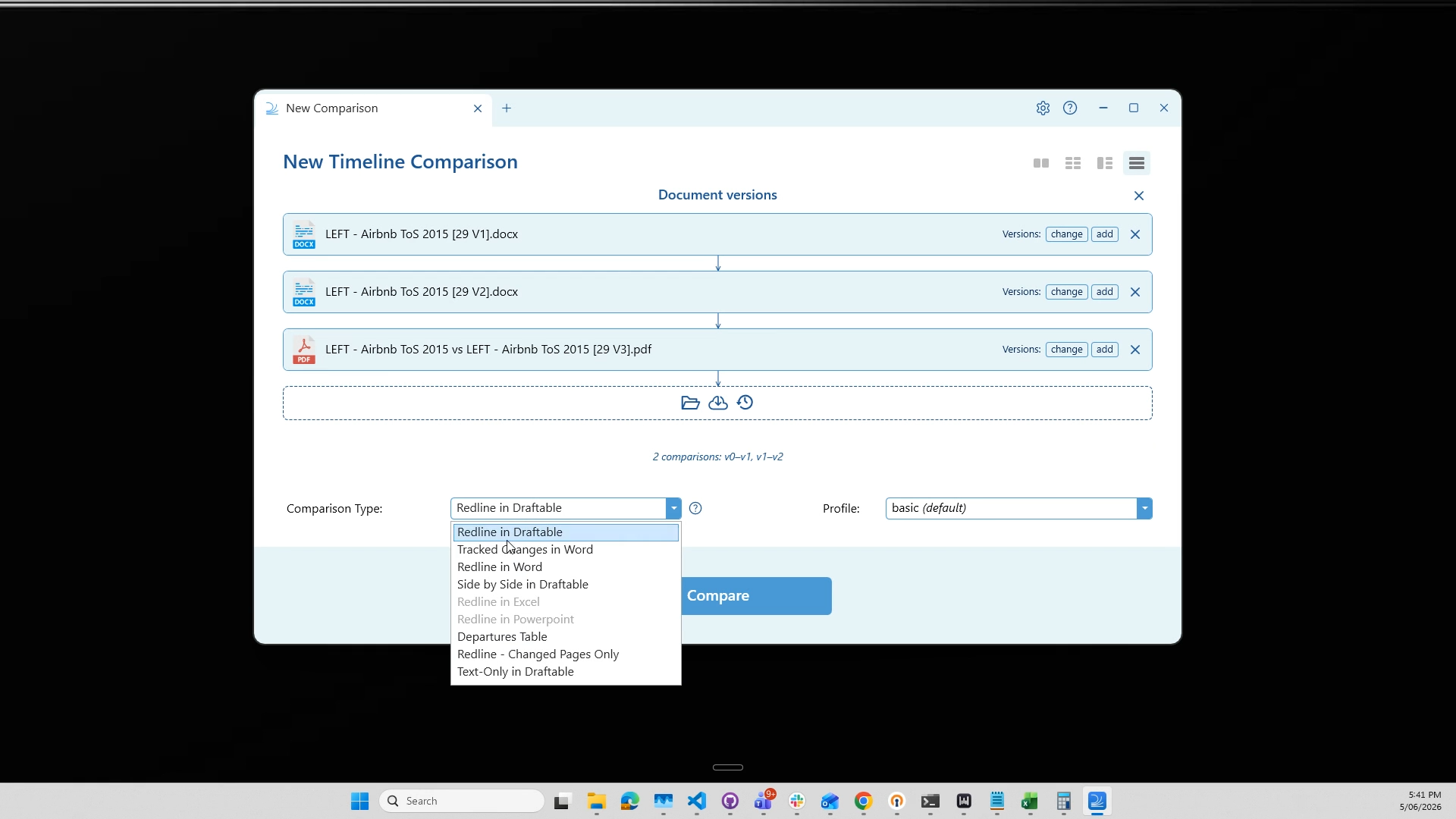 Click **Compare**. Draftable runs a separate comparison for each step in the sequence. A progress screen shows the status of each comparison as it completes.
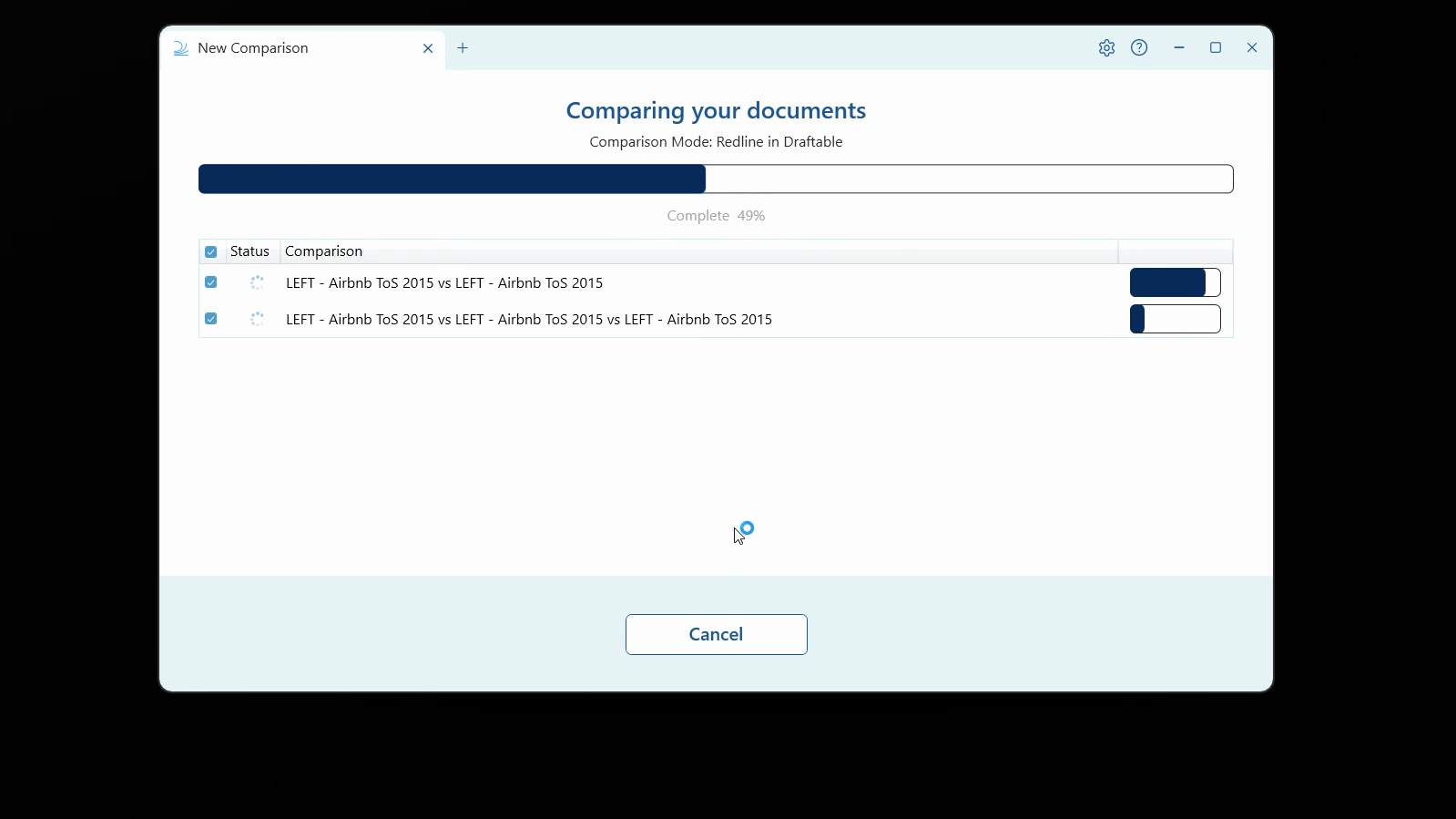 As each step finishes, an **Open** button appears so you can begin reviewing it without waiting for the rest.
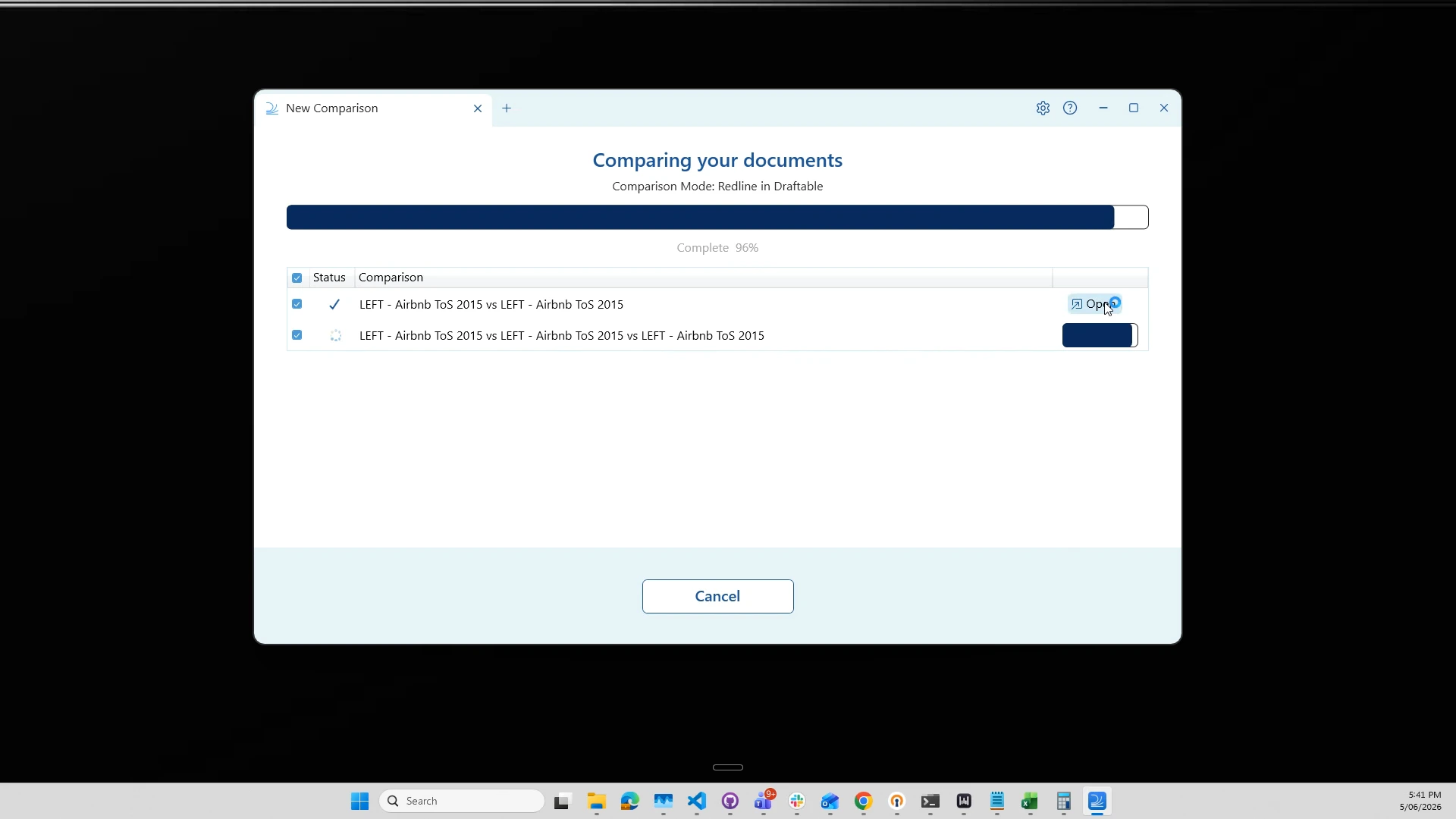 Open any completed comparison to review it in the viewer. Each step opens in its own tab, showing the transition from one version to the next. From here you can use the viewer's tools to filter, review, and take next actions such as **Save**, **Print**, **Copy to Clipboard**, or **Email**.
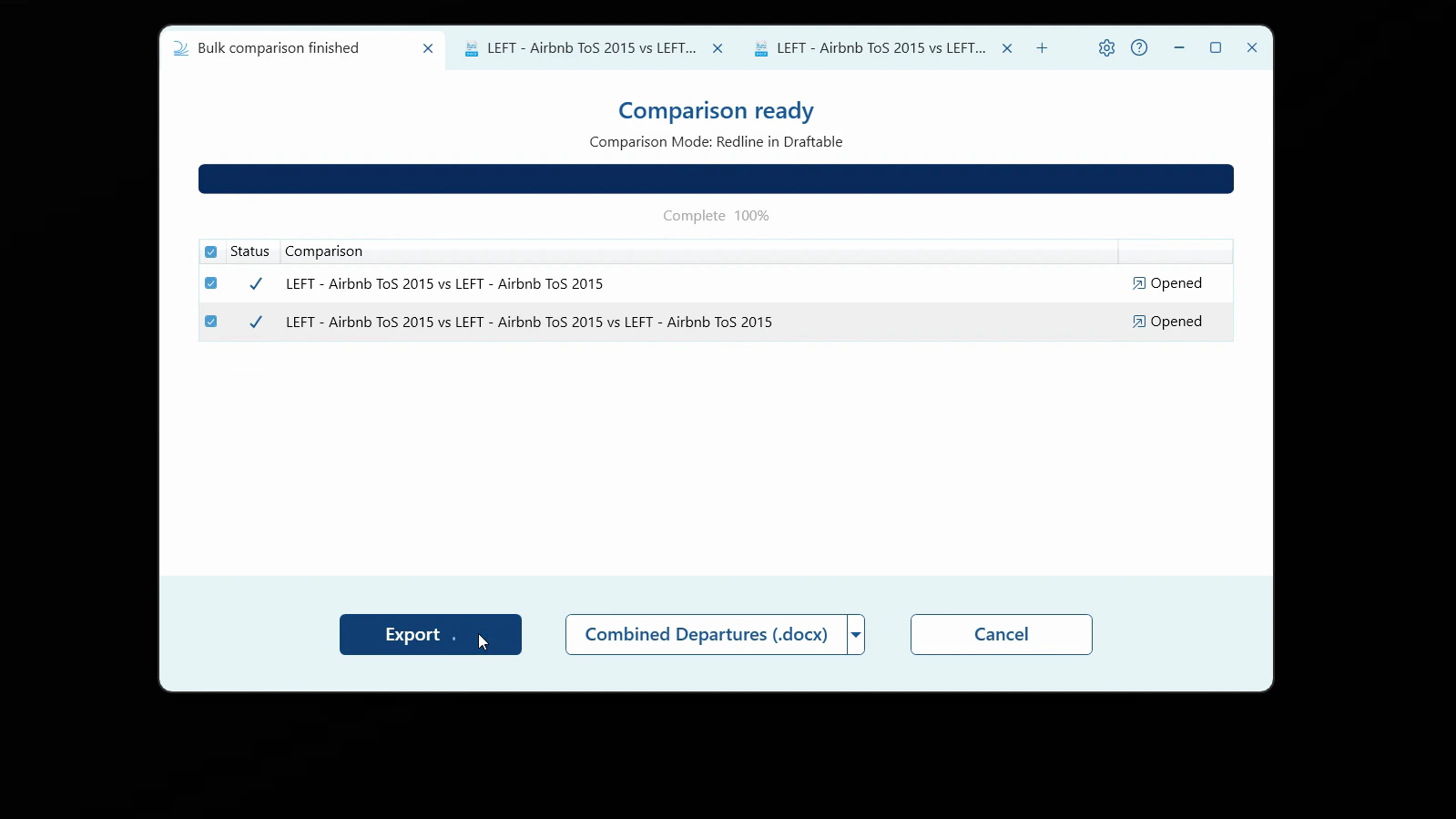
 When all comparisons are finished, the **Comparison ready** screen lets you select the comparisons you want and click **Export**. Use the format dropdown to choose how to export — including the new **Combined Departures** option, available as both a Word document (`.docx`) and an Excel spreadsheet (`.xlsx`), which summarises the changes across your entire timeline in a single file.
 ## The Combined Departures Table
For Timeline (and One-to-Many) comparisons, Draftable can produce a **Combined Departures Table** — a single file that brings the changes from every step of the sequence together in one table, available as either a Word document (`.docx`) or an Excel spreadsheet (`.xlsx`). This makes it easy to see how the document departed from its original version across all its drafts, without opening each comparison individually.
To learn more about reading and using departures tables, see [Understanding and using the Departures Table](/hc/en-us/articles/51552545500569-Understanding-and-Using-the-Departures-Table).
## Related articles
If you have any issues or questions, contact us at [support@draftable.com](mailto:support@draftable.com).
## The Combined Departures Table
For Timeline (and One-to-Many) comparisons, Draftable can produce a **Combined Departures Table** — a single file that brings the changes from every step of the sequence together in one table, available as either a Word document (`.docx`) or an Excel spreadsheet (`.xlsx`). This makes it easy to see how the document departed from its original version across all its drafts, without opening each comparison individually.
To learn more about reading and using departures tables, see [Understanding and using the Departures Table](/hc/en-us/articles/51552545500569-Understanding-and-Using-the-Departures-Table).
## Related articles
If you have any issues or questions, contact us at [support@draftable.com](mailto:support@draftable.com).