> ## Documentation Index
> Fetch the complete documentation index at: https://help.draftable.com/llms.txt
> Use this file to discover all available pages before exploring further.
# Using the new Bulk Compare modes: Matched Pairs, One-to-Many, and Timeline
> How to use Draftable Legal's three Bulk Compare modes — Matched Pairs, One-to-Many, and Timeline — to run many comparisons at once and review them as they complete.
Bulk Compare lets you set up and run many comparisons at once, instead of comparing documents one pair at a time. Draftable Legal offers three Bulk Compare modes, each suited to a different way your documents relate to one another:
* **Matched Pairs** — compare documents as discrete one-to-one pairs.
* **One-to-Many** — compare a single base document against several others.
* **Timeline** — compare a sequence of versions in order (covered briefly below; see the dedicated article for a deep dive).
Each comparison in a bulk run is processed independently, so you can open and review results as soon as they're ready — even while others are still running.
The Bulk Compare modes are available from **Draftable Legal v26.4.0** onwards. The layout icons are always shown in the top-right of the New Comparison window — if you don't see them, you may be on an older version.
## Finding the Bulk Compare modes
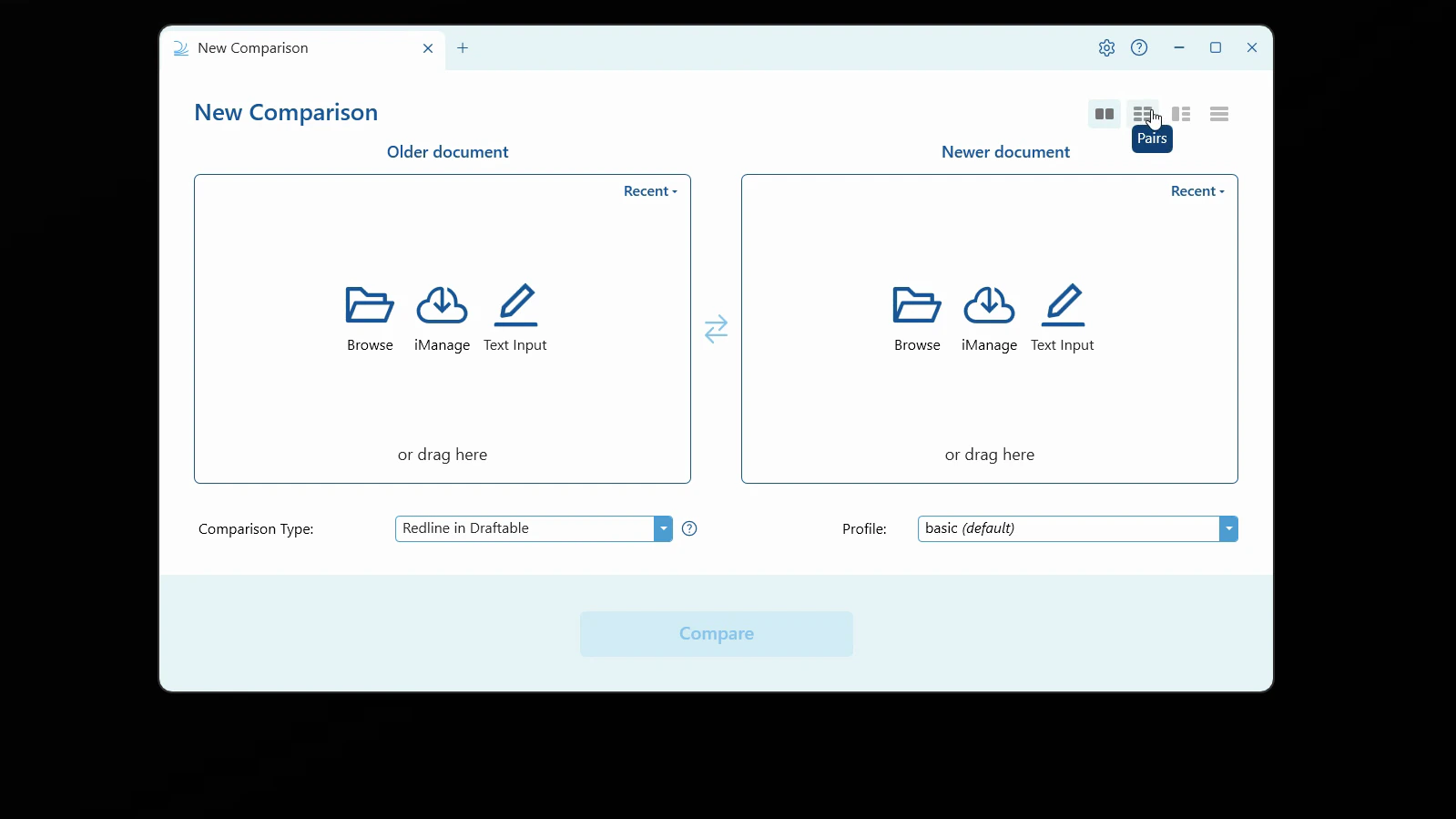
In the top-right corner of the **New Comparison** window, a row of layout icons lets you switch between the standard single comparison and the three Bulk Compare modes. Hovering over an icon shows its name — **Pairs**, **One-to-Many**, and **Timeline**.
 ## Matched Pairs (one-to-one)
Use Matched Pairs when your documents come in clear couples — each older document compared against its corresponding newer document.
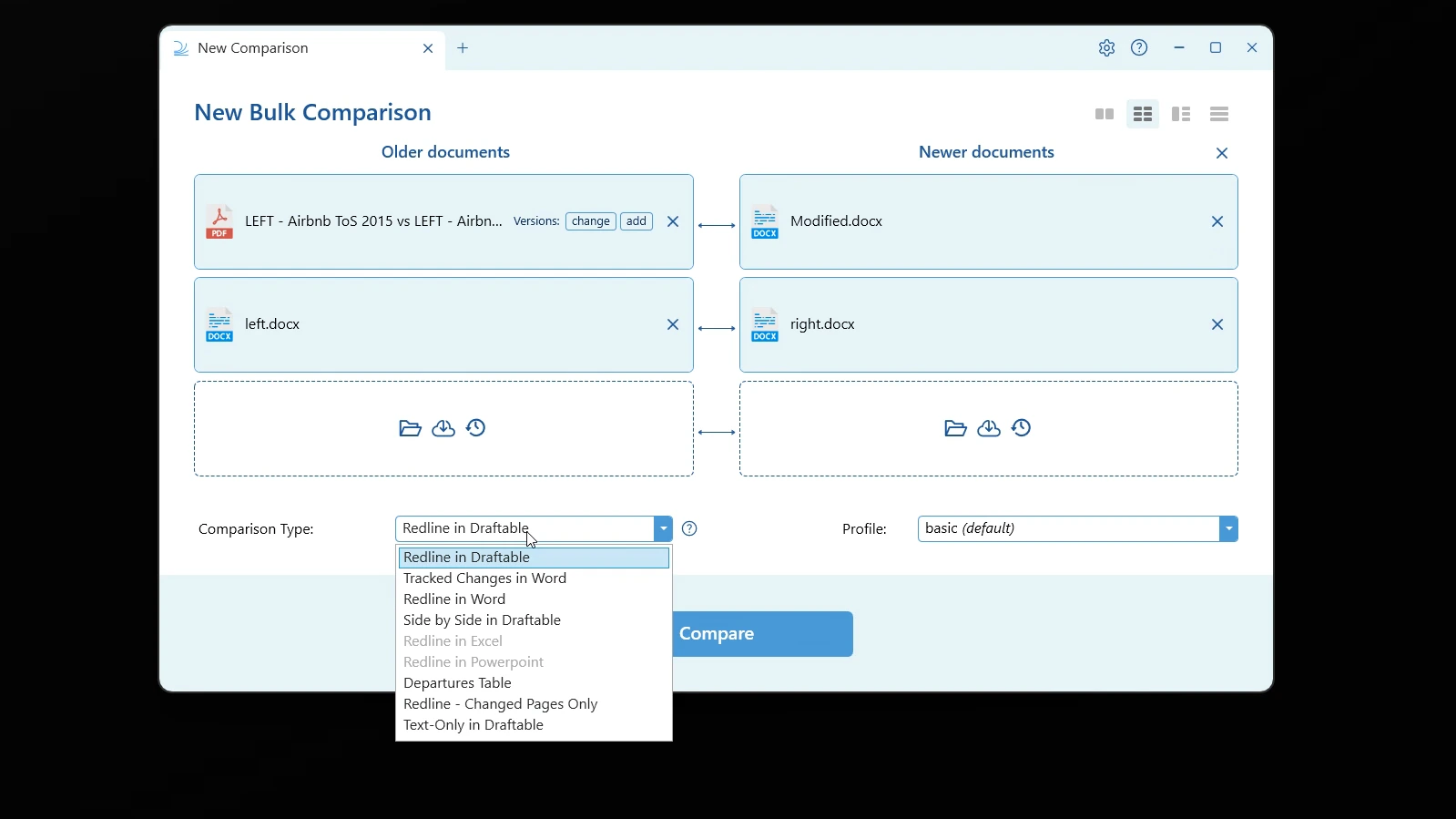
Click the **Pairs** icon. The window changes to **New Bulk Comparison**, with stacked slots for **Older documents** on the left and **Newer documents** on the right. Each pair is joined by a horizontal arrow.
## Matched Pairs (one-to-one)
Use Matched Pairs when your documents come in clear couples — each older document compared against its corresponding newer document.
Click the **Pairs** icon. The window changes to **New Bulk Comparison**, with stacked slots for **Older documents** on the left and **Newer documents** on the right. Each pair is joined by a horizontal arrow.
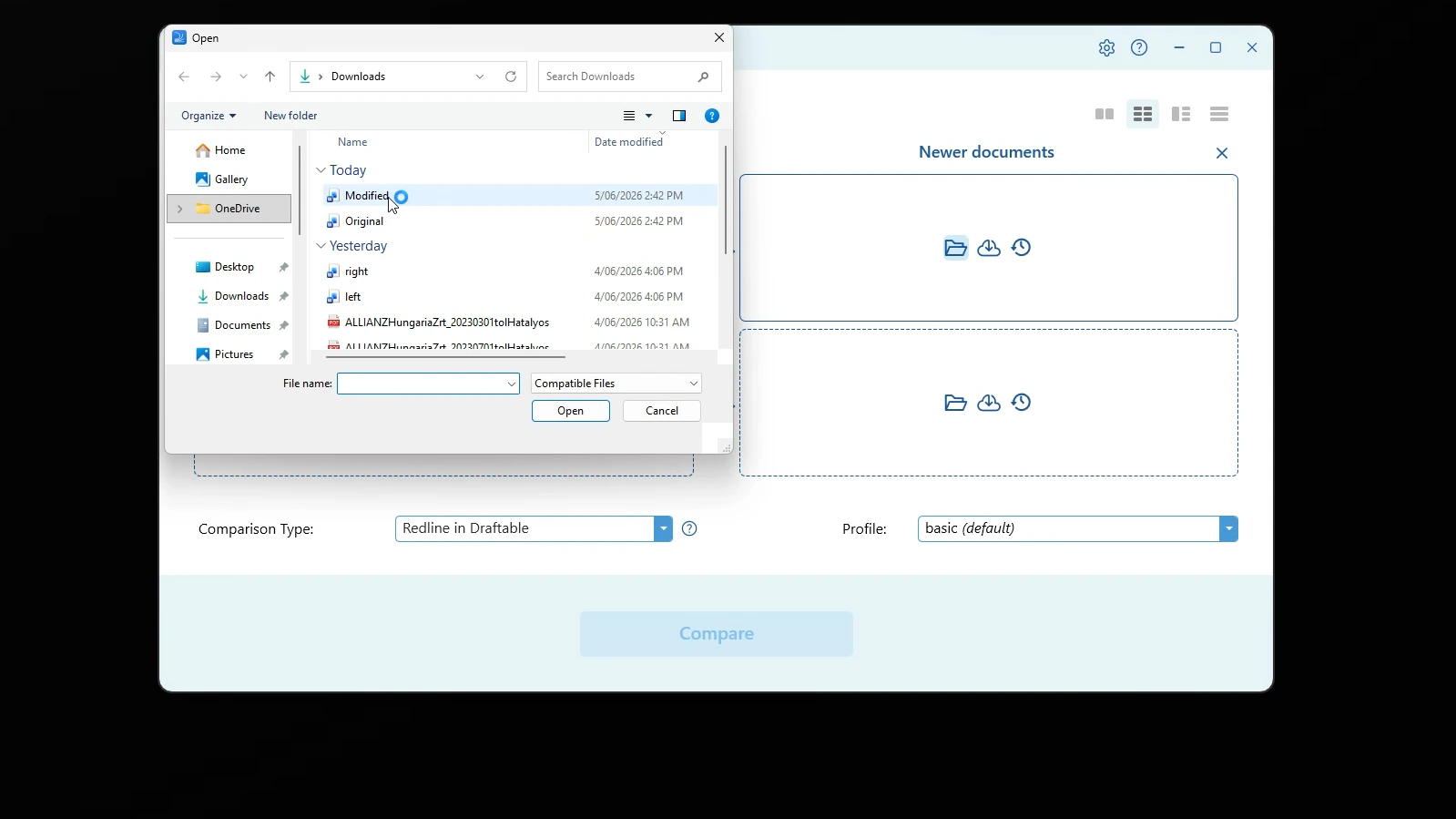
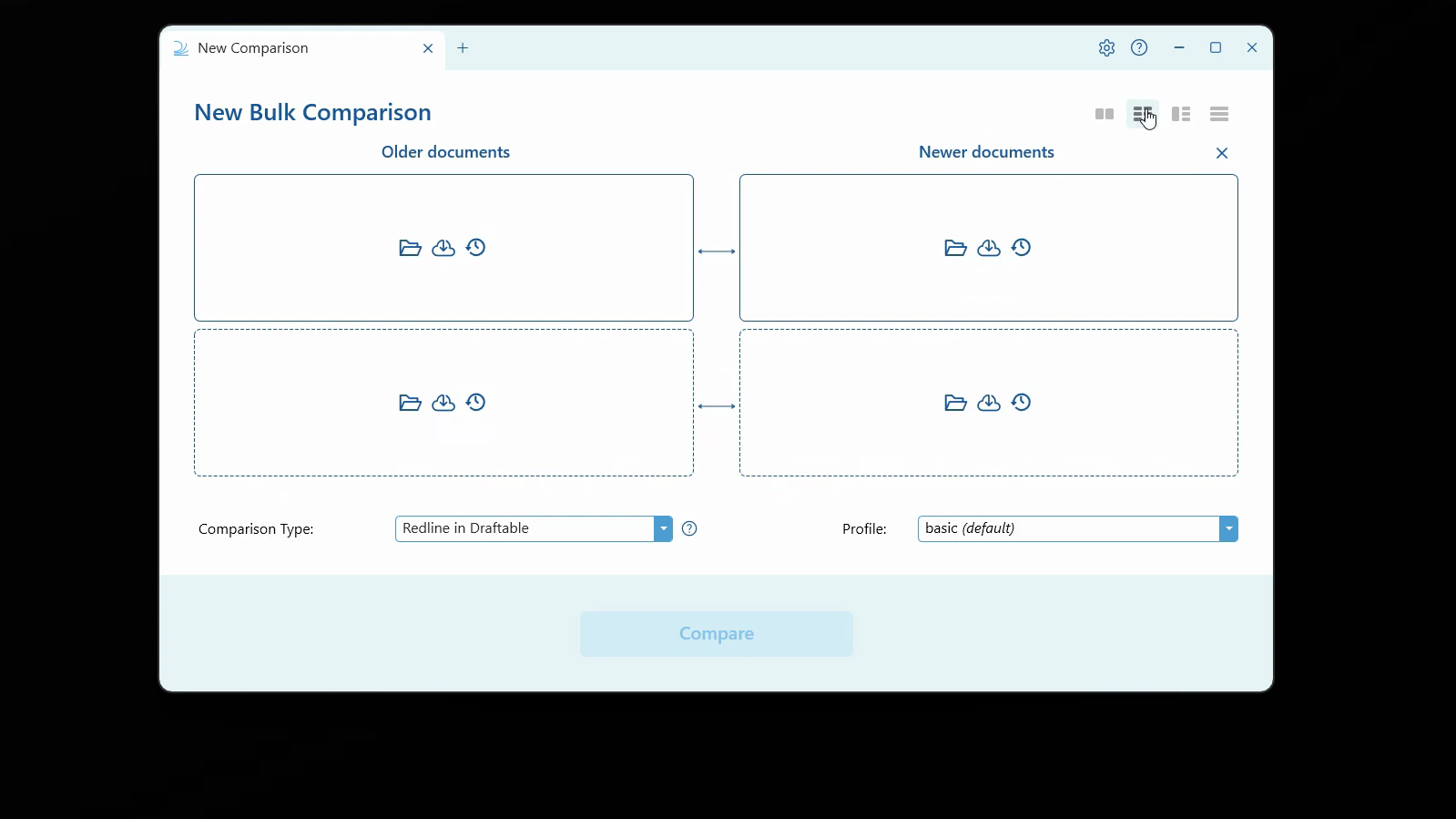 Fill the slots using the icons on each one: **Browse** your computer, load from your **DMS** (e.g. iManage), or pick from **Recent** files. You can also drag and drop files onto the slots. A new empty row appears as you fill the slots, so you can add as many pairs as you need.
 Each older document on the left is compared against the newer document beside it. The horizontal arrows confirm each pairing. Drag files between slots to re-pair them, use the per-row **Versions** controls to **change** or **add** a version (for DMS files), and remove a file with the **×** button.
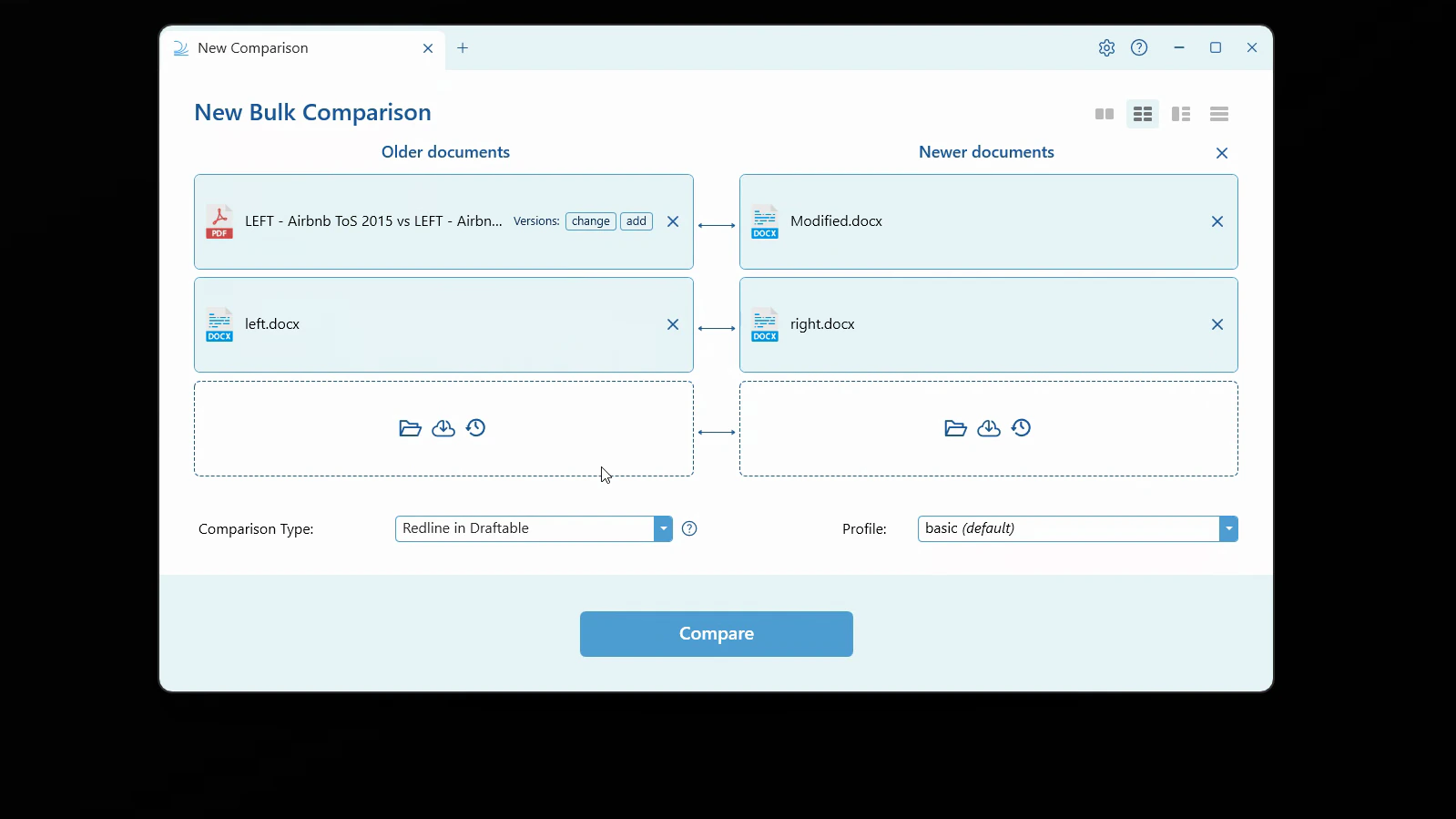 Select your **Comparison Type** (for example, **Side by Side in Draftable** or **Redline in Draftable**) and a settings **Profile**. Options that don't apply to your files — such as Redline in Excel or PowerPoint — are greyed out.
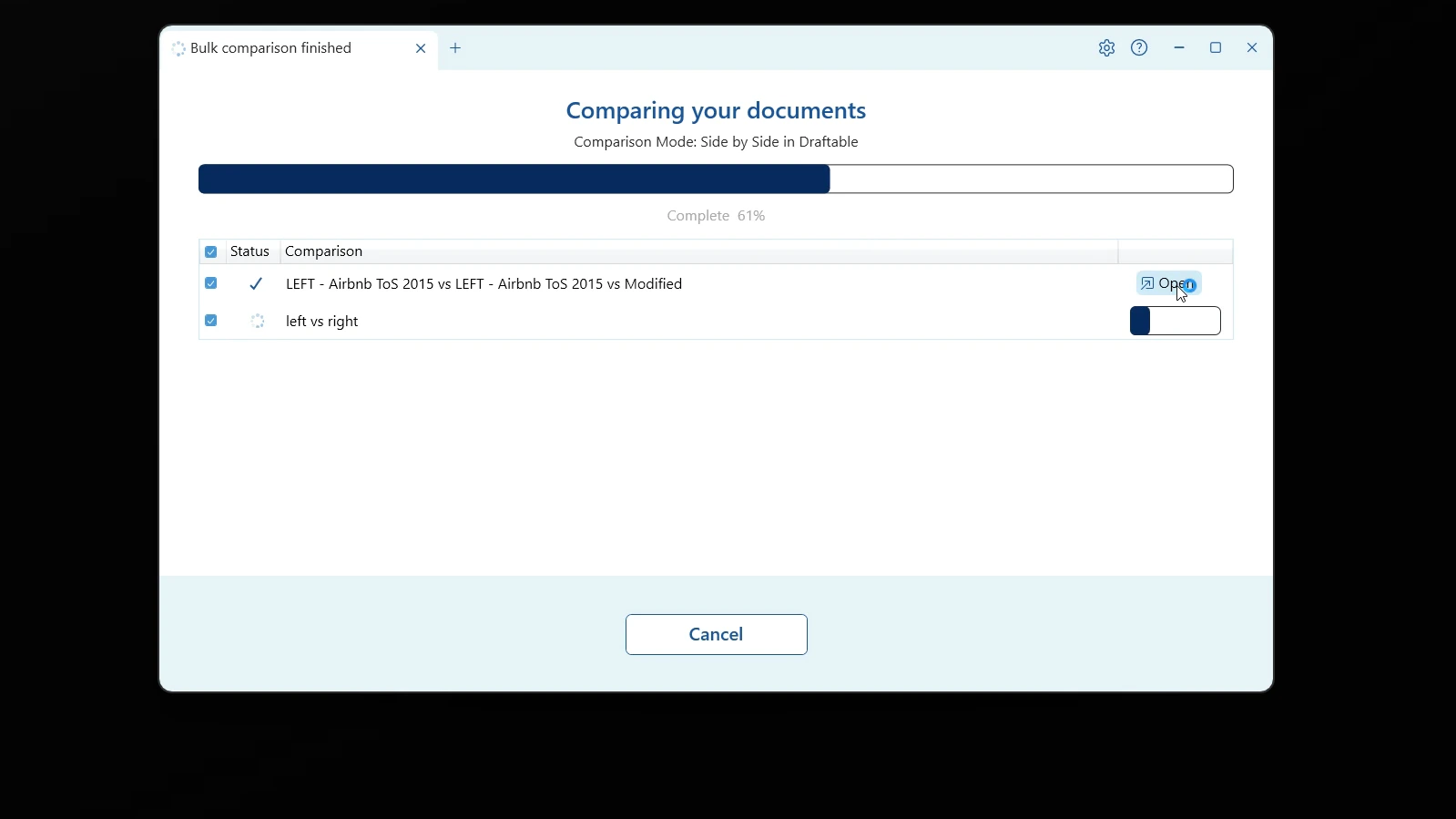
 Click **Compare**. Draftable runs every pair at once and shows the progress of each comparison. As each one finishes, an **Open** button appears so you can start reviewing it without waiting for the rest.
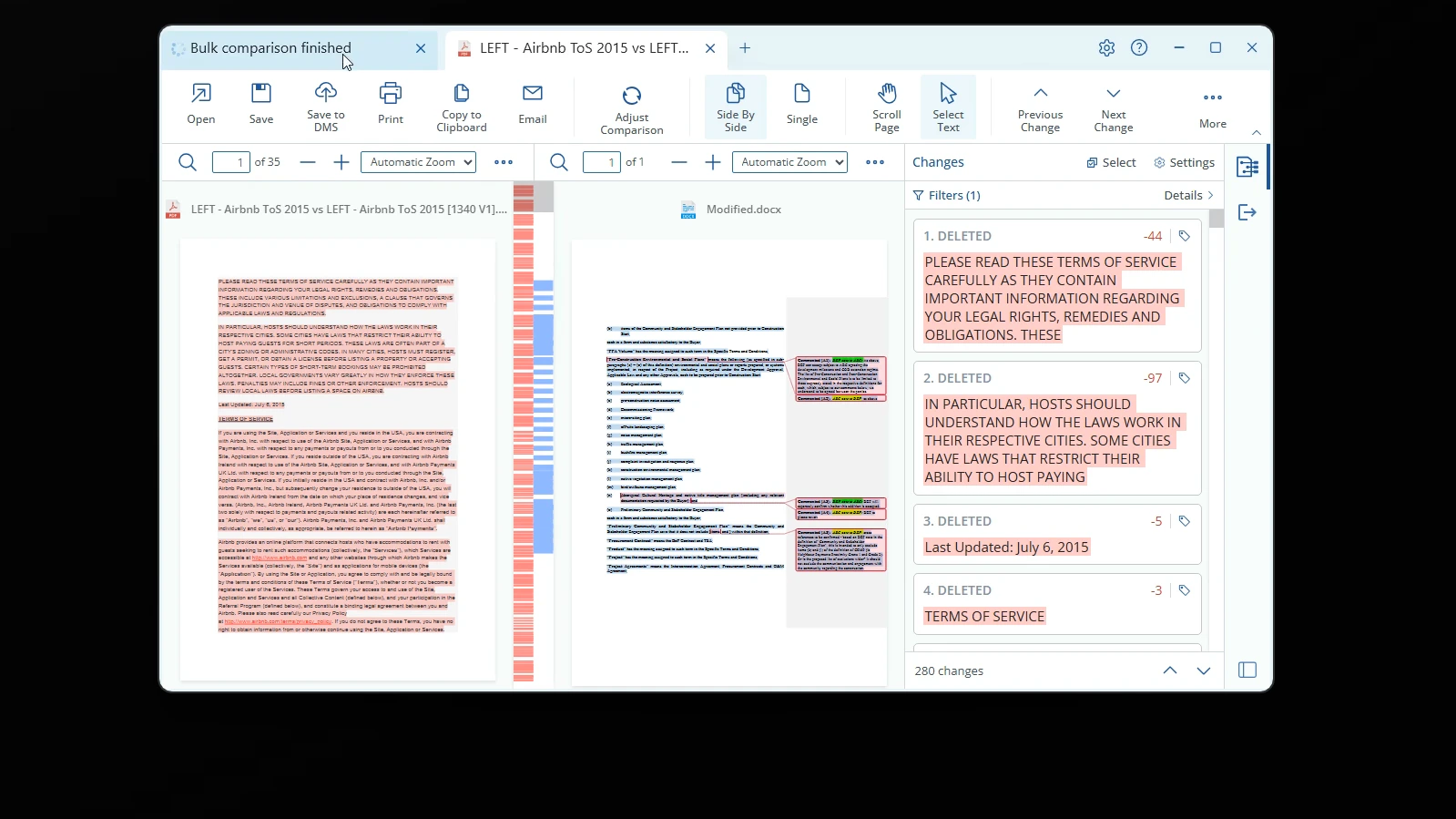
 Open any completed comparison to review it in the viewer. Each opens in its own tab, where you can filter changes and take next actions such as Save, Print, Copy to Clipboard, or Email.
 ## One-to-Many
Use One-to-Many when you want to compare a single base document against several others at once — for example, one standard template against multiple counterparty markups.
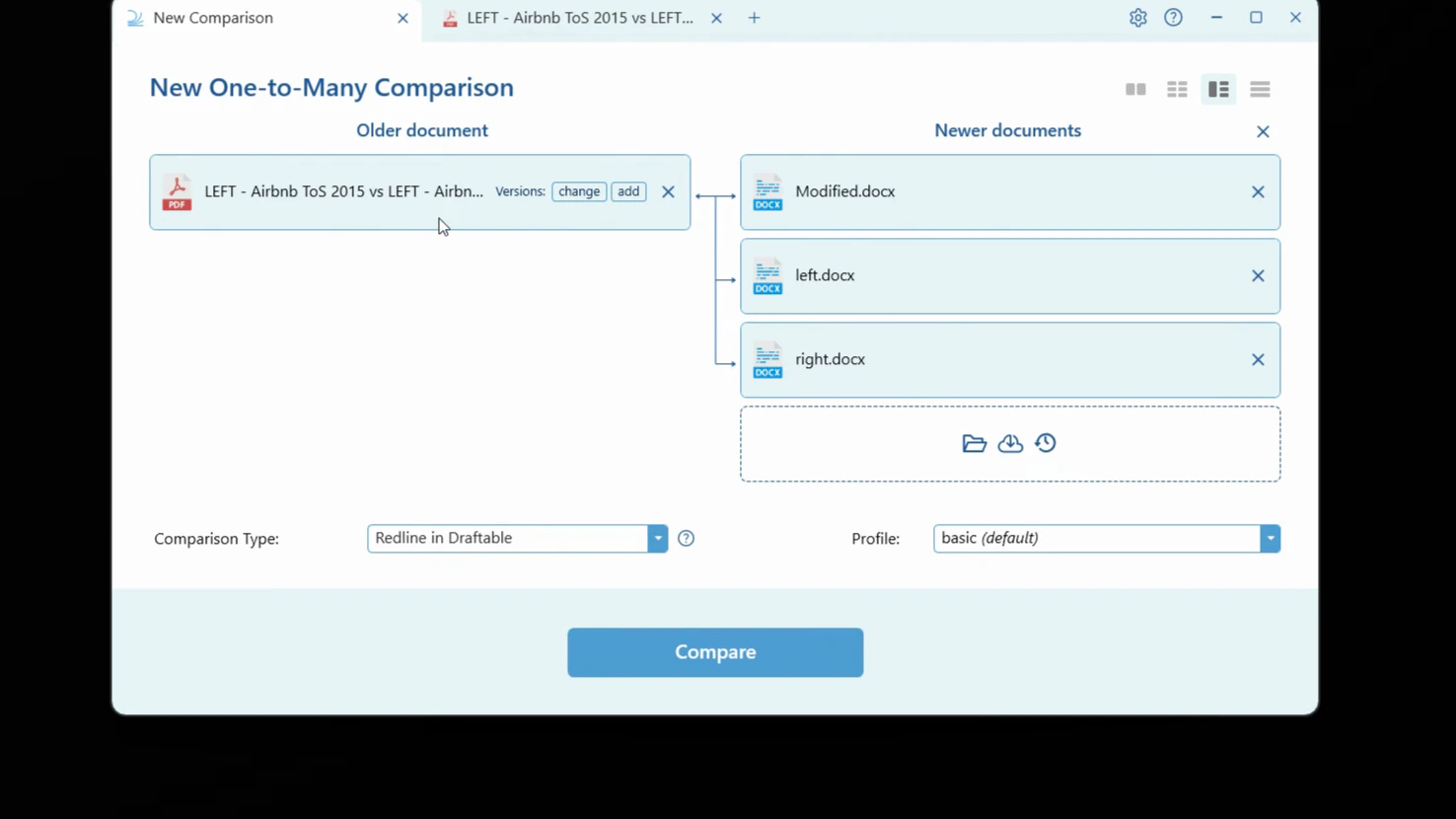
Click the **One-to-Many** icon. The window changes to **New One-to-Many Comparison**, with a single **Older document** slot on the left and multiple **Newer documents** slots on the right.
## One-to-Many
Use One-to-Many when you want to compare a single base document against several others at once — for example, one standard template against multiple counterparty markups.
Click the **One-to-Many** icon. The window changes to **New One-to-Many Comparison**, with a single **Older document** slot on the left and multiple **Newer documents** slots on the right.
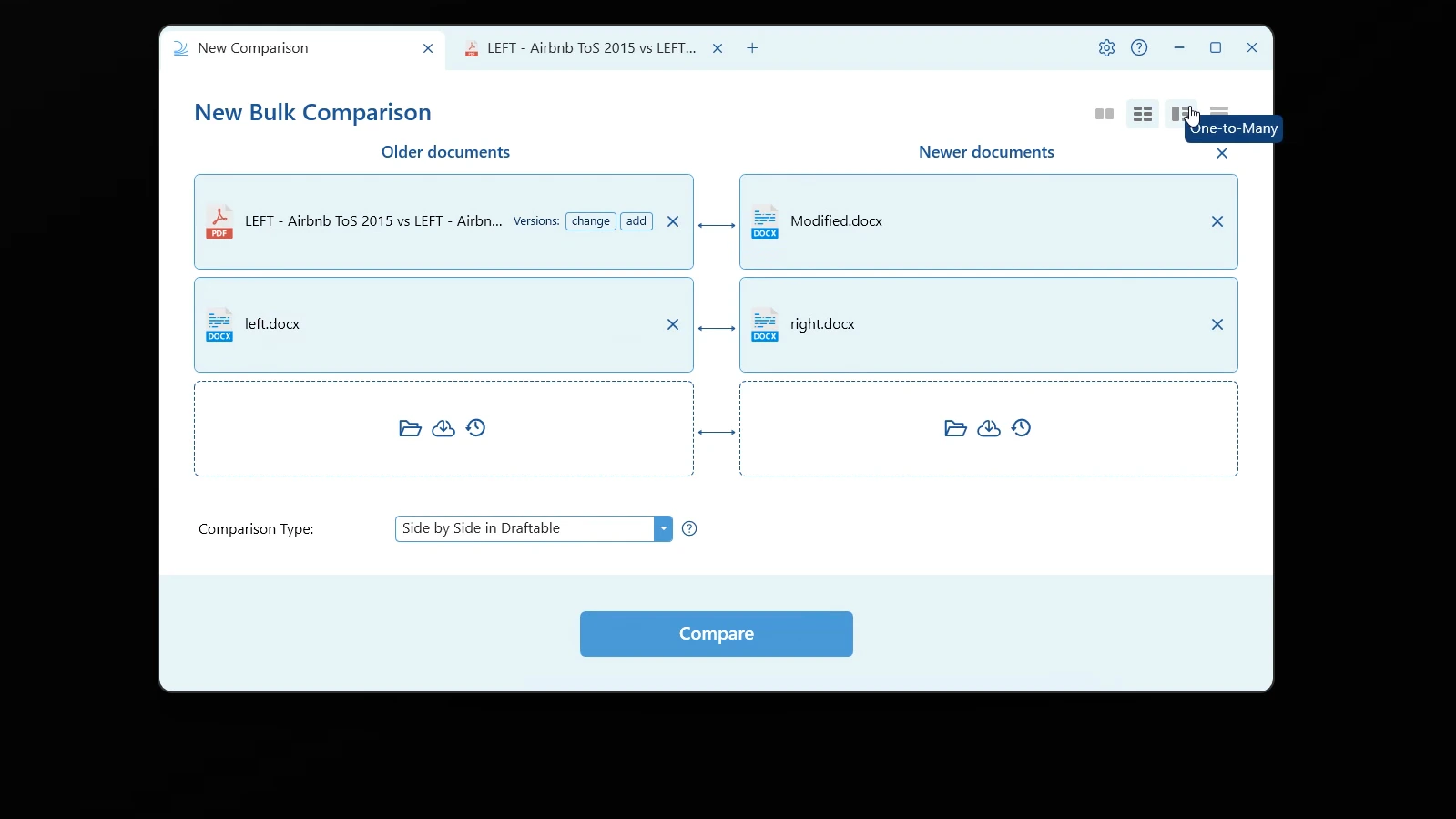 Add your base document (usually the older version) to the single slot on the left, then add the documents you want to compare it against on the right. Arrows fan out from the base document to each of the others, showing that each will be compared against your single base.
 One-to-Many also works the other way around — you can compare **multiple older documents against a single newer document**. See [Bulk Compare: How to load and run multiple comparisons at once](/hc/en-us/articles/30062521598361-Bulk-Compare-How-to-load-and-run-multiple-comparisons-at-once) for more on arranging files.
Select your **Comparison Type** (for example, **Redline in Draftable**) and a settings **Profile**.
Click **Compare**. Draftable compares each document against your base in parallel, and you can open each result as it completes.
One-to-Many also works the other way around — you can compare **multiple older documents against a single newer document**. See [Bulk Compare: How to load and run multiple comparisons at once](/hc/en-us/articles/30062521598361-Bulk-Compare-How-to-load-and-run-multiple-comparisons-at-once) for more on arranging files.
Select your **Comparison Type** (for example, **Redline in Draftable**) and a settings **Profile**.
Click **Compare**. Draftable compares each document against your base in parallel, and you can open each result as it completes.
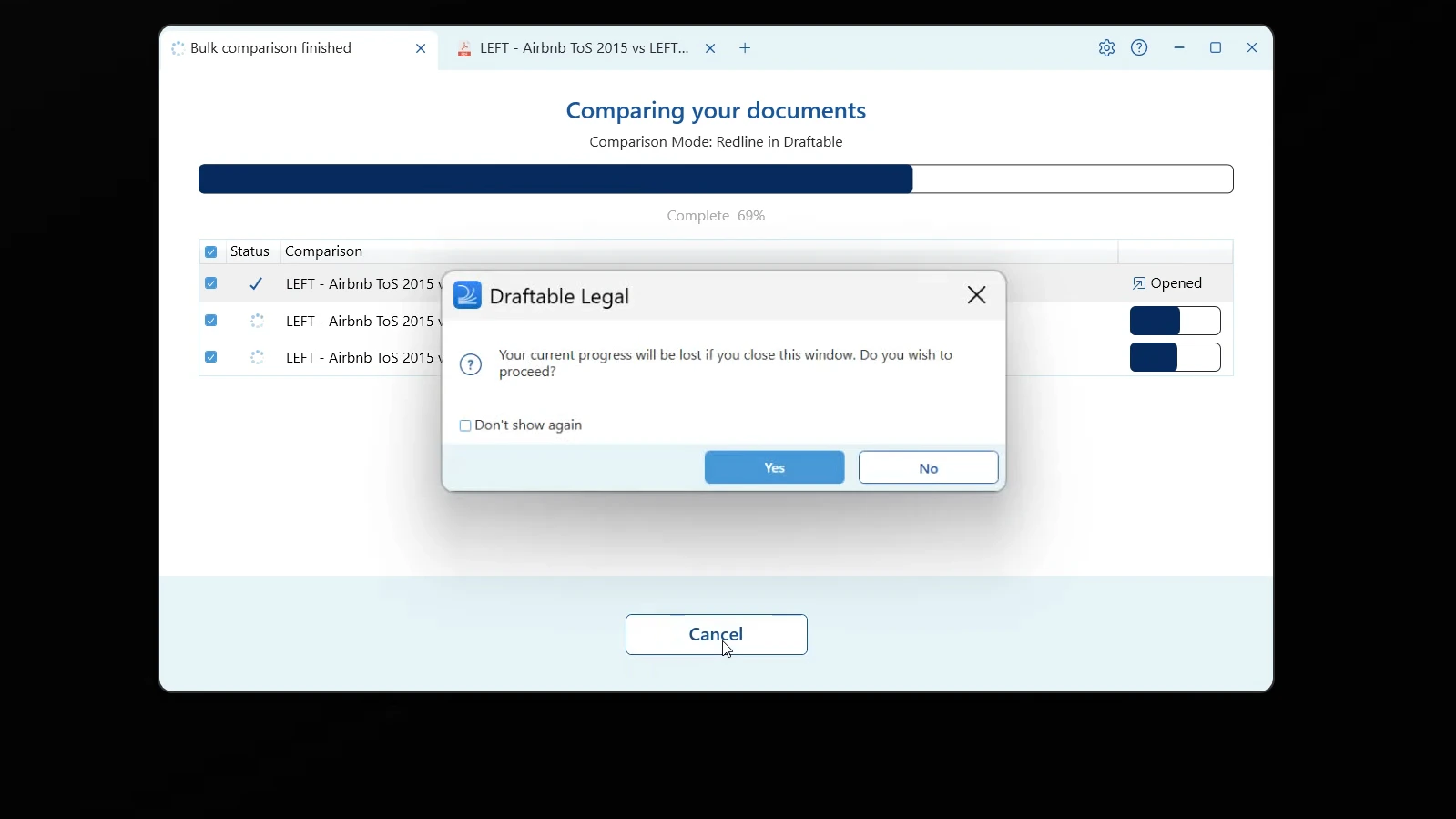
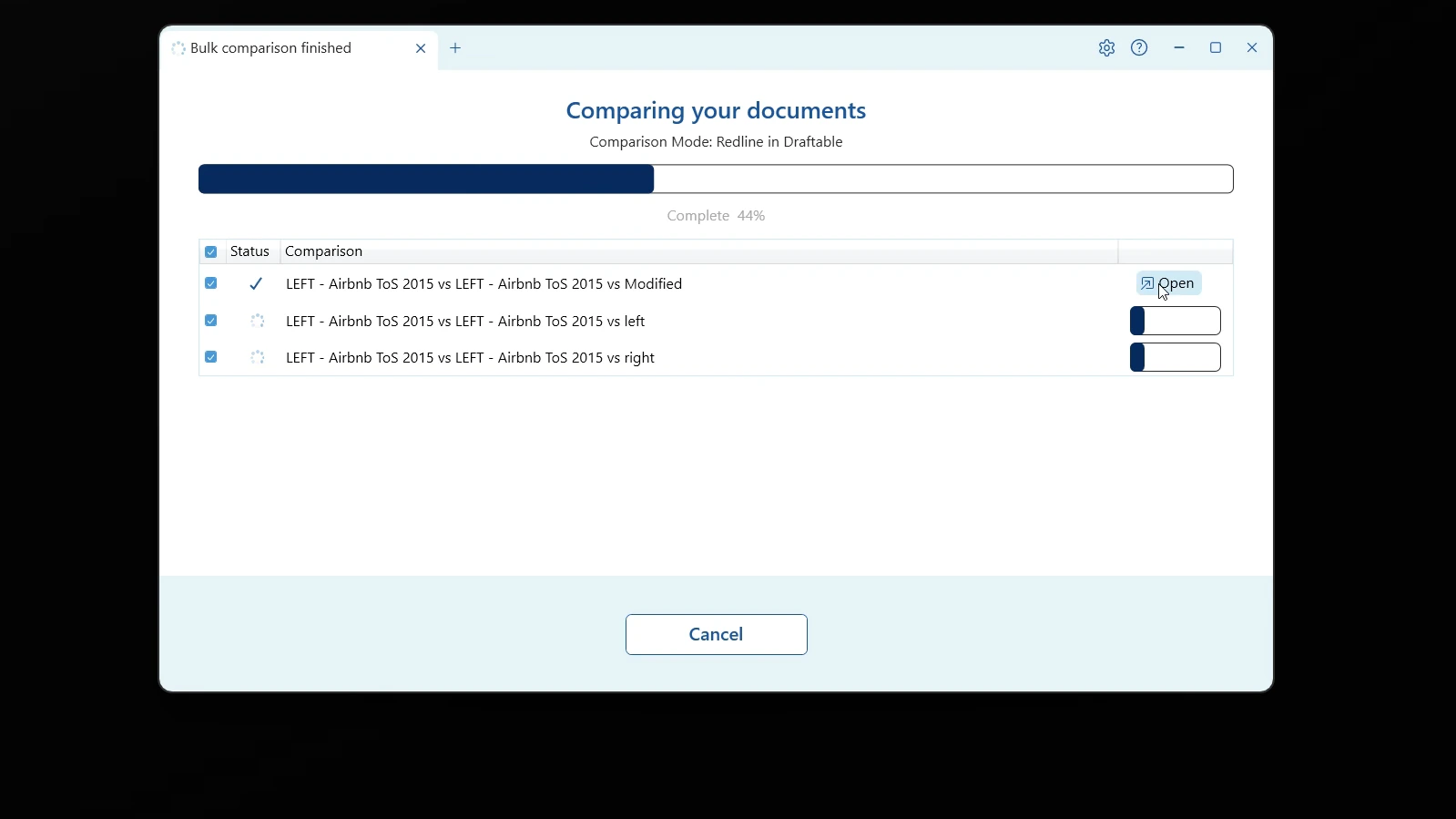 If you click **Cancel** while comparisons are still running, Draftable asks you to confirm — closing the window loses the progress of any comparisons that haven't finished.
 ## Timeline mode
Timeline mode compares a sequence of versions **in order** — each version against the next (v1 → v2, v2 → v3, and so on) — which is ideal for tracking how a document evolved across many drafts.
## Timeline mode
Timeline mode compares a sequence of versions **in order** — each version against the next (v1 → v2, v2 → v3, and so on) — which is ideal for tracking how a document evolved across many drafts.
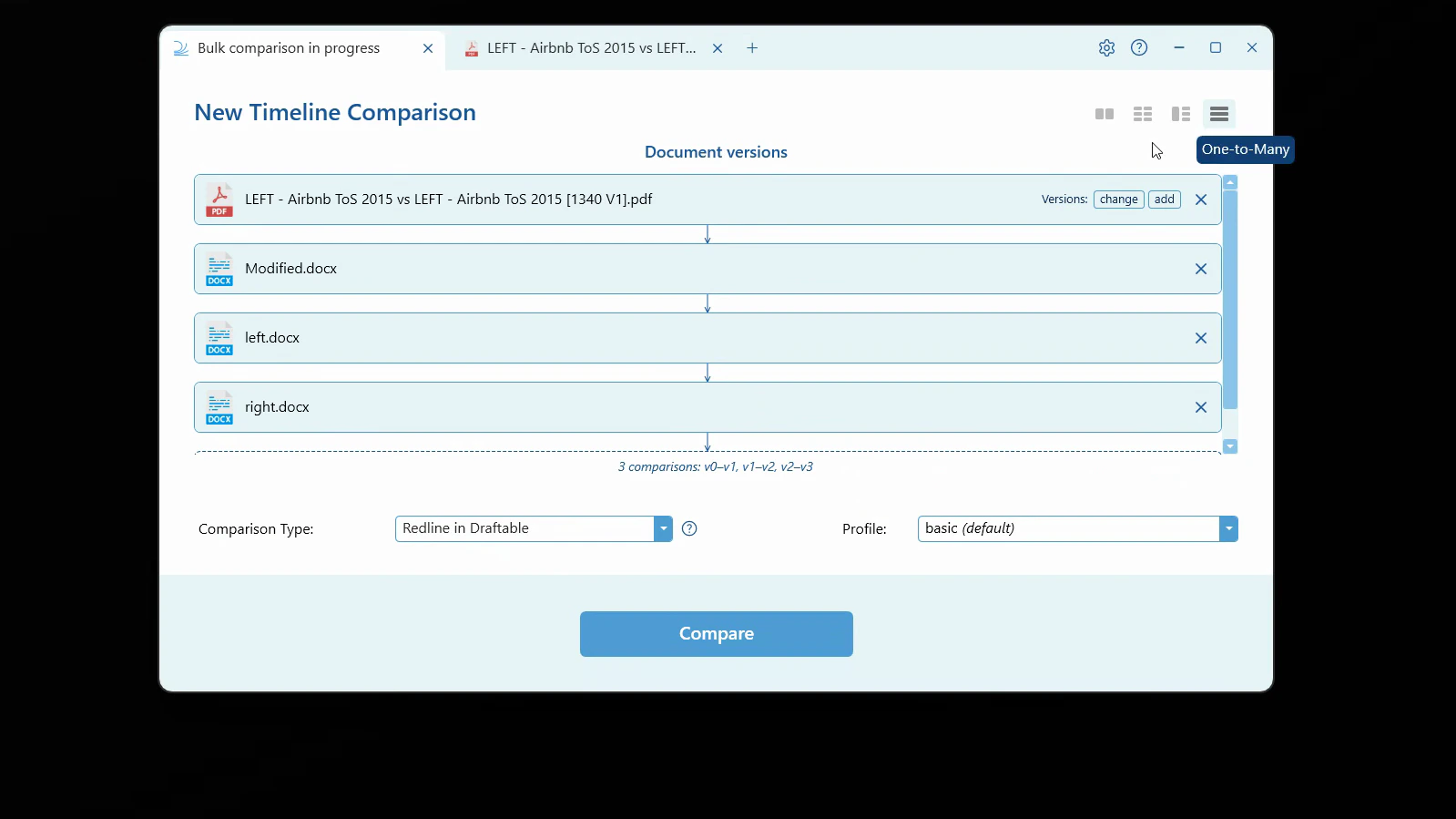 Timeline mode isn't covered in detail here. For the full walkthrough — including reordering versions and exporting a Combined Departures Table — see [Using Timeline mode to compare document versions in sequence](/hc/en-us/articles/Using-Timeline-mode-to-compare-document-versions-in-sequence).
## Saving and exporting your results
After a bulk run, you can open each comparison individually for review, or save and export them in bulk from the finished screen. For One-to-Many and Timeline comparisons, you can also export a **Combined Departures Table** — a single Word (`.docx`) or Excel (`.xlsx`) file summarising the changes across the whole run.
For the full save and export workflow (saving all outputs, zipping results, and next actions), see [Bulk Compare: How to load and run multiple comparisons at once](/hc/en-us/articles/30062521598361-Bulk-Compare-How-to-load-and-run-multiple-comparisons-at-once).
## Related articles
If you have any issues or questions, contact us at [support@draftable.com](mailto:support@draftable.com).
Timeline mode isn't covered in detail here. For the full walkthrough — including reordering versions and exporting a Combined Departures Table — see [Using Timeline mode to compare document versions in sequence](/hc/en-us/articles/Using-Timeline-mode-to-compare-document-versions-in-sequence).
## Saving and exporting your results
After a bulk run, you can open each comparison individually for review, or save and export them in bulk from the finished screen. For One-to-Many and Timeline comparisons, you can also export a **Combined Departures Table** — a single Word (`.docx`) or Excel (`.xlsx`) file summarising the changes across the whole run.
For the full save and export workflow (saving all outputs, zipping results, and next actions), see [Bulk Compare: How to load and run multiple comparisons at once](/hc/en-us/articles/30062521598361-Bulk-Compare-How-to-load-and-run-multiple-comparisons-at-once).
## Related articles
If you have any issues or questions, contact us at [support@draftable.com](mailto:support@draftable.com).