> ## Documentation Index
> Fetch the complete documentation index at: https://help.draftable.com/llms.txt
> Use this file to discover all available pages before exploring further.
# Working with tabs and windows in Draftable Legal
> Organise your comparisons, move tabs between windows, find open comparisons, and reopen recently closed results.
## Get to know the main window
*Available from version 26.10.0*
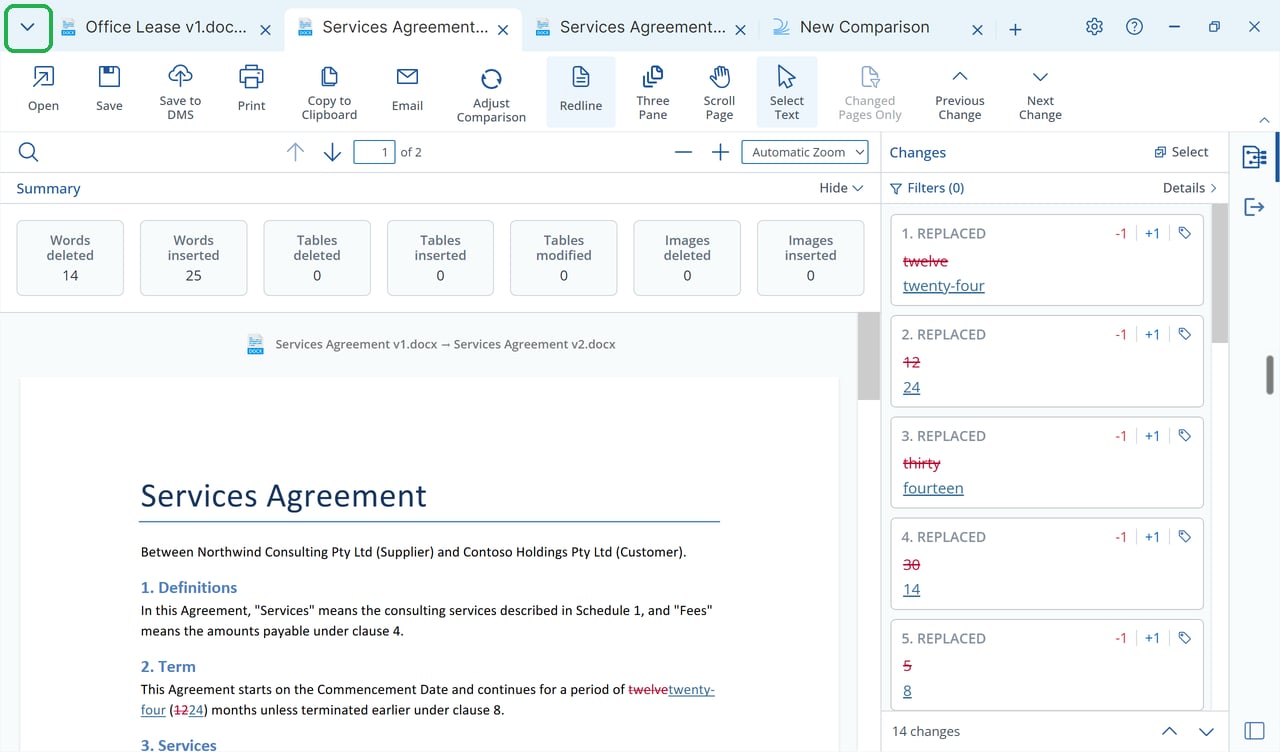
Draftable Legal has a new main window with browser-style tabs. You can keep several comparisons together, move them into separate windows, and find them from the **All tabs** menu. The comparison viewer, Settings, Logs and New Comparison screen remain inside the tabs. There is no setting to return to the previous main window.
The same tab and window controls are available in Draftable Business.
 ## Arrange tabs and windows
* **Switch comparisons:** Click the tab you want to view.
* **Reorder tabs:** Drag a tab left or right along the tab strip.
* **Move a tab into its own window:** Drag it out of the tab strip and release it away from the window.
* **Move a tab into another window:** Drag the tab onto the title bar of the destination Draftable window and release it to dock it there.
As you open more tabs, they become narrower. When they reach their minimum width, the row scrolls. Use **Scroll tabs left**, **Scroll tabs right**, or the **All tabs** menu to reach tabs that are out of view.
## Find, switch and close tabs
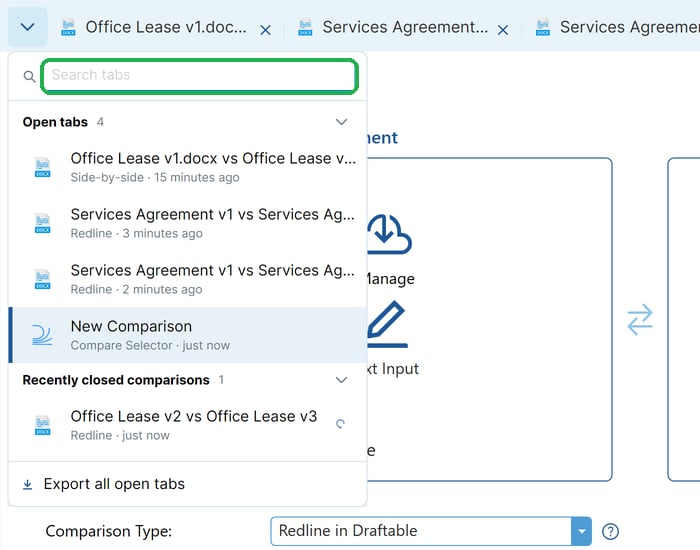
Click **All tabs** at the far left of the tab strip, or press **Ctrl+Shift+A**.
Use **Search tabs** to filter both **Open tabs** and **Recently closed comparisons**.
Click an entry under **Open tabs** to switch to it. To close a tab directly from the list, use the close button on its row.
## Arrange tabs and windows
* **Switch comparisons:** Click the tab you want to view.
* **Reorder tabs:** Drag a tab left or right along the tab strip.
* **Move a tab into its own window:** Drag it out of the tab strip and release it away from the window.
* **Move a tab into another window:** Drag the tab onto the title bar of the destination Draftable window and release it to dock it there.
As you open more tabs, they become narrower. When they reach their minimum width, the row scrolls. Use **Scroll tabs left**, **Scroll tabs right**, or the **All tabs** menu to reach tabs that are out of view.
## Find, switch and close tabs
Click **All tabs** at the far left of the tab strip, or press **Ctrl+Shift+A**.
Use **Search tabs** to filter both **Open tabs** and **Recently closed comparisons**.
Click an entry under **Open tabs** to switch to it. To close a tab directly from the list, use the close button on its row.
 ## Reopen a closed comparison
Choose a comparison under **Recently closed comparisons**, or press **Ctrl+Shift+T** to reopen the most recently closed comparison. You can also select **Reopen closed tab** from a tab's right-click menu or the title-bar right-click menu.
Draftable keeps up to 10 closed comparisons for the current session. The list is shared between your Draftable windows, and a comparison reopens in the window where you request it.
This is not recovery after a restart or crash. The list is kept only until Draftable exits. New Comparison, Bulk Compare, Settings and Logs tabs are not remembered. A comparison closed before it has a result is not remembered either.
## Use the right-click menus
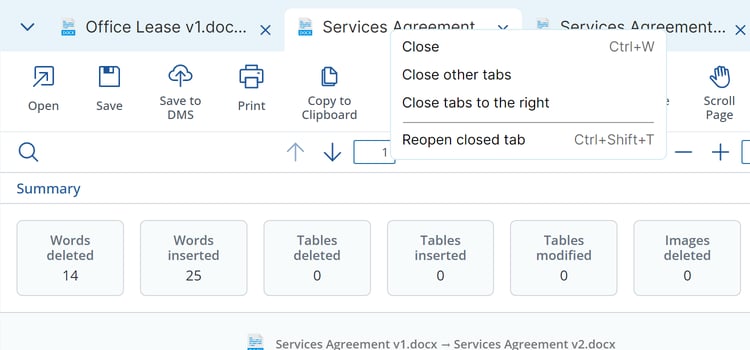
Right-click a tab to see:
| Menu item | What it does |
| - | - |
| **Close** | Closes the tab you right-clicked. |
| **Close other tabs** | Closes the other tabs in that window. |
| **Close tabs to the right** | Closes the tabs to the right of the one you right-clicked. |
| **Reopen closed tab** | Reopens the most recently closed comparison. |
## Reopen a closed comparison
Choose a comparison under **Recently closed comparisons**, or press **Ctrl+Shift+T** to reopen the most recently closed comparison. You can also select **Reopen closed tab** from a tab's right-click menu or the title-bar right-click menu.
Draftable keeps up to 10 closed comparisons for the current session. The list is shared between your Draftable windows, and a comparison reopens in the window where you request it.
This is not recovery after a restart or crash. The list is kept only until Draftable exits. New Comparison, Bulk Compare, Settings and Logs tabs are not remembered. A comparison closed before it has a result is not remembered either.
## Use the right-click menus
Right-click a tab to see:
| Menu item | What it does |
| - | - |
| **Close** | Closes the tab you right-clicked. |
| **Close other tabs** | Closes the other tabs in that window. |
| **Close tabs to the right** | Closes the tabs to the right of the one you right-clicked. |
| **Reopen closed tab** | Reopens the most recently closed comparison. |
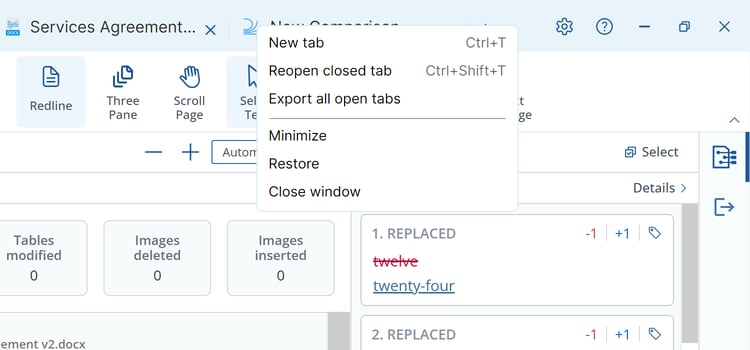
 Right-click an empty area of the title bar to see **New tab**, **Reopen closed tab**, **Export all open tabs**, **Minimize**, **Maximize** or **Restore**, and **Close window**. **New tab** appears when the New Comparison screen is configured to open in a tab.
 To save or share several comparison results together, see [Exporting all open tabs at once](/hc/en-us/articles/Exporting-all-open-tabs-at-once).
## Keyboard shortcuts
Use these shortcuts while a Draftable main window is active:
| Shortcut | Action |
| - | - |
| **Ctrl+T** | Open a New Comparison tab. |
| **Ctrl+W** | Close the active tab. |
| **Ctrl+Shift+T** | Reopen the most recently closed comparison. |
| **Ctrl+Shift+A** | Open the All tabs menu. |
## Window size when you reopen Draftable
Draftable remembers the size of one main window, initially the first window you open. Separate windows created by dragging out tabs do not each keep their own saved size. If you close the window whose size is being remembered, another open window takes over.
When you reopen Draftable, it uses the saved size and centres the window on the monitor containing your pointer, rather than restoring its exact previous position. Whether it reopens maximized depends on your setting for remembering maximized windows.
This documentation is built and hosted on [Mintlify](https://mintlify.com), a developer documentation platform.
To save or share several comparison results together, see [Exporting all open tabs at once](/hc/en-us/articles/Exporting-all-open-tabs-at-once).
## Keyboard shortcuts
Use these shortcuts while a Draftable main window is active:
| Shortcut | Action |
| - | - |
| **Ctrl+T** | Open a New Comparison tab. |
| **Ctrl+W** | Close the active tab. |
| **Ctrl+Shift+T** | Reopen the most recently closed comparison. |
| **Ctrl+Shift+A** | Open the All tabs menu. |
## Window size when you reopen Draftable
Draftable remembers the size of one main window, initially the first window you open. Separate windows created by dragging out tabs do not each keep their own saved size. If you close the window whose size is being remembered, another open window takes over.
When you reopen Draftable, it uses the saved size and centres the window on the monitor containing your pointer, rather than restoring its exact previous position. Whether it reopens maximized depends on your setting for remembering maximized windows.
This documentation is built and hosted on [Mintlify](https://mintlify.com), a developer documentation platform.