

AI Docs Assistant
The fastest way to find what you’re looking for—especially if you don’t know where it is—is to use our AI Docs Assistant. Simply ask a question and let it search through our entire documentation to give you a direct answer with links to relevant articles.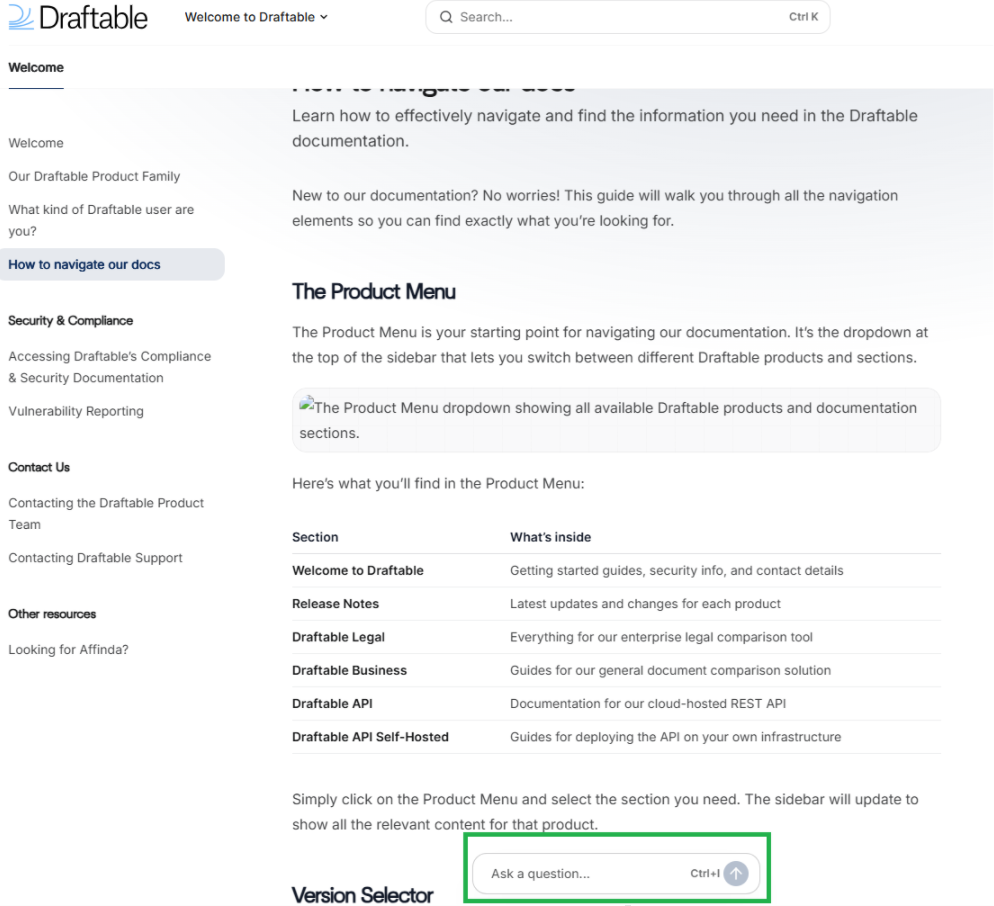
- Click the “Ask a question” button seen at the bottom of the webpage (or press ⌘ + I on Mac / Ctrl + I on Windows)
- Type your question in natural language
- The assistant will search our docs and provide an answer with source links
The Product Menu
The Product Menu is your starting point for navigating our documentation. It’s the dropdown at the top of the sidebar that lets you switch between different Draftable products and sections.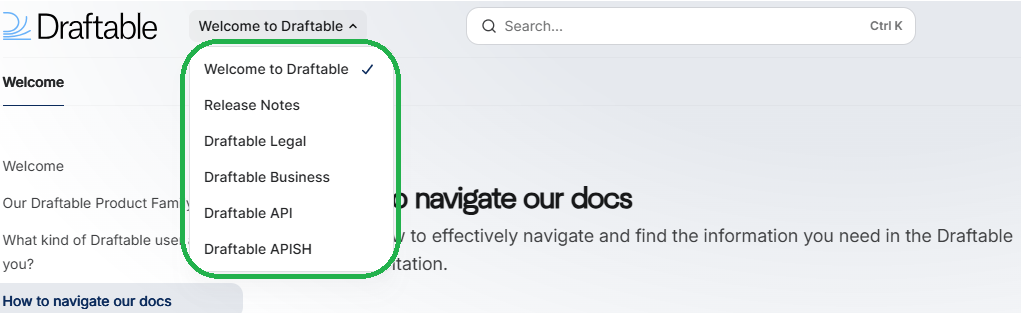
Simply click on the Product Menu and select the section you need. The sidebar will update to show all the relevant content for that product.
Version Selector
Some products have multiple versions. For example, Draftable API Self-Hosted has both v2 (legacy) and v3 (latest) versions.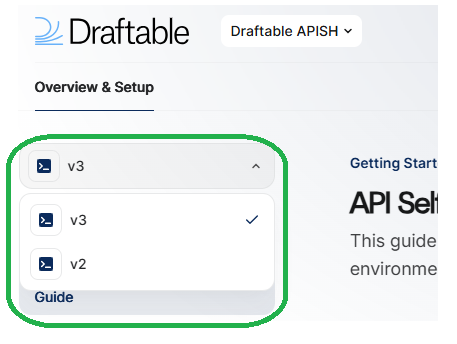
Tabs
Once you’ve selected a product, you’ll see Tabs at the top of the content area. These organize the documentation into logical sections based on what you’re trying to do.
- User Academy - For end users learning to use the product
- Administrator Deployment Track - For IT teams deploying and configuring
- Overview & Configuration - General setup and requirements
- DMS Integrations - Connecting with iManage, NetDocuments, SharePoint, etc.
- FAQ & Troubleshooting - Common questions and solutions
Sidebar Navigation
The Sidebar on the left shows all the articles available within your current tab. Articles are organized into collapsible Article Groups to make it easier to find what you need.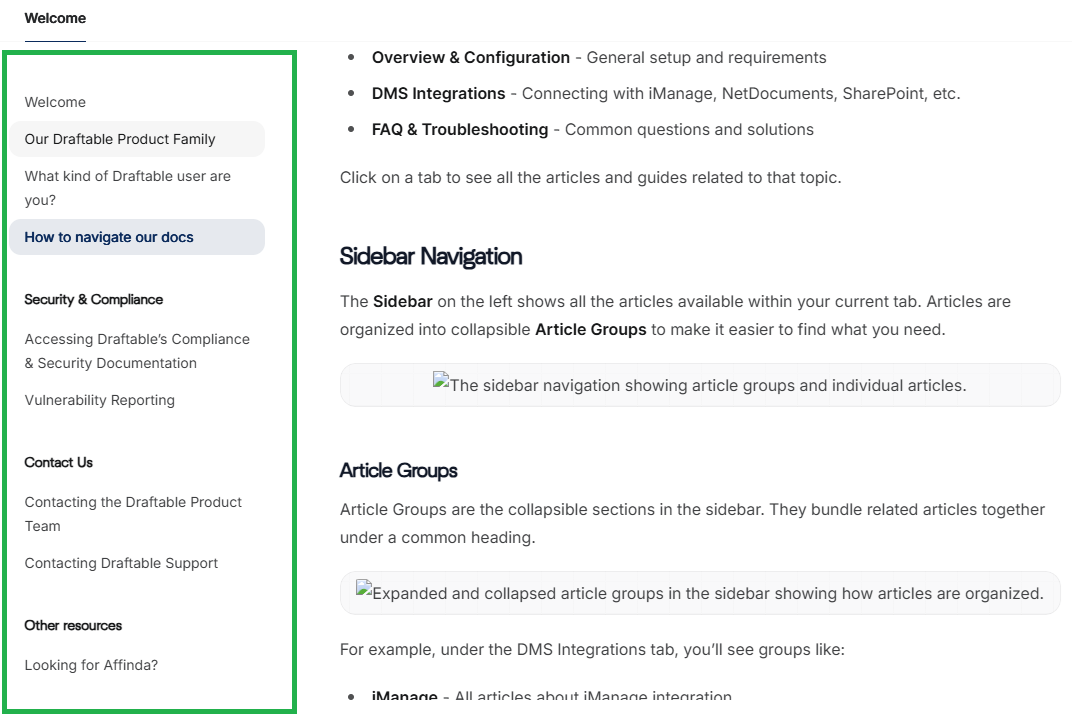
Article Groups
Article Groups are the collapsible sections in the sidebar. They bundle related articles together under a common heading.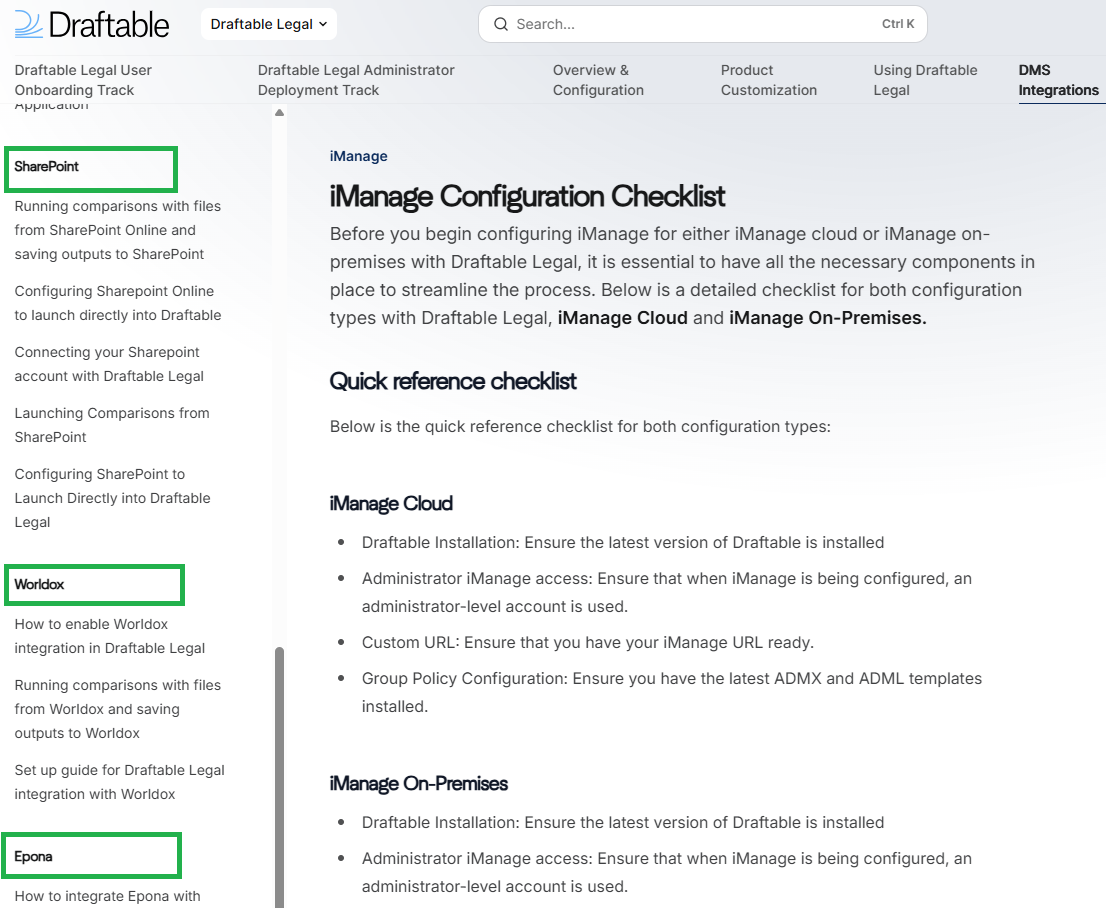
- iManage - All articles about iManage integration
- NetDocuments - NetDocuments setup and usage
- SharePoint - SharePoint configuration guides
- Worldox - Worldox integration docs
Search
The fastest way to find something specific is to use Search. You’ll find the search bar at the top of every page.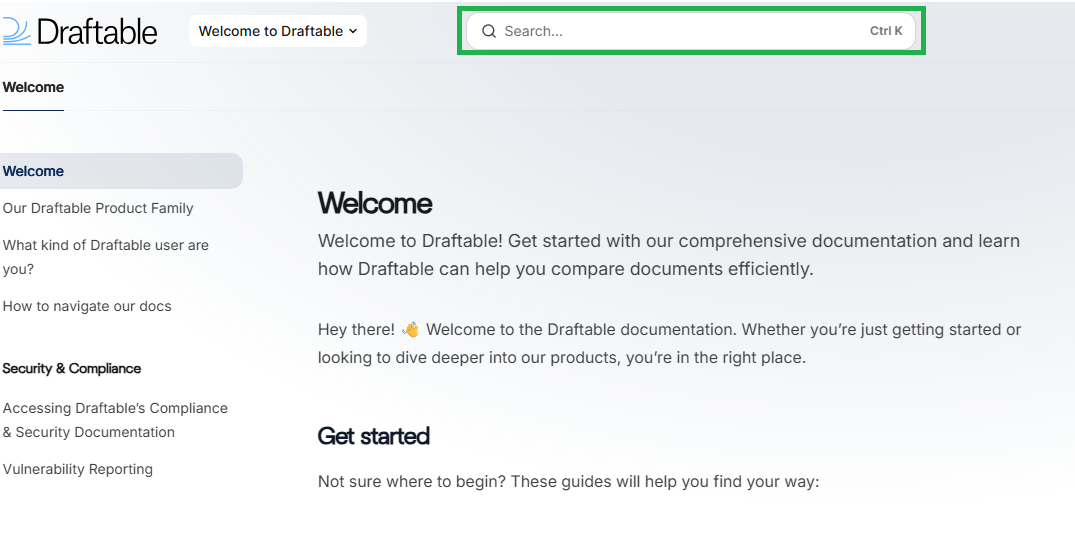
- Press Ctrl + K (Windows) or ⌘ + K (Mac) to open search instantly
- Type keywords related to what you’re looking for
- Results will show matching articles across all products
Putting it all together
Here’s a typical navigation flow:1
Ask the assistant
Not sure where to look? Start with the AI Docs Assistant to get a quick answer with links to the right articles.
2
Choose your product
Open the Product Menu and select the Draftable product you’re using.
3
Select a version (if applicable)
If you’re in a product with multiple versions, choose the right one from the Version Selector.
4
Pick a tab
Click on the Tab that matches what you’re trying to do (learning, deploying, troubleshooting, etc.).
5
Browse or search
Use the Sidebar to browse articles, or use Search to jump directly to what you need.
Can’t find what you’re looking for? Reach out to us at support@draftable.com and we’ll point you in the right direction! 💬