

Why this happens
Fonts are not always inside the file
There are three ways a PDF can reference a font, and the difference matters enormously.
With the first two, the document carries everything needed to display its own text. With the third, the PDF is effectively saying “render this in Times New Roman” and relying on the machine opening it to have Times New Roman available. If it does not, that machine substitutes something else.
This is the single most common cause of the problem. The presence of an embedded copy of a font in a PDF does not mean non-embedded references to the same font will use it.
Arial and Times New Roman are not included
Fonts such as Arial, Times New Roman, Calibri and Cambria are proprietary. They ship with Microsoft Windows and Microsoft Office, but that licence does not extend to redistributing them inside another product. Draftable cannot include them in API Self-Hosted without licensing them from the font foundry. API Self-Hosted therefore ships with a large set of open-licensed fonts instead, including metric-compatible substitutes designed to occupy the same space on the page:
These substitutes are metrically compatible, so line breaks and pagination are preserved. But they are different fonts with different names, and that is exactly what the comparison reports.
This is why the phantom font is so often reported as “Liberation Serif”. Liberation Serif is not coming from your document. It is what API Self-Hosted used in place of a Times New Roman reference it could not resolve.
Why the same documents compare cleanly on Draftable’s cloud API
Nothing is wrong with your instance. The difference is simply which fonts are installed on the machine performing the conversion. Self-hosted deployments ship a deliberately restricted, licence-safe font set, and you control what is added to it.Recognising the symptom
You are almost certainly looking at font substitution rather than a genuine content change if:- The reported changes are style or formatting changes, not text changes
- The font names in the report include fonts that appear nowhere in either document, particularly Liberation Serif, Liberation Sans, Carlito or Caladea
- The two documents were produced by different software (for example one by Aspose and one by GemBox), or one is a PDF and the other a DOCX
- Converting the DOCX to PDF before submitting reduces but does not eliminate the detections
Diagnosing it
1
Open both files in a PDF tool that shows font embedding
Most PDF editors expose this under Document Properties → Fonts. You are looking for each font’s name and whether it is listed as Embedded, Embedded Subset, or neither.
2
Compare the two lists
A document whose fonts are all embedded or subset-embedded will always render correctly. A document with non-embedded entries is the one causing the substitution. In a typical case, one side of the comparison is fully embedded and the other is not.
3
Note the non-embedded font names
Write down every font listed without embedding. These are the fonts API Self-Hosted needs and does not have. This is the list you will upload in the next section.
4
Check which software generated each file
Document Properties also shows the producing application. Differing producers is a strong signal that the two files handle embedding differently, and points at a fix you can make upstream.
Fix 1: upload the missing fonts
API Self-Hosted v3 lets you install additional fonts through the administration interface. This is the direct fix. The Fonts page is split into two panels: the fonts that ship with the product on the left, and the fonts you have added on the right.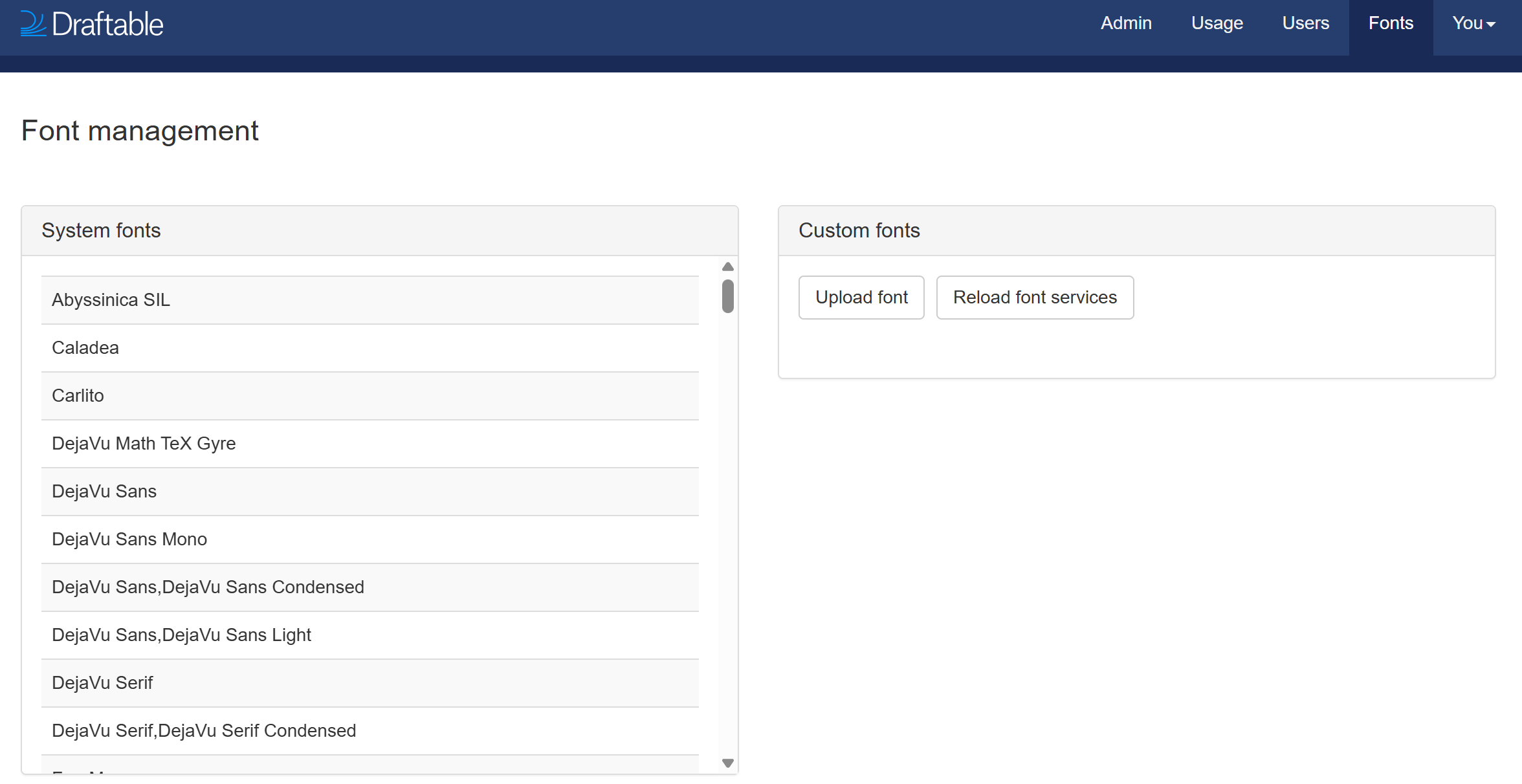
1
Sign in to the administration interface as a superuser
Font management is restricted to superuser accounts. Navigate to Fonts in the administration menu.
2
Review the System fonts panel
The left-hand panel lists every font that ships with API Self-Hosted, in alphabetical order. Check here first, because the font you need may already be present under a different name.This is where you can confirm for yourself that Caladea and Carlito are present while Cambria and Calibri are not, which is the substitution described earlier in this article.
3
Upload your font files
In the Custom fonts panel, select Upload font. You can select multiple files at once. Both TrueType (.ttf) and OpenType (.otf) are supported.Upload every variant you need, not just the regular weight. A document referencing Times New Roman Bold needs the bold font file; the regular file will not satisfy it.
4
Reload the font services
Uploading stages a font but does not activate it. Select Reload font services to distribute the fonts to the services that perform document conversion and rebuild their font caches.
5
Wait for the sync to complete
Each font in the Custom fonts list carries a status icon. Wait until every font shows as installed before testing.
6
Re-run the comparison
Submit a fresh comparison. Existing comparisons are not reprocessed, so you must create a new one to see the effect.
Uploaded fonts are stored centrally in your instance and distributed to the conversion services on reload, so a font only needs to be uploaded once regardless of how many worker replicas you run.
If uploading the font does not fix it
This happens, and it is usually one of three things.- The font name does not match. A PDF may reference
TimesNewRomanPSMTorTimesNewRomanPS-BoldMTrather thanTimes New Roman. These are distinct font names, and the file you upload must supply the name the document actually asks for. Take the exact name from the Document Properties font list. - You uploaded only some variants. Regular, bold, italic and bold-italic are separate font files. Each must be uploaded.
- The font services were not reloaded, or the sync had not finished when you re-tested.