These settings apply to API Self-Hosted v3. Each setting is configured per user account from the admin dashboard that ships with your instance. Changes take effect for new comparisons created by that account after you save.

Overview

API Self-Hosted v3 includes a built-in admin dashboard (a Django administration site) for managing the user accounts on your instance. Each account has its own settings page, the Change user page, where you control:
  • The account’s identity and access (personal info and permissions)
  • The plan limits applied to the account (file size and page limits)
  • The API credentials the account uses
  • How the comparison viewer looks and behaves for that account (white labelling, viewer controls, comparison options and colours)
Most settings are configured per account, so you can give different accounts different limits, branding or viewer behaviour.

How to reach the settings page

1

Sign in as an administrator

Sign in to your instance with an administrator account, then open the admin dashboard from the menu in the top-left of the home page.
2

Open the Users section

In the admin dashboard, go to the Users section. You will see a list of every account on the instance.
3

Select the account to edit

Select the account you want to configure. This opens the Change user page, where all of the settings below appear.
4

Save your changes

After editing, scroll to the bottom and click Save. Changes apply to comparisons created by that account from that point on.
Many viewer settings only change comparisons created after you save. If a setting does not appear to take effect, generate a new comparison to confirm.

Personal info and permissions

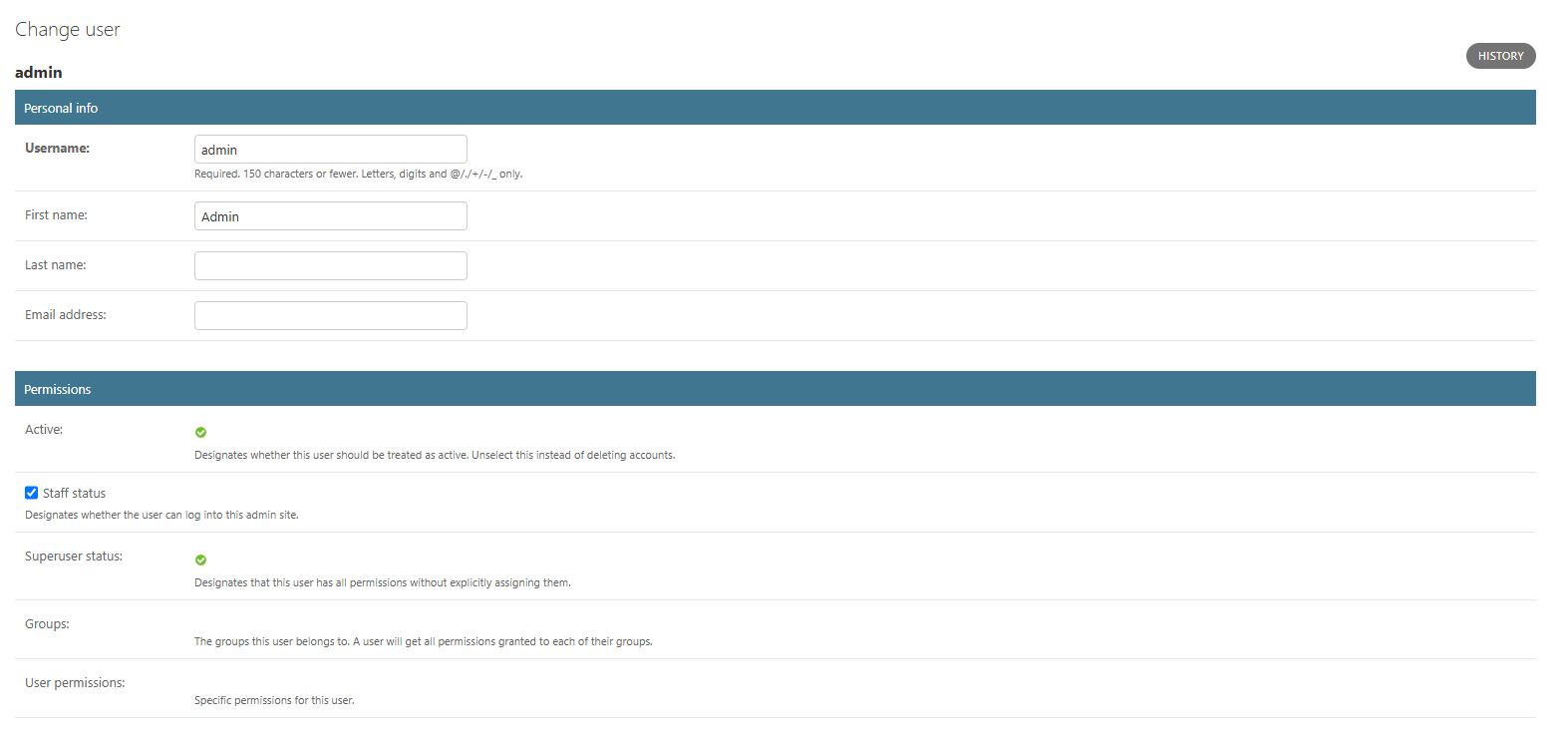
Personal info and permissions section of the user account page
Personal info
SettingWhat it does
UsernameThe login name for the account. Required; up to 150 characters; letters, digits and @ . / + - _ only.
First nameThe account holder’s first name.
Last nameThe account holder’s last name.
Email addressThe email address for the account.
Permissions
SettingWhat it does
ActiveWhether the account is treated as active. Clear this instead of deleting an account to revoke access while keeping its history.
Staff statusWhether the account can sign in to the admin dashboard.
Superuser statusGrants the account every permission without assigning them individually. Reserve this for trusted administrators.
GroupsThe permission groups the account belongs to. An account inherits every permission granted to its groups.
User permissionsSpecific permissions granted to this account on top of any group permissions.
Superuser accounts have full control over your instance, including every other account. Grant it only to administrators who need it.

Plan limits

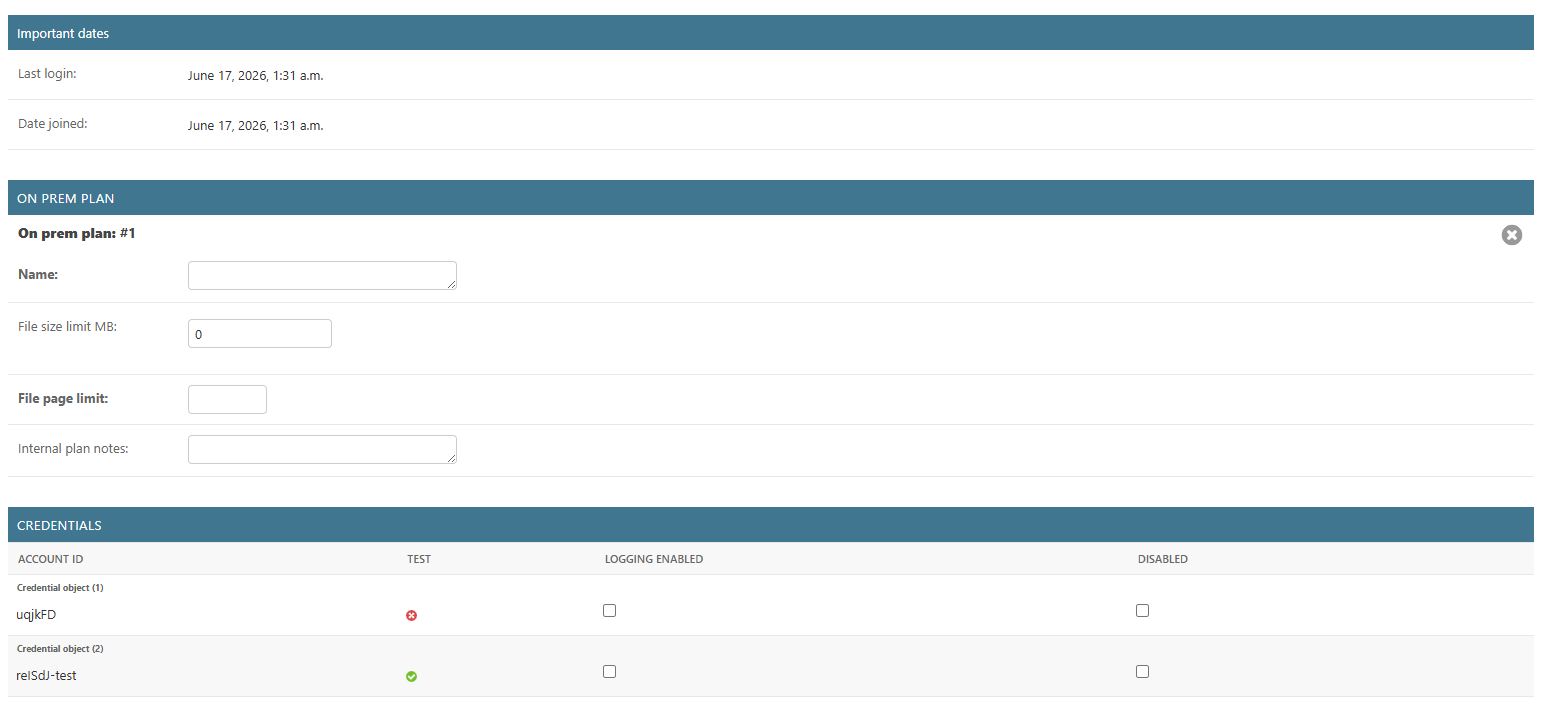
Important dates, on-prem plan limits and credentials
The Important dates section (last login and date joined) is read-only. The On prem plan section sets the comparison limits for the account:
SettingWhat it does
NameA label for the plan. This field is for your own reference and does not affect how the instance behaves.
File size limit MBThe maximum size, in MB, of a single file this account can submit for comparison. A file larger than this limit will be rejected and the comparison will fail. Leave it at 0 to use the instance default.
File page limitThe maximum number of pages in a single file this account can submit. A file with more pages than this limit will be rejected and the comparison will fail. Leave it blank to use the instance default.
Internal plan notesFree-text notes about the account, for your own reference.
When File size limit MB is 0 and File page limit is blank, the account uses your instance’s default limits. Set explicit values here to raise or lower the limits for an individual account.
Credentials The Credentials table lists the API credentials attached to the account. Each credential shows its Account ID, whether it is a test credential, whether logging is enabled, and whether it is disabled. Account IDs and the test flag are read-only; you can toggle Logging enabled and Disabled per credential.

Comparison viewer settings

The User options section controls how the online comparison viewer looks and behaves for the account. These settings let you brand the viewer, show or hide controls, and set the defaults users see when they open a comparison.

Compare viewer

Compare viewer version setting
Compare viewer
SettingWhat it does
Viewer versionThe comparison viewer version used for this account. Leave it blank to always use the latest available version. Viewer version resolved (read-only) shows the exact version this resolves to.
Persistence
SettingWhat it does
Remember preferences enabledWhen enabled, the viewer remembers a user’s preferences (such as view mode and zoom) between comparisons.
Interested in custom branding for your comparison viewer? Branding options are available as part of a white-labelling package. To discuss white labelling for your instance, contact our sales team at sales@draftable.com.

Viewer controls
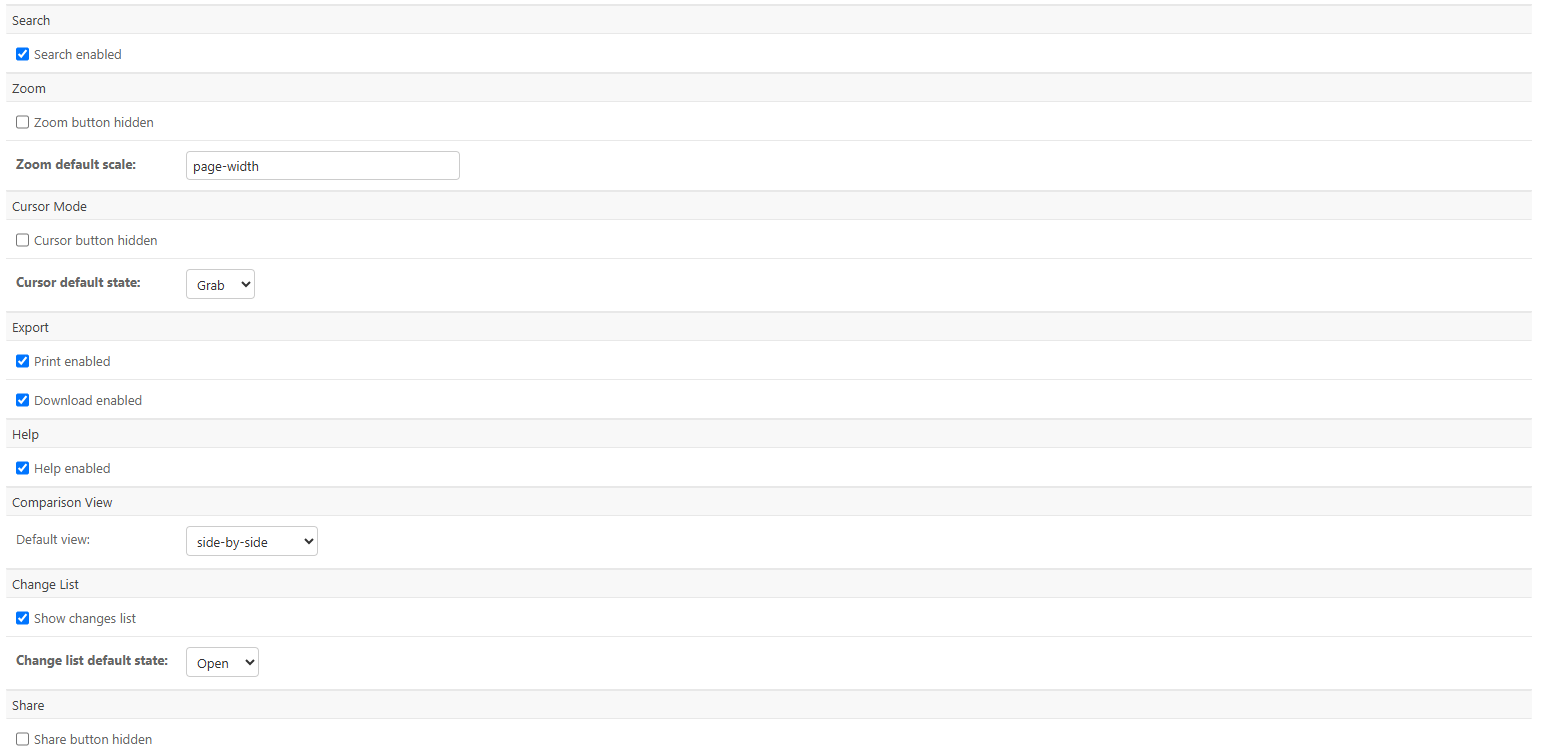
Search, zoom, cursor, export, help, comparison view, change list and share controls
SettingWhat it does
Search enabledShows or hides the search button in the viewer.
Zoom button hiddenWhen enabled, hides the zoom control.
Zoom default scaleThe default zoom level when a comparison opens. Defaults to page-width (other values include page-fit or a zoom percentage).
Cursor button hiddenWhen enabled, hides the cursor-mode control.
Cursor default stateThe default cursor mode: Grab (pan the document) or Select (select text).
Print enabledShows or hides the print button.
Download enabledShows or hides the download button.
Help enabledShows or hides the help button.
Comparison view – default viewThe view shown when a comparison opens: side-by-side or single-document.
Show changes listShows or hides the change list panel.
Change list default stateWhether the change list starts Open or Closed.
Share button hiddenWhen enabled, hides the share button.

Display and comparison options

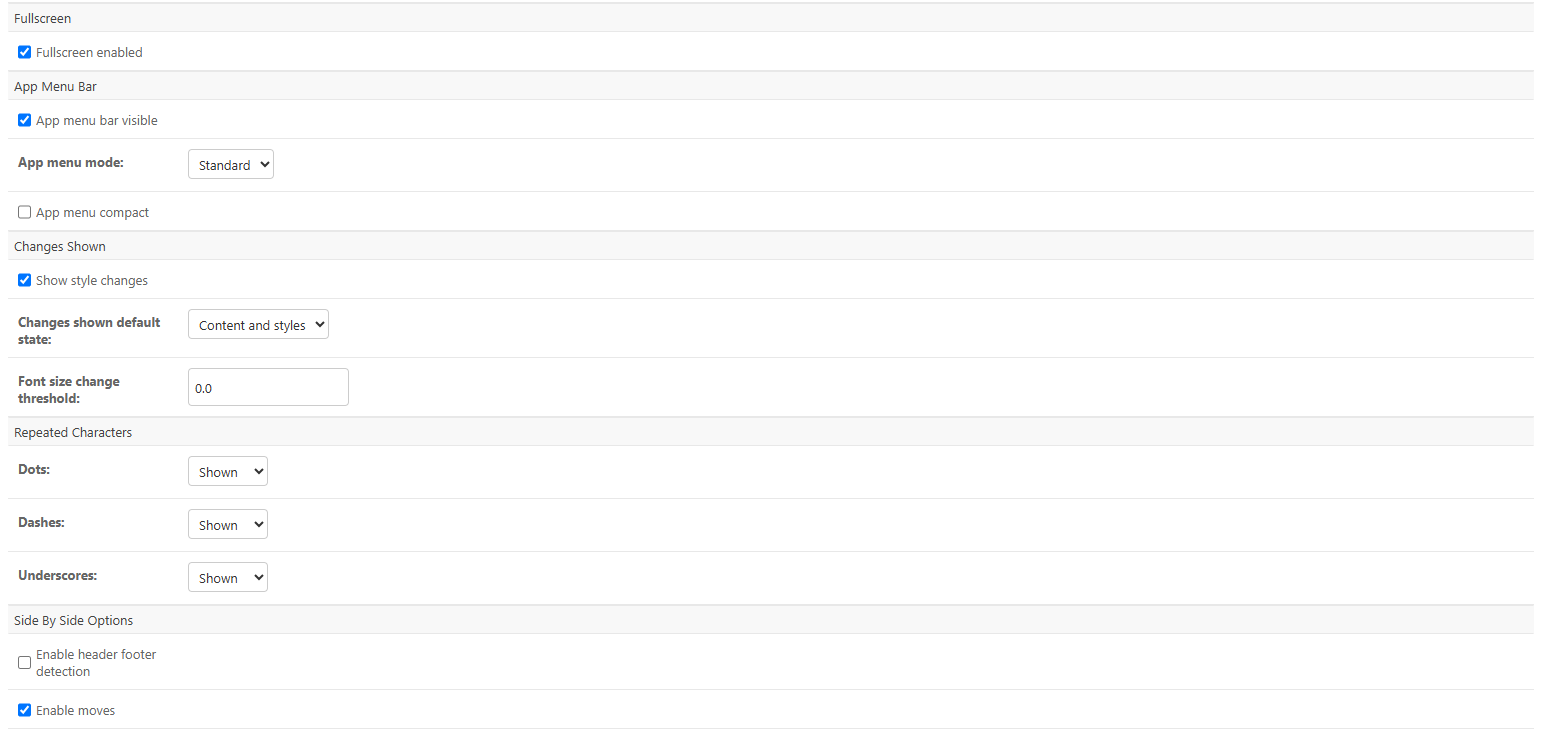
Fullscreen, app menu bar, changes shown, repeated characters and side-by-side options
Fullscreen and app menu bar
SettingWhat it does
Fullscreen enabledWhether the fullscreen option is available in the viewer.
App menu bar visibleShows or hides the application menu bar.
App menu modeThe menu style: Standard or Ribbon.
App menu compactWhen enabled, displays the menu in a more compact layout.
Changes shown
SettingWhat it does
Show style changesWhether formatting (style) changes are shown in the comparison.
Changes shown default stateWhat is shown by default: Content and styles, Content only, or Styles only.
Font size change thresholdThe minimum font-size difference that counts as a change. For example, set it above 0 so small, document-wide font-size shifts are not flagged. Defaults to 0 (every change is detected).
Repeated characters Control how runs of repeated Dots, Dashes and Underscores (for example, leader lines in a table of contents) are handled. Each can be set to Shown, Hidden or Ignored. Side by side options
SettingWhat it does
Enable header footer detectionWhen enabled, the comparison detects and accounts for headers and footers.
Enable movesWhen enabled, the comparison detects and marks moved text rather than showing it as a separate deletion and insertion.

Colour customizations

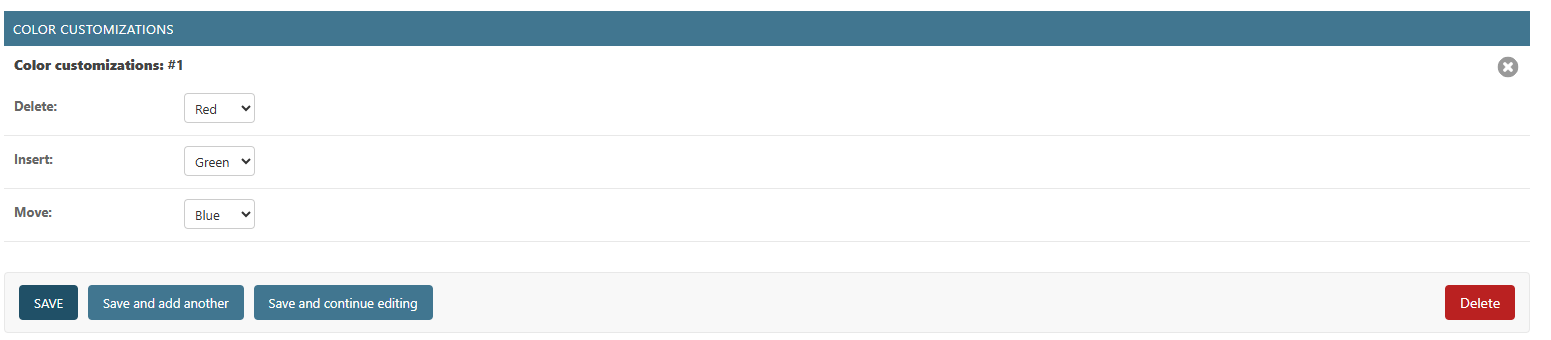
Colour customizations for deletions, insertions and moves
Set the colours used to mark changes in the comparison:
SettingWhat it does
DeleteThe colour for deleted content. Defaults to Red.
InsertThe colour for inserted content. Defaults to Green.
MoveThe colour for moved content. Defaults to Blue.
Available colours are Red, Green, Blue, Yellow, Purple, Grey and None.

Saving your changes

When you have finished, scroll to the bottom of the page and click Save. Use Save and continue editing to apply your changes and stay on the page. New settings apply to comparisons created by the account after you save.
Last updated: 17 June 2026. Settings reference verified against API Self-Hosted v3.