

Unexpected application errors
If Draftable Clean encounters an unexpected error, restarting the application will usually resolve the issue. If the error persists, export your diagnostic logs and send them to Draftable support.Exporting diagnostic logs
The Troubleshooting section in Settings provides three options for sharing logs with the Draftable support team: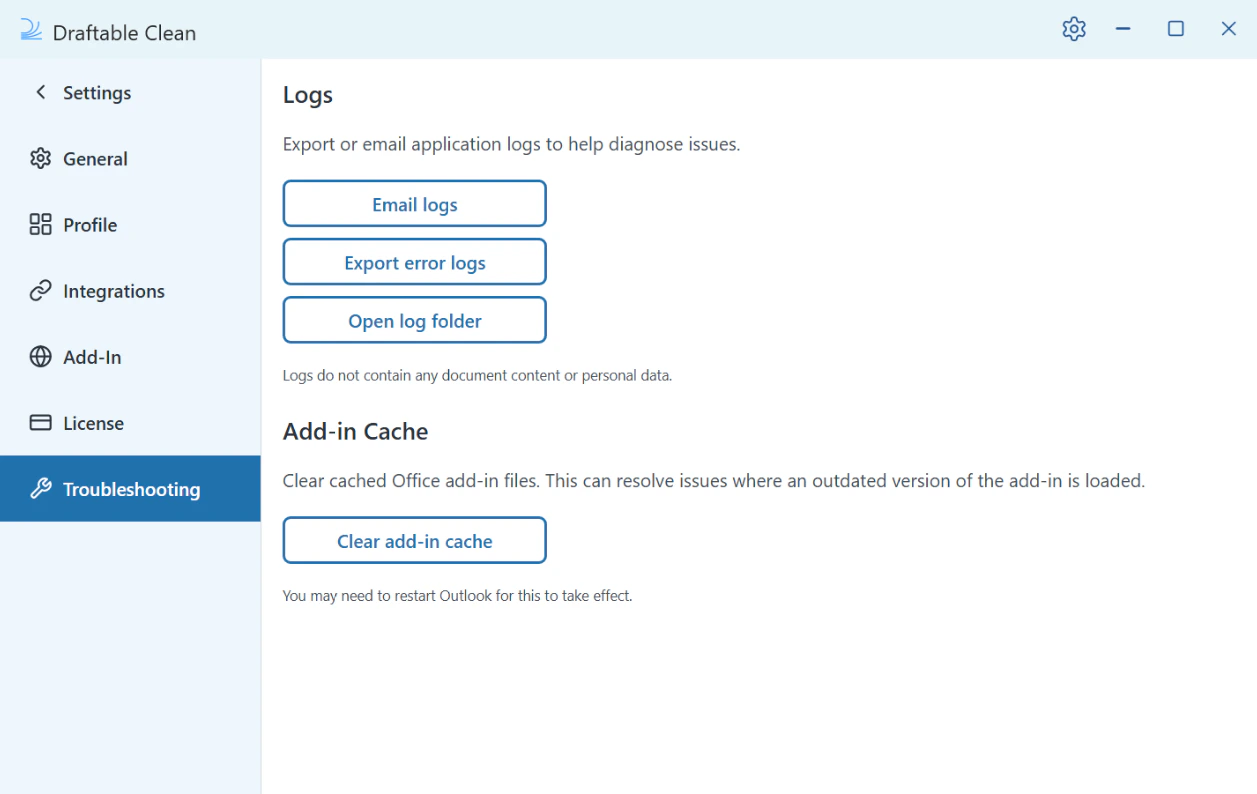
1
Click the Settings gear icon in the top-right corner of the application.
2
Navigate to the Troubleshooting section.
3
Choose one of the following options:
- Email logs — Opens an email with logs attached, ready to send to support
- Export error logs — Saves the log file to your computer for manual sharing
- Open log folder — Opens the folder containing log files in Windows Explorer
Logs do not contain any document content or personal data. They only include application diagnostic information to help identify and resolve issues.
Log entries that mention “CompareTool”
Draftable Clean logs may include entries referencingDraftable.CompareTool.Ipc.NamedPipe. This is expected and is not an error.
Draftable Clean and Draftable Compare share a common internal component for communication between application processes, and that component’s name carries the Compare product name. The exported logs are still Draftable Clean’s own. You do not need to have Draftable Compare installed, and seeing these entries does not mean the wrong application’s logs have been collected.
Clearing the add-in cache
If the Outlook add-in is behaving unexpectedly or appears to be running an outdated version, you can clear the cached add-in files from Settings > Troubleshooting:- Click Clear add-in cache
- Restart Outlook for the change to take effect
In Classic Outlook, after clearing the add-in cache you may see a warning when you send your first email. If this happens, restart Outlook — sending should work normally after that.
Contacting support
When contacting the Draftable support team, please include:- A description of the issue and the steps that led to it
- The file type(s) you were working with (e.g.
.docx,.pdf) - Your Draftable Clean version — shown as App Version in the status bar at the bottom right of the application window. As of v26.7.0 this is displayed for all installation types, including the Machine-Wide MSI. See Updating Draftable Clean
- Exported error logs if available