

Password-protected files
When a password-protected file is uploaded, Draftable Clean cannot scan its metadata without authentication. The file will appear in the file list with an orange PASSWORD status badge. Enter the file’s password and click Check Password to authenticate. If the password is correct, the file is scanned and its status changes to SCANNED with a risk rating. If the password is incorrect, a Password Invalid message is displayed — re-enter the correct password and try again. In the Outlook add-in, the workflow is the same but uses an Unlock button instead of Check Password. Once authenticated, the file is cleaned automatically using the appropriate domain-based profile.Password accepted but file cannot be cleaned or reviewed
If you have entered what you believe is the correct password and Draftable Clean accepts it, but you are still unable to clean or review the file’s metadata:- The file may have multiple passwords — Some documents have separate passwords for opening and editing. Ensure you are using the password that grants full access to the document.
- The file may be corrupted — Try opening the file directly in its native application (e.g. Word or a PDF reader) to verify it opens correctly. If the file does not open normally, it may be damaged.
- The file may be a cryptographically signed PDF — Cryptographically signed PDF files cannot be cleaned. See Cryptographically signed PDF files below.
- If the issue persists, export your diagnostic logs and contact support@draftable.com with the file type and a description of the behavior.
Clean does not appear to remove all metadata
If you’ve cleaned a file but some metadata remains:- Check your cleaning profile — The profile you used may be configured to preserve certain metadata types. Review the profile in Settings > Profile to confirm which types are set to remove. See Metadata cleaning profiles.
- Check per-file profile overrides — Ensure the file is using the profile you expect, not an override set at the file level.
Cryptographically signed PDF files cannot be cleaned
If a PDF file contains a cryptographic digital signature — a cryptographic proof that part or all of the document is unchanged — Draftable Clean will not clean it. This is expected behavior — removing or modifying metadata would invalidate the signature. To preserve signature integrity, Draftable Clean skips cleaning for these files. If you need to clean the metadata, the cryptographic signature must first be removed from the PDF outside of Draftable Clean. This does not apply to visual signatures or annotations created with tools like Adobe Fill & Sign, which are standard document content and do not prevent cleaning.”Potential improper redaction detected”
As of v26.9.0, Draftable Clean checks PDF files for content that has been visually covered but not securely removed — for example, a black box drawn over text that a reader can still select and copy. Where this is found, the file is flagged in the file list with a warning banner reading:Potential improper redaction detected. This PDF may contain information that has been visually covered but not securely removed. Cleaning this document does not resolve the improper redaction. Review the document and use a dedicated PDF redaction tool to permanently remove sensitive content before sharing it.
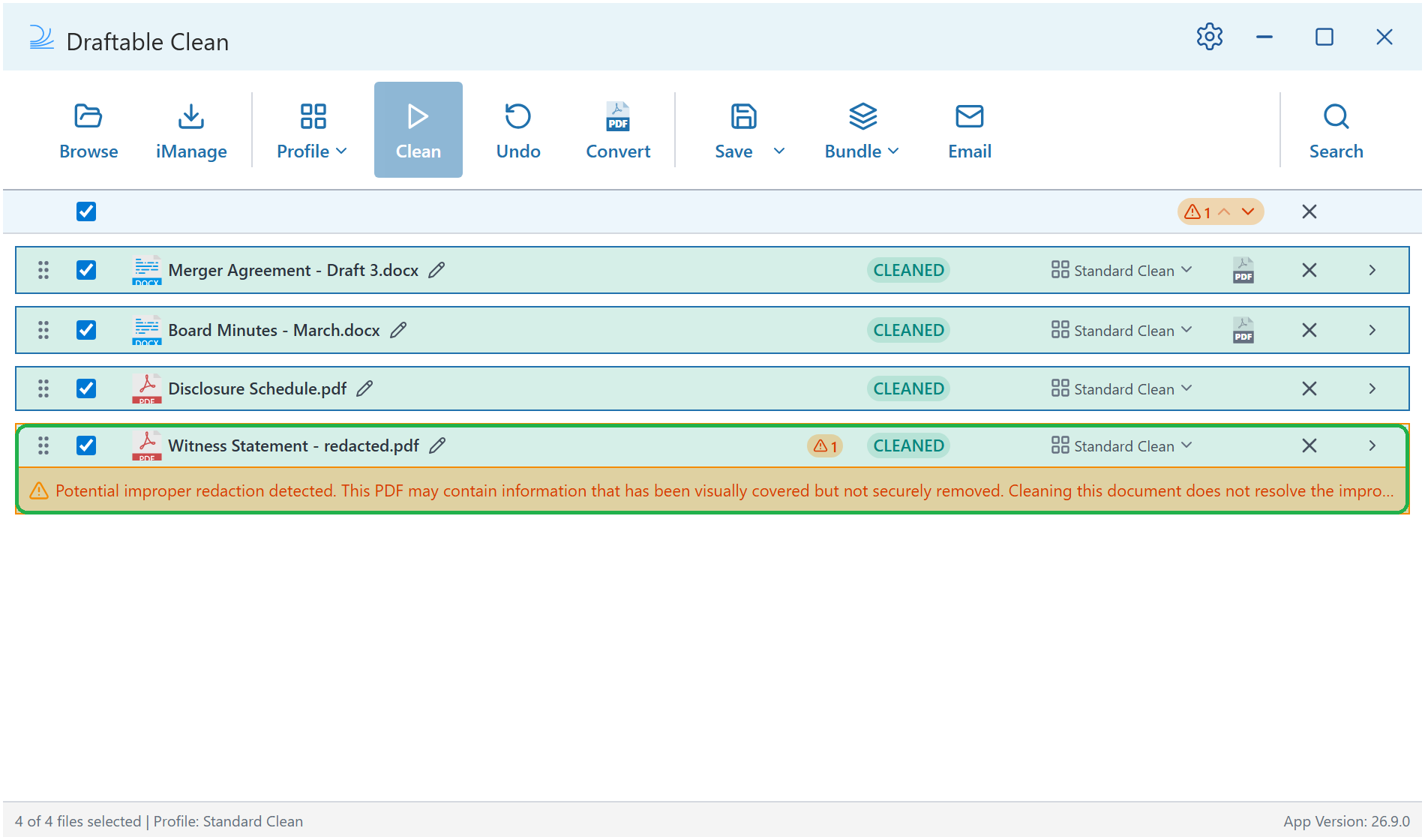
- A black or dark box drawn over text in the page content
- Dark text painted onto a dark fill it cannot be distinguished from
- Pending redaction annotations that were marked up but never applied
- Opaque shape annotations and dark highlight annotations drawn over text
The warning looks like a false positive
The check works on colour and opacity, so legitimate dark formatting can occasionally be flagged — a dark table header cell with dark text on it, for example, or a design element sitting over a text layer. This is why the message says potential. Treat a flag as a prompt to open the document and check, not as proof that content is exposed. Select the area in your PDF reader: if text highlights underneath the covered region, the redaction is genuinely improper. If you believe a file has been flagged incorrectly and the file can be shared, please send it to support@draftable.com along with your diagnostic logs.Undo not available
The Undo button in the toolbar is only available immediately after cleaning and before saving or closing. Once you save or close the session, the clean cannot be undone. Always review your cleaned files before saving.Unsupported file types
Desktop application
How Draftable Clean handles unsupported file types depends on how the file is added:- Drag and drop — If you drag and drop an unsupported file into the application, it will flag a warning and the file will not be added to the viewer.
- Browse, iManage, NetDocs, or SharePoint — If you add an unsupported file from a local folder or DMS, the file will be added to the viewer but you will not be able to clean it. It will flag as an error.
Outlook add-in
When you attach a file with an unsupported format in the Outlook add-in, the file displays an “Unsupported format” status with the message: “This file type cannot be cleaned. See Knowledge Base.”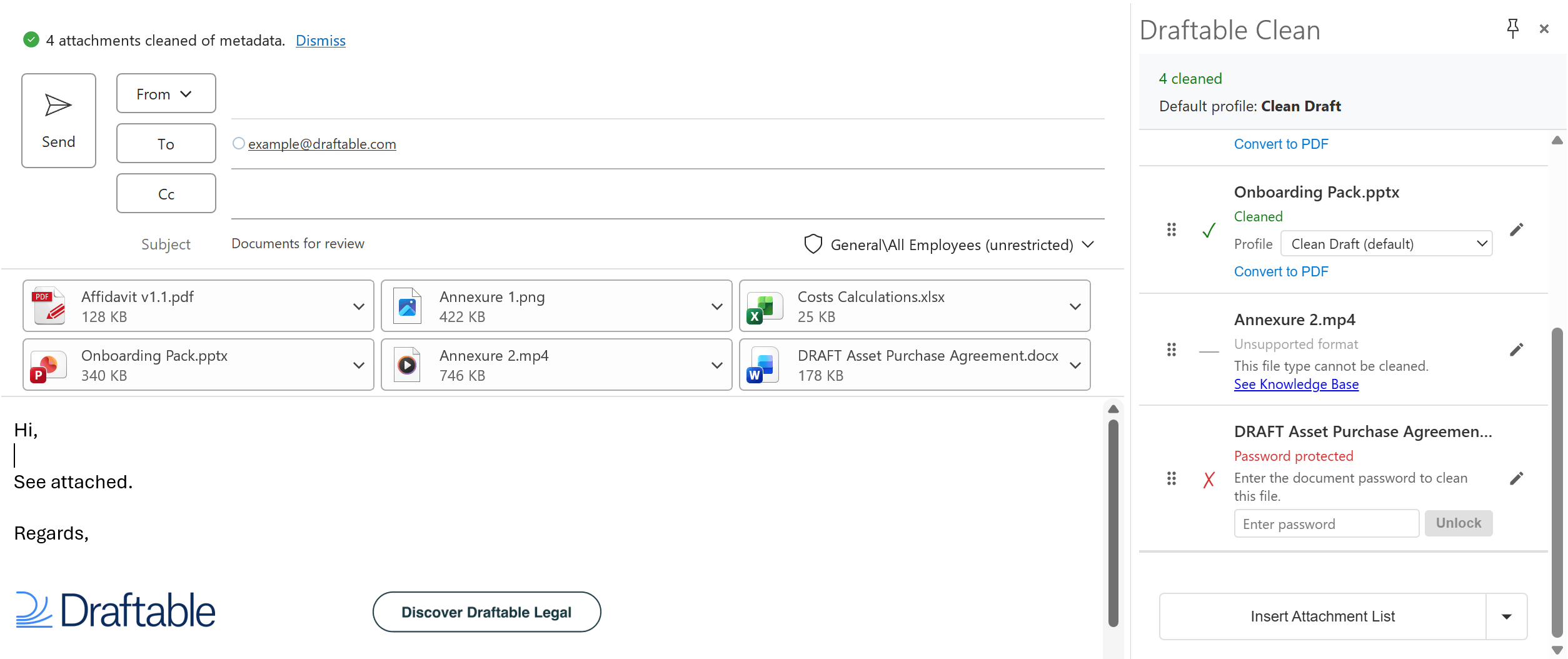
- Allow — Send the email without prompting (default)
- Prompt — Show a confirmation dialog before sending
- Block — Prevent sending until unsupported files are removed
As of v26.6.0, Draftable Clean supports Word, Excel, PowerPoint, PDF, and image files. See Supported file types for the current list of supported formats.