

Two ways to clean
| Workflow | What it is | Best for |
|---|---|---|
| Desktop application | Standalone Windows application for scanning, reviewing, and cleaning documents | Bulk cleaning, detailed metadata review, saving cleaned files locally |
| Outlook add-in | Right-hand panel inside Outlook that automatically cleans attachments as you compose emails | Cleaning documents as part of your email sending workflow |
How it works
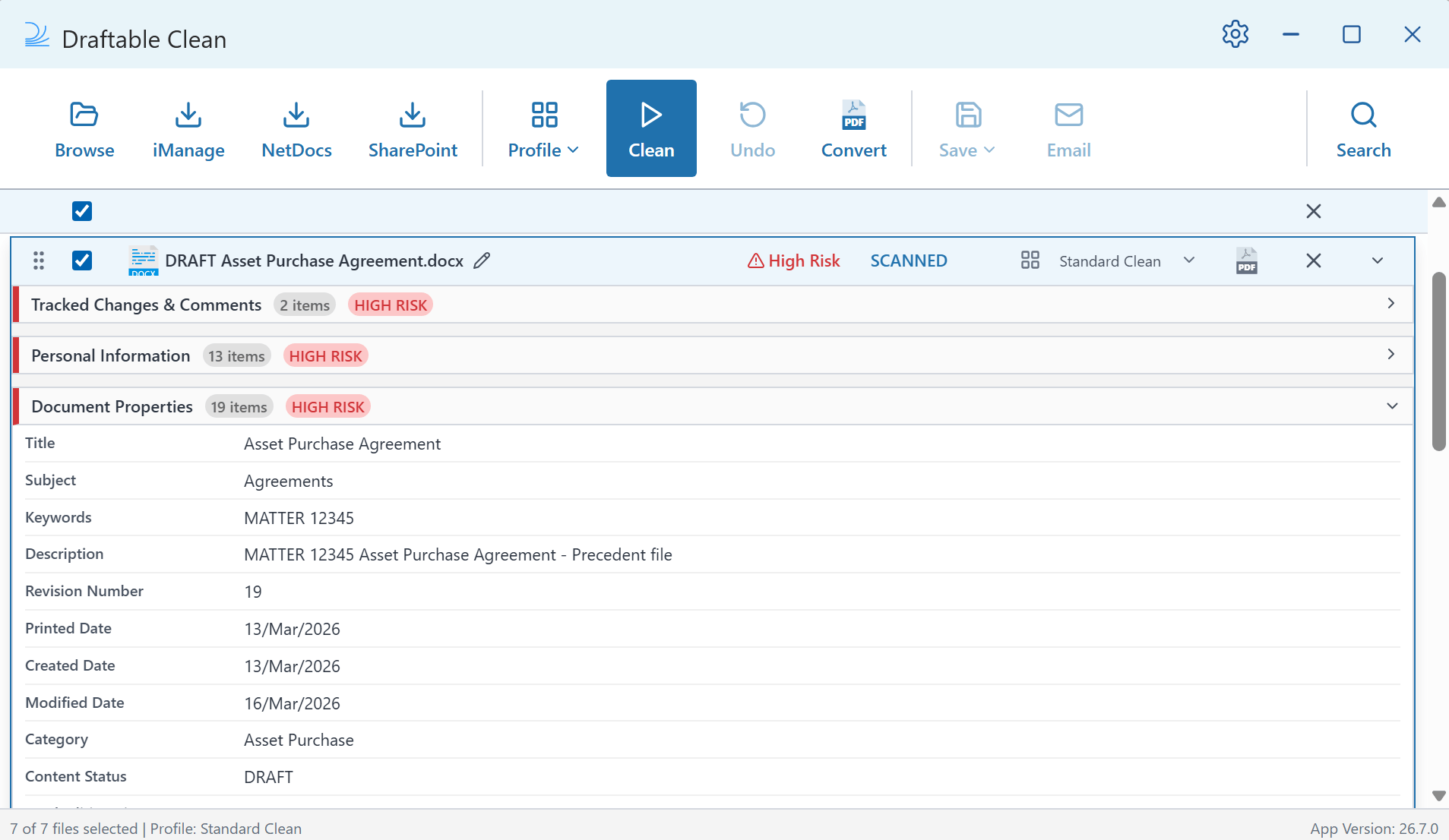
- Scan — Upload documents via Browse, drag-and-drop, or directly from iManage or NetDocs. In the Outlook add-in, simply attach files to your email. Every file is scanned and assigned a risk rating with a detailed metadata breakdown.
- Review — Expand any file to drill into its metadata by category — Personal Information, Document Properties, Tracked Changes & Comments, Document Content, and Other Metadata — each with their own risk level and item count.
- Clean — In the desktop application, select a cleaning profile and click Clean. In the Outlook add-in, cleaning happens automatically based on domain rules configured in settings.
- Share — Save cleaned files as a ZIP, email them directly from the desktop application, or simply hit Send in Outlook with cleaned attachments ready to go.
Key features
| Feature | Description |
|---|---|
| Risk-rated scanning | Every file is scanned and assigned a risk level. Expand files to see metadata breakdowns, and use cross-file search to find specific metadata across all loaded documents. |
| Configurable cleaning profiles | Built-in profiles for common scenarios, plus the ability to create and edit your own. Configure exactly which metadata types to remove, preserve, or replace. See Cleaning profiles. |
| Automatic cleaning in Outlook | The add-in cleans attachments automatically as you compose emails, using domain-based profile rules to apply the right profile based on recipient email domains. |
| Send protection | Configurable controls to block, prompt, or allow sending when attachments are still cleaning, tracked changes are detected, or unsupported file types are attached. |
| Password-protected files | Enter a password to unlock and clean protected files in both the desktop application and the Outlook add-in. |
| Rename and reorder | Rename files inline and drag-and-drop to reorder — in both workflows. File names and order are preserved when saving or emailing. |
| DMS integrations | Upload files directly from iManage or NetDocuments using the toolbar buttons in the desktop application. |
| Local processing | All documents are processed locally on your machine. Your files never leave your computer during cleaning. |
Metadata categories
Draftable Clean organizes metadata into five categories. Each metadata type can be individually configured to Preserve, Remove, Replace, or Flatten within cleaning profiles. For a complete reference, see Supported Metadata Types.| Category | What it includes | Typical risk |
|---|---|---|
| Personal Information | Author, creator, last saved by, user name, company, manager, producer, location | High |
| Document Properties | Title, subject, keywords, dates, revision number, editing time, template, and more | High to Low |
| Tracked Changes & Comments | Tracked changes, comments, and associated author/date information | High to Low |
| Document Content | Attached files, bookmarks, EXIF/XMP/IPTC data, hidden text, hyperlinks, form fields, OLE objects, improper redactions | Medium to Low |
| Other Metadata | Custom properties, digital signatures, JavaScript, VBA code, custom XML | Medium to Low |
Getting started
Quick Start Guide
Install Draftable Clean and clean your first document — desktop app and Outlook add-in.
Supported file types
See which file types Draftable Clean can scan and clean.
Supported Metadata Types
Full reference of every metadata type with actions and risk levels.
System Requirements
Check the minimum and recommended system specifications.