

Prerequisites
- Windows 11
- Draftable Clean 26.7.0 or later (see the Draftable Clean release log)
Enable the menu
1
Open the Windows integration settings
Open Draftable Clean, click the settings gear, and select Integrations. Scroll to the Windows integration section.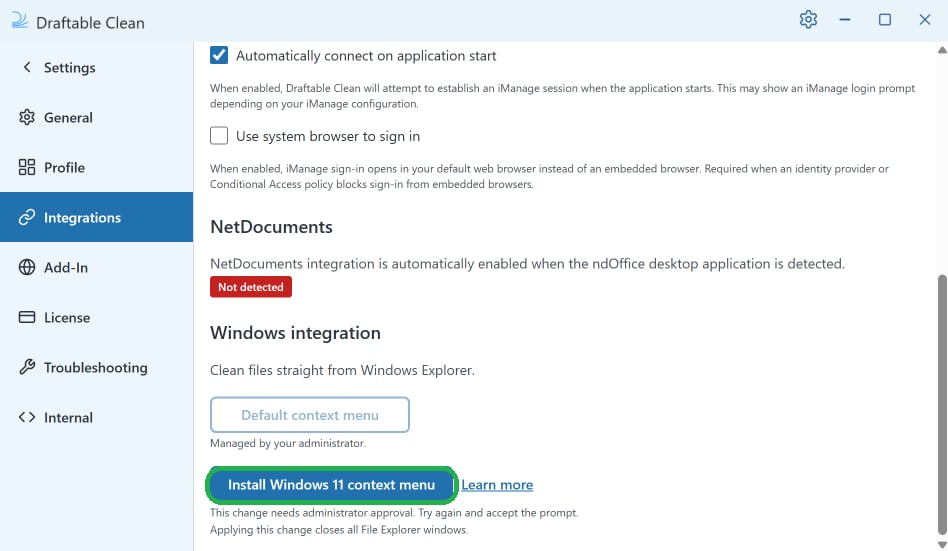
2
Install the Windows 11 context menu
Click Install Windows 11 context menu.This change needs administrator approval, so approve the Windows prompt when it appears. Applying the change closes all open File Explorer windows.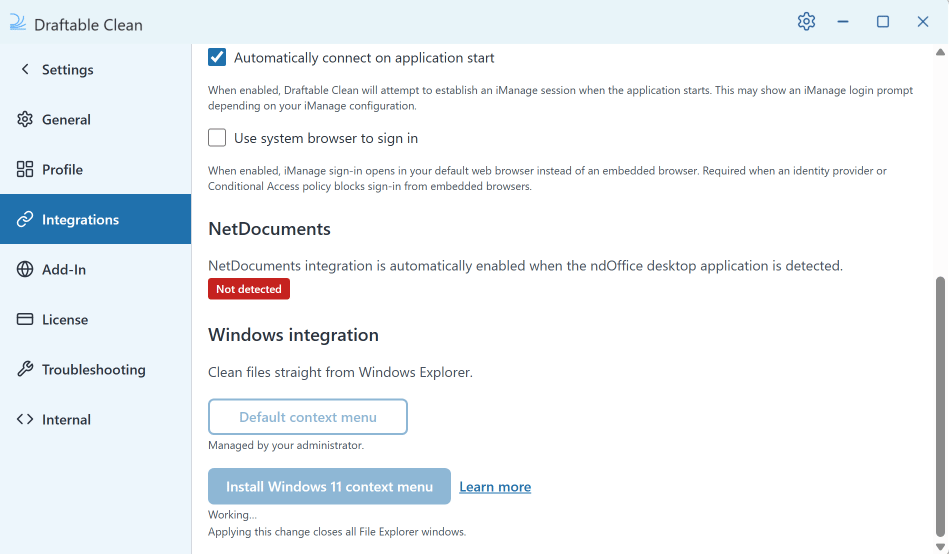
3
Confirm it is installed
Once installed, the button changes to Remove Windows 11 context menu. You can use that button at any time to take the command back out of the menu.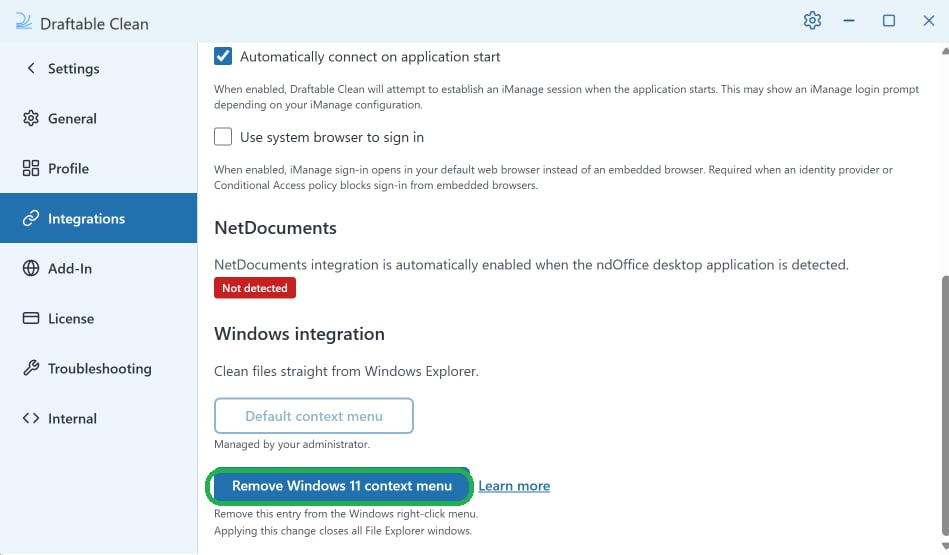
4
Clean a file from File Explorer
Right-click a supported file in File Explorer and select Clean in Draftable. Draftable Clean opens with the selected file ready to scan and clean.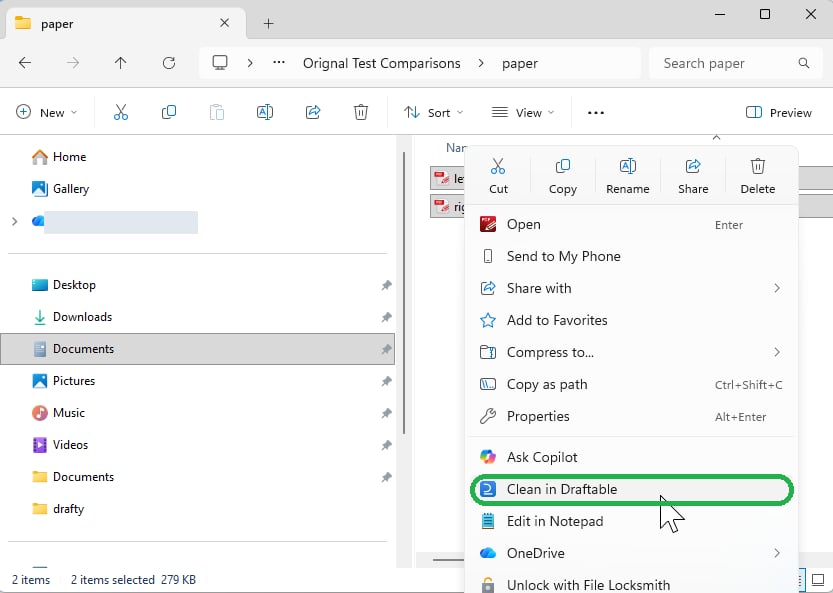
Remove the menu
To remove the command, return to Settings > Integrations > Windows integration and click Remove Windows 11 context menu.For IT administrators
Each user currently turns on the Windows 11 menu themselves, using the steps above. Our team is investigating a way for IT administrators to enable it across all managed machines at once, but we have not committed to delivering this. If you need more information, contact support@draftable.com.Troubleshooting
The Clean in Draftable command does not appear
The Clean in Draftable command does not appear
Applying the change closes all File Explorer windows. Open a new File Explorer window and try again. If it still does not appear, sign out of Windows and back in. This feature requires Windows 11.