Part 2: Draftable Clean Outlook add-in
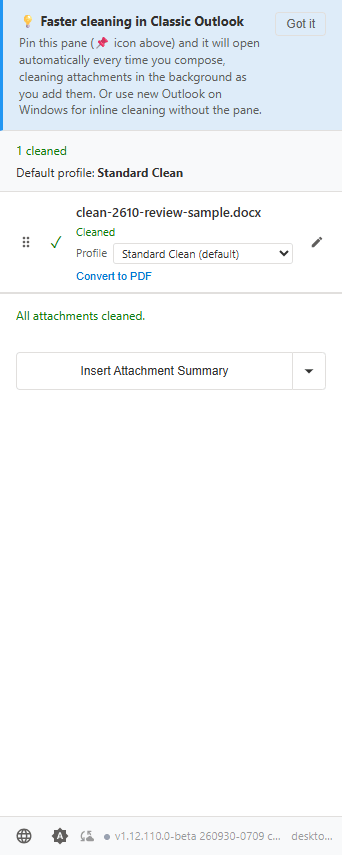
The Draftable Clean add-in runs directly inside Microsoft Outlook and automatically cleans attachments as you compose emails.The current Outlook pane is shown in the 1.12 and later tab below. Older examples elsewhere on this page may show the former Insert Attachment List label; the current button is Insert Attachment Summary. Desktop settings screenshots show 26.10.0.
- 1.12 and later
- Before 1.12
The desktop application must be running for the add-in to function. If it is not already open, the add-in will attempt to launch it silently in the background.
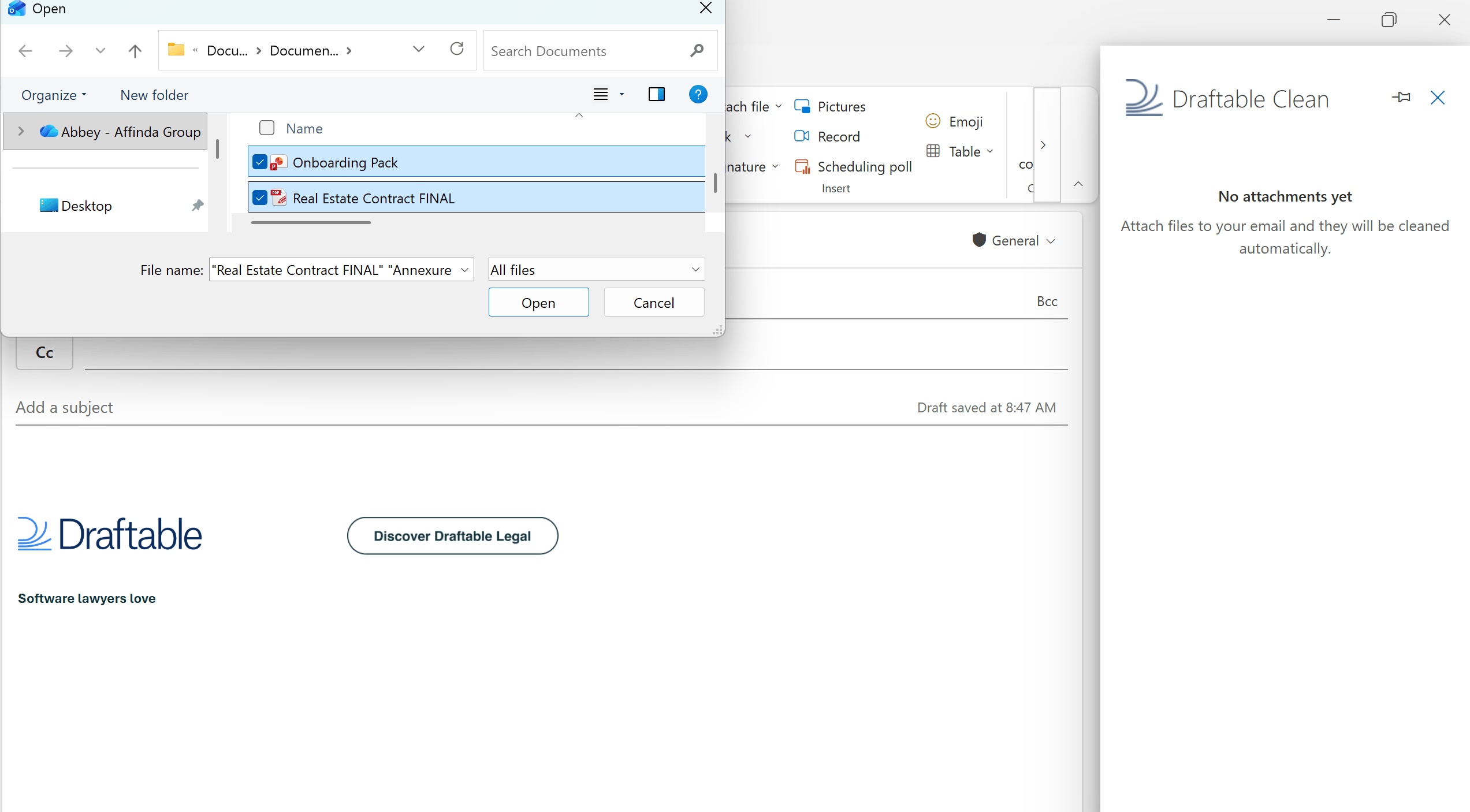
In Classic Outlook, open the Draftable Clean pane for attachments to be cleaned, and pin it to open automatically when composing. The Allow, Prompt, and Block send-protection settings also apply when the pane has not been opened. If the settings cannot yet be read, Outlook asks you to open the pane before sending. In New Outlook, cleaning can run without the pane open, provided Clean has not been turned off for New Outlook.
Changing the add-in language
Draftable Clean supports multiple languages including English, Deutsch, Español, Français, 日本語, Nederlands, Polski, Português, Svenska, and Tagalog. Open the add-in pane and click the globe icon at the bottom of the panel to select your preferred language.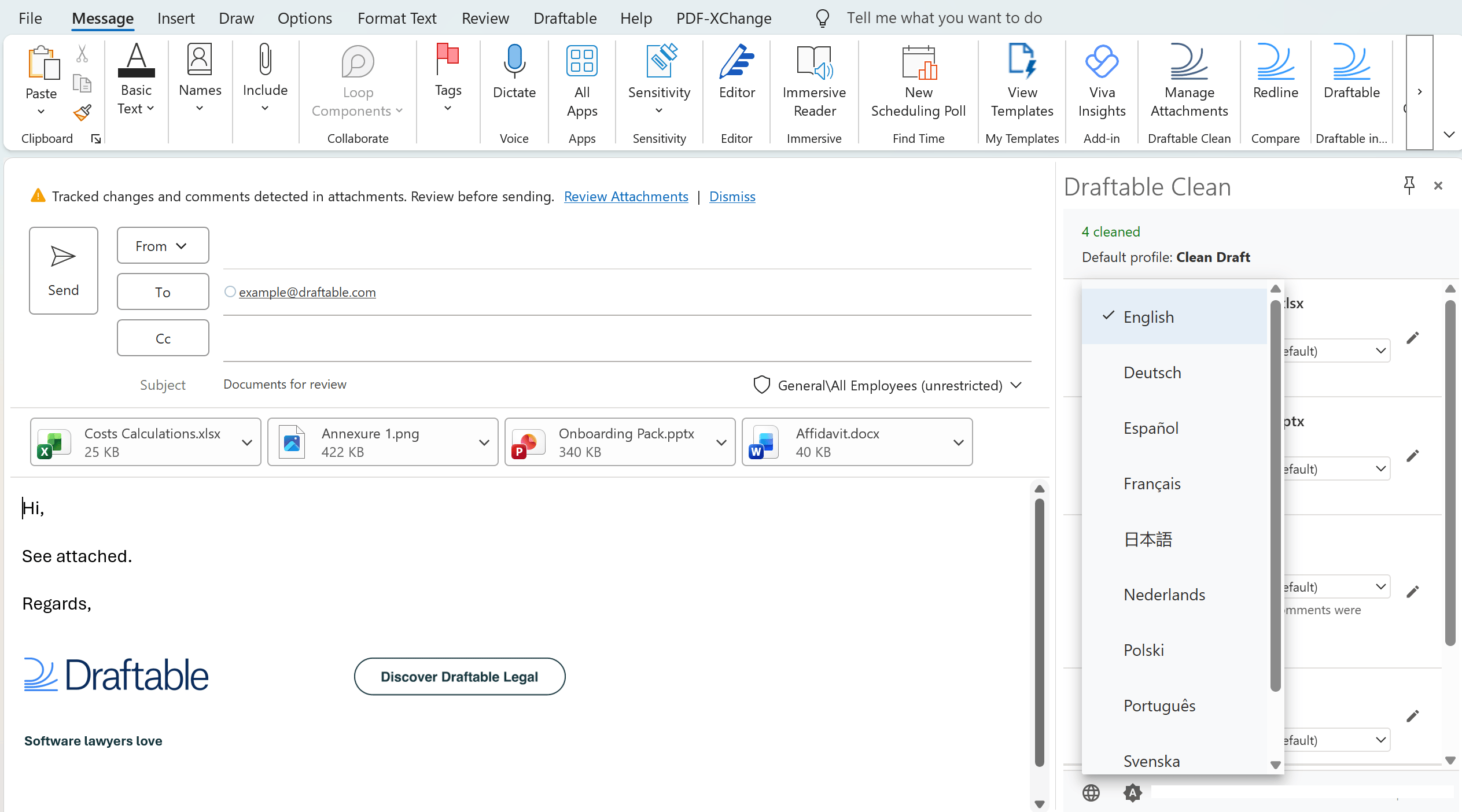
Automatic profile switching based on recipients
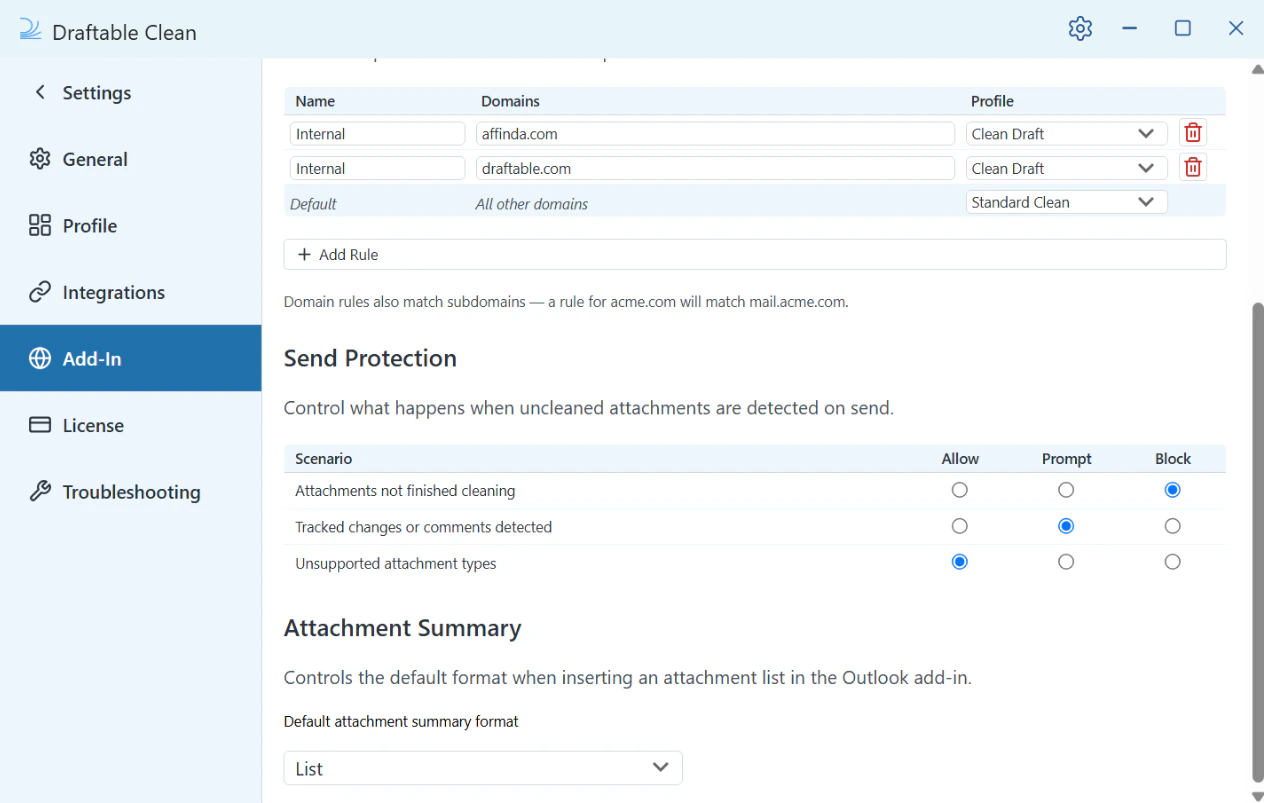
Draftable Clean intelligently adjusts the cleaning profile based on recipient email domains. Domain rules are configured in Settings > Add-In and determine which cleaning profile is applied. For example, a typical configuration might be:- No recipients entered — A default profile such as Standard Clean is used
- Internal recipients (e.g.
colleague@yourfirm.com) — A lighter profile such as Clean Draft that preserves tracked changes and comments - External recipients (e.g.
contact@externalfirm.com) — A stricter profile such as Standard Clean
Skip Cleaning
With Draftable Clean 26.10.0 or later and Outlook add-in 1.12.110.0 or later, choose Skip Cleaning (do not clean) for the no-recipient default or a domain rule in Settings > Add-In.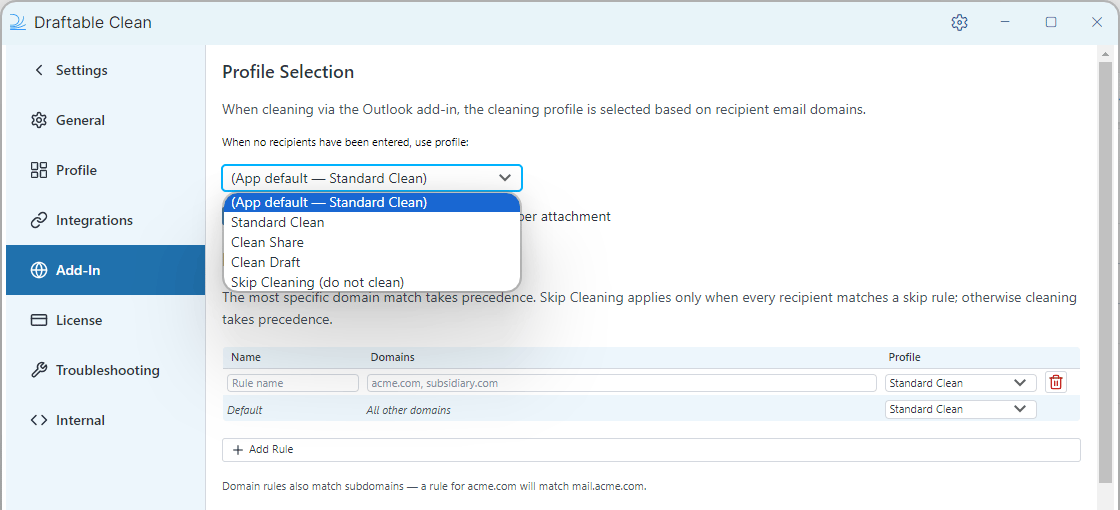
When recipients change
When you add or change recipients, a banner appears: “Recipients changed — re-cleaning attachments with updated profile.” You can click Review Attachments to check the changes.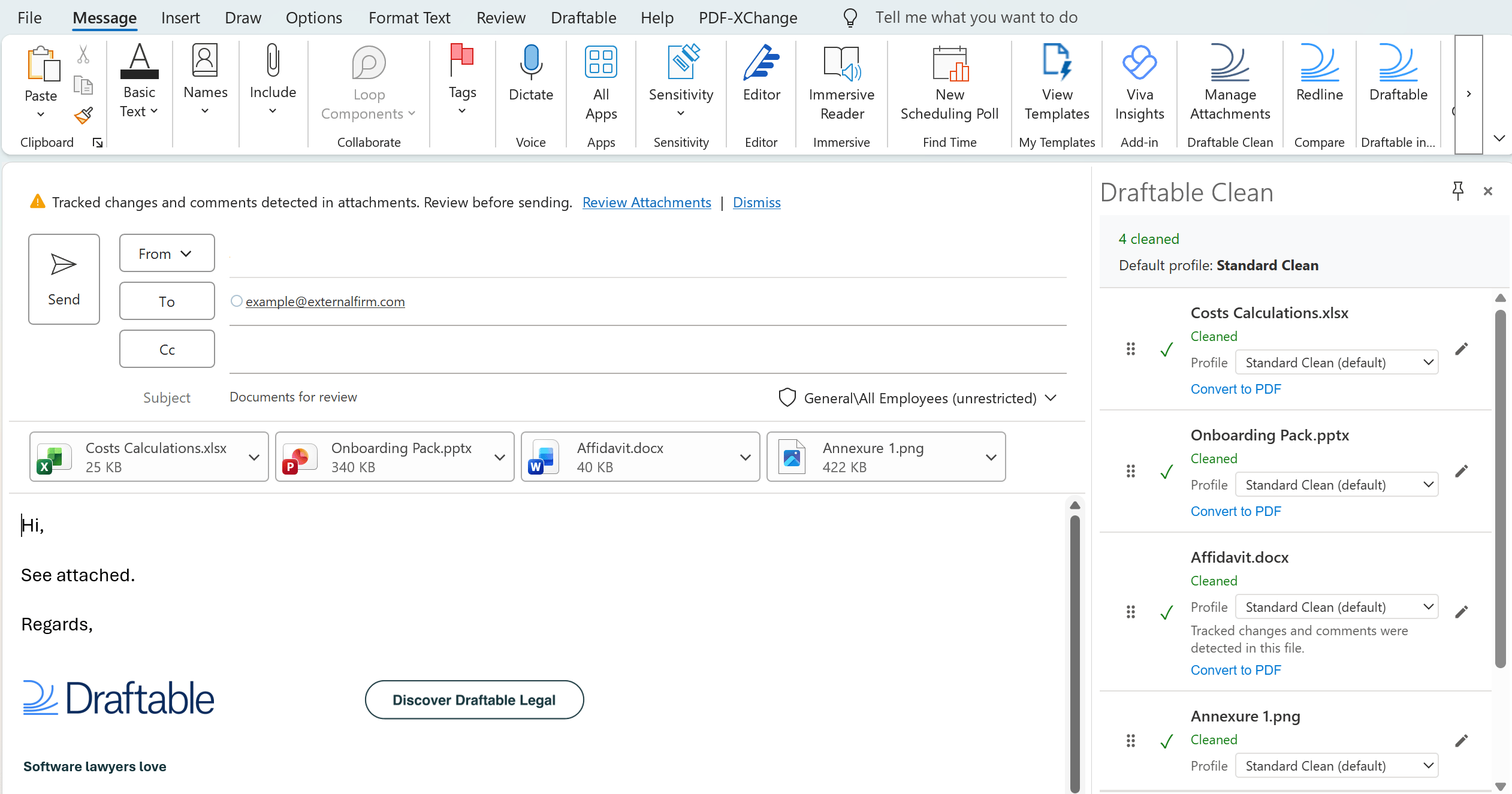
Updating the file profile
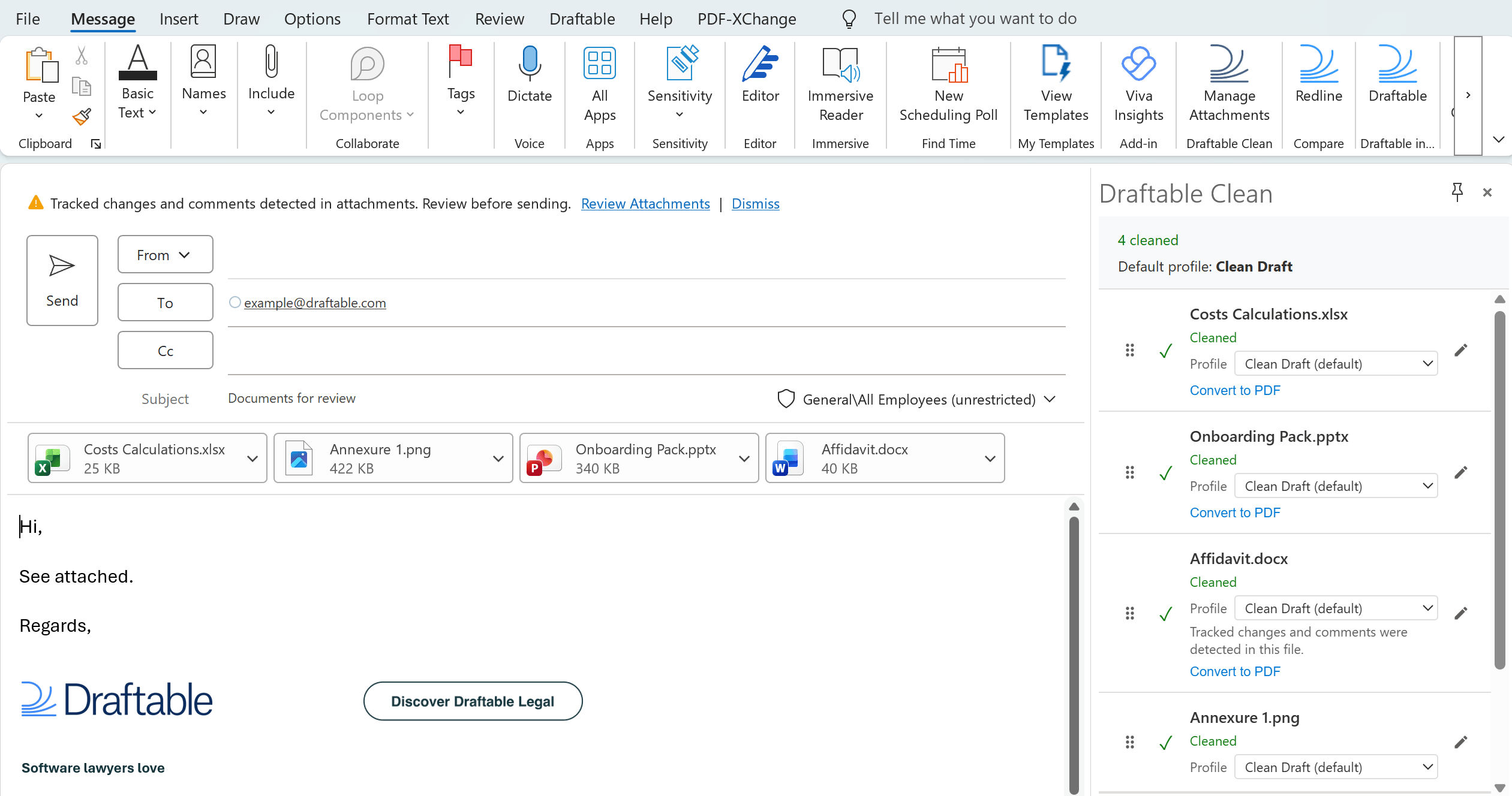
If enabled by your administrator in Settings > Add-In, you can override the cleaning profile for individual files using the per-file Profile dropdown in the add-in pane.Converting attachments to PDF
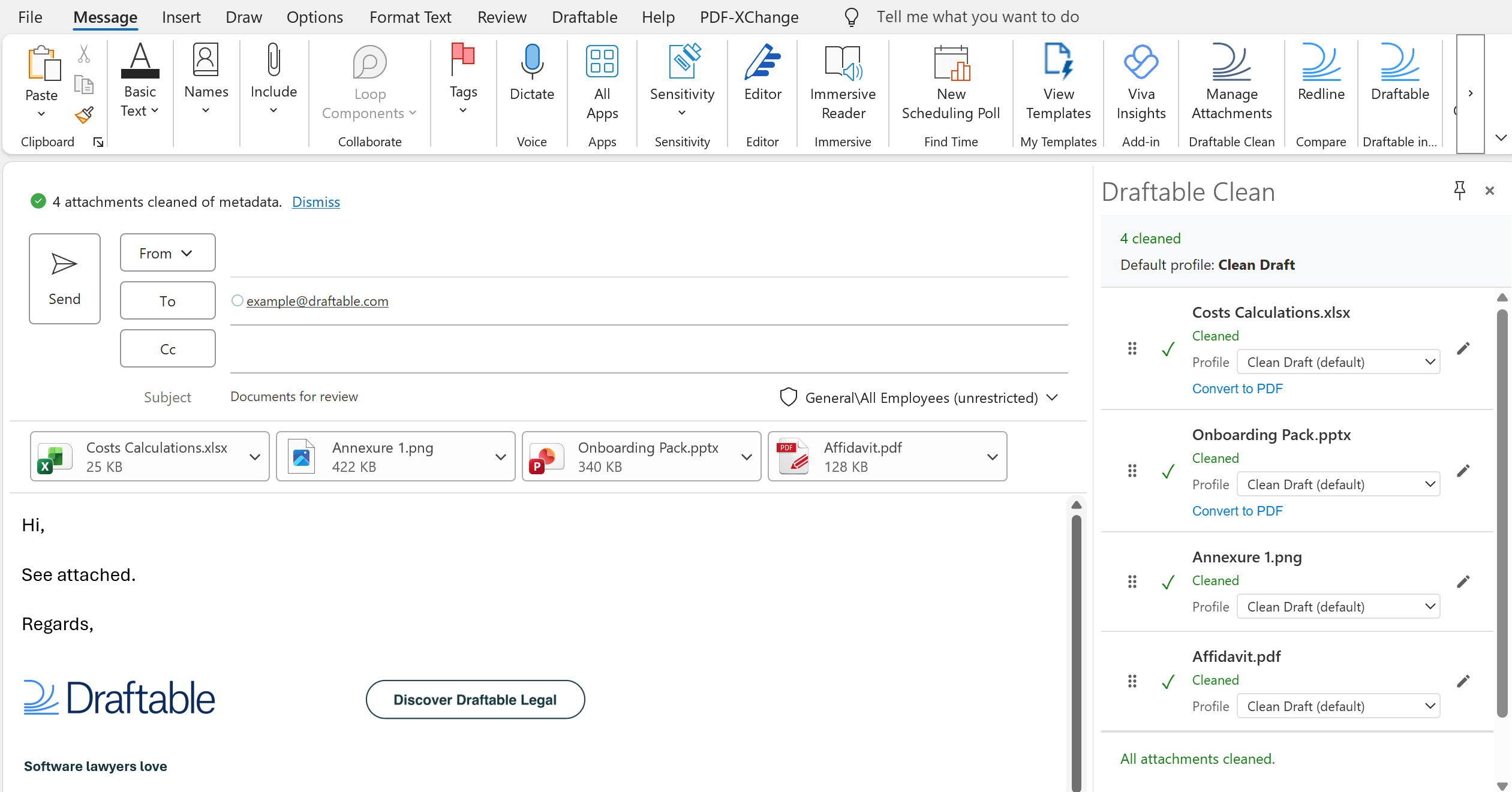
Supported Word, Excel, and PowerPoint attachments can be converted to PDF from the add-in panel. Click Convert to PDF on an attachment to flag it — the file is converted automatically when cleaning completes..png?fit=max&auto=format&n=ku8YqcThAWDOA_hT&q=85&s=1b5abe938503aa2c64492e6b3b689baa)
Renaming attachments
After cleaning, you can rename files directly in the Draftable Clean panel. Click the pencil icon next to a file name to edit it inline.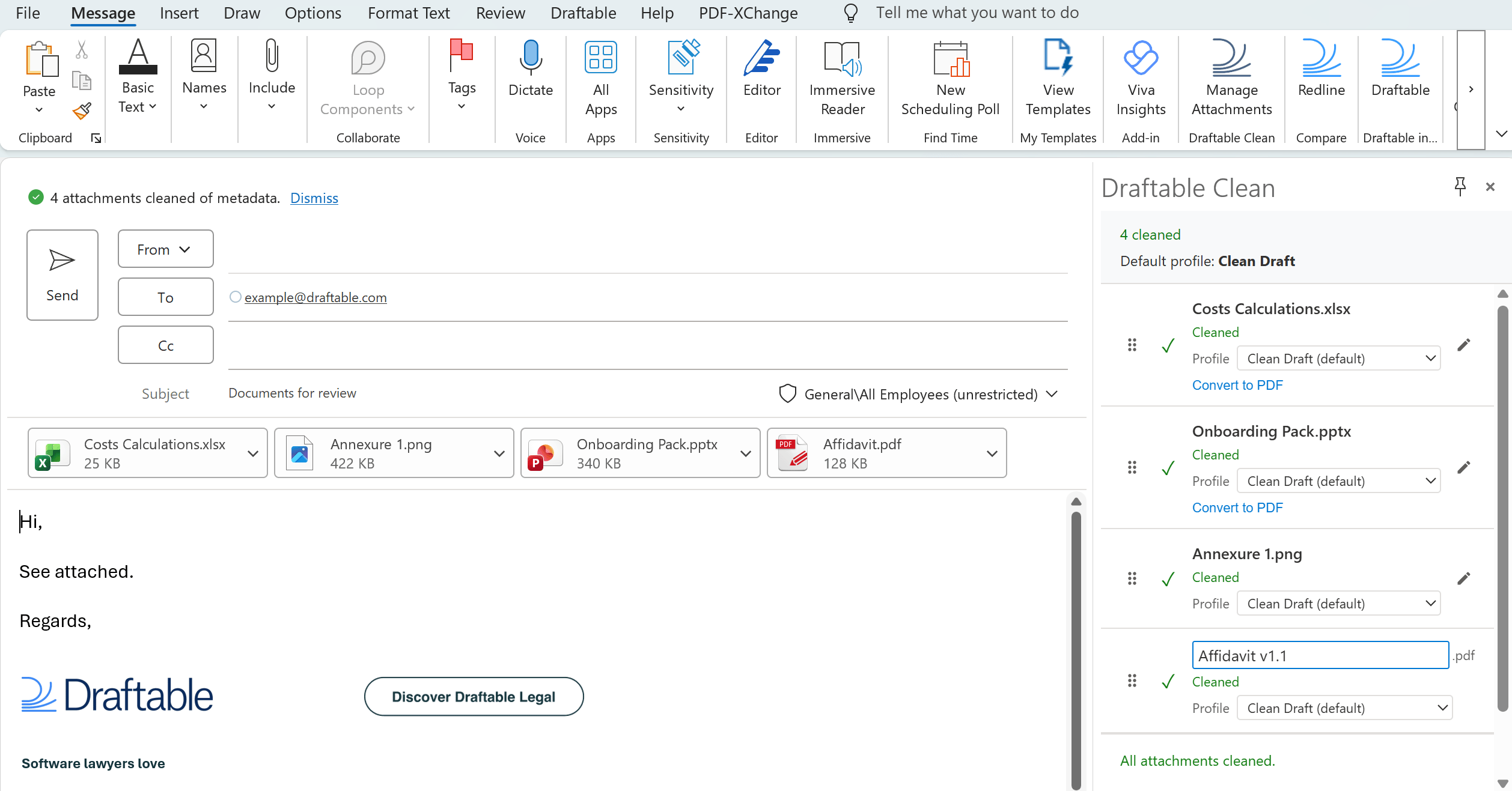
Unsupported file types
If you attach a file in a format Draftable Clean does not support, the Draftable Clean panel displays an “Unsupported format” status with the message: “This file type cannot be cleaned. See Knowledge Base.” Unsupported files do not block sending by default — this behavior is configurable in Settings > Add-In > Send Protection.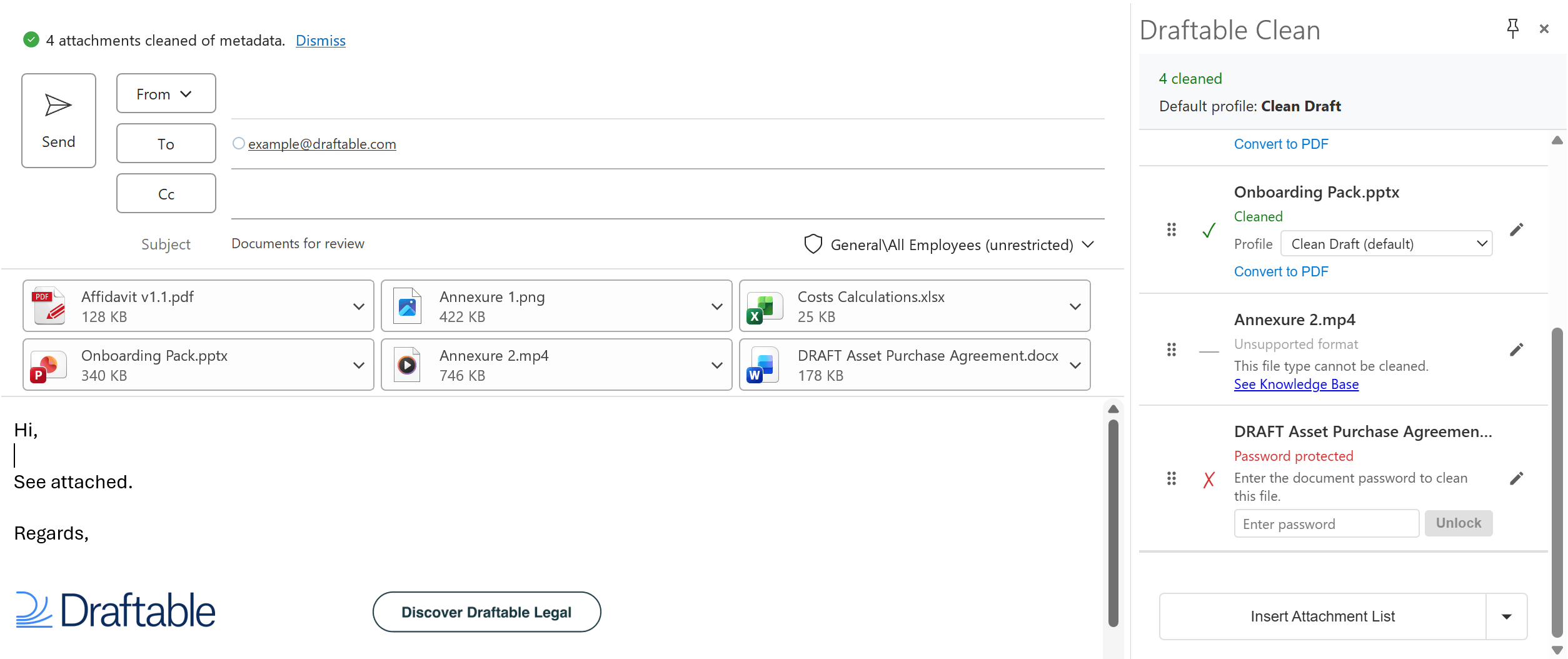
Password-protected files
If you attach a password-protected file, it shows “Password protected” with the message: “Enter the document password to clean this file.” Enter the password in the provided field and click Unlock to authenticate and clean the file. If the password is incorrect, an “Incorrect password. Please try again.” message is displayed. Re-enter the correct password and click Unlock again.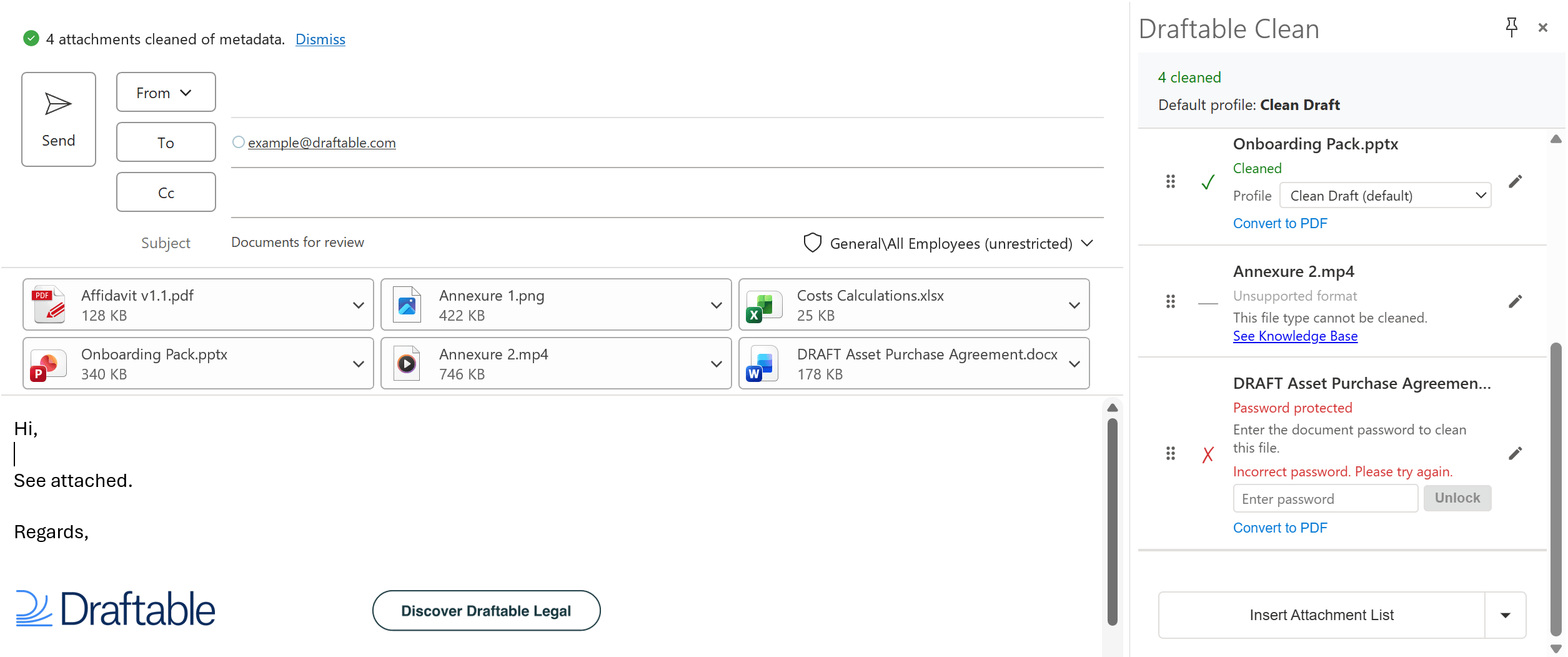
Inserting an attachment list or table
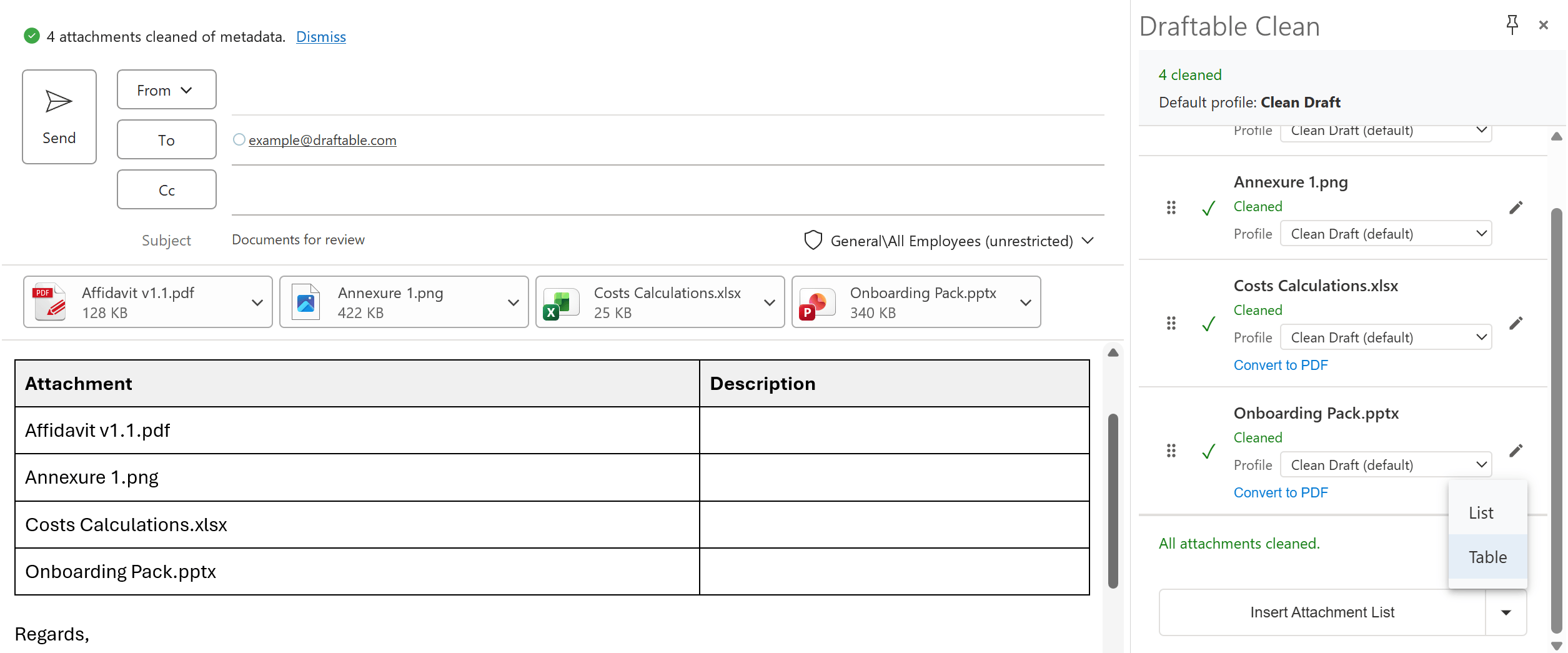
Click Insert Attachment Summary to add a formatted summary into the email body. Earlier screenshots below show the former Insert Attachment List label. The button includes a dropdown arrow with two format options:- List — A bullet-point list of attachment names
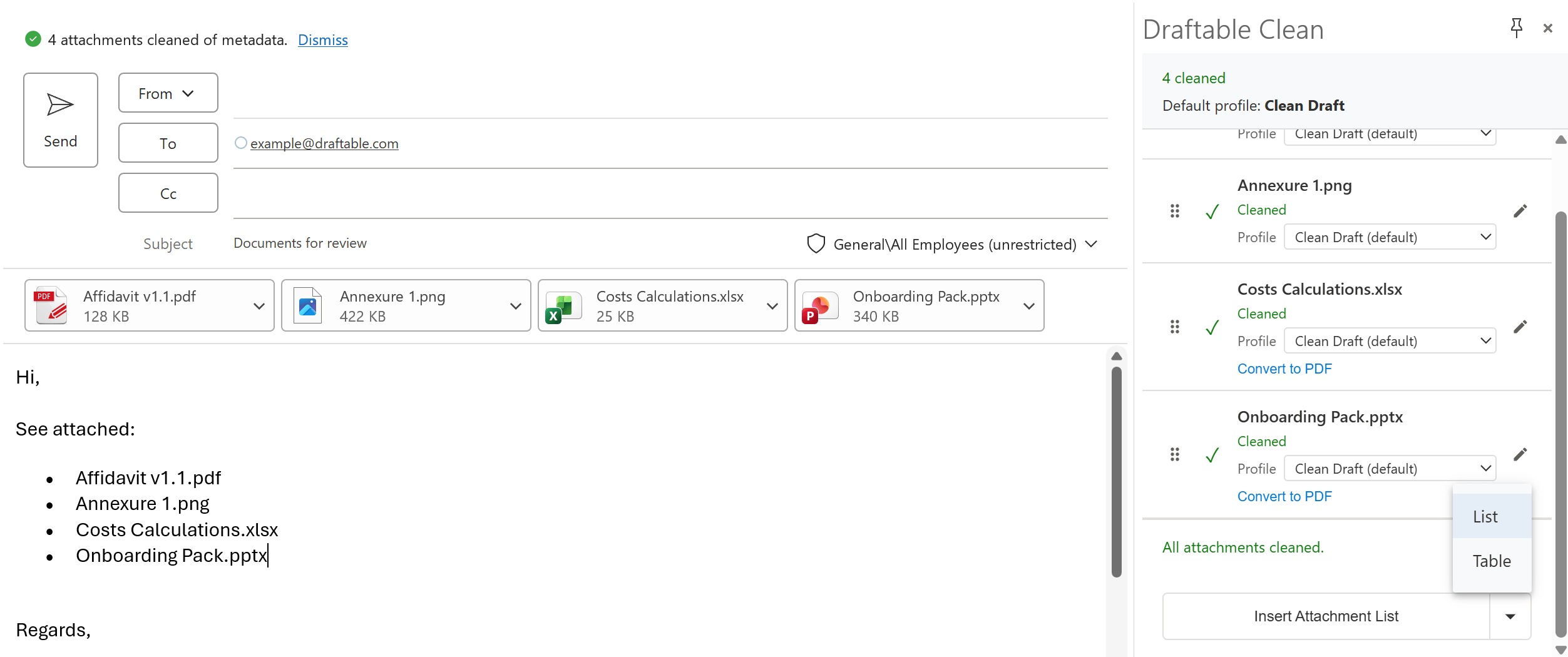
- Table — A table with Attachment and Description columns
Send protection
These checks do not run in New Outlook for Windows when Clean attachments in New Outlook is turned off. See New Outlook settings.
The screenshots below are from New Outlook. Dialogs and prompts appear similarly in Classic Outlook.
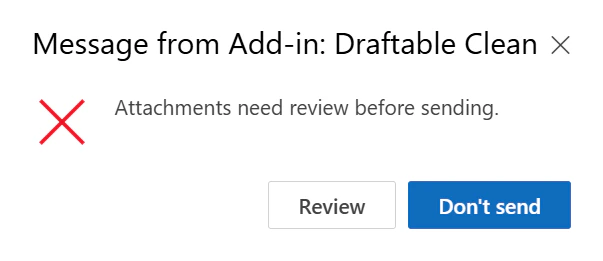
- Attachments not finished cleaning — Sending is blocked with a dialog: “Attachments need review before sending.” The user can click Review to return to the email or Don’t send to cancel.
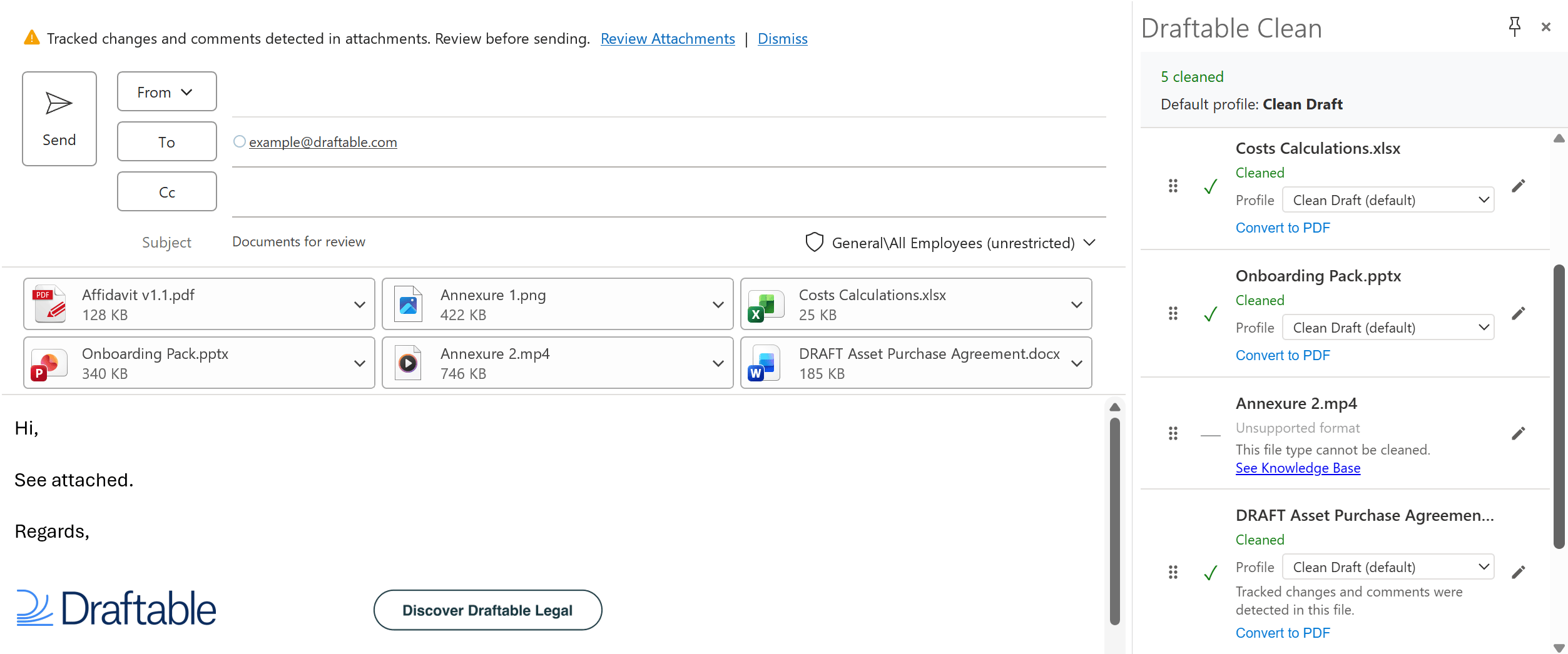
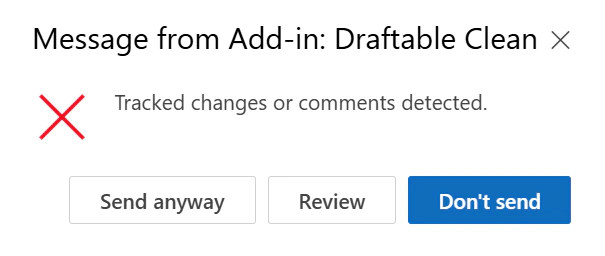
- Tracked changes or comments detected — The user is prompted with a dialog: “Tracked changes or comments detected.” The user can click Send anyway, Review, or Don’t send.
- Unsupported attachment types — Sending is allowed
New Outlook settings
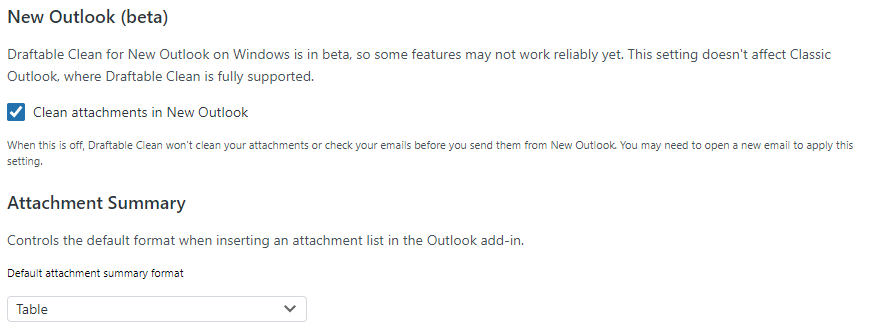
In the desktop app, open Settings > Add-In > New Outlook (beta). Clean attachments in New Outlook is on by default unless your administrator has configured it otherwise. Turning it off disables both attachment cleaning and pre-send checks in New Outlook for Windows. The pane explains that Clean is off. This switch does not affect Classic Outlook, Outlook on the web, or Outlook for Mac. You may need to open a new email after changing it. If the setting is locked, contact your administrator.