

Built-in profiles
Draftable Clean ships with three built-in profiles:Using profiles in the main view
Setting the global profile
The global Profile dropdown is located in the header bar at the top of the file list. Changing this applies the selected profile to all files.1
Click the Profile dropdown in the header bar.
2
Select the profile you want to apply — for example, Clean Draft.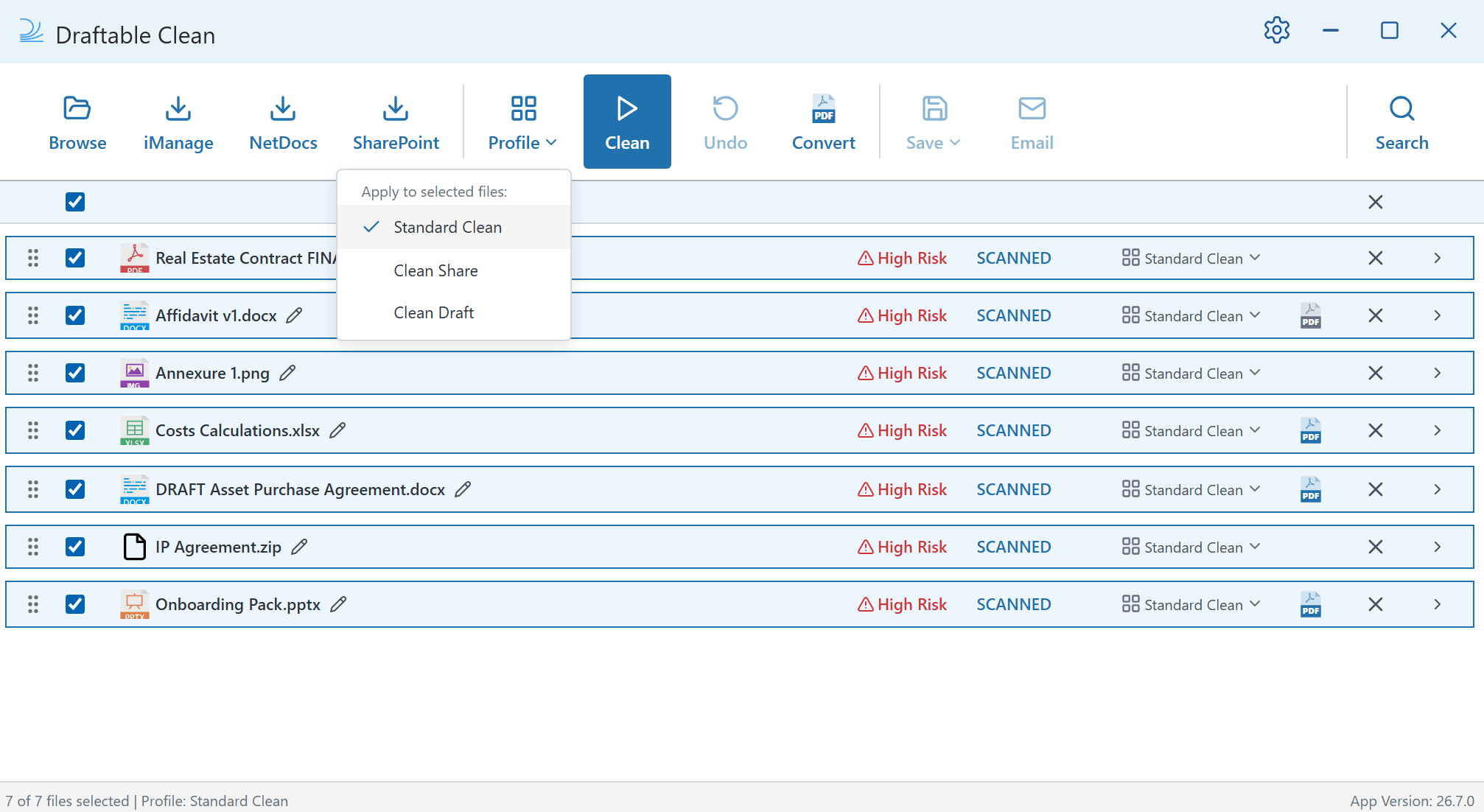
3
All files in the list are updated to use the selected profile.
Overriding the profile for a single file
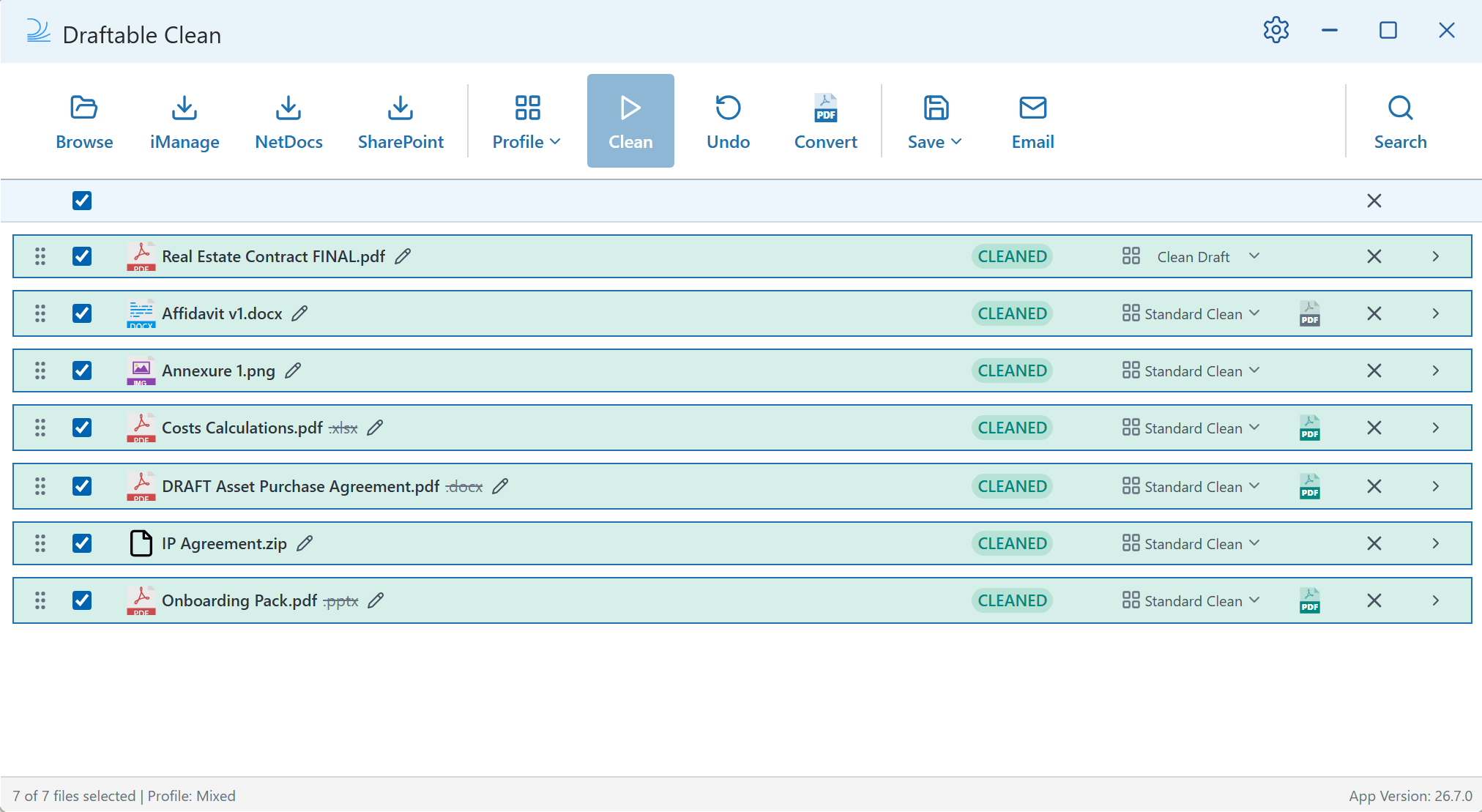
Each file row has its own Profile dropdown. You can set a different profile for individual files without affecting the rest.1
Find the file you want to change in the file list.
2
Click the Profile dropdown on that file’s row and select a different profile.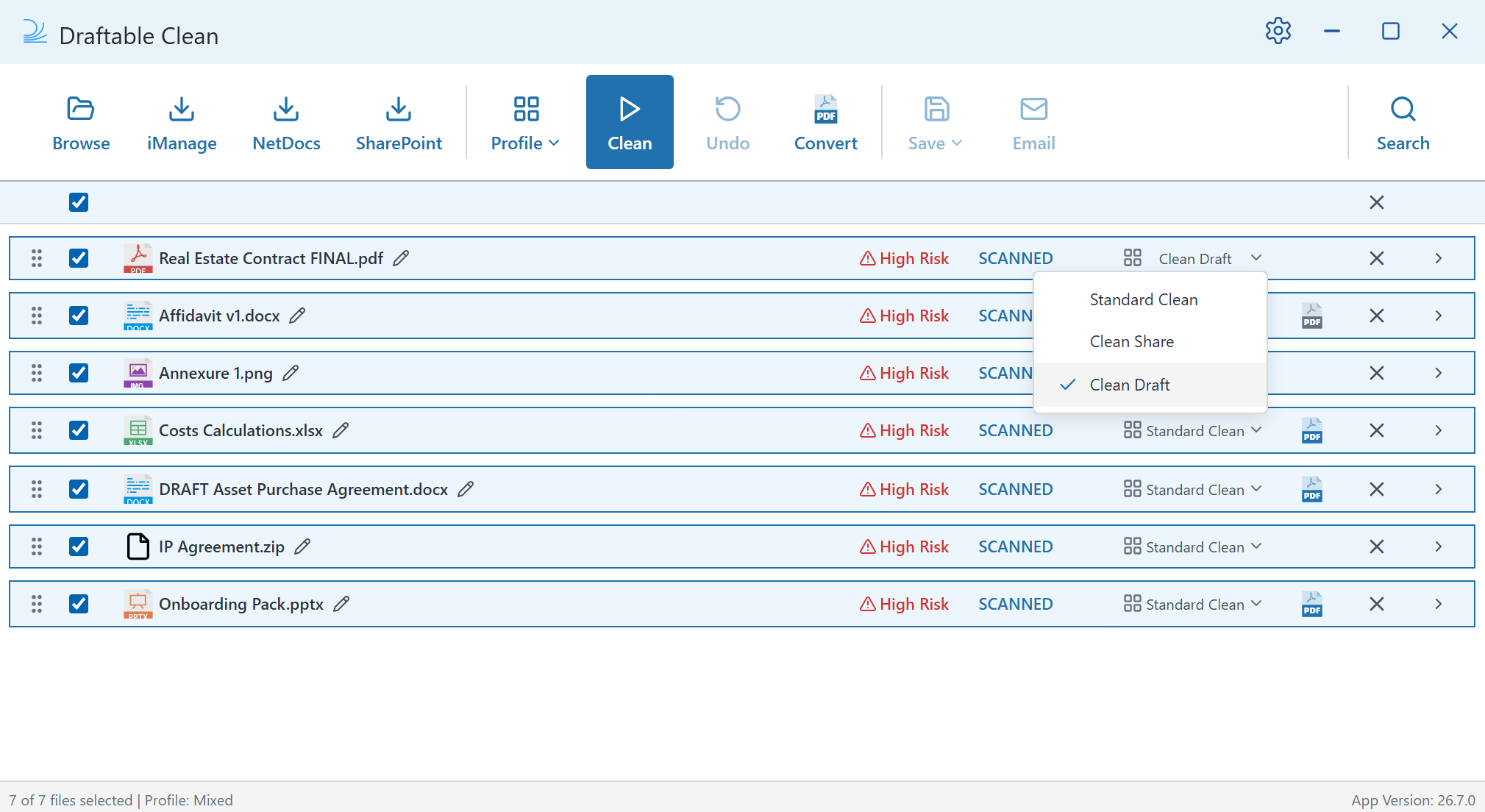
Managing profiles in Settings
Cleaning profiles may be managed centrally by your administrator — see Configuring preferences for your organization. If your organization has not deployed administrator-managed profiles, you can create, edit, or delete profiles by opening the Settings panel via the gear icon and navigating to the Profile section.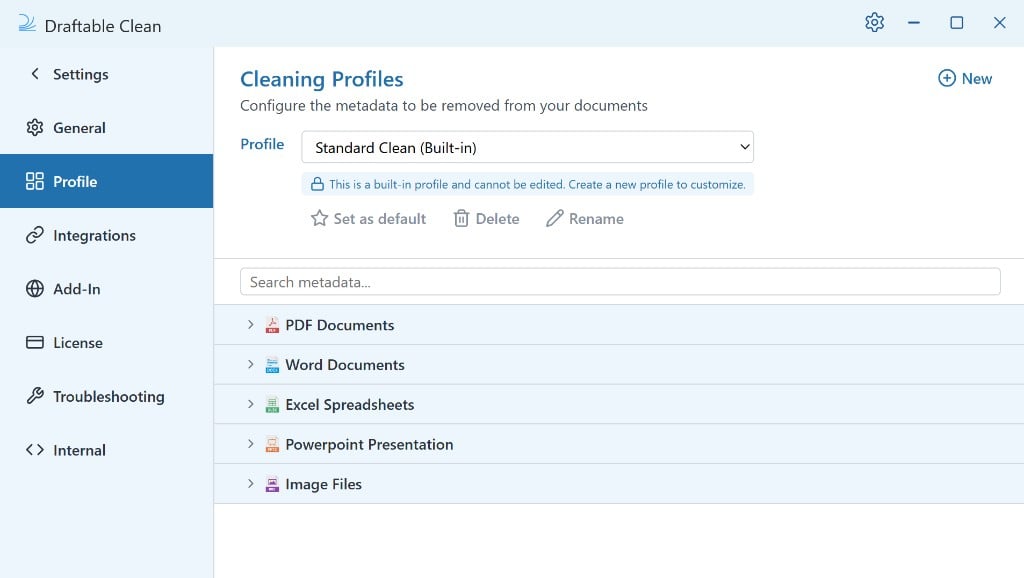
Profile settings overview
The Profile settings page shows:- Profile dropdown — Select the profile you want to view or edit
- Actions — Set as default, Delete, Rename
- New — Create a new profile from scratch
- Search metadata — Search for specific metadata types within the profile
- File type categories — Word, Excel, PowerPoint, PDF, and Image files, each with their own metadata configuration
Metadata categories per file type
Each file type (Word, Excel, PowerPoint, PDF, and Image) can be expanded to show its metadata categories. For each category, you can choose to Preserve all or Remove all, or configure individual metadata types. The available metadata types differ by format — for example, Excel exposes formula and worksheet metadata, while image files expose EXIF, GPS location, and other embedded image metadata. See Supported Metadata Types for the full per-format reference.For some images, metadata cannot be preserved selectively according to your profile settings. When this happens, Draftable Clean displays a warning that all metadata had to be removed.
For a full list of every individual metadata type that Draftable Clean can detect and clean, see Supported Metadata Types.
Creating a new profile
1
In the Profile settings page, click New in the top-right corner.
2
Enter a name for the new profile.
3
Configure the metadata types you want to remove, preserve, or replace for each file type category.
4
The new profile will appear in the Profile dropdown in both the Settings page and the main application view.
Setting a default profile
Click Set as default next to the profile name to make it the default profile for all new cleaning sessions. New files uploaded into Draftable Clean will automatically use the default profile.Enforced must-clean metadata (administrators)
Administrators can require specific metadata types to always be removed, regardless of which profile is applied — including new custom profiles created later. These enforced “must-clean” rules are set centrally via Group Policy and cannot be overridden by users or by individual profile settings. This gives legal and IT teams a guaranteed baseline for sensitive metadata that must never be shared externally. See Configuring preferences with Group Policy for setup details.Profiles in the Outlook add-in
In the Outlook add-in, the cleaning profile is not selected manually — it is determined automatically based on recipient email domains. This is configured in the Add-In section of Settings, or by your administrator.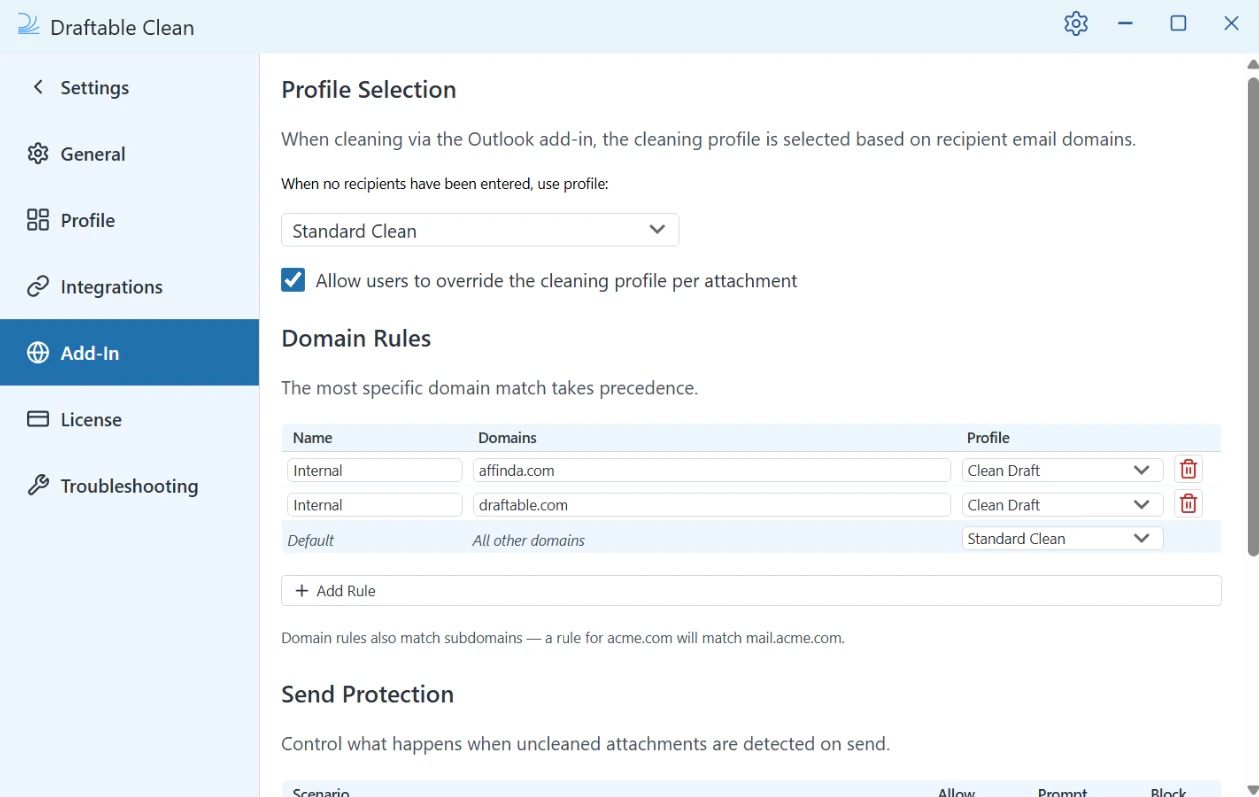
How domain-based profile selection works
When you compose an email with attachments, Draftable Clean evaluates the recipient email domains against a set of Domain Rules to determine which cleaning profile to apply. If no recipients have been entered, the default profile is used (configurable in Settings > Add-In). If “Allow users to override the cleaning profile per attachment” is enabled, users can also change the profile for individual files using the per-file Profile dropdown in the add-in panel.Domain Rules
The Domain Rules table in Settings > Add-In controls the mapping between recipient domains and cleaning profiles:- Click + Add Rule to create additional domain-to-profile mappings
- Domain rules also match subdomains — a rule for
acme.comwill matchmail.acme.com - The most specific domain match takes precedence
All profile creation and editing is done in the desktop application — the add-in uses profiles but does not provide an interface to modify them.