

Overview
The Draftable Clean Outlook Add-in is a panel that runs directly inside Microsoft Outlook, automatically cleaning metadata from email attachments as users compose emails. Once deployed, the add-in appears in the Outlook ribbon and provides a seamless workflow for removing hidden metadata before sending. Key Features:- Automatic cleaning — Attachments are cleaned automatically as they are added to an email, with no manual steps required from the user
- Domain-based profile selection — Cleaning profiles are applied automatically based on recipient email domains, with configurable rules for internal and external recipients
- Per-file profile override — Users can override the cleaning profile for individual attachments (if enabled by the administrator)
- Rename — Users can rename attachments directly in the add-in panel
- Attachment list — Users can insert a formatted attachment summary (list or table) into the email body
- Send protection — Configurable controls to block, prompt, or allow sending when attachments are still cleaning, tracked changes are detected, or unsupported file types are attached
- Multi-language support — Available in English, Deutsch, Español, Français, 日本語, Nederlands, Polski, Português, Svenska, and Tagalog
The Draftable Clean desktop application must be installed on the user’s machine for the add-in to function. The add-in communicates with the desktop application via
localhost. If the desktop application is not already running, the add-in will attempt to launch it silently in the background. See Deployment options for desktop application installation.Prerequisites
- You must have admin privileges for Microsoft 365 (you will need a Microsoft 365 Business account)
- Ensure your environment supports Office Add-ins via the Microsoft 365 admin center
- The Draftable Clean desktop application must be installed on end-user machines
- Corporate security tools must allow
localhostnetwork calls — the add-in communicates with the desktop application vialocalhost. See Network Requirements for details.
Supported Outlook versions
The add-in requires Mailbox API 1.14, which means a fairly recent version of Outlook is needed:Step-by-Step Setup
1. Go to the Integrated Apps Portal
2
Click Upload custom apps.
2. Choose a manifest and upload the add-in
Get the Draftable Clean Outlook Add-in manifest from the Draftable Office Deployment Guide. The page lists manifest URLs with a copy button for each release channel.1
Under App type, select Office Add-in from the dropdown menu.
2
Copy the manifest URL for your chosen release channel from the Draftable Office Deployment Guide, or download the manifest file from that URL.
3
Upload the manifest file (or paste the manifest URL, if your admin center supports it) and click Validate.
3. Configure Delivery to Users
You will be asked how the add-in should be deployed across your organization:- Assign to Entire organization, Specific users, or Groups depending on your use case.
4. Accept Permissions
You will be prompted to accept and approve the required permissions on behalf of your users.Required Permissions Overview
Standard Microsoft consent prompts: The following prompts appear during deployment of all Office Add-ins and are not specific to Draftable Clean:- Sign in and read users’ basic profile information
- Access user profile details including name, picture, username, and email address
- Read basic company information for signed-in users
ReadWriteItem— Allows the add-in to read and write the contents of email messages and attachments, required for replacing attachments with cleaned versionsSendReceiveData— Allows the add-in to communicate with the Draftable Clean desktop application via localhostProfileAccess— Allows the add-in to read the user’s profile information- The app can launch itself when: the user sends a message, an attachment is added or removed from a message, and a recipient is added or removed from a message
5. Finish Setup
Once permissions are approved and the app is assigned to your selected users, the Draftable Clean Outlook Add-in will be available within Outlook.It can take up to 72 hours for the app to appear. Users may need to relaunch Microsoft 365 to view the add-in icon on the app ribbon. For more information, see the Microsoft documentation: Deploy add-ins in the admin center.
6. Verify Deployment
- Open Outlook and compose a new email
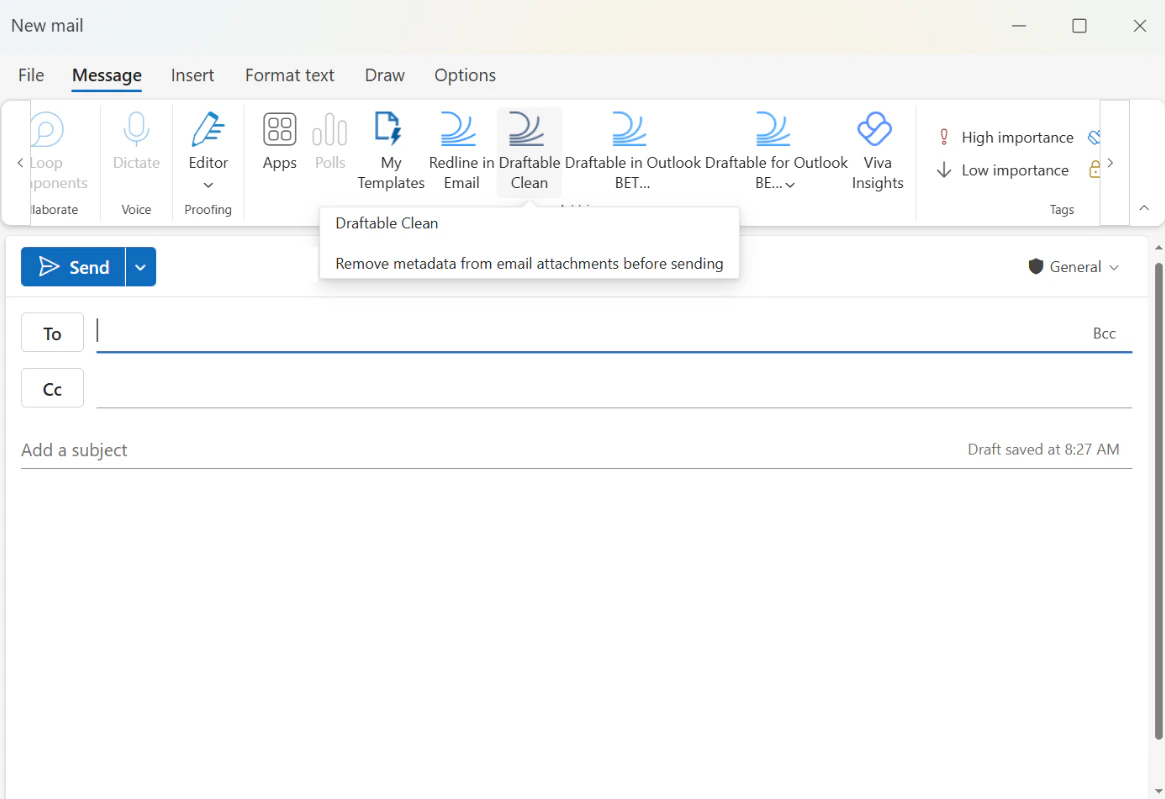
- Look for the Draftable Clean button in the ribbon
- Click it — the Draftable Clean panel should appear on the right-hand side of the compose window
Updating the add-in
How updates reach users depends on the release channel you chose at deployment:- Pinned release — Upload an updated manifest in the Microsoft 365 admin center when you want to move to a new version. See Troubleshooting: Outlook Add-in for step-by-step instructions.
- Latest channel — Users automatically receive the newest updates within that major version. You do not need to re-upload the manifest for each release in that channel.
Configuring the Add-in
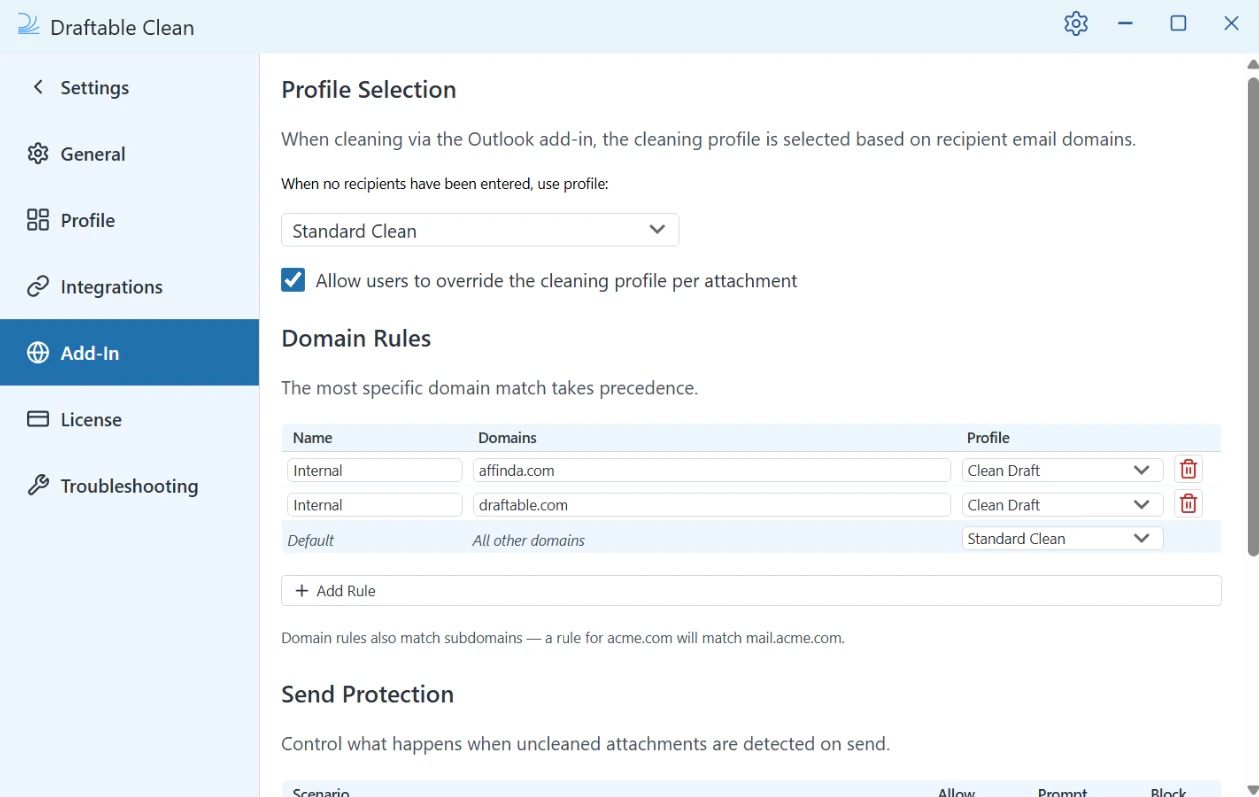
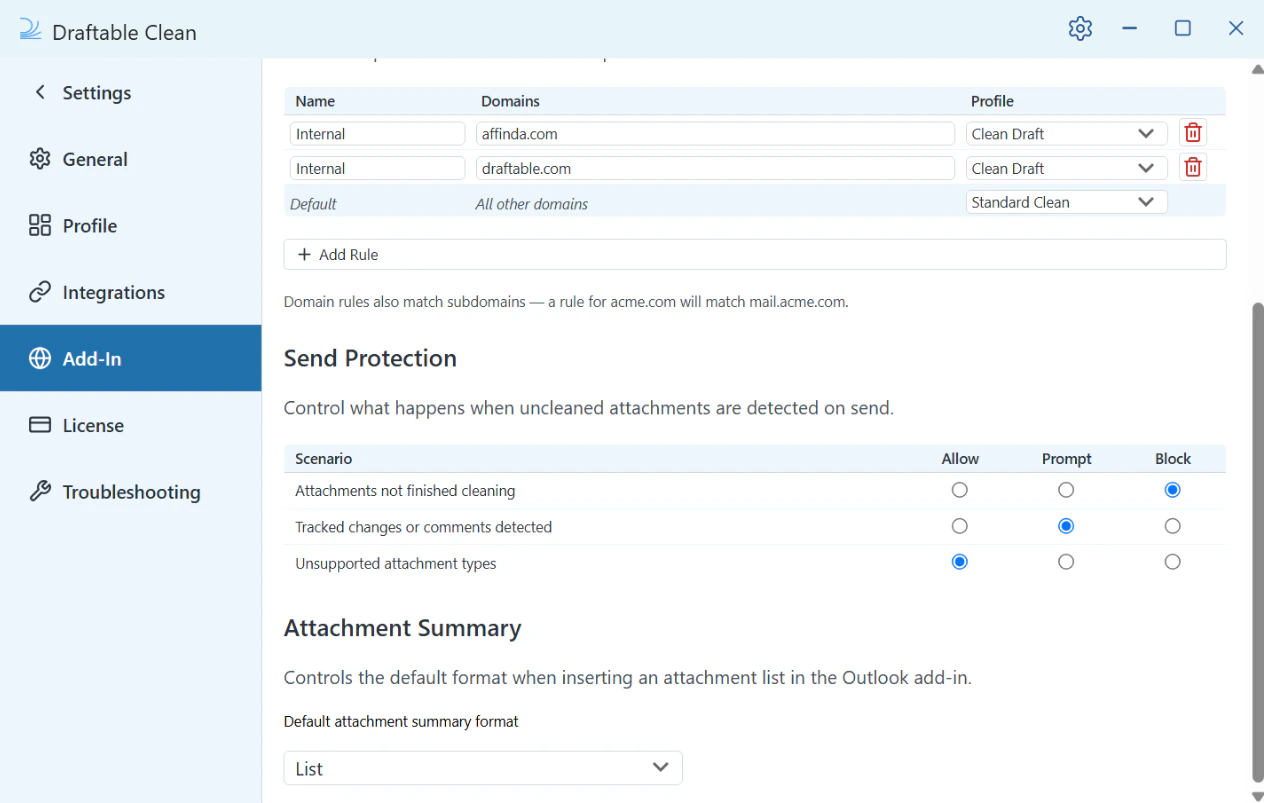
Once deployed, the add-in’s behavior is controlled through the Settings > Add-In section of the Draftable Clean desktop application. Administrators can also manage these settings centrally using Group Policy or Microsoft Intune. Key settings include:- Profile Selection — Default cleaning profile and domain-based profile rules
- Domain Rules — Map recipient domains to cleaning profiles (e.g. internal domains use Clean Draft, external domains use Standard Clean)
- Send Protection — Control what happens when attachments are still cleaning, tracked changes are detected, or unsupported file types are attached
- Attachment Summary — Default format (List or Table) when inserting an attachment list
Troubleshooting
If you experience issues with deployment, add-in visibility, cleaning behavior, or updating the manifest, see Troubleshooting: Outlook Add-in.Next steps
Quick Start Guide
Learn how to use the Draftable Clean Outlook Add-in to clean your first email attachments.
Configuring preferences with Group Policy
Centrally manage add-in settings and lock organisation defaults using Group Policy.
Deployment options
Install the Draftable Clean desktop application required for the add-in to function.
Troubleshooting: Outlook Add-in
Resolve deployment, manifest, cleaning, update, and cache issues with the Outlook add-in.