

Administrative templates
Draftable Clean provides administrative templates (ADMX/ADML files) that list all available settings, making it easy to discover and configure them directly from the Group Policy editor without needing to know individual registry paths.Obtain the templates
current folder is a shortcut that always points to the latest installed version.Download Draftable Clean Group Policy files
DraftableClean.admx and an en-US folder holding DraftableClean.adml. Keep that structure when you copy the files in the next step.Install the templates
.admx file to:.adml language file from:Edit policies
- Computer Configuration > Administrative Templates > Draftable Clean
- User Configuration > Administrative Templates > Draftable Clean
Available policy settings
Draftable Clean policies are written under the following registry root, depending on the scope you select in the Group Policy editor:Licensing
Configure product key
Configure product key
HKLM) or per user under User Configuration (HKCU).HKLM\Software\Policies\Draftable\Clean or HKCU\Software\Policies\Draftable\Clean. That path is unchanged, so existing deployments keep working. The policy simply makes the same value configurable from the Group Policy editor.Activation (...\Clean\Activation)
Accept terms and conditions on behalf of users
Accept terms and conditions on behalf of users
Outlook add-in (...\Clean\AddIn)
Default cleaning profile (no recipients)
Default cleaning profile (no recipients)
NoRecipientsProfileId to built-in-skip to leave attachments unchanged until recipients determine which rule applies. Use Outlook add-in 1.12.110.0 or later for Skip Cleaning.This setting is separate from domain rules. Domain rules apply once recipients are present; this policy controls the profile when an email has no recipients.Clean attachments in New Outlook (beta)
Clean attachments in New Outlook (beta)
- Enabled writes
1: Clean attempts to clean attachments in New Outlook. - Disabled writes
0: Clean does not clean attachments or check emails before sending in New Outlook. The add-in pane explains that your organisation has turned it off. - Not configured: users choose in Settings > Add-In > New Outlook (beta). The default is on.
Allow per-attachment profile override
Allow per-attachment profile override
Default attachment list format
Default attachment list format
table or list.Send behaviour: attachments not finished cleaning
Send behaviour: attachments not finished cleaning
block (prevent sending), prompt (ask user), allow (send anyway).Send behaviour: tracked changes or comments detected
Send behaviour: tracked changes or comments detected
block (prevent sending), prompt (ask user), allow (send anyway).Send behaviour: unsupported file types
Send behaviour: unsupported file types
block (prevent sending), prompt (ask user), allow (send anyway).Configure Outlook add-in settings (JSON)
Configure Outlook add-in settings (JSON)
Configure domain rules
Configure domain rules
...\Clean\DomainRules.Domain rules map recipient email domains to cleaning profiles, so the Outlook add-in automatically applies the right profile based on who an email is being sent to. When you configure rules through the app UI (Settings > Add-In), Draftable Clean writes them to the registry for you. When you deploy centrally through the Configure domain rules policy, you set the same value — DomainRulesJson — directly, so it helps to know the JSON format.NoRecipientsProfileId), listed under Outlook add-in in Available policy settings. Domain rules only apply once recipients are present.JSON format
The policy value is a single JSON object with arules array. Each rule maps one or more domains to a profile:Choosing the profile ID
TheprofileId in each rule identifies a cleaning profile or the special Skip Cleaning option. The three built-in profiles and Skip Cleaning have fixed IDs that are identical on every machine:profileId.How domain rules are matched
- For a single recipient domain, the most specific matching pattern wins. An exact match beats a parent-domain (subdomain) match, which beats the wildcard
*. - When an email has recipients across multiple domains, cleaning takes precedence over skipping. Skip Cleaning applies only when every recipient resolves to a skip rule. If any recipient matches a cleaning rule, or matches no rule, that cleaning profile or the default profile is applied. After selecting the most specific rule for each recipient, Draftable Clean applies the least specific of those selected cleaning rules to the email. For example, if an internal recipient matches a named domain rule and an external recipient matches a catch-all cleaning rule (
*), the catch-all rule’s profile is applied.
Disabling cleaning for specific domains
In Draftable Clean 26.10.0 or later with Outlook add-in 1.12.110.0 or later, set the domain rule’sprofileId to built-in-skip. You can also select Skip Cleaning (do not clean) in Settings > Add-In.Add a domain rule
domains list contains your internal domains and whose profileId is built-in-skip.Keep the catch-all rule
["*"] rule pointing at a full cleaning profile so external mail is still cleaned.Email export — desktop Email button (...\Clean\Export)
These settings apply to the desktop application’s Email button, not the Outlook add-in.
Configure custom email subject
Configure custom email subject
Configure custom email body
Configure custom email body
Configure email attachment summary format
Configure email attachment summary format
List) is used.PDF bundles (...\Clean\Export)
These settings control the defaults for the PDF bundle action, which combines several files into a single PDF. They share the ...\Clean\Export subkey with the email export settings above. All five were added in v26.9.0.
Users can change these options themselves from the Bundle menu in the toolbar. Setting a policy fixes the value for the organization and prevents users from changing it.
Configure PDF bundle index page
Configure PDF bundle index page
Configure PDF bundle bookmarks
Configure PDF bundle bookmarks
Configure PDF bundle page numbers
Configure PDF bundle page numbers
Configure PDF bundle page number format
Configure PDF bundle page number format
{page} for the current page and {total} for the total page count.Applies only when Configure PDF bundle page numbers is enabled. When not configured, the default format Page {page} of {total} is used.{page}, {page} / {total}, Page {page}, and Page {page} of {total} — each shown with 1/1 substituted so users see how the numbering will look. If you set a template here that is not one of those four, it appears in that dropdown as a Custom entry, so users still see the value actually in use.Configure PDF bundle page number position
Configure PDF bundle page number position
Right is used.Cleaning profiles and enforcement (...\Clean\Profiles)
Configure admin cleaning profiles
Configure admin cleaning profiles
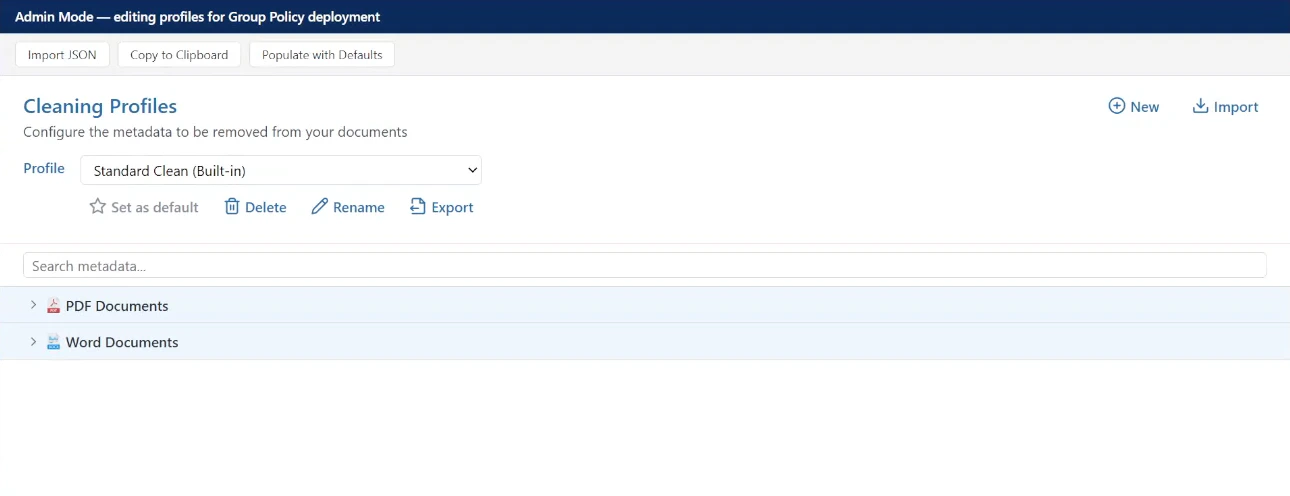
--admin-profile-editor flag, edit profiles visually, then copy the exported JSON into the Group Policy setting. If you deploy settings via Microsoft Intune, you can use the editor to generate the JSON value, but you must deploy it through your Intune configuration profile — see Configuring preferences with Microsoft Intune.--admin-profile-editor flag:- Copy the existing profile collection JSON string from Group Policy
- Open Draftable Clean with the
--admin-profile-editorflag - Import the JSON string into the admin profile editor
- Make the required changes using the visual editor
- Copy the updated JSON string back to the clipboard
- Paste the updated JSON string into the Group Policy setting to apply the changes
- Launch Draftable Clean with the
--admin-profile-editorflag. When nothing is imported, the editor starts with the three built-in profiles. - Create your organization’s profile and set it as the default.
- Delete the built-in profiles you do not want users to see.
- Export the JSON and deploy it through this policy.
Configure enforced cleaning rules
Configure enforced cleaning rules
Document management: iManage (...\Clean\iManage)
Enable iManage integration
Enable iManage integration
Configure iManage server address
Configure iManage server address
https://cloudimanage.com) is used.Sign in to iManage automatically
Sign in to iManage automatically
Use system browser to sign in to iManage
Use system browser to sign in to iManage
Skip the iManage system-browser sign-in confirmation prompt
Skip the iManage system-browser sign-in confirmation prompt
Document management: NetDocuments (...\Clean\NetDocuments)
Enable NetDocuments integration
Enable NetDocuments integration
Allow check-in to NetDocuments
Allow check-in to NetDocuments
Privacy and telemetry (...\Clean\Reporting)
Configure submission of error reports
Configure submission of error reports
Configure submission of usage statistics
Configure submission of usage statistics
Acknowledge telemetry notice on behalf of users
Acknowledge telemetry notice on behalf of users
Configure an organization identifier
Configure an organization identifier
Local HTTP listener (...\Clean\Listener) — Computer Configuration only
Configure HTTP listener port
Configure HTTP listener port
5044) is used.