

Choose your configuration method
Active Directory Group Policy
For on-premises environments. Uses ADMX/ADML administrative templates.
Microsoft Intune
For cloud-managed devices. Import ADMX templates or configure registry settings via OMA-URI.
How Draftable Clean settings work
Draftable Clean stores its configuration in the Windows Registry. When the application starts, it reads the current registry settings to determine its behavior — including cleaning profiles, DMS integrations, licensing, privacy preferences, and more. Administrators can manage these settings using any tool that writes to the registry, including Group Policy, Microsoft Intune, registry scripts, or other endpoint management tools.Configuring with Active Directory Group Policy
Administrative templates
Draftable Clean provides administrative templates (ADMX/ADML files) that list all available settings, making it easy to discover and configure them directly from the Group Policy editor without needing to know individual registry paths.Obtaining the templates
The templates are found in the GroupPolicy folder under the Draftable Clean installation path. Thecurrent folder is a shortcut that always points to the latest installed version.
Installing the templates
Copy the Draftable Clean.admx file to:
.adml language file from:
- Copy to your organization’s Central Store network path
- Import as custom ADMX templates via Microsoft Intune — see below
Editing policies
Once installed, Draftable Clean policies appear in the Group Policy editor under:- Computer Configuration > Administrative Templates > Draftable Clean
- User Configuration > Administrative Templates > Draftable Clean
Some settings may only appear under one scope if they are not supported in the other.
Available policy settings
Computer Configuration
| Setting | Description |
|---|---|
| Product key | Set the product key for automatic license activation across user machines |
| Setup automatic updates | Control whether updates are applied automatically (non-MSI installer). If disabled, updates must be applied manually. |
| Send usage statistics | When enabled, anonymised usage data is sent to Draftable for diagnostics |
| Submission of exception reports | Control whether automatic crash and error reports are sent. Options: Always send, Never send |
| Accept terms and conditions on behalf of users | Automatically accept T&Cs on first launch, so users are not prompted |
| Launch Draftable automatically when Windows starts | If enabled, Draftable Clean launches on startup unless the user opts out |
| Users can share error logs | Controls whether the error dialog includes a button to email logs (enabled by default) |
| Custom error message | Set a custom error message shown when something goes wrong during cleaning |
| Customer contact support email body | Customize the email body used when users send logs to support |
User Configuration
| Setting | Description |
|---|---|
| Configure Outlook add-in settings | Configure the Outlook add-in behavior, including profile selection and send protection |
| Configure admin cleaning profiles | Set administrator-managed cleaning profiles that users cannot edit |
| Configure custom email subject | Set the default email subject line when sharing cleaned files via the desktop application’s Email button (not the Outlook add-in) |
| Configure custom email body | Set the default email body text when sharing cleaned files via the desktop application’s Email button (not the Outlook add-in) |
| Configure domain rules | Define domain-to-profile mappings for the Outlook add-in |
| Configure email attachment summary format | Set the default format (List or Table) for attachment summaries when sharing cleaned files via the desktop application’s Email button (not the Outlook add-in) |
| Configure submission of error reports | Control whether automatic error reports are sent |
| Configure submission of usage statistics | Control whether anonymised usage data is sent to Draftable |
Configuring admin cleaning profiles
The Configure admin cleaning profiles setting is a User Configuration policy that allows administrators to define cleaning profiles centrally. These profiles are deployed to users and cannot be edited by them. The policy value is a JSON string representing the profile collection. To create or update admin cleaning profiles, administrators typically need to edit this JSON string directly. Workflow for updating admin profiles:- Copy the existing profile collection JSON string from Group Policy
- Open Draftable Clean with the
--admin-profile-editorflag - Import the JSON string into the admin profile editor
- Make the required changes using the visual editor
- Copy the updated JSON string back to the clipboard
- Paste the updated JSON string into the Group Policy setting to apply the changes

Priority of settings
Unless otherwise noted, the order of precedence from highest to lowest priority is:- User Policy (set in User Configuration via Group Policy)
- Computer Policy (set in Computer Configuration via Group Policy)
- User Setting (set by the user through the application UI, or by manually editing the registry)
Configuring with Microsoft Intune
Because Draftable Clean reads its configuration from the Windows Registry, Intune can manage it in two ways:Option 1: Import ADMX templates
Import the Draftable ADMX templates into Intune to manage settings via the admin center — the same settings experience as Group Policy, managed from the cloud. See the Microsoft documentation for importing custom ADMX templates.Option 2: Configure registry settings directly
Use Intune’s OMA-URI or Configuration Profiles to write specific registry values. This does not require the ADMX templates and gives you direct control over individual registry keys.User-facing settings
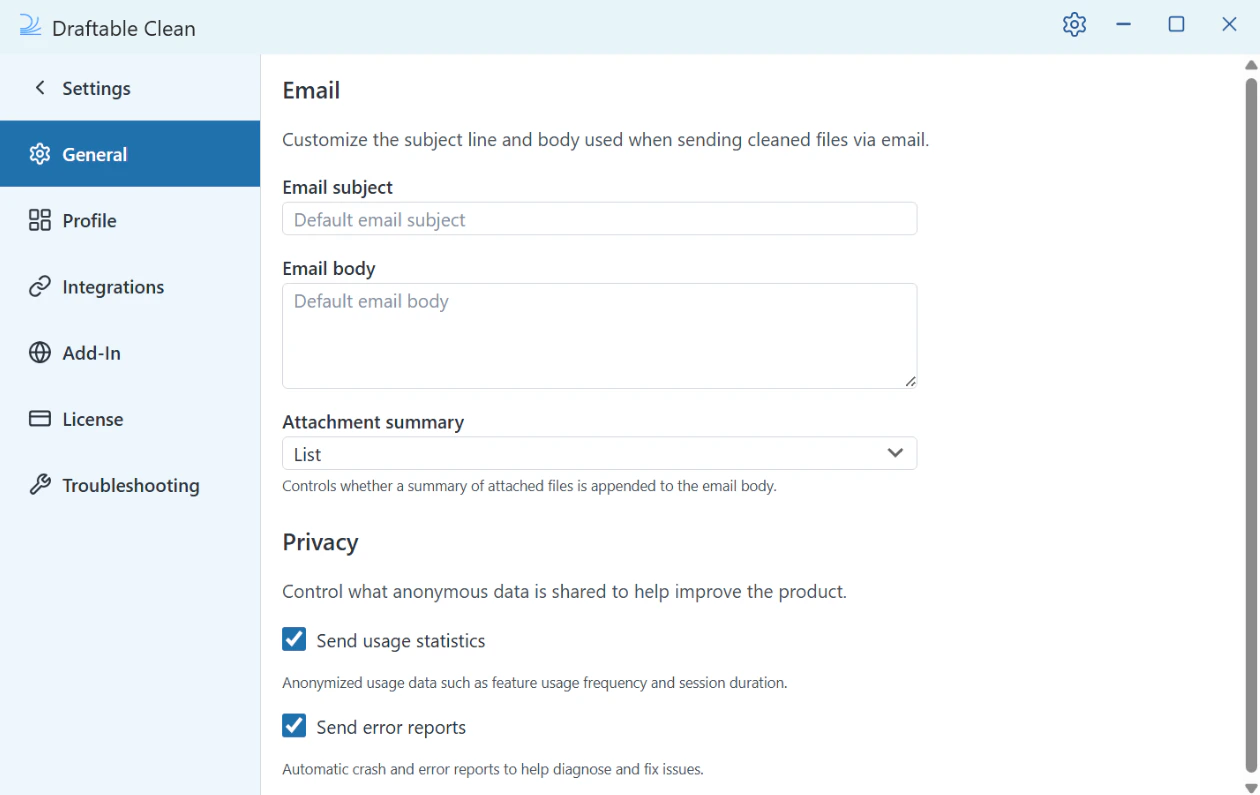
In addition to administrator-managed settings, individual users can configure Draftable Clean through the Settings panel (gear icon, top-right corner):| Section | What can be configured |
|---|---|
| General | Email subject/body templates, attachment summary format (desktop Email button), privacy (usage statistics, error reports) |
| Profile | Create, delete, rename cleaning profiles and set defaults. Built-in profiles and administrator-configured profiles cannot be edited by users. See Metadata cleaning profiles |
| Integrations | iManage (enable, Server URL, auto-connect), NetDocuments (auto-detected via ndOffice) |
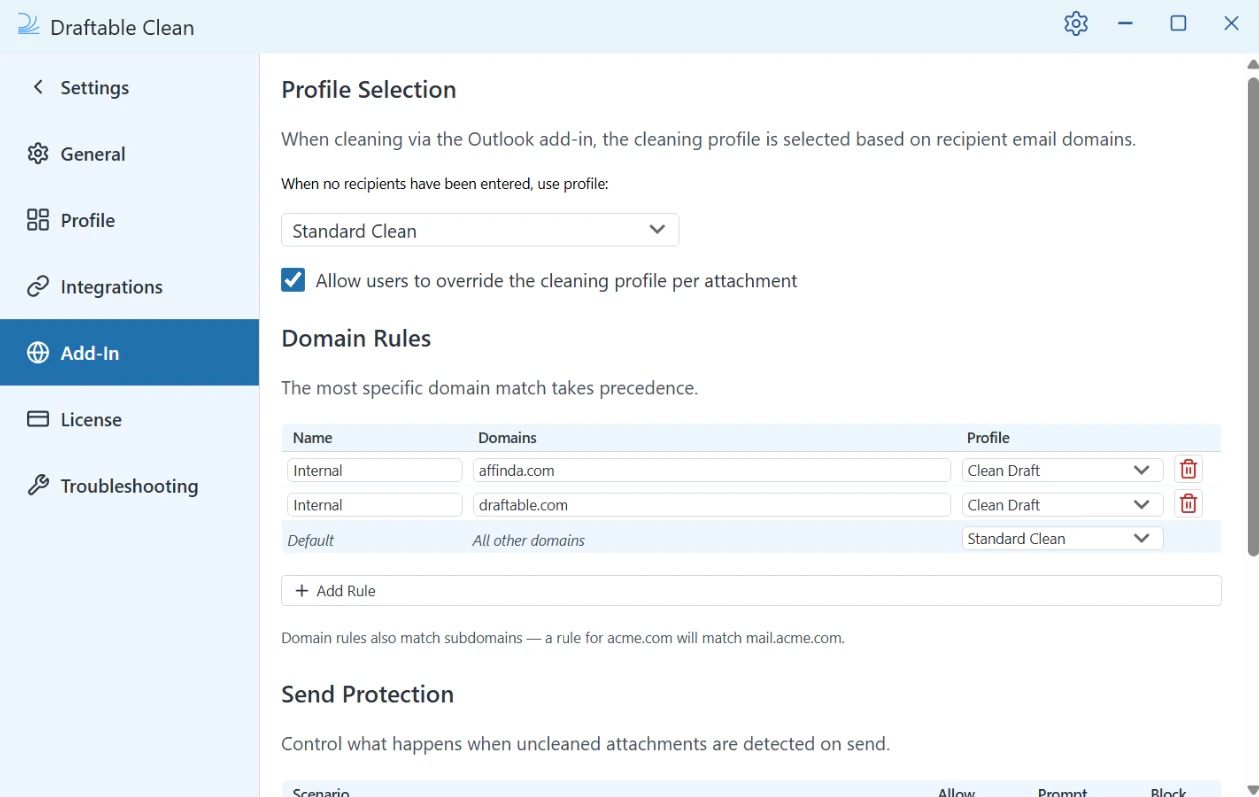
| Add-In | Outlook add-in: profile selection, domain rules, send protection, attachment summary format |
| License | License status, edition, and expiry date |
| Troubleshooting | Email logs, export error logs, open log folder. See Diagnostic logs and support |

Add-In settings
The Add-In section controls how the Draftable Clean Outlook add-in behaves:- Profile Selection — The cleaning profile is selected based on recipient email domains. The default profile when no recipients are entered is Standard Clean. An option to allow users to override the cleaning profile per attachment can also be enabled.
- Domain Rules — Maps recipient domains to cleaning profiles. For example, an “Internal” rule for
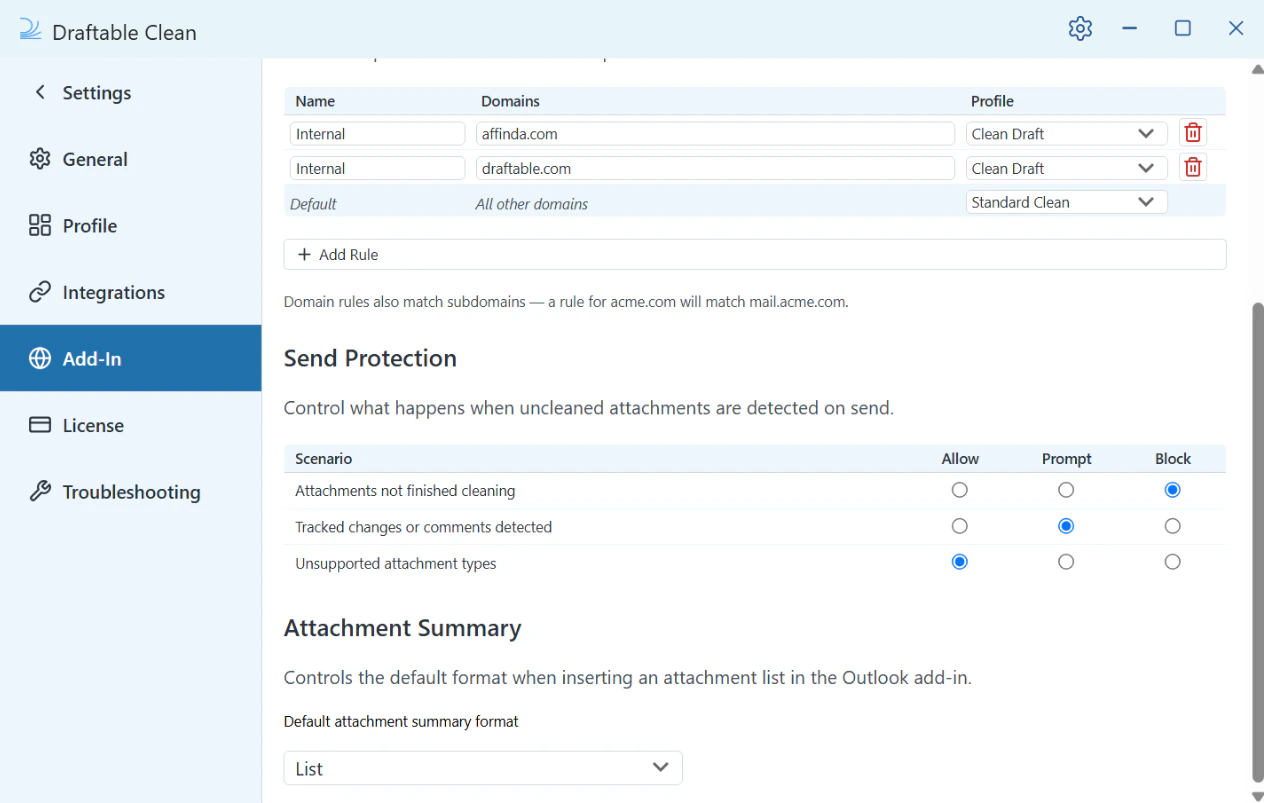
yourfirm.comuses Clean Draft, while “Default” (all other domains) uses Standard Clean. Rules also match subdomains — a rule foracme.comwill matchmail.acme.com. The most specific domain match takes precedence. - Send Protection — Controls what happens when issues are detected on send. “Attachments not finished cleaning” defaults to Block; “Tracked changes or comments detected” defaults to Prompt; “Unsupported attachment types” defaults to Allow. Each scenario can be set to Allow, Prompt, or Block.
- Attachment Summary — Controls the default format when inserting an attachment list. Default: List.
Where a Group Policy or Intune-managed setting exists, it takes priority over the user’s own setting.