

- A new one-screen Outlook pane with Clean all and Skip all.
- Clean on request, so users choose how to clean before anything changes.
- One setting for sending without cleaning, with approved domains.
- New Group Policy controls for the cleaning trigger, skipping and user profiles.
What changes when you update
Nothing is rewritten when you update. Draftable Clean reads your existing settings in the new way. Stored domain rules change only when someone next changes a domain rule in Settings > Add-In. Clicking into a Domains box and out again counts as a change.Domain rules and skipping
Send policies and overrides
If the two versions differ
The add-in and Draftable Clean update separately, so your users can be on a mix for a while.A new one-screen Outlook pane
Everything now happens on one screen, with no separate Manage Attachments page.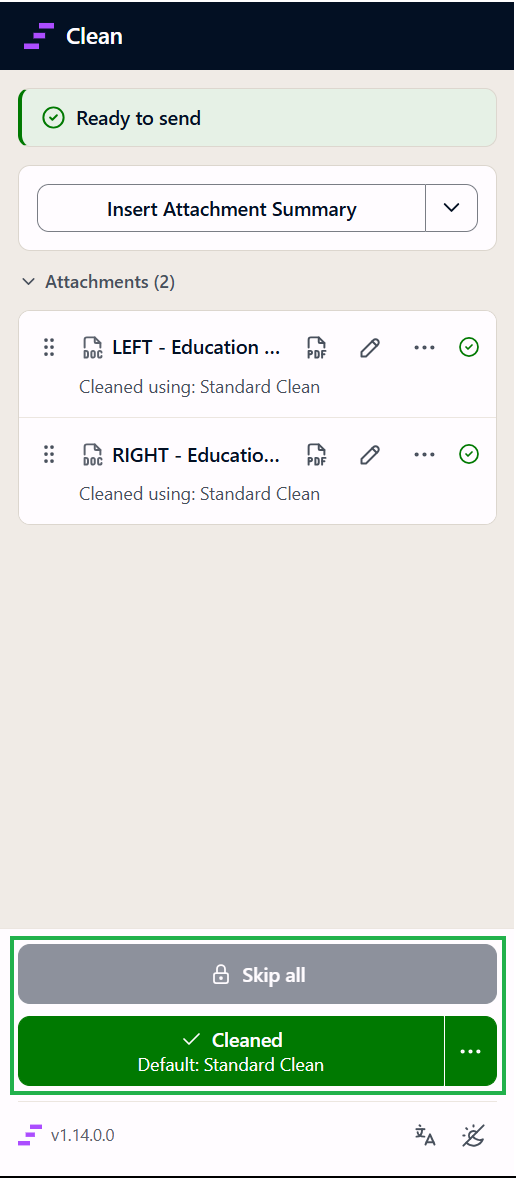
- Clean all shows the profile it will use. If your organization allows per-attachment choices, its … menu offers Your organisation’s rules and the available profiles.
- Skip all sits beside it, and shows a padlock when your organization doesn’t allow skipping for the recipients.
- A green Ready to send strip appears when Send will go through without a question.
- Icons beside the attachment count jump to the file that needs attention.
- Each file shows Cleaned using and the profile. Rename and Convert to PDF are icons on the row, and the … menu holds the profile and Save to options.
Clean on request
Administrators, or users where no policy is set, can change Clean attachments from When attached to On request in Settings > Add-In > Cleaning Start.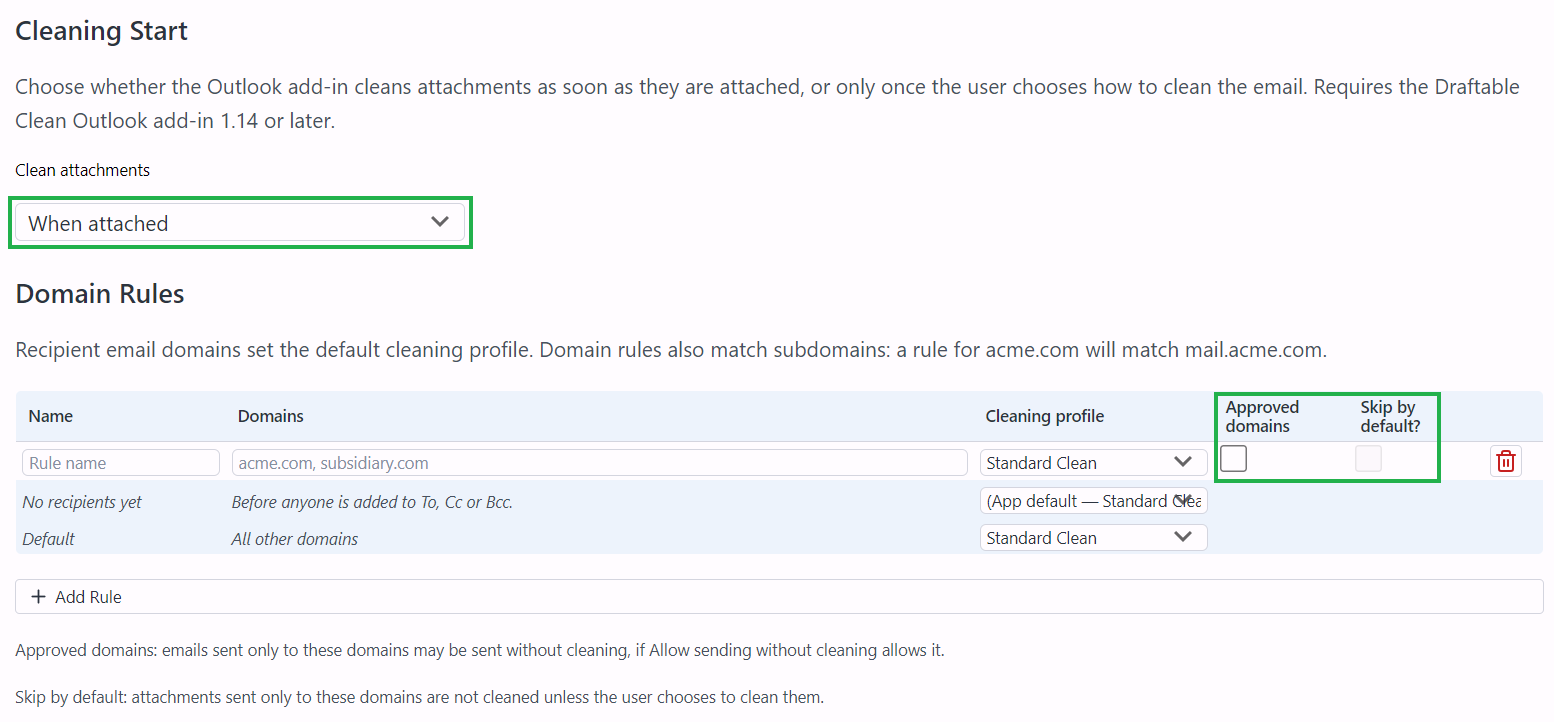
Allow sending without cleaning
Settings > Add-In > Send Protection now has one setting for when attachments can leave without being cleaned:
With When attached, files skip automatically only when every recipient’s rule also has Skip by default? ticked.
New Group Policy controls
The Group Policy templates are now revision 2611.1, with 40 policies. No policy was removed or renamed.- Configure when the Outlook add-in cleans attachments (
CleaningTrigger) sets When attached or On request. - Allow sending without cleaning (
SendWithoutCleaning) sets Never, Approved domains only or Always. - Allow user profiles (
AllowUserProfiles). When disabled, users see only administrator or built-in profiles and can’t create or edit their own. Their profiles are hidden, not deleted, and return if the policy is enabled again. - The three send behaviour policies are now Block, Prompt or Allow dropdowns.
Other improvements
- ZIP and PDF cleaning reports list every embedded file, say No metadata detected for files with nothing to clean, and say why a file could not be read.
- Epona 365 files show their version, and saving confirms the new version number.
- If a file is protected by another organization and Draftable Clean can’t open it, the message says so and offers Sign in with a different account. Your account needs access in that organization.
Fixes
- Long file names no longer get cut off in pane messages and the status line.
- A partly cleaned ZIP keeps its Partly cleaned status after the pane is closed and reopened.
- The blank browser menu no longer appears on right-click.
- Accepting tracked changes keeps Word table rows wrapped in content controls.
- Usage statistics no longer include the computer name.
Administrator notes
- The Outlook add-in requires Draftable Clean 26.6.0 or later. On request, Skip all and per-file Skip cleaning need both Draftable Clean 26.11.1 and add-in 1.14.0.0.
- There is no change to the add-in’s permissions or Microsoft Entra apps. Tenants using the latest manifest receive 1.14.0.0 automatically, and pinned deployments must be updated by an administrator. See installing the Outlook add-in.
- The iManage package has not changed, so there is nothing to redeploy.