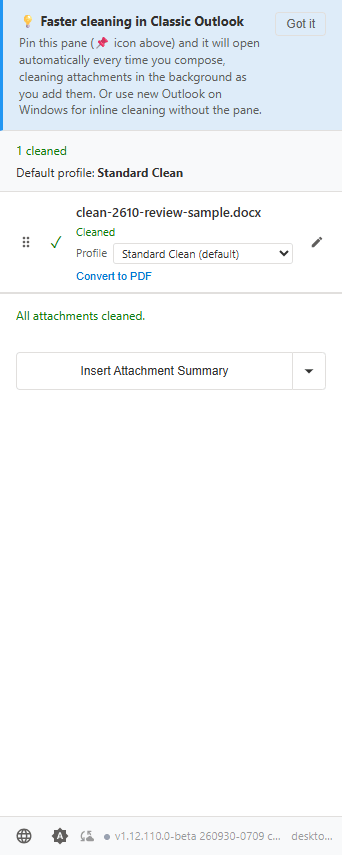
- Skip Cleaning for trusted recipients, or before any recipients have been entered.
- Control Clean in New Outlook, with a user setting and an administrator policy.
- Review a file’s source and activity from the desktop file list.
- See real NetDocuments version labels, such as 2.1.
- Use more reliable Outlook send protection, attachment tracking, and email size checks.
Choose when to skip cleaning
In Settings > Add-In, you can now select Skip Cleaning (do not clean) for the no-recipient default and for domain rules. The Outlook pane labels these files Skipped, and they remain unchanged.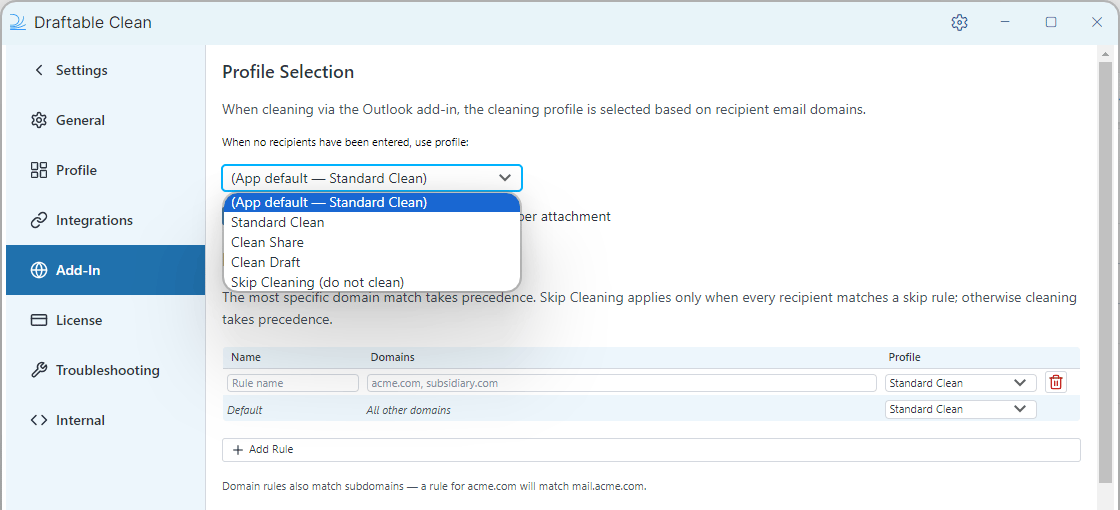
Control Clean in New Outlook
Under Settings > Add-In > New Outlook (beta), Clean attachments in New Outlook lets you turn Clean on or off for New Outlook for Windows. Administrators can enforce the choice through Group Policy or Intune.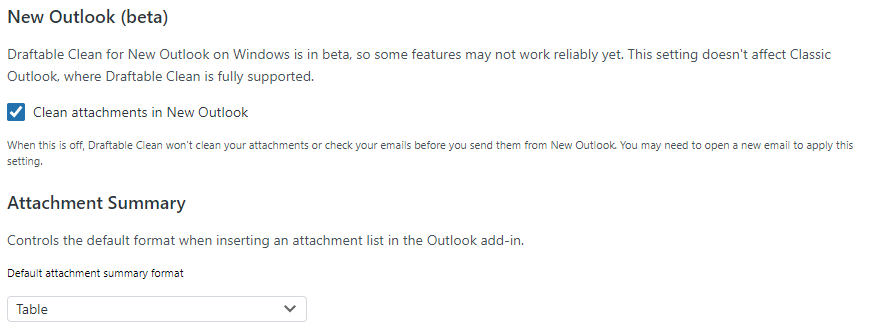
Review file origins and activity
Select the File history icon beside a filename to see its original filename, source, output filename, and the activity recorded for it during the current session.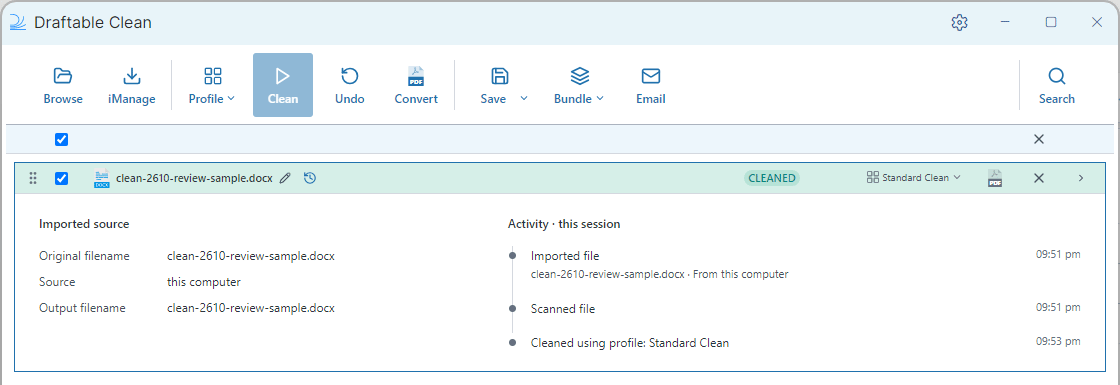
More reliable Outlook attachments and send protection