

- Clean files protected by Microsoft Purview, in the desktop application and in Outlook, once an administrator turns it on.
- Save cleaned attachments to your document management system straight from the Outlook pane.
- Clean larger attachments, up to Microsoft’s attachment limit of about 24 MB.
- Skip Cleaning is instant and quiet when cleaning does not apply to the recipients.
- Steadier banners in Classic Outlook.
Clean files protected by Microsoft Purview
Draftable Clean can now open and clean documents protected with a Microsoft Purview sensitivity label. This is off by default. An administrator turns it on with the Enable Microsoft Purview protected file support policy. While it is off, protected files are shown as not supported and left unchanged. When you select a protected file, Draftable Clean asks you to sign in to Microsoft 365 and decrypts the file on your computer. You need the Extract right on the file; the View right alone is not enough, and Draftable Clean tells you so. Opening a protected file asks for one Microsoft permission only, Create and access protected content for users. If your organization does not let users approve permissions, an administrator approves it once. The cleaned copy is an ordinary unprotected file: the sensitivity label and its encryption are not carried over. Before you save it, Draftable Clean asks Remove Microsoft Purview protection? and you choose Save unprotected copy. Administrators can instead block saving unprotected copies. A cleaned protected file cannot be added to a ZIP or PDF bundle; save it on its own.Protected attachments in Outlook
With Draftable Clean 26.11.0, add-in 1.13.0.0 and Purview support turned on, protected attachments are cleaned in Outlook in the same way:- For recipients that get cleaning, the add-in attaches the cleaned, unprotected copy without asking for each file. If your administrator blocks unprotected copies, the attachments stay uncleaned and protected.
- For recipients that skip cleaning, protected attachments are sent as they are, still protected.
Save cleaned attachments to your DMS from Outlook
Once a file is cleaned, or converted to PDF, the Outlook pane shows a Save to button for each document management system turned on in Draftable Clean: iManage, NetDocuments, SharePoint and Epona 365. Only the cleaned copy is uploaded. Files are saved one at a time, always as a new document.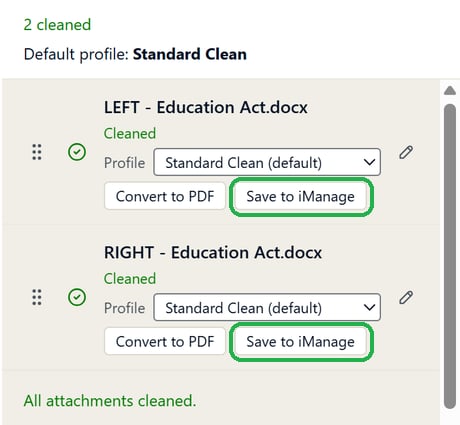
Clean larger attachments
Attachments up to Microsoft’s attachment limit of about 24 MB can now be cleaned. The add-in removes the original from the email before adding the cleaned copy, so the email stays within the limit. Larger files that need cleaning show File exceeds maximum size (24 MB), and Send is held until you remove them. Files that do not need cleaning, for example for recipients that skip cleaning, are sent as they are.Quieter Skip Cleaning
When cleaning is skipped or turned off for the recipients, the add-in no longer checks the attachments and shows no banner. Attachments are marked Skipped straight away and sent unchanged.Classic Outlook banner improvements
- Banners no longer flicker while you write.
- The Open Draftable Clean banner appears only once the email has recipients and the pane is closed.
Fixes
- PDFs whose file name, folder or password contains characters such as ü, 漢 or € now open and clean correctly.
- Converting PowerPoint files to PDF while other files are loading no longer causes a rare crash.
- After saving back to NetDocuments, the confirmation names the document even when NetDocuments does not return its details.
- If recipients change from internal to external while files are cleaning, files are cleaned again or Send is held.
- Connection fixes between Draftable Clean and the Outlook add-in on multi-user hosts, in Outlook on the web and New Outlook, and when closing Draftable Clean.
- The Draftable Clean Windows service in the system-wide MSI is now code-signed.
Administrator notes
- The Outlook add-in requires Draftable Clean 26.6.0 or later. Protected attachments require Draftable Clean 26.11.0. There is no manifest or permission change: tenants using the latest manifest receive 1.13.0.0 automatically, and pinned deployments must be updated by an administrator. See installing the Outlook add-in.
- The Group Policy templates (revision 2611.0) have one updated explanation: the Purview save policy now describes the Outlook add-in. No policies were added or removed. See Configuring preferences with Group Policy.