

Here’s a quick summary of the five most impactful improvements:
  • Use Redlines in generative AI tools with the new AI-Ready Redline output, which exports a complete summary of all changes in a portable text format optimized for generative AI tools like Copilot and ChatGPT.
  • Start reviewing Tracked Changes immediately with Word now opening in Reviewing mode by default
  • Copy specific changed text faster with new buttons to copy inserted or deleted text directly from mixed selections in the comparison viewer
  • Run modern add-ins, including Redline in Email, in Citrix environments with expanded support for virtual desktop and remote session environments
  • Compare specific sections of emails in Outlook with Redline in Email’s new option to compare only the selected text, making it easier to analyze changes in long email threads
Let’s explore these in more detail. But first, a note from our product team Our product improvements are the direct result of feedback from our customers. We are extremely grateful for the excellent feedback we received which allowed the February and early March 2026 releases to be possible. If you have feature ideas or product performance feedback, we would love to hear from you. Please share any suggestions with us by contacting product@draftable.com.

Core Functionality

New AI-Ready Redline exports all changes in a portable, AI-optimized text format
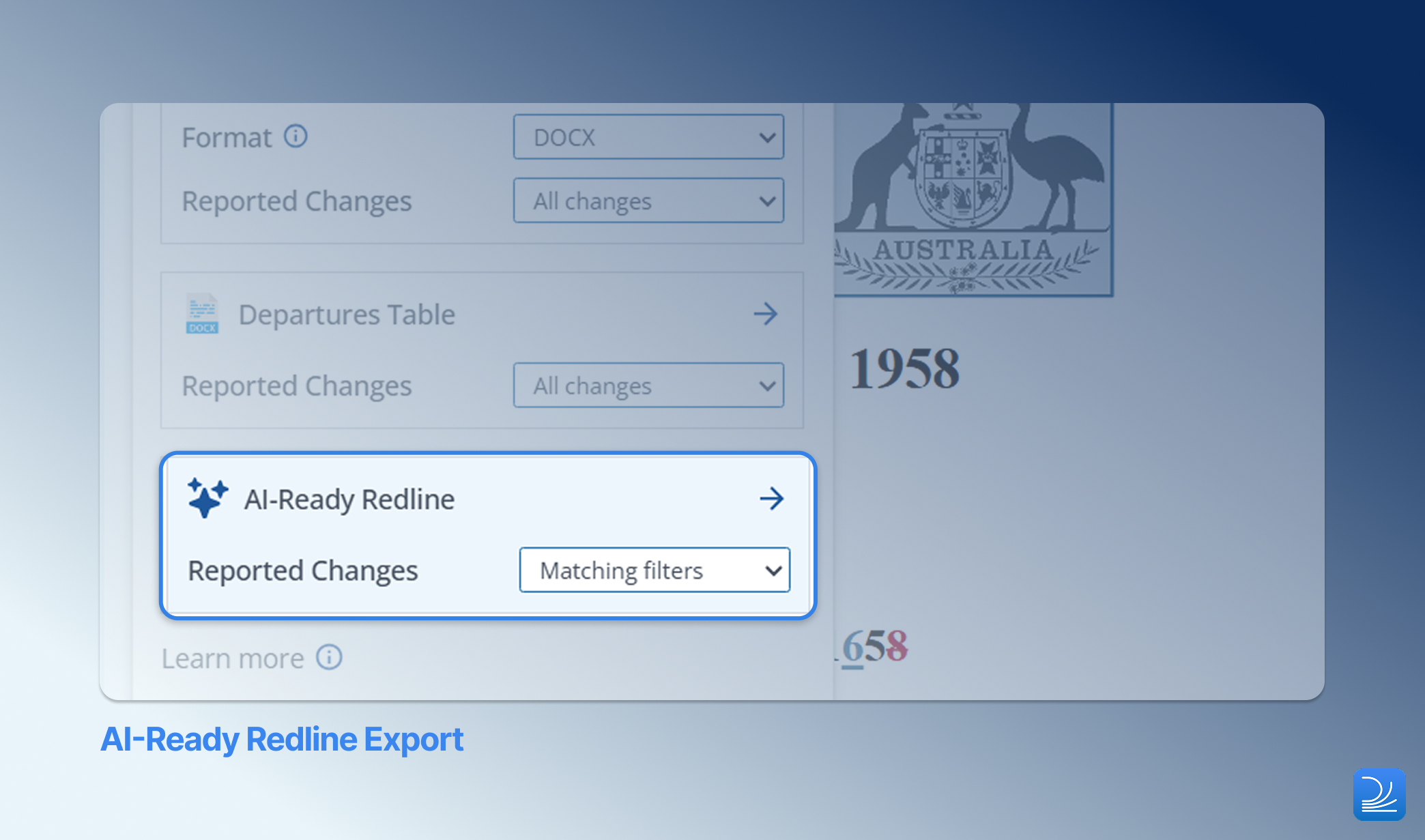
AI-Ready Redline Export The AI-Ready Redline is a deterministic summary of all deletions, insertions, and moves detected in the document, provided in a portable text format designed for use with generic generative AI tools such as Copilot, ChatGPT, and Claude, as well as legal domain-specific tools like Legora, Harvey, and CoCouncil. Previously, users could not easily share redline results with AI tools because these tools do not accept redline document formats (PDF, DOCX) as usable input. The AI-Ready Redline solves this by producing a clean, tool-agnostic text representation of all changes, complete with comparison metadata such as file names, scope, and total change count. This feature enables legal teams to bring comparison context into any AI workflow. For example, asking an AI assistant to summarise key changes, identify risk areas, or draft review notes. The AI-Ready Redline is available across Draftable’s standard next-action options (Open, Save, Copy), including Live Redline Preview. When exporting, the output respects any filters applied in the Draftable viewer, so users can produce a cleaner, more focused diff by filtering out change types they don’t need before exporting. Importantly, the AI-Ready Redline summary is generated entirely on your own machine, with no document data sent away during export. The redline output is a faithful, deterministic representation of the differences between your documents, so please be mindful of where and how you share or use the exported summary.

Ease of Use

Tracked Changes open in Reviewing mode by default
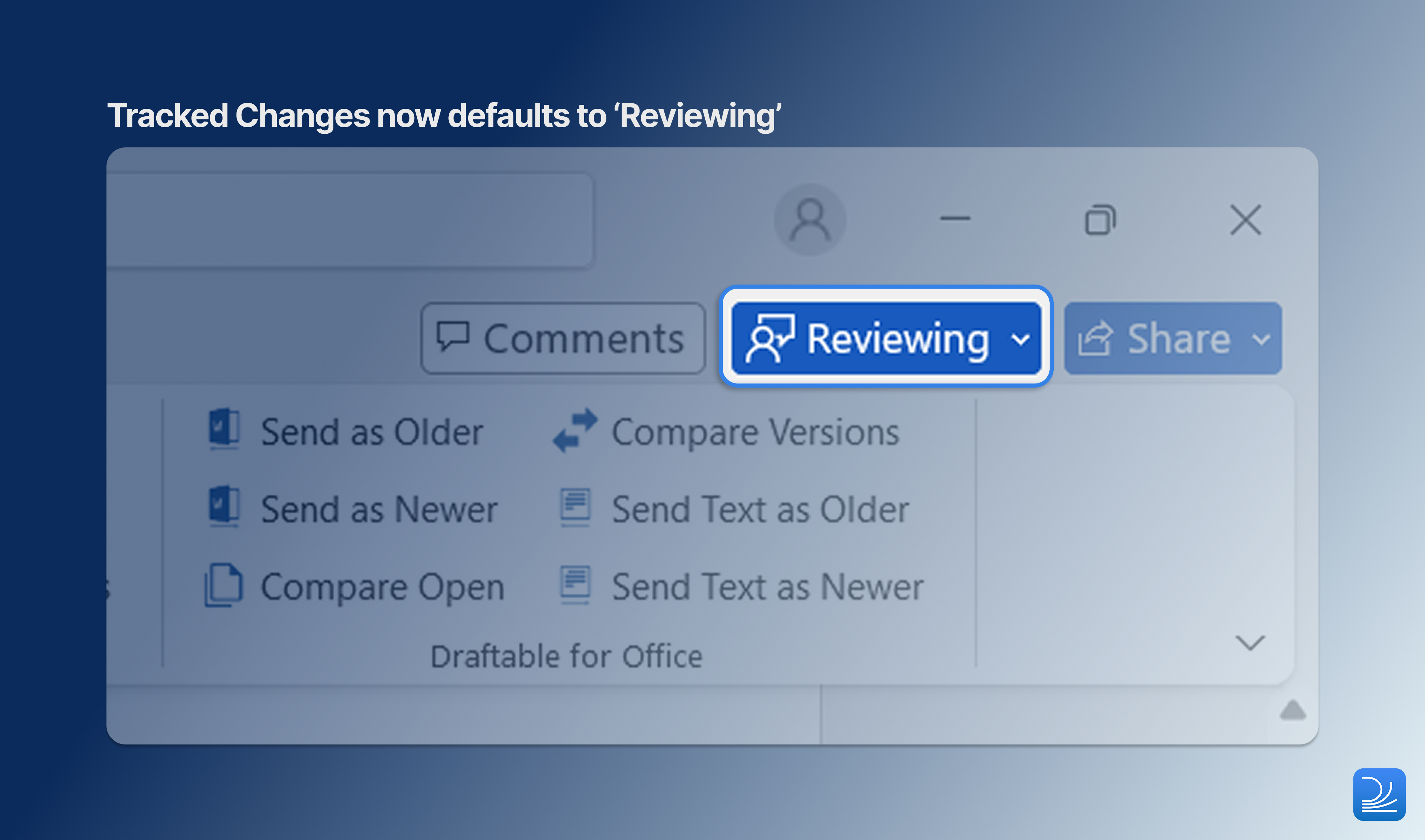
Tracked Changes now defaults to Reviewing mode When using the “Open as Tracked Changes in Word” or “Save as Tracked Changes” options, the resulting Word document now opens in Reviewing mode by default. This means users can immediately begin accepting or rejecting changes without first switching Word’s review mode manually, saving time and reducing a common source of confusion.

Copy inserted or deleted text from mixed selections
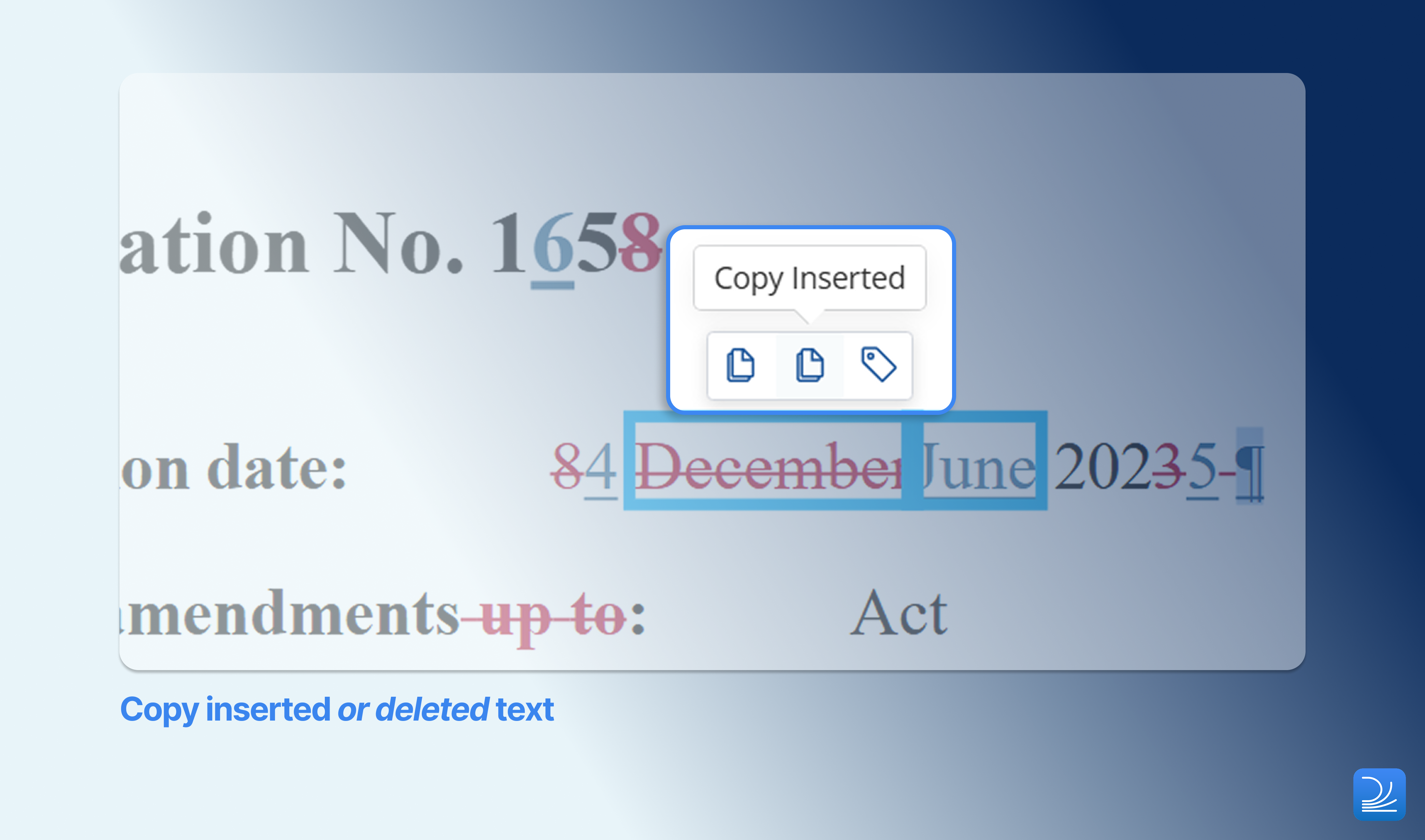
Copy inserted or deleted text A new pair of buttons in the comparison viewer allows users to copy only the inserted text or only the deleted text when a selection contains both types of changes. This makes it faster to extract specific change content for use in emails, review notes, or other documents.

Clean files after Bulk Compare

When the general “Clean files after comparison” setting is enabled, Draftable now applies the same cleanup behaviour to Bulk Compare workflows. Files in the New Comparison Window are automatically cleared after a bulk comparison completes, keeping the workspace tidy for the next batch of comparisons.

Integration Functions

Modern Add-ins are now supported in Citrix and Remote Desktop environments

Draftable’s Modern Add-ins - Draftable for/in Outlook, Draftable for/in Office, and Redline in Email - can now be used in Citrix, Remote Desktop, and other virtual desktop environments. This means that firms using these types of remote setups can now easily run comparisons within MS Office apps just like they would on a regular desktop, making it simpler for everyone in your organization to work efficiently wherever they are.

Redline in Email: compare selected text within an email
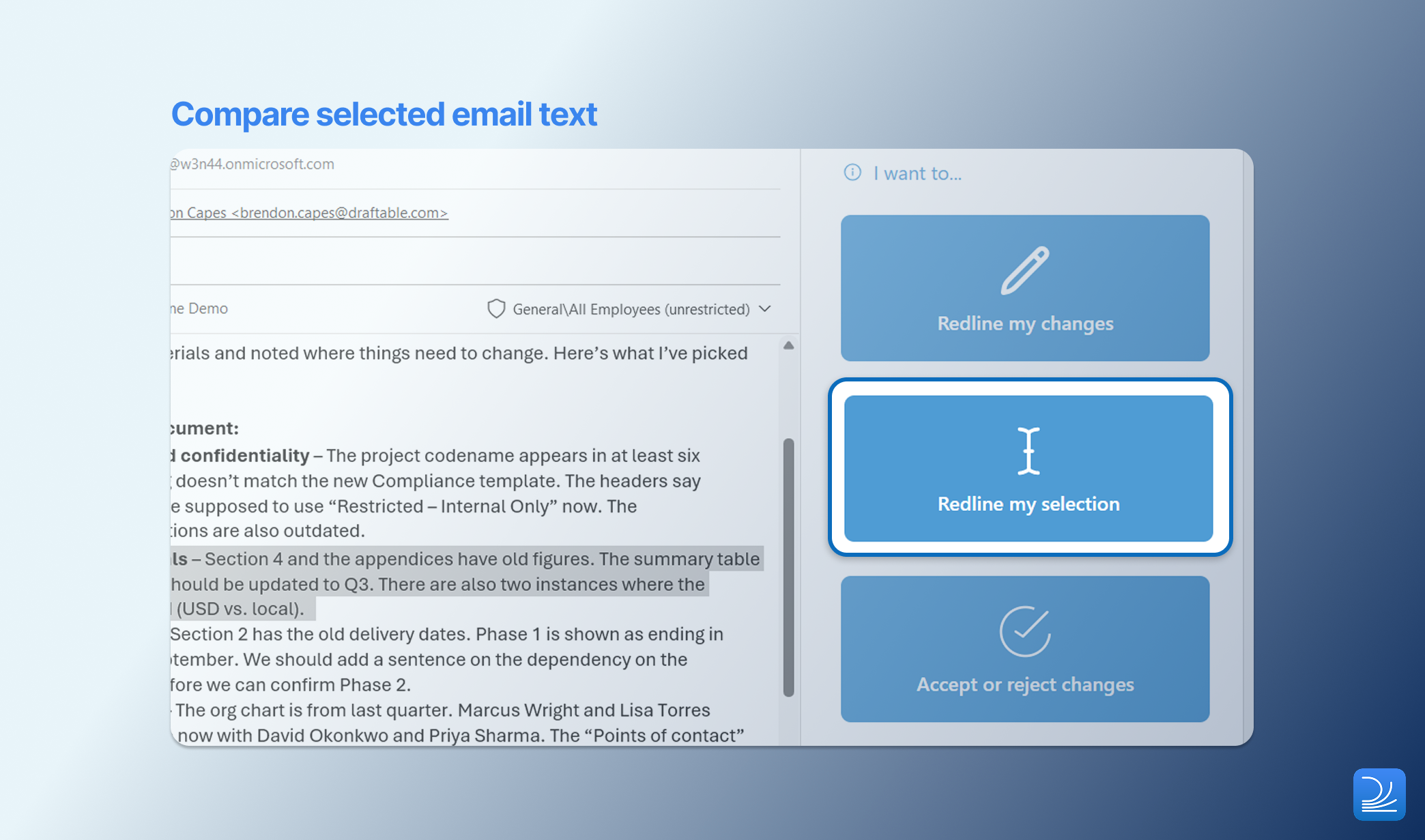
Compare selected email text Redline in Email now supports comparing only a selected portion of an email, in addition to the existing option to redline the full email body. The new “Redline my Selection” option allows users to highlight a specific section of an email - such as a single reply in a thread - and run a comparison on just that text. This is particularly useful for long email chains where only the most recent exchange is relevant, and helps users stay within Outlook’s attachment size constraints by reducing the volume of content being compared.

Markup Configuration

Advanced option to suppress small move detections within larger edits
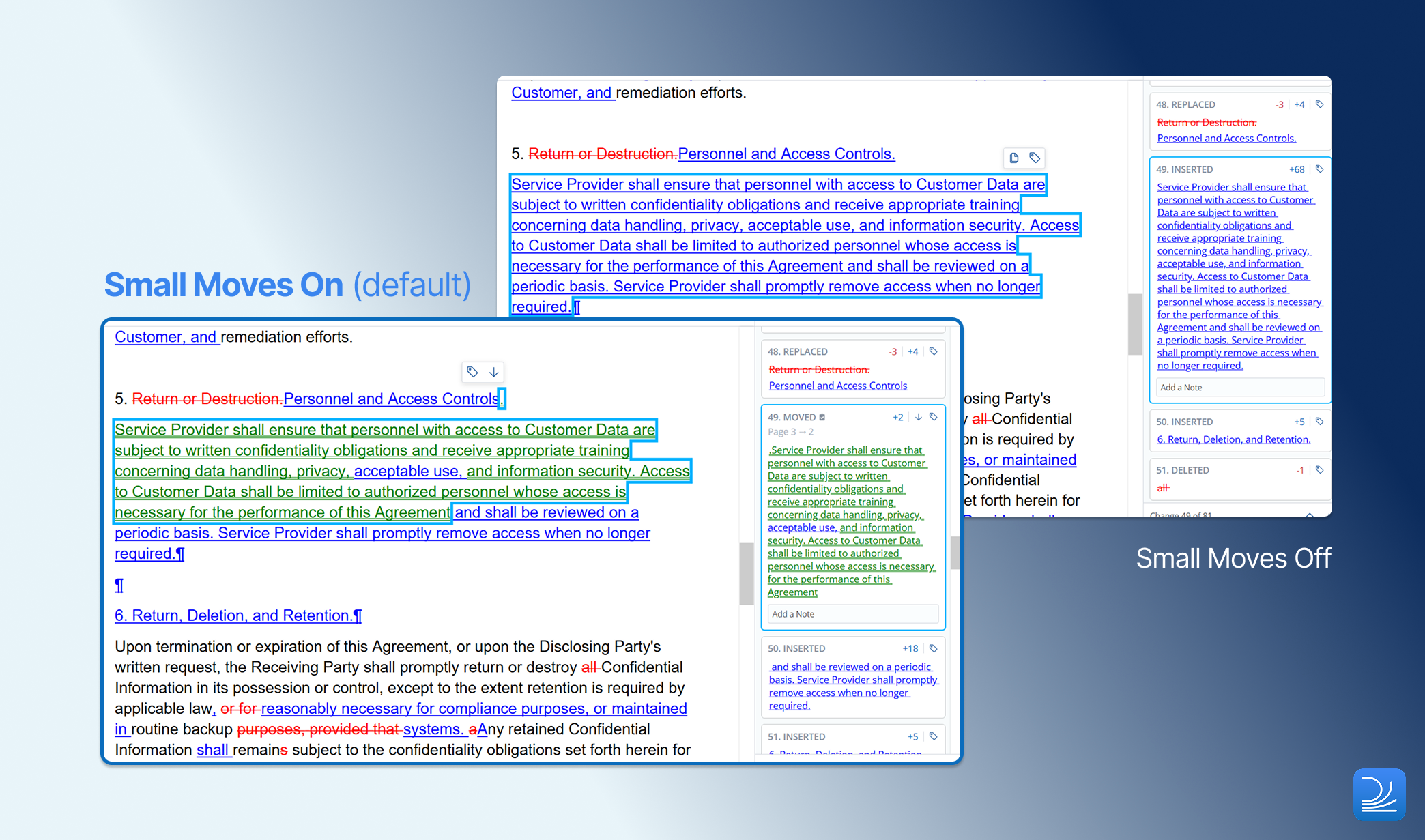
Suppress small moves in larger edits A new advanced redline setting allows users to suppress the detection of small moves that appear within larger insertions or deletions. When a paragraph is largely rewritten, the comparison algorithm may detect fragments of the old text as “moves” within the new content. This option invalidates those small move markers, producing a cleaner redline that focuses on the substantive changes. This setting is available in Redline Profile settings and is disabled by default.

Administrator Features

Clear add-ins cache from the settings screen

A new “Clear Add-ins Cache” button has been added to the Troubleshooting section of the Settings screen. This provides administrators and end users with a quick way to resolve issues caused by stale or corrupted add-in cache data without needing to manually edit registry keys or clear files from the file system.

Bug Fixes

As with all releases, the February and early March updates included fixes to several reported issues:
  • Fixed an issue where the settings window update status was not reflected in the UI
  • Fixed reserved characters not being accounted for when ignoring whitespace
  • Fixed page rotation being applied twice on certain document paths
  • [Word Add-in] Fixed file names not being read correctly
  • [iManage] Resolved an issue where opening files into Word from iManage caused an unnecessary Draftable prompt
  • [iManage] Fixed a blank Draftable screen appearing when comparing a file from Word
If you ever need help troubleshooting issues with Draftable, please reach out to support@draftable.com.