

1. Outlook for Windows (classic)
1
Open a blank message and click File, and then Options.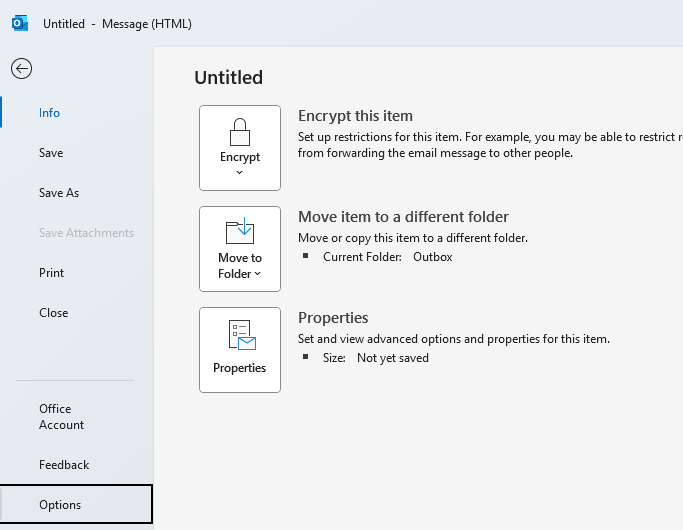
2
Select Mail, and then under the section Compose messages, select Editor Options. 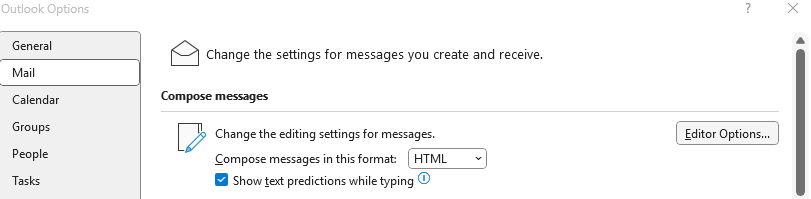
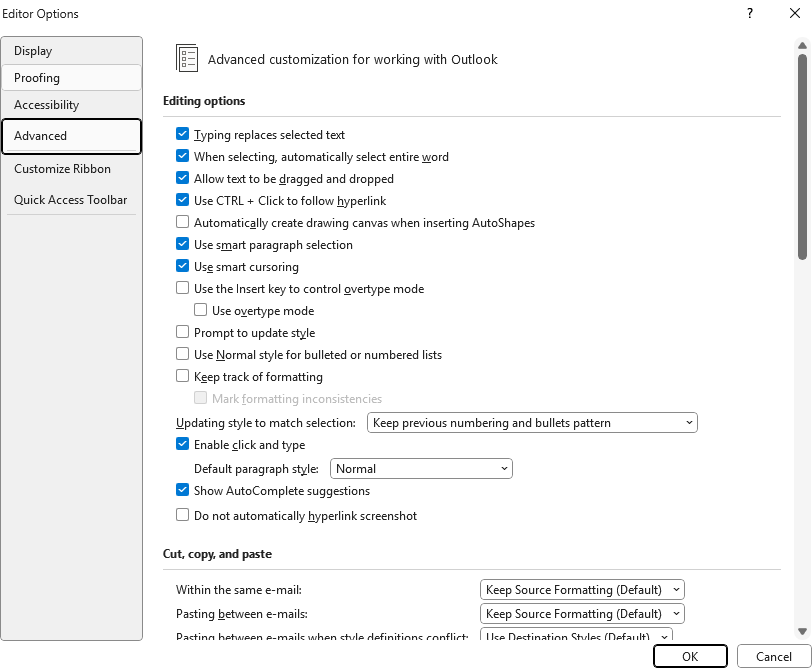
3
Scroll to Cut, copy, and paste.
4
For each scenario, choose Keep Source Formatting from the drop-down list:
- Within the same email
- Pasting between emails
- Pasting between emails when style definitions conflict
- Pasting from other programs
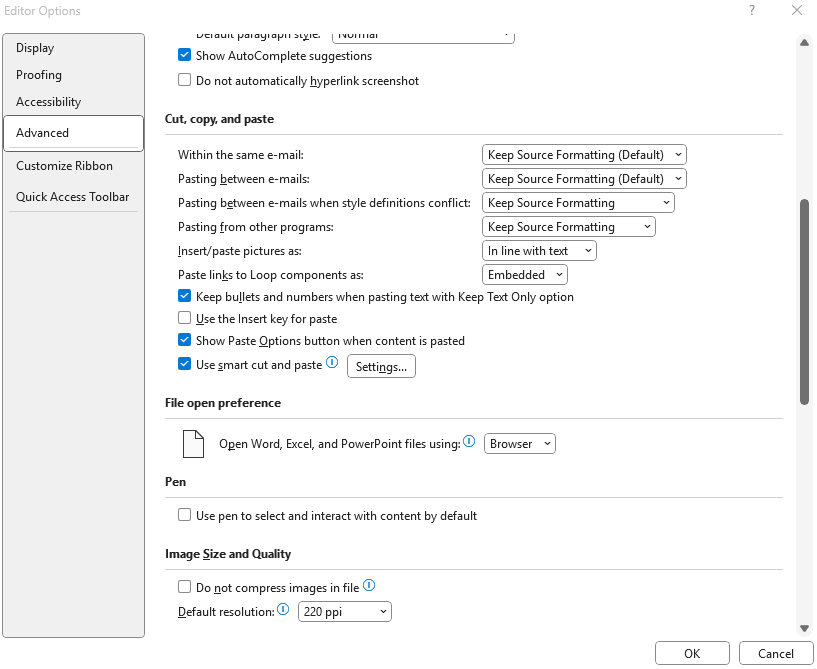
5
Make sure Show Paste Options button when content is pasted remains ticked (this lets you override the default if needed).
6
Click OK on all windows to save.
2. Outlook for Windows (New Outlook)
1
Navigate to the top of New Outlook to the settings icon, which is depicted as a gear below, and click it. 
2
This will open your settings menu as depicted below 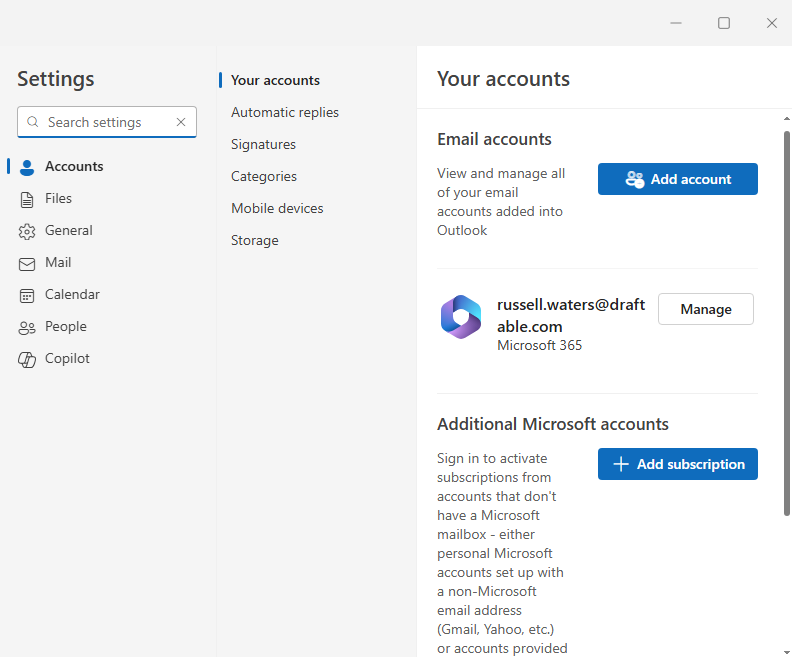
3
Select the Mail option on the left-hand side, and then select the Compose and reply option. The below window should match what your seeing: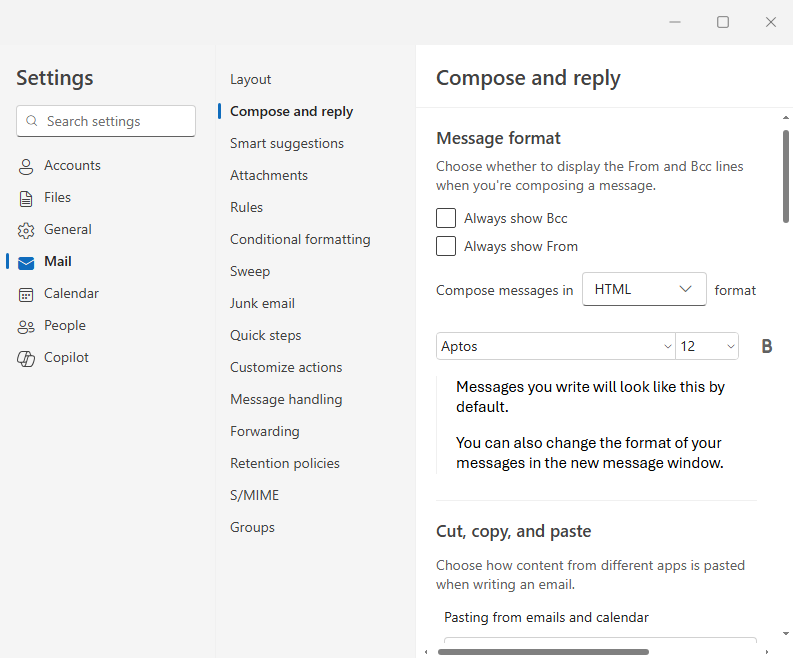
4
In the Compose and reply section, scroll down to the Cut, copy and paste section and ensure that Keep source formatting is selected for both drop-down menu options. 
5
Click Save on all windows to save.
6
New Outlook will now retain all Draftable markup whenever you paste.
3. Administrator options to enforce via Group Policy
If your organisation manages Office settings centrally:- Deploy the Office ADMX templates.
- Navigate to User Configuration ► Administrative Templates ► Microsoft Outlook ► Outlook Options ► Editor Options ► Advanced ► Cut, copy, and paste.
- Pre-set each dropdown to Keep Source Formatting (like seen above but for Group Policy), then deploy the policy or configuration profile.