

This is a text-only workaround. It is best for plain wording changes to the body of an email. It does not carry across attachments, embedded images, or complex formatting such as multi-level numbered lists and tables. For those, use the standard Redline in Email workflow once the underlying issue is resolved.
When to use this
Consider this workaround when you are trying to redline text in an email and Redline in Email will not cooperate, for example:- The Redline in Email panel is blank or does not load.
- You see a “message too long” or size limit error when creating or updating the email. In Redline in Email 3.0, this is a message that the changes exceed Outlook’s 1MB limit for the email body.
- Apply to Email or Reply does not complete (in version 2.1 and earlier, Create New Email or Copy).
- The redline is not applying to the text content of your reply.
Before you start
- Draftable Legal is installed and open.
- You can copy the text you want to compare from your email (the original text and your edited version).
Build the redline in Draftable Legal
1
Copy the text from your email
In Outlook, select the section of the email you want to redline and copy it (Ctrl+C). You will paste this into Draftable in the next steps. You will do this twice: once for the original text, and once for your edited version.
2
Start a new comparison and switch the older side to Text Input
Open Draftable Legal and start a New Comparison. On the Older document side, click Text Input (the pencil icon), then paste your original text.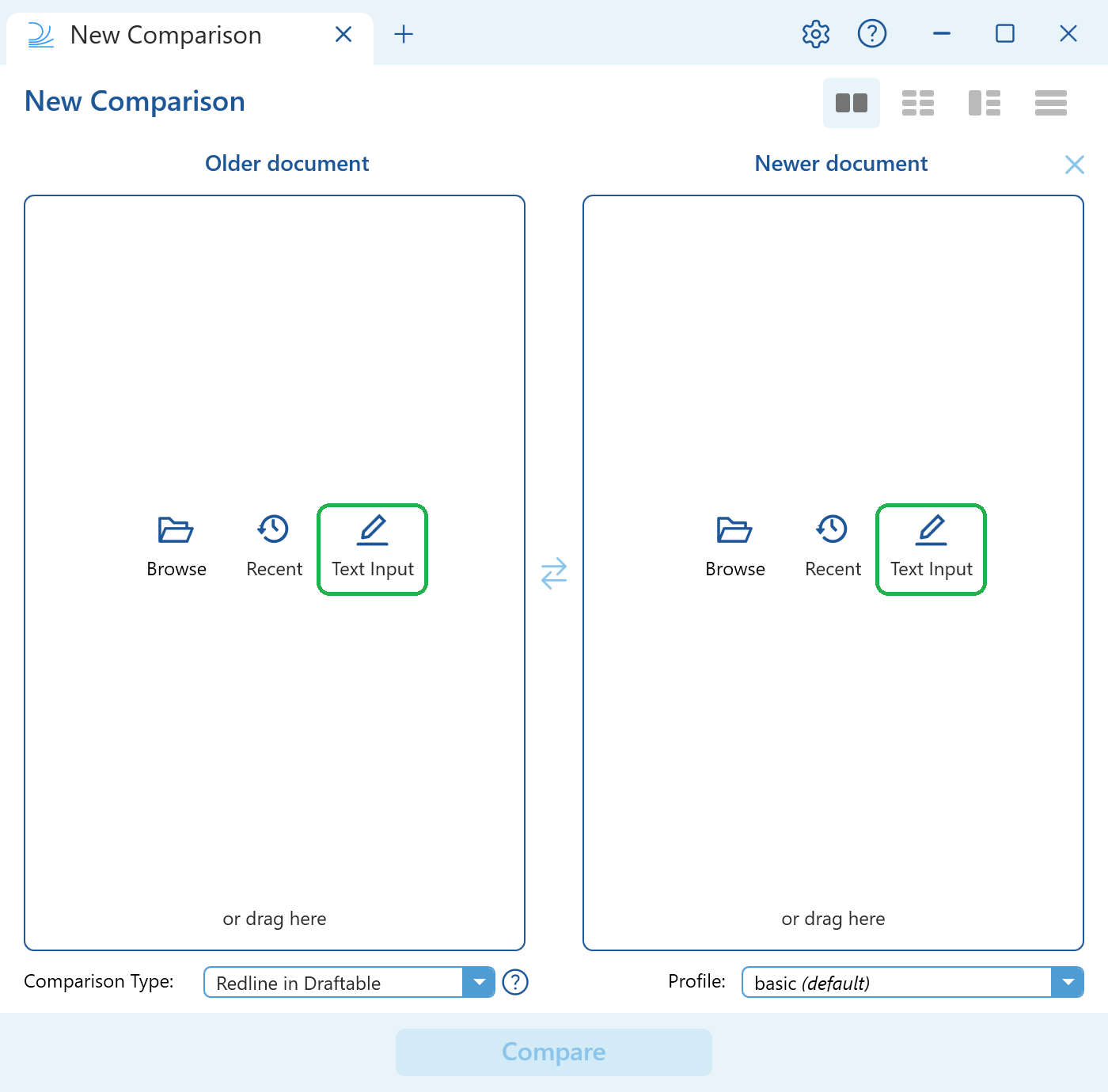
3
Switch the newer side to Text Input and paste your edited text
On the Newer document side, click Text Input and paste your edited version of the text.
4
Review the live redline preview
As soon as both sides contain text, the Redline preview appears underneath, updating automatically as you type. Deletions are shown struck through and insertions are underlined, exactly as they will appear in your email.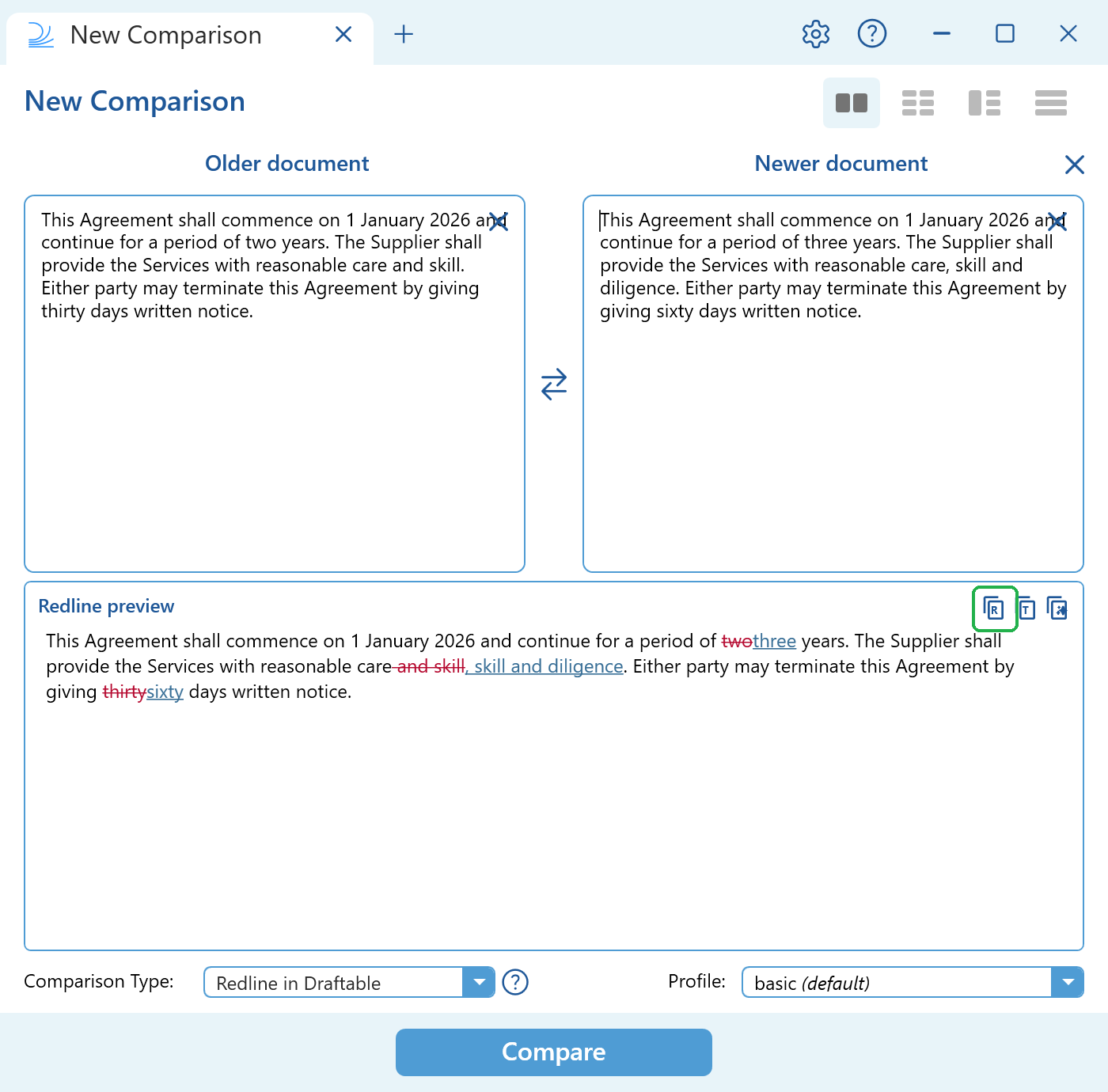
5
Copy the redline
In the top right of the Redline preview, click Copy As Redline (the icon marked with an “R”). This copies the redline to your clipboard with its formatting, ready to paste into an email.
Two other copy options sit next to it: Copy As Tracked Changes (paste into a Word document as tracked changes) and Copy AI-Ready Redline (a plain-text redline for use with AI tools). For an email reply, use Copy As Redline.
6
Paste the redline into your reply
Switch back to your Outlook reply and paste (Ctrl+V). The redline pastes in with its formatting, so your recipient can see the deletions and insertions. Finish and send your reply as normal.
Limitations
- This approach redlines text only. It does not handle attachments, images, or complex formatting.
- The pasted redline is a visual markup of the text, made outside Redline in Email. Your recipient may not be able to accept or reject its changes in Redline in Email. If you need that behaviour, use the standard Redline in Email workflow.