

The settings menu was reorganised in Draftable Legal 26.6. If you are on 26.6 or later, follow the “26.6 and later” tabs below. On earlier versions, follow “Before 26.6”. To check your version, open Settings. The version number shows at the bottom-left (for example, v26.6.0).
This feature is available from Draftable Legal v26.3.0 onwards.
When to use Clear Add-in Cache
Use this feature when you experience issues with Draftable’s modern (JavaScript-based) add-ins, including:- Draftable in Office (the Home tab panel add-in)
- Draftable in Outlook (the Outlook panel add-in)
- Draftable for Office (the Home tab ribbon button add-in)
- Draftable for Outlook (the message tab ribbon button add-in)
- Redline in Email
- Add-ins not loading or appearing blank
- Add-ins displaying outdated content after an update
- Add-ins failing to connect to Draftable Legal
- Unexpected add-in behavior after a Draftable Legal upgrade
How to clear the add-in cache
1
Open Settings
Open the Draftable Legal Settings screen. You can do this by right-clicking the Draftable icon in the system tray and selecting Settings, or by clicking the settings icon in the New Comparison window.
2
Navigate to Troubleshooting
In the Settings screen, select the Troubleshooting tab from the left-hand navigation.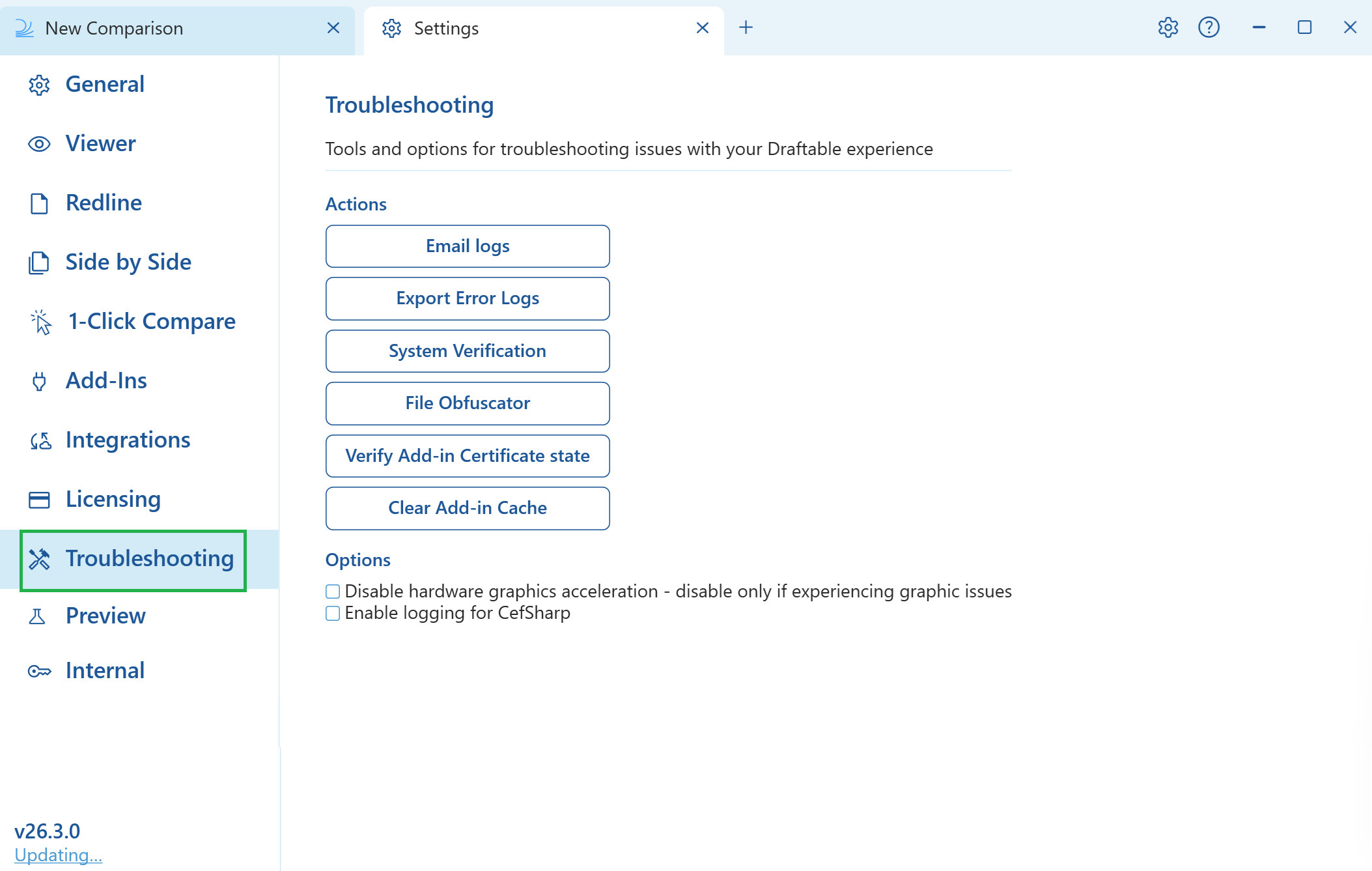
3
Click Clear Add-in Cache
Under the Actions section, click the Clear Add-in Cache button. The cache will be cleared immediately.
4
Restart the affected Office applications
Close and reopen any Office applications (Word, Outlook, Excel, PowerPoint) where you were experiencing add-in issues. The add-ins will reload with a fresh cache.
Still experiencing issues?
If clearing the add-in cache does not resolve your issue, try the following:- Restart Draftable Legal properly
- Run System Verification to check that all components are functioning correctly
- Verify your add-in certificates
- Contact support@draftable.com with your exported error logs