

The settings menu was reorganised in Draftable Legal 26.6. If you are on 26.6 or later, follow the “26.6 and later” tabs below. On earlier versions, follow “Before 26.6”. To check your version, open Settings. The version number shows at the bottom-left (for example, v26.6.0).
Checking Add-in Status in Draftable Legal
Before investigating the registry, you can check the status of your add-ins directly within Draftable Legal.1
Open Draftable Legal Settings
Open Draftable Legal and navigate to Settings > Add-ins tab.
2
Review Add-in Status
The Add-ins tab displays all installed Draftable add-ins and their current status.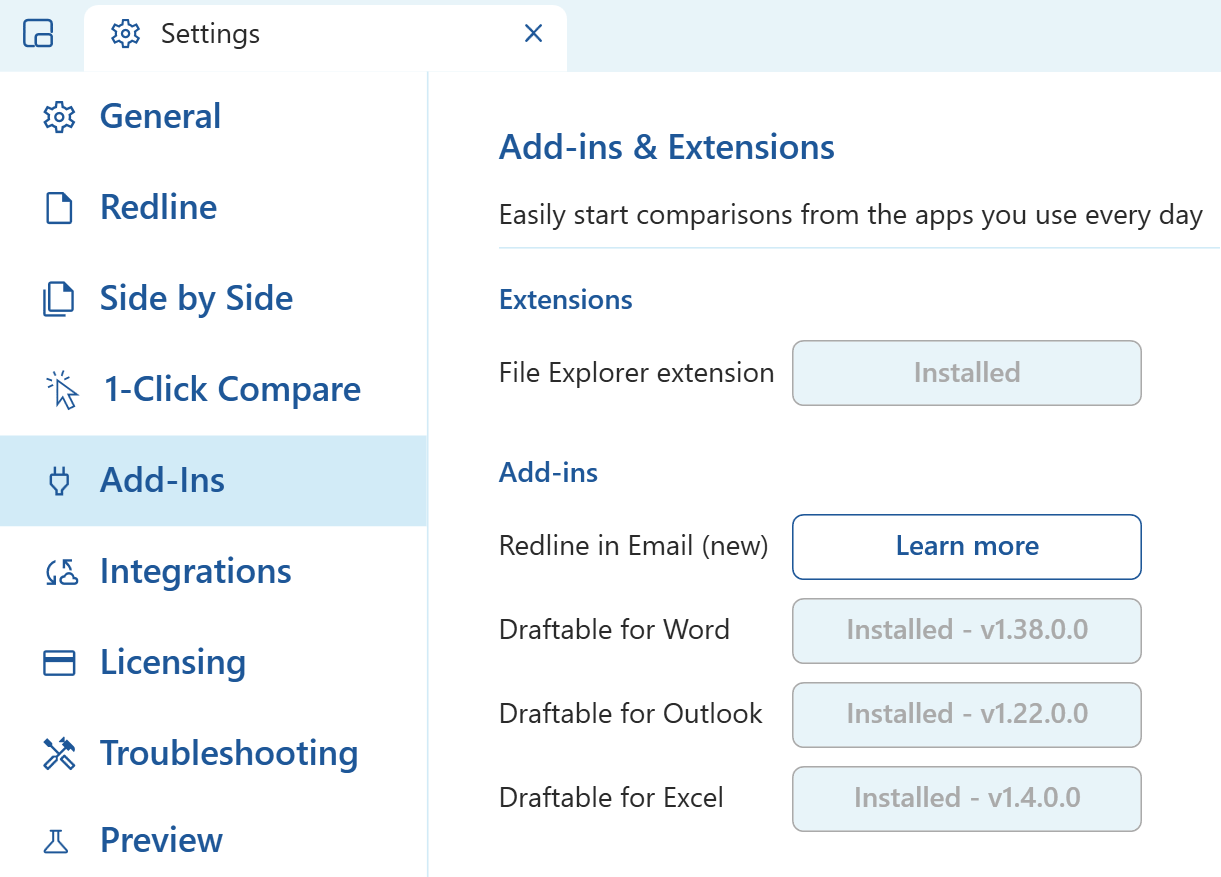
Understanding LoadBehavior
Microsoft Office uses a registry value calledLoadBehavior to determine how and when add-ins should be loaded. According to Microsoft’s documentation on keeping add-ins enabled, the LoadBehavior value controls the loading behavior of COM add-ins.
For Draftable Add-ins to load correctly at startup, the LoadBehavior value must be set to 3 (Load at startup).
If the LoadBehavior is not set to
3, the Add-ins may not load correctly and can show false positives within the Draftable Add-ins tab, appearing as if they are installed but not functioning.How to Check and Fix LoadBehavior
1
Open the Registry Editor
Press
Win + R, type regedit, and press Enter to open the Windows Registry Editor.2
Navigate to the Add-in Registry Keys
Check the LoadBehavior value for each Office application where the add-in is not loading:For Outlook:For Word:For Excel:
Machine-wide installation? Depending on your installation type and end-user machine configuration, the registry keys may be located under
HKEY_LOCAL_MACHINE instead of HKEY_CURRENT_USER. If you cannot find the keys in the CURRENT_USER location, check the following paths:Computer\HKEY_LOCAL_MACHINE\Software\Microsoft\Office\Outlook\Addins\Draftable.CompareTool.OutlookAddInComputer\HKEY_LOCAL_MACHINE\Software\Microsoft\Office\Word\Addins\Draftable.CompareTool.WordAddInComputer\HKEY_LOCAL_MACHINE\Software\Microsoft\Office\Excel\Addins\Draftable.CompareTool.ExcelAddIn
3
Check the LoadBehavior Value
In each of the registry locations above, look for a DWORD value named 
LoadBehavior.4
Set LoadBehavior to 3
If the
LoadBehavior value is not set to 3, double-click on it and change the value to 3.5
Restart Office Applications
After changing the LoadBehavior value, close and restart the affected Office application(s) for the changes to take effect.
Deploying the Fix via Group Policy
For enterprise deployments, administrators can ensure the correct LoadBehavior is set via Group Policy or during the MSI installation process. Contact your IT administrator to configure the registry values centrally.Still Having Issues?
If you have verified that the LoadBehavior is set to3 and the add-ins still do not load:
- Check that the add-in is not disabled in the Office application’s COM Add-ins settings
- Verify that Draftable Legal is installed and running correctly
- Try manually re-installing the add-in