

This is one of our JavaScript add-ins, and it is the one we recommend you deploy.Draftable’s older COM add-ins carry confusingly similar names — the MSI installs them as Draftable for Outlook, Word and Excel — so it is easy to mistake one generation for the other. This article covers the modern JavaScript add-in, which you deploy centrally through Integrated apps in the Microsoft 365 admin center.Use the JavaScript add-ins wherever your environment allows it, and avoid the COM add-ins unless you have no alternative. See COM add-ins vs JavaScript add-ins if you are not sure which your organization is running.
Remote desktop, Citrix, and RDP environments are supported from add-in version 2.62.0.1 onwards.
Overview
Draftable in Outlook allows users to run Draftable comparisons directly from Outlook, with specialized features for comparing email attachments and accessing comparison tools from your inbox. Key Features:- File selection: Full side pane with file selection functionality, including recently compared files, email attachments (including DMS links), files from iManage, NetDocuments, SharePoint and other DMS systems
- Inline attachment access: Browse and select email attachments and DMS links directly from the comparison interface, with automatic validation and version selection
- Profiles: Ability to select from the user’s Draftable profiles (rendering sets)
- Comparison type selection: Choose between redline, tracked changes, or side-by-side comparison types
- Message read and compose modes: Works seamlessly in both reading and composing emails
- Viewer: Option to open comparisons in Draftable’s rich viewer experience, with export to email, DMS, and more
- Next actions: Direct access to complete workflow actions including open, save to DMS, print, email, or copy to clipboard
Prerequisites
- You must have admin privileges for Microsoft 365 (you will need a Microsoft 365 Business account)
- Ensure your environment supports Office Add-ins via the Microsoft 365 admin center.
- You must have at least Draftable v25.10.000 for this Add-in to correctly function.
Step-by-Step Setup
1. Go to the Integrated Apps Portal
2
Click Upload custom apps.
2. Upload the Draftable in Outlook Add-in
1
Under App type, select Office Add-in from the dropdown menu.
2
Provide the manifest URL for the current release:
https://dl.draftable.com/addins/outlook-full/2.64.0.1/manifest.xml
https://dl.draftable.com/addins/outlook-full/2.64.0.1/manifest.xml
Note: The Draftable in Outlook Add-in does not auto-update. You will need to retrieve the latest manifest file when you wish to update your version of the Add-in.
3
This is a pinned manifest URL: it stays on version 2.64.0.1 and does not move to later releases. The current version and URL for every Draftable add-in are always listed in the Draftable Office add-in deployment guide. Check it before deploying, and again when you want to update.
4
Click Validate.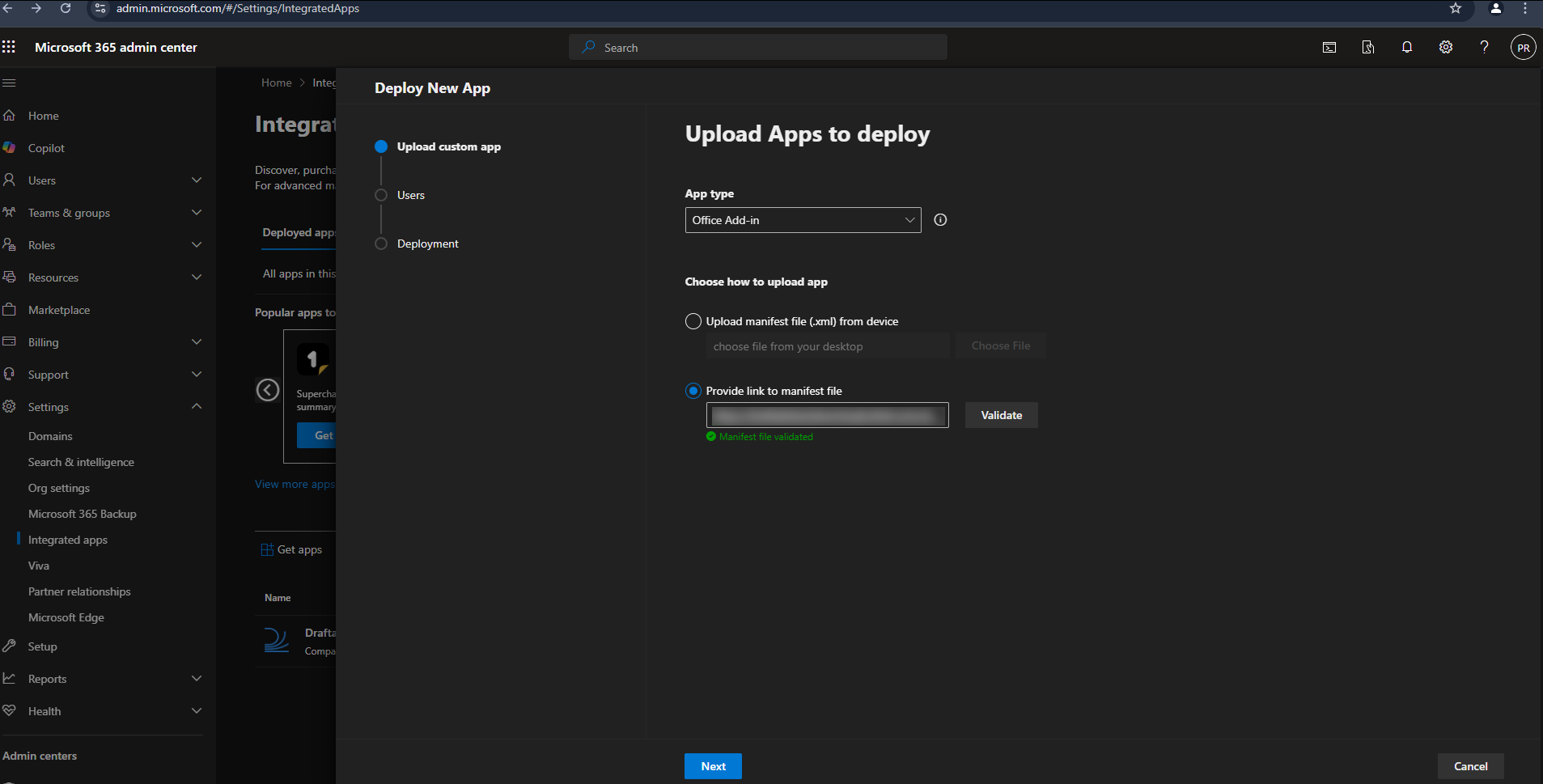
3. Configure Delivery to Users
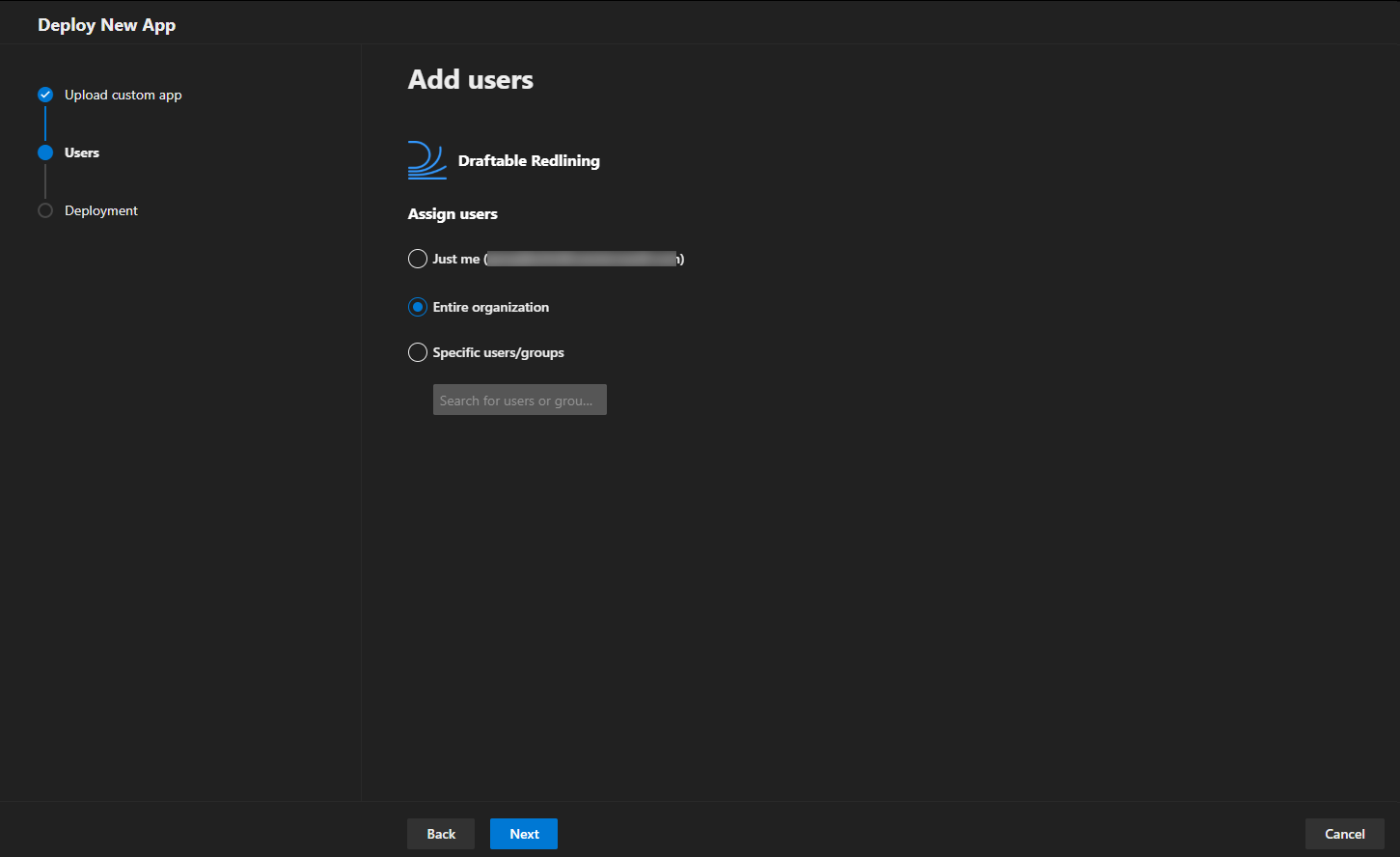
You will be asked how the add-in should be deployed across your organization:- Assign to Entire organization, Specific users, or Groups depending on your use case.
- Choose whether the add-in should be automatically installed or available for users to install manually.
- Fixed - Add-in is automatically installed and users cannot remove it
- Available - Add-in is available for users to install from their Office apps
- Optional - Add-in is automatically installed but users can remove it
4. Accept Permissions
You will be prompted to accept and approve the required permissions on behalf of your users.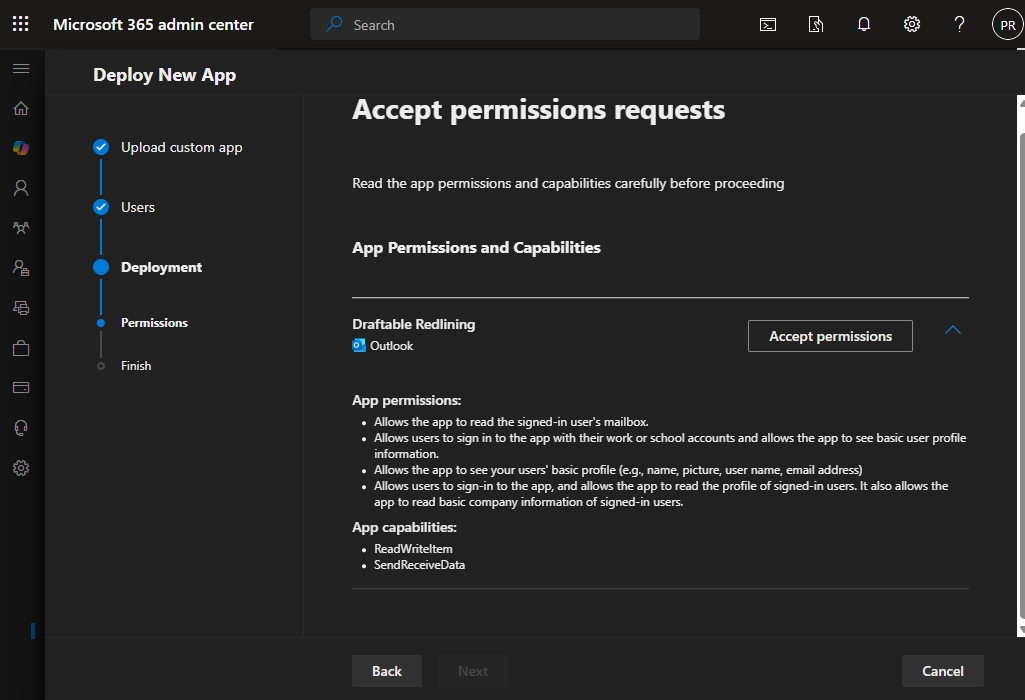
Required Permissions Overview
App Permissions:- Sign in and read users’ basic profile information.
- Access user profile details including name, picture, username, and email address.
- Read basic company information for signed-in users.
ReadWriteItem: Allows the app to read and write the contents of email messages and attachments.SendReceiveData: Enables the app to communicate with the Draftable application for comparison processing.
5. Finish Setup
Once permissions are approved and the app is assigned to your selected users, the Draftable in Outlook Add-in will be available within Outlook.Please note: The Application installation and update can take up to 24 hours. In most cases, it appears within minutes. For more information about it, please visit Microsoft Documentation - Deploy add-ins in the admin center - Microsoft 365 admin | Microsoft Learn
6. Verify Deployment
- Open Outlook
- Go to the Home tab
- Look for the Draftable section in the ribbon
- The add-in buttons should appear in the ribbon or under My Add-ins
Troubleshooting
Add-in not appearing for users?
Add-in not appearing for users?
- Wait up to 24 hours for deployment to fully propagate
- Verify users are in the correct security group (if using group-based deployment)
- Have users restart their Office applications
- Check that users have active Microsoft 365 subscriptions with Office apps
- Ensure users are signed in with their organizational account
Manifest validation failed?
Manifest validation failed?
- Ensure you copied the complete URL without extra spaces or line breaks
- Verify the URL is accessible from your network (not blocked by firewall or proxy)
- Check that
dl.draftable.comis not blocked by your organization’s web filter - Try accessing the URL directly in a browser to confirm it’s reachable
Need to update to a new version?
Need to update to a new version?
- Return to Integrated apps in the Admin Center
- Find the existing Draftable add-in in the list and click on it
- Look for an Update option and provide the new manifest URL
- The updated version will roll out to users automatically
- Users may need to restart Office apps to see the update
Remove or uninstall an add-in?
Remove or uninstall an add-in?
- Go to Integrated apps in the Admin Center
- Click on the Draftable add-in
- Select Remove or Delete
- Confirm the removal
- The add-in will be removed from users’ Office apps within 24 hours