

This is one of our JavaScript add-ins, and it is the one we recommend you deploy.Draftable’s older COM add-ins carry confusingly similar names — the MSI installs them as Draftable for Outlook, Word and Excel — so it is easy to mistake one generation for the other. This article covers the modern JavaScript add-in, which you deploy centrally through Integrated apps in the Microsoft 365 admin center.Use the JavaScript add-ins wherever your environment allows it, and avoid the COM add-ins unless you have no alternative. See COM add-ins vs JavaScript add-ins if you are not sure which your organization is running.
Remote desktop, Citrix, and RDP environments are supported from add-in version 2.62.0.1 onwards.
Prerequisites
- You must have admin privileges for Microsoft 365 (you will need a Microsoft 365 Business account)
- Ensure your environment supports Office Add-ins via the Microsoft 365 admin center.
- You must have at least Draftable v25.10.000 for this Add-in to correctly function. We recommend 25.12.000 or later.
Step-by-Step Setup
1. Go to the Integrated Apps Portal
2
Click Upload custom apps.
2. Upload the Draftable in Office Add-in
1
Under App type, select Office Add-in from the dropdown menu.
2
Copy the manifest URL from the Draftable in Office card in the Draftable Office add-in deployment guide, and paste it in as a link. The card always shows the current release and the version of Draftable it needs. If your users’ computers cannot run that version of Draftable yet, update Draftable first, or deploy an earlier release from Older versions if the card lists any.
The manifest on the card is pinned: it stays on its release until you deploy a newer one from the same card. If your tenant is pinned to an earlier version such as 2.64.0.1 or 2.69.0.0, it stays on that release until you update the deployment to 2.71.0.0 using the card. If the card also offers a latest manifest, that one updates automatically within the same major version when deployed as a link.
3
Click Validate.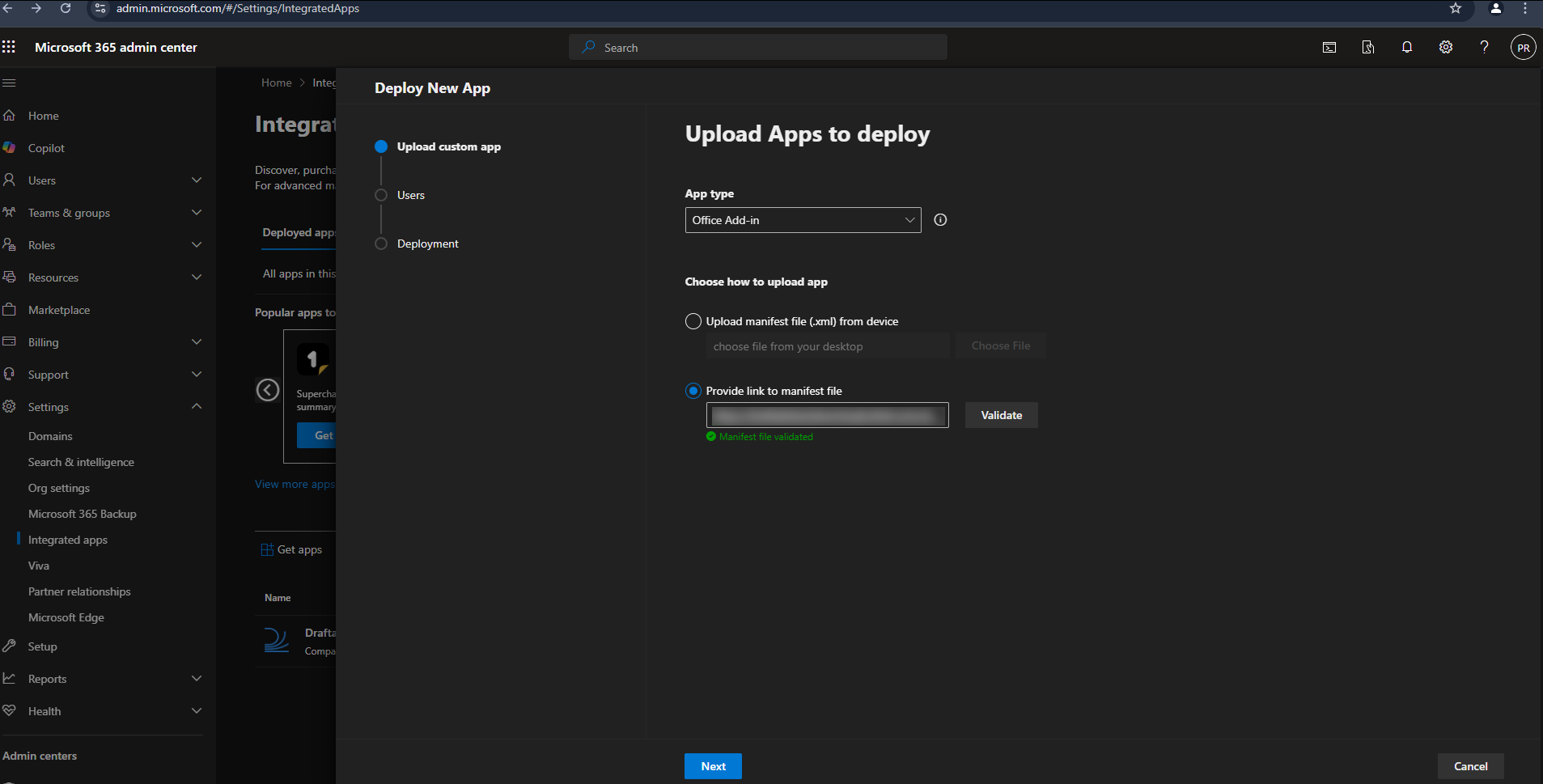
3. Configure Delivery to Users
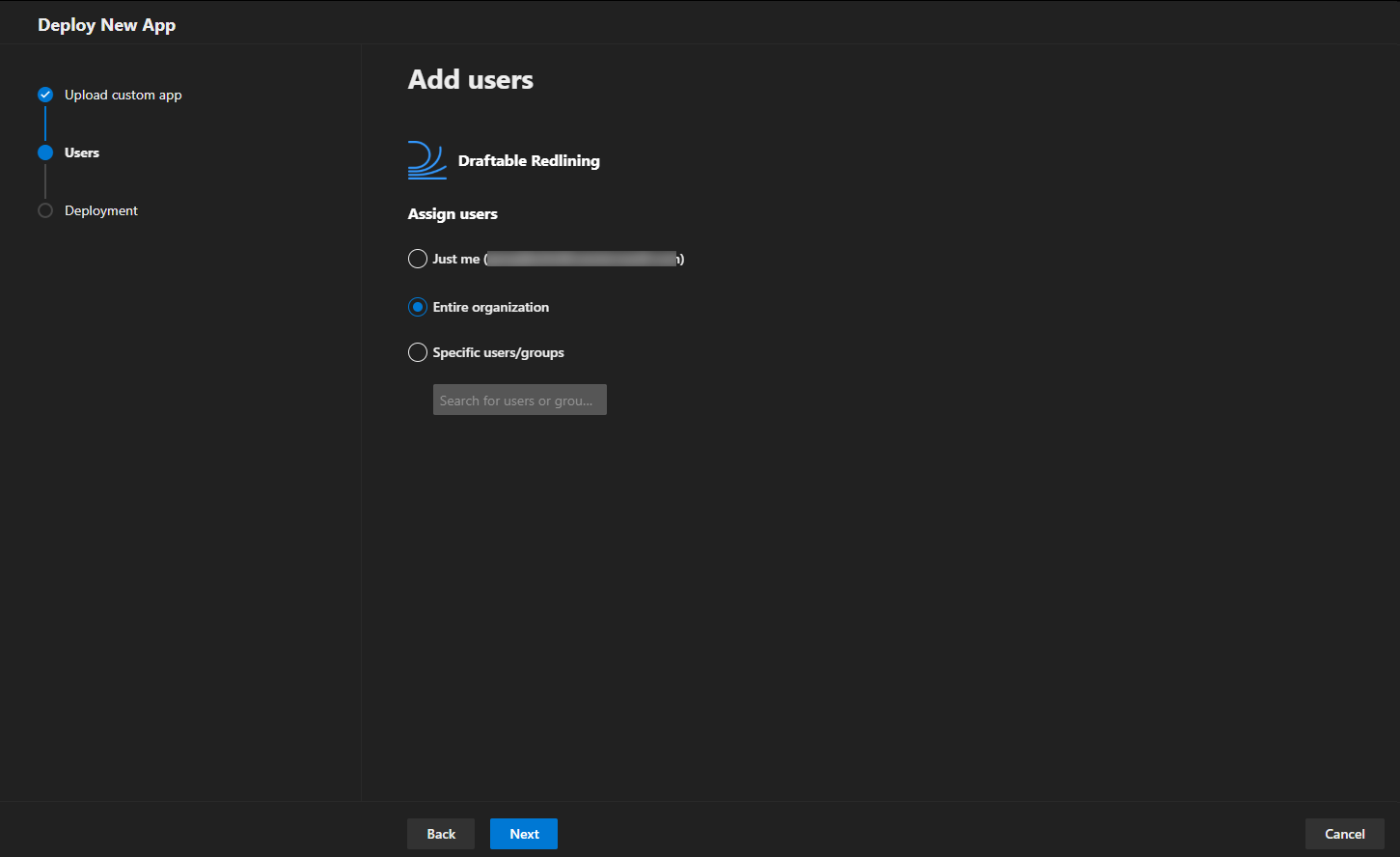
You will be asked how the add-in should be deployed across your organization:- Assign to Entire organization, Specific users, or Groups depending on your use case.
- Choose whether the add-in should be automatically installed or available for users to install manually.
4. Accept Permissions
Review the requested access and follow any permission prompts shown by the Microsoft 365 admin center.Required permissions
The manifest requestsReadWriteDocument access to documents in Word, Excel and PowerPoint. Review the permissions shown in the Microsoft 365 admin center when deploying the add-in.
5. Finish Setup
Once permissions are approved and the app is assigned to your selected users, the Draftable in Office Add-in will be available within Word, Excel, and PowerPoint.Please note: The Application installation and update can take up to 72 hours. For more information about it, please visit Microsoft Documentation - Deploy add-ins in the admin center - Microsoft 365 admin | Microsoft Learn
Disable Compare Open
Available from version 26.10.0 With add-in 2.69.0.0 or later, this registry-only setting blocks Compare Open in the Draftable in Office JavaScript add-in:1 to block the command or 0 to allow it. The default is 0. You can also set it under HKLM:\Software\Policies\Draftable\OfficeAddin\CompareOpen for all users on the machine. HKCU policy takes precedence over HKLM.
Office greys out the button where ribbon updates are supported. The button may remain visible in other hosts, but its command does not run. This setting applies to both Draftable in Office and Draftable for Office JavaScript add-ins, not to the Outlook JavaScript add-ins or the COM add-ins. There is no Group Policy template entry.