

Default Installer (EXE)
The default installer for Draftable Legal includes automatic updates enabled by default. When a new version is available, Draftable will download and prepare the update automatically.How updates are applied
Updates are downloaded in the background and installed when the application is restarted. To ensure updates are applied correctly:- Restart Draftable properly by exiting from the system tray (not just closing the New Comparison window). For detailed instructions, see How to properly restart Draftable Legal.
- Alternatively, a system restart will also apply pending updates.
If Draftable reports it is up to date but the version number doesn’t match the latest release, a proper restart is usually required to complete the update process.
Disabling automatic updates
For organizations that require strict version control, automatic updates can be disabled via the registry. When disabled, updates can only be triggered manually from the Settings window.
For a complete list of registry configurations, refer to Most common Draftable Legal registry configurations.
Machine-Wide MSI Installer
The MSI installer is designed for enterprise environments where administrators require full control over software versions. Unlike the default installer, the MSI version does not include automatic updates.Why MSI does not have automatic updates
The MSI installer is intentionally designed without automatic updates to provide:- Version control – Administrators can test and approve specific versions before deployment
- Predictable rollouts – Updates only occur when explicitly deployed by IT
- Compliance requirements – Organizations can maintain approved software versions across all machines
How to update the MSI installation
To update Draftable Legal installed via MSI, install the new version over the existing installation:1
Download the new version
Download the desired version of the MSI installer from the Draftable download portal or use the direct download URL format:For example, to download version 26.1.0:
2
Install over the existing version
Run the MSI installer with administrator rights. The new version will install over the existing installation, preserving user settings and configurations.
3
Verify the update
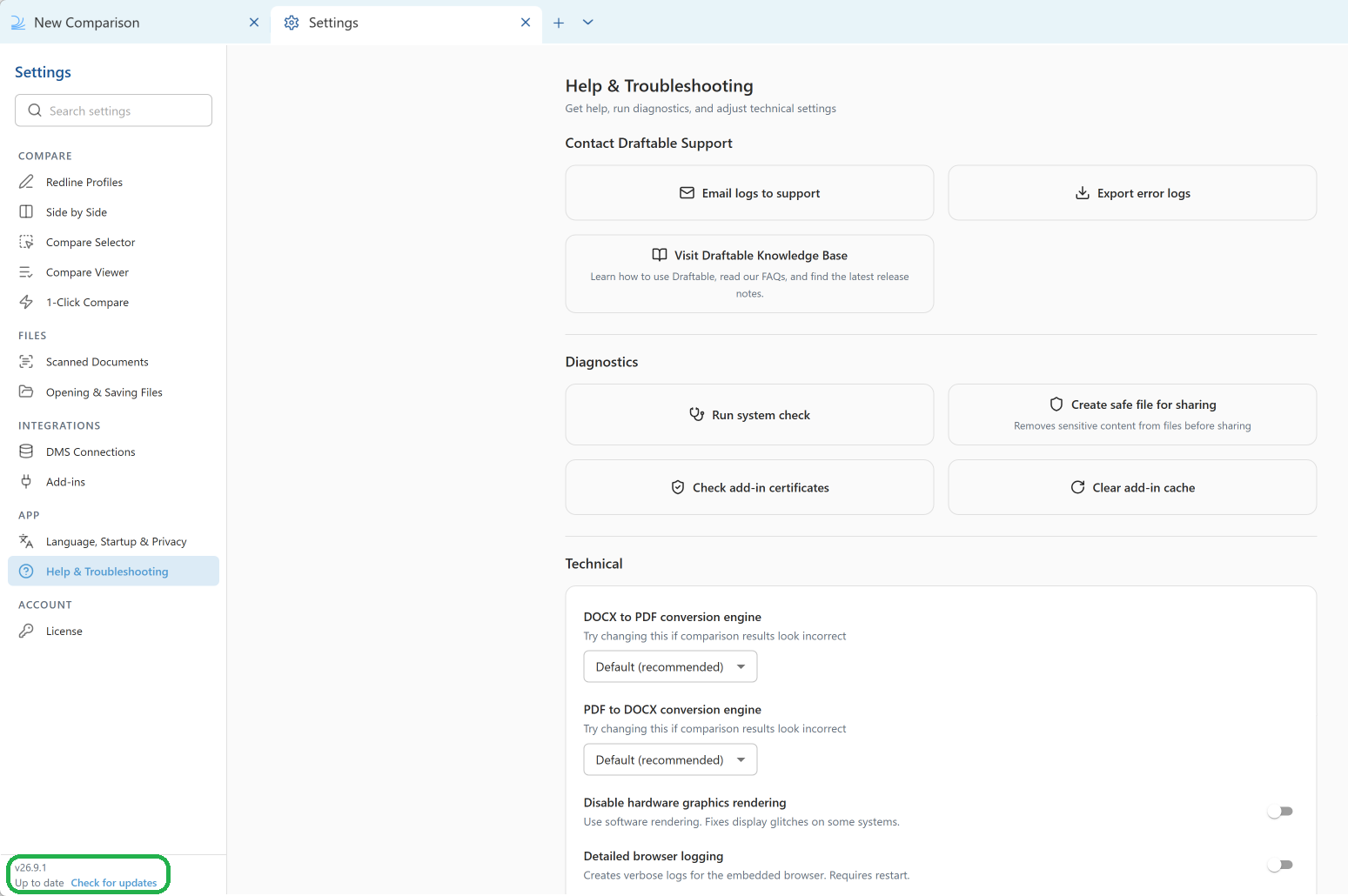
Open Draftable Legal and open Settings to confirm the new version number. The version is shown in the bottom-left corner of the Settings window.
If you script your MSI installs with
ADDLOCAL, remember to include HttpListener (the required HTTP Listener Service) in your update command as well. Feature selections are not carried over automatically, so any feature omitted from ADDLOCAL will not be present after the update.