

Choose your default
You need Draftable Legal version 26.10.0 or later.1
Open the workflow settings
Open Settings, select Compare Selector, and find the Workflow section.
2
Choose a default comparison type
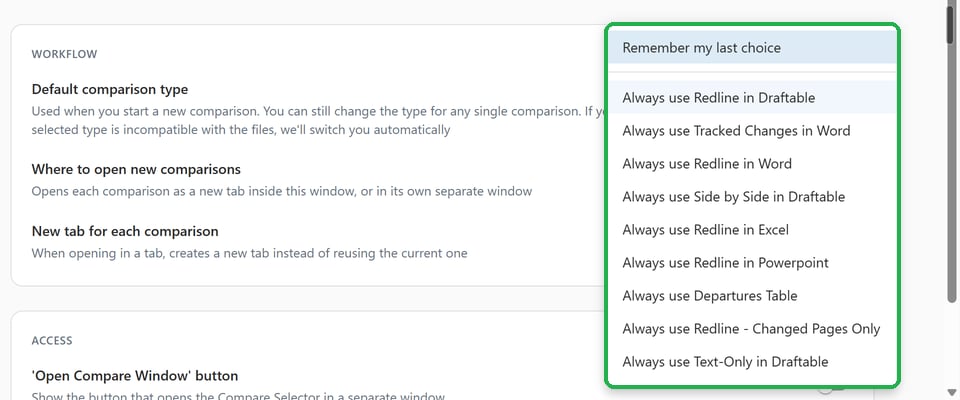
In Default comparison type, choose one of the following:
- Remember my last choice: This is the default setting. Draftable saves the type you select on the New Comparison screen and uses it for your next comparison.
- Always use a particular type: For example, Always use Tracked Changes in Word starts each new comparison with that type. You can still choose a different type for a single comparison without changing your saved default.
When your files need a different type
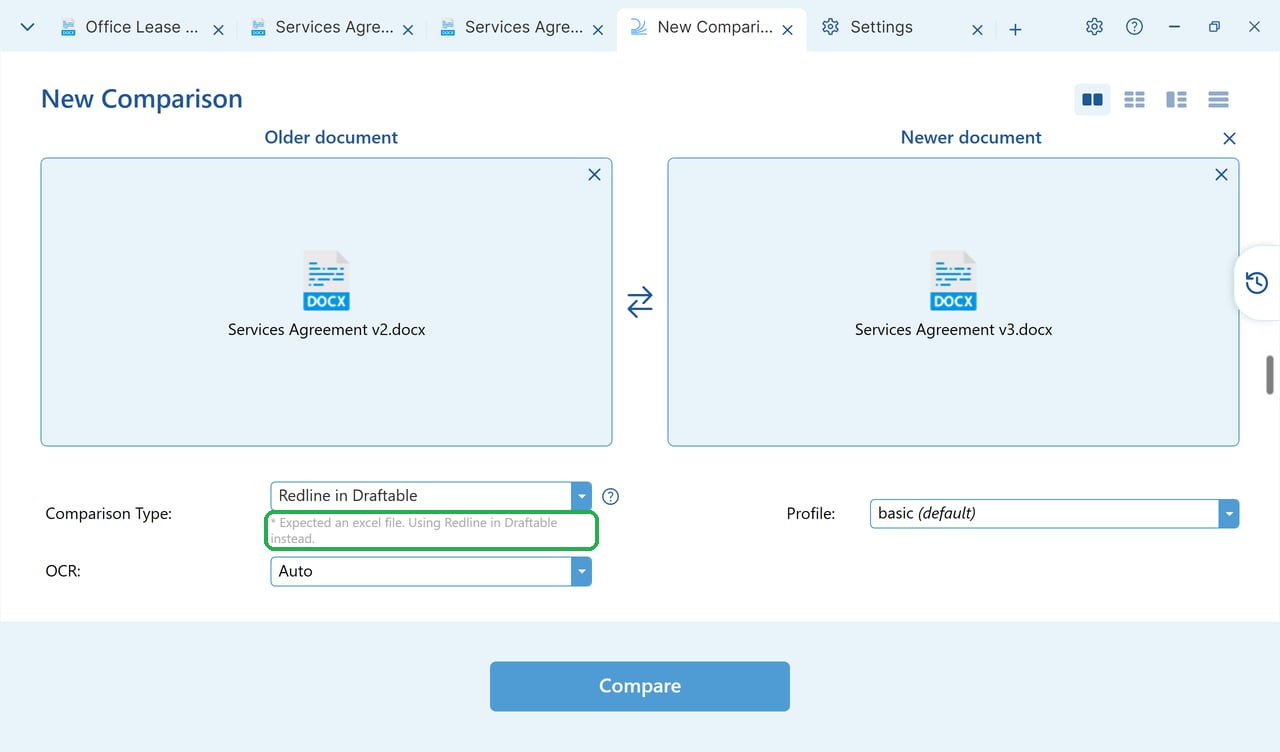
Some comparison types cannot compare every combination of files. If your selected type cannot run on the loaded files, Draftable temporarily uses an available alternative, preferring Redline in Draftable, then Side by Side in Draftable. Once the files are loaded, a grey line below the comparison type dropdown explains the reason and the alternative being used. It follows this format:* <reason>. Using <type> instead.
This temporary switch does not overwrite your saved default. Draftable returns to your original choice when the files support it again, unless you select another type.
If your organisation sets the default
Your administrator can suggest a default or enforce one. If it is enforced, Default comparison type is locked in Settings and shows Set by your organisation. You can still change the type for a single comparison on the New Comparison screen. Your next comparison starts from the enforced default.Configure defaults for your organisation
Use Draftable Legal version 26.10.0 or later and its updated Group Policy templates. The policies are available in both User Configuration and Computer Configuration.
The enforcement options are:
- Suggest (users can change it), registry value
Suggest: This is the default strategy. The suggestion applies only when the user has no usable saved default. In practice, it usually reaches fresh profiles only, because earlier versions already saved a default for existing users. It does not replace an existing usable preference. - Enforce (locked), registry value
Enforce: Applies the configured default to both existing and new users and locks the setting. The dropdown for an individual comparison remains editable.
Registry configuration
Both values areREG_SZ under Software\Policies\Draftable\Feature. Use HKCU for a user policy or HKLM for a computer policy. If both are set, the user policy takes precedence.
Suggest for AdminDefaultComparisonOutputStrategy.
Replace older registry defaults
DefaultComparisonOutput is now a user-only preference. Copies in policy hives are ignored. Use the administrator policies above instead.
To limit which outputs users can choose, see How to configure comparison types and outputs.