

The settings menu was reorganised in Draftable Legal 26.6. If you are on 26.6 or later, follow the “26.6 and later” tabs below. On earlier versions, follow “Before 26.6”. To check your version, open Settings. The version number shows at the bottom-left (for example, v26.6.0).
Upgraded from a version before 26.6? The filename pattern used to be saved on each Redline profile, and from 26.6 it is a single application-wide setting. Only your default profile’s pattern was carried across. Patterns saved on other profiles are still recorded on your machine and can be recovered: see Recovering per-profile settings after upgrading to 26.6.
Enabling custom output filenames
Where you find the custom filename setting depends on your version of Draftable Legal.- 26.6 and later
- Before 26.6
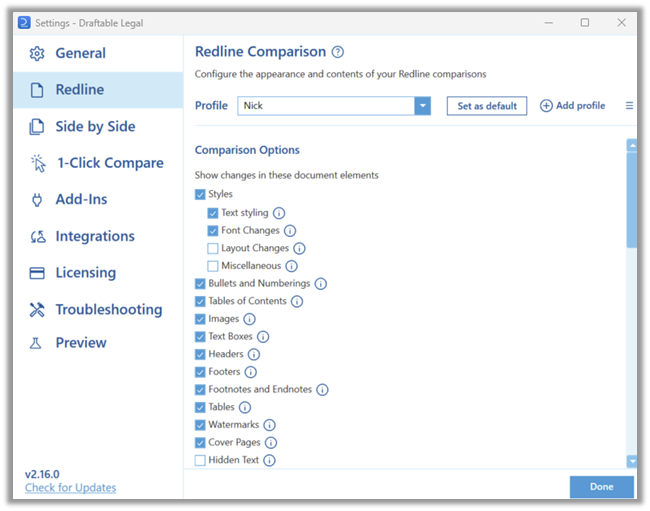
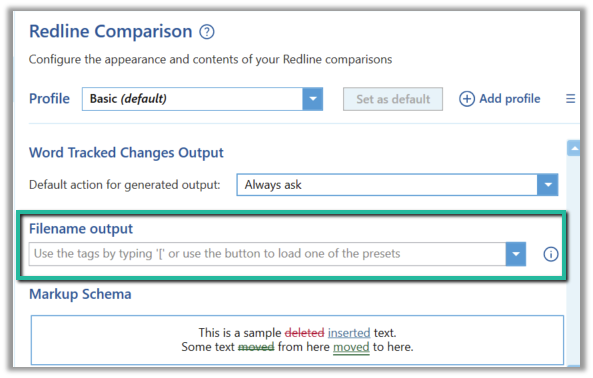
In the settings menu, select Opening & Saving Files under the Files group. The custom filename setting is the Filename pattern field in the Output Filename section (this was called “Output filename” and lived on the Redline tab before 26.6).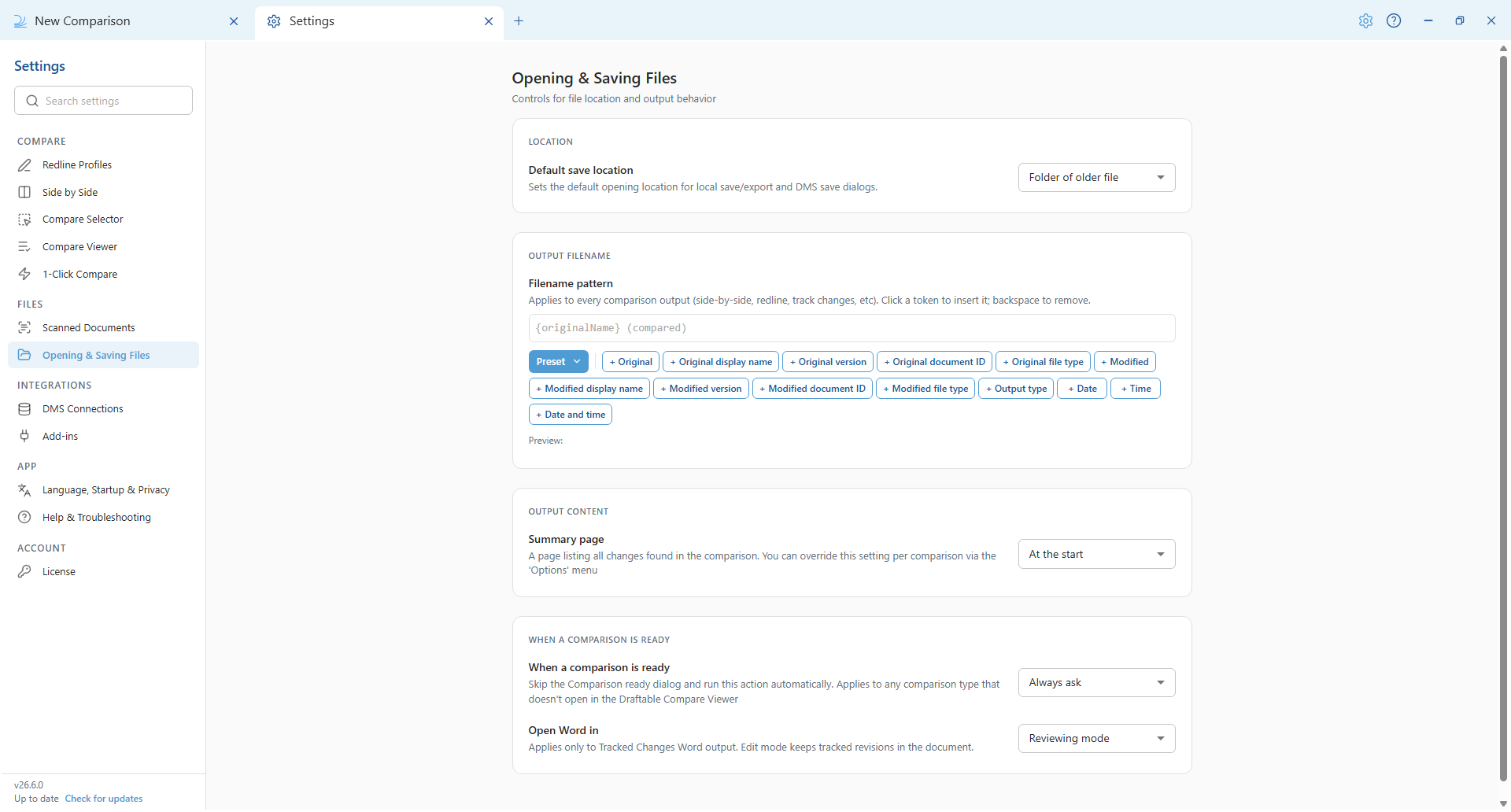
Filename tokens
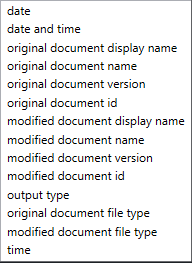
Tokens automatically prefill the filename with data drawn from the documents in the comparison, the comparison itself, or your machine (the date and time tokens).- 26.6 and later
- Before 26.6
In 26.6 the filename pattern applies to every comparison output, including side-by-side, redline and tracked changes. You build the pattern from a row of token buttons below the Filename pattern field. Each button inserts a token written in curly braces, for example 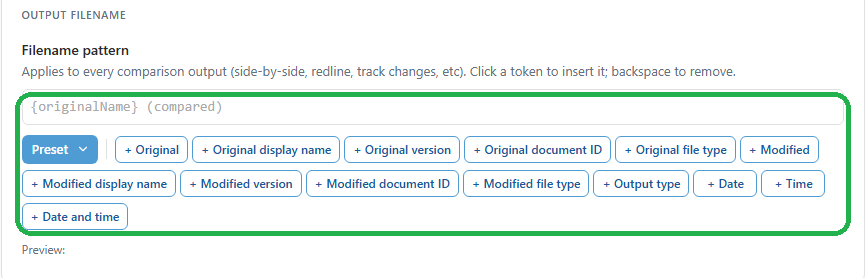
{date}.{originalName} and {modifiedName}, which are the document filenames without their extension.Original document tokens- Original (
{originalName}): Filename of the older document, without its extension. - Original display name (
{originalDisplayName}): Display name of the older document, including its extension. This can differ from the filename. - Original version (
{originalVersion}): DMS version of the older document, for example V3. Empty when the comparison is not from a DMS. - Original document ID (
{originalId}): DMS document ID of the older document. Empty when the comparison is not from a DMS. - Original file type (
{originalFileType}): Extension of the older document, for example .docx.
- Modified (
{modifiedName}): Filename of the newer document, without its extension. - Modified display name (
{modifiedDisplayName}): Display name of the newer document, including its extension. This can differ from the filename. - Modified version (
{modifiedVersion}): DMS version of the newer document, for example V4. Empty when the comparison is not from a DMS. - Modified document ID (
{modifiedId}): DMS document ID of the newer document. Empty when the comparison is not from a DMS. - Modified file type (
{modifiedFileType}): Extension of the newer document, for example .docx.
- Output type (
{outputType}): Label for the comparison output, for example Redline or Side-by-Side. - Date (
{date}): The comparison date in YYYY-MM-DD format. - Time (
{time}): The comparison time in HH-MM format. - Date and time (
{dateAndTime}): The comparison date and time together.
Method 1: Preset options
- 26.6 and later
- Before 26.6
Select the Preset button to the left of the token buttons to open a menu of ready-made patterns. Selecting one replaces the current pattern.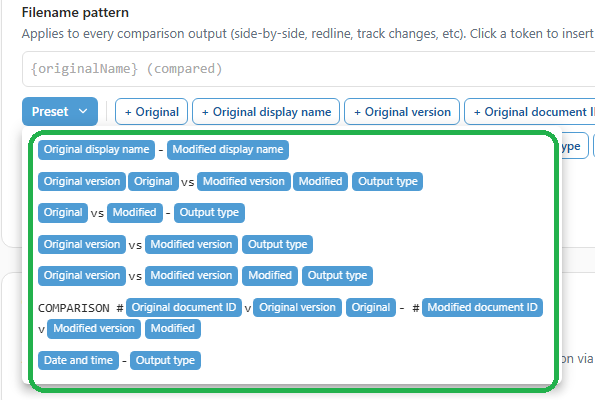
{originalVersion}{originalName} vs {modifiedVersion}{modifiedName} {outputType}Output type: RedlineFilename for the output: V2original_draft vs V3original_draft_v2 RedlineExample 2:Original document name: contract_town-planningOriginal document version: V2Original document ID: 1546Modified document name: contract_town-planning_variationModified document version: V3Modified document ID: 1685Preset used: COMPARISON #{originalId}v{originalVersion} {originalName} - #{modifiedId}v{modifiedVersion} {modifiedName}Filename for the output: COMPARISON #1546vV2 contract_town-planning - #1685vV3 contract_town-planning_variation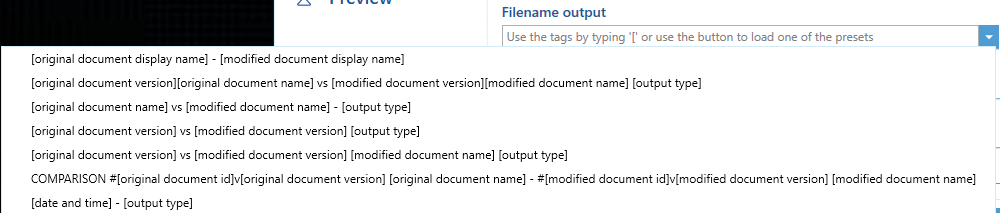
Method 2: Create your own schema
- 26.6 and later
- Before 26.6
You can build your own pattern from any combination of tokens and free text. Click a token button to insert that token at the cursor; press Backspace to remove a whole token at once. Any free text you type appears literally in every output filename and is not dynamic like the tokens.For example, if you type the text 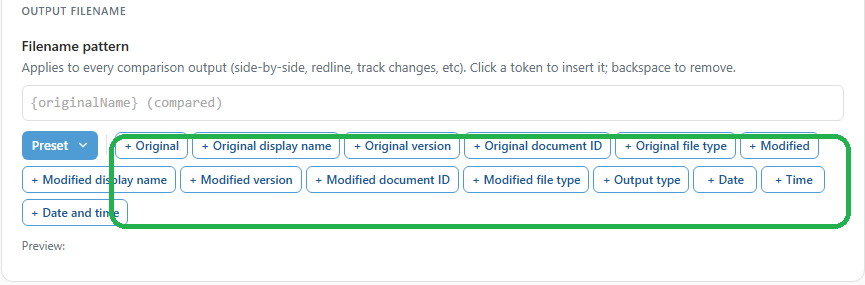
Comparison Export and then click the Date and time button, the pattern becomes Comparison Export {dateAndTime}. The Preview line beneath the buttons shows how a sample filename would look. For a comparison run at 12:35pm on 17 February 2026, the resulting output filename would be: Comparison Export 2026-02-17 12-35The token buttons insert tokens for you, so there is no need to type the curly braces by hand. There is no autocomplete or Tab-key selection in 26.6.

