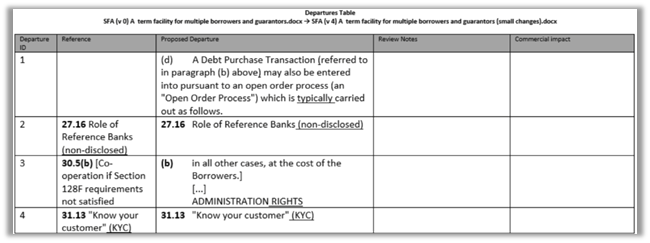
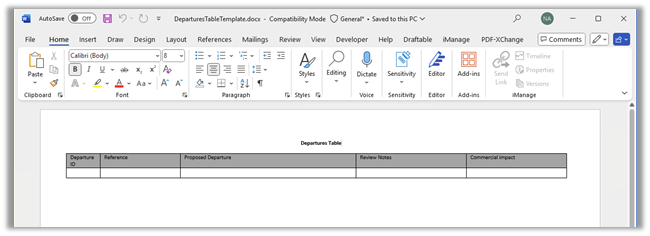
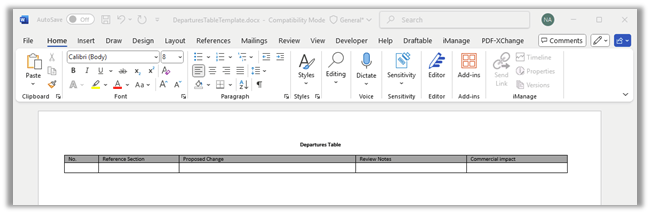
The Departures Table is a specialized report that helps you see how a document has changed—with full context. Instead of just showing edits inline or as redlines, it highlights the entire section or clause where a change occurred. This makes it easier to understand changes at a glance, especially in long or complex documents.
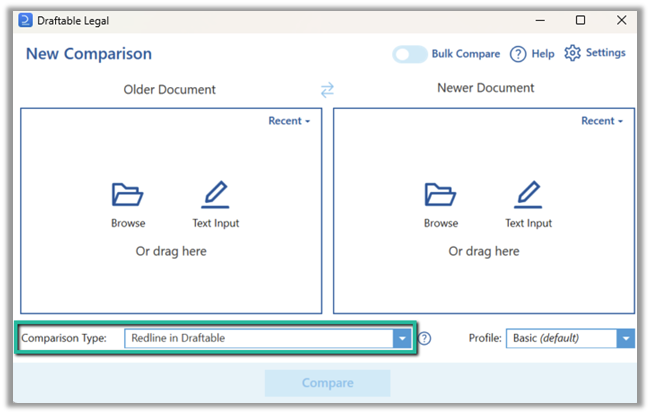
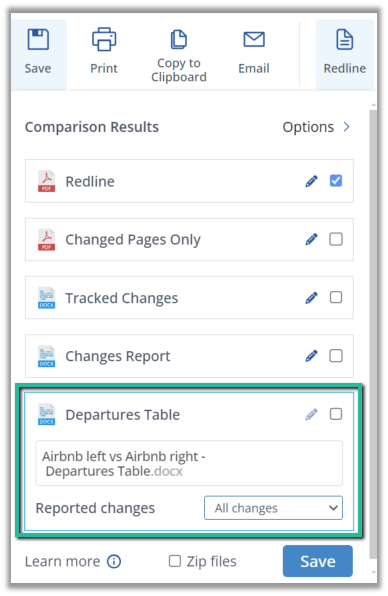
In the Draftable viewer, navigate to any of the export options in the top-left, and select Departures Table. A Departures Table can be generated for Open, Save, Save to DMS, Copy to Clipboard or Email.
How to configure a custom Departures Table template
Draftable includes a default Word document template for the Departures Table, but you can customize this to suit your needs. This can be achieved by adding your own custom template and overriding the default template.
1
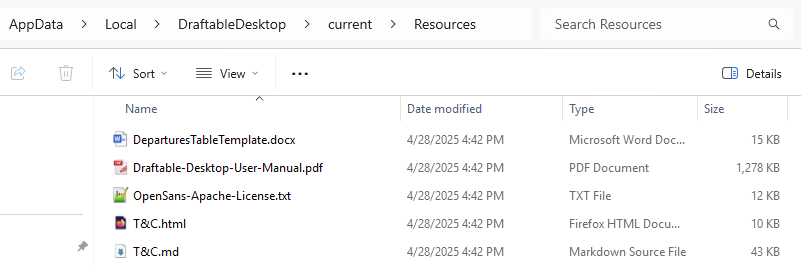
Navigate to Draftable installation folder, e.g. %LOCALAPPDATA%\DraftableDesktop\current or C:\Program Files (x86)\Draftable\Draftable Desktop and open Resources folder.
2
Create a copy of DeparturesTableTemplate.docx file and open it in MS Word and enable it for editing.
3
Edit the newly created, copied Departures Table template according to your needs. Please, however, adhere to the requirements for the table:At least four columns for the following content in the following order:
Departure ID
Section Reference
Changed clause (departure)
Review notes/comments
Also, ensure there is:
A table header
An empty row
See the example below:
Example of a valid template
4
Style the document according to your needs
Elements that can be customised:
Header and footer
Font family and size
Table header titles
Adding more table columns on the right-hand side
Elements that cannot be customised:
Removing or adding columns at position 1-4 (as mentioned above)
Changing the order of columns at position 1-4 (as mentioned above)
Copy the document created to the Microsoft Office templates folder, typically at: %AppData%\Microsoft\Templates
2
Restart Draftable by exiting out of the application completely. Do not just close out the New Comparison window. (Guide here on how to correctly restart Draftable)
3
Verify the new template is working by generating a Departures Table report
Reach out to the support team at support@draftable.com and we will assist you in getting your departures table template working, or if you have any questions regarding this feature.
Was this page helpful?
Assistant
Responses are generated using AI and may contain mistakes.