Get to know the main window
Available from version 26.10.0 Draftable Legal has a new main window with browser-style tabs. You can keep several comparisons together, move them into separate windows, and find them from the All tabs menu. The comparison viewer, Settings, Logs and New Comparison screen remain inside the tabs. There is no setting to return to the previous main window. The same tab and window controls are available in Draftable Business.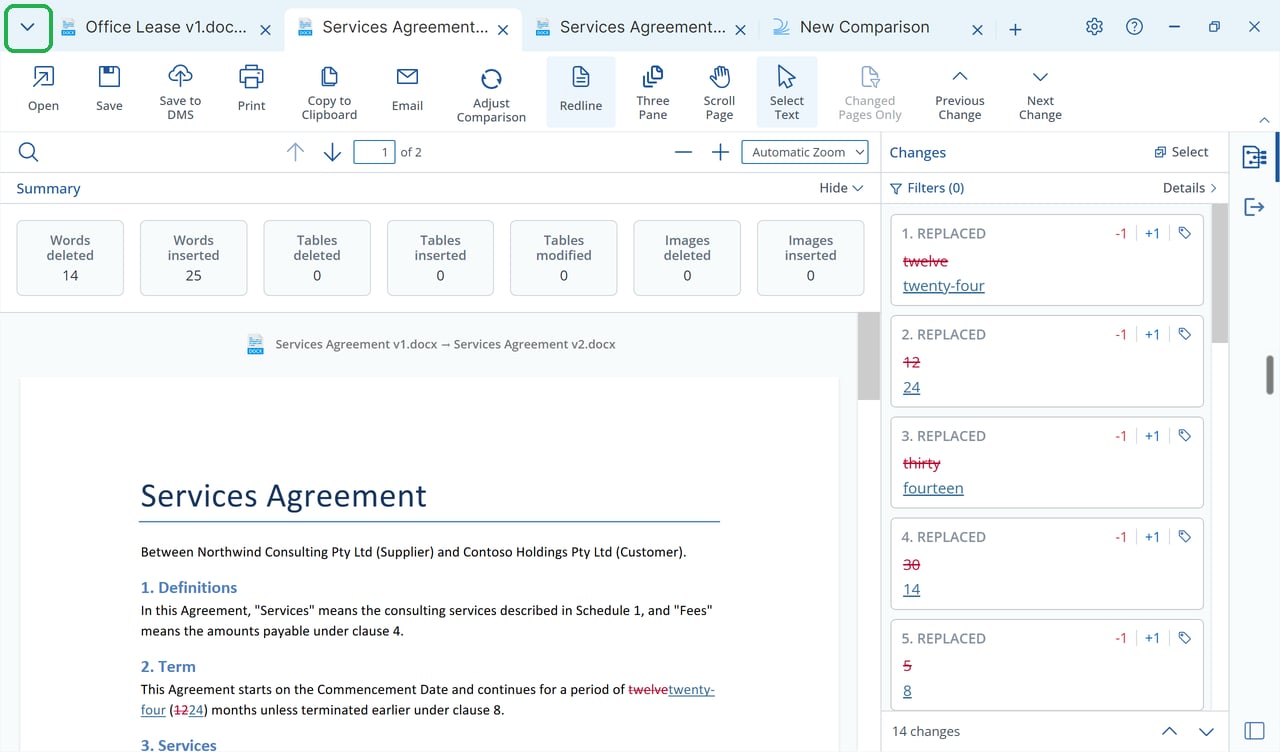
Arrange tabs and windows
- Switch comparisons: Click the tab you want to view.
- Reorder tabs: Drag a tab left or right along the tab strip.
- Move a tab into its own window: Drag it out of the tab strip and release it away from the window.
- Move a tab into another window: Drag the tab onto the title bar of the destination Draftable window and release it to dock it there.
Find, switch and close tabs
1
Open the All tabs menu
Click All tabs at the far left of the tab strip, or press Ctrl+Shift+A.
2
Find a comparison
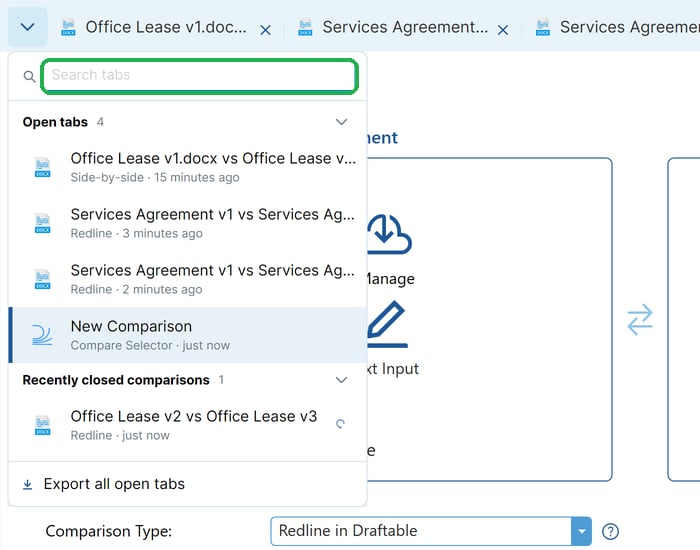
Use Search tabs to filter both Open tabs and Recently closed comparisons.
3
Switch or close
Click an entry under Open tabs to switch to it. To close a tab directly from the list, use the close button on its row.
Reopen a closed comparison
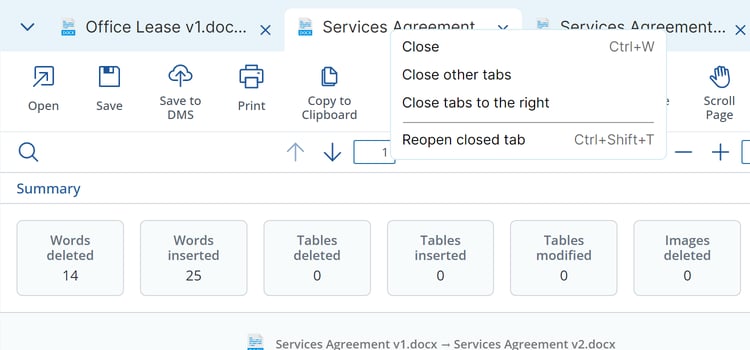
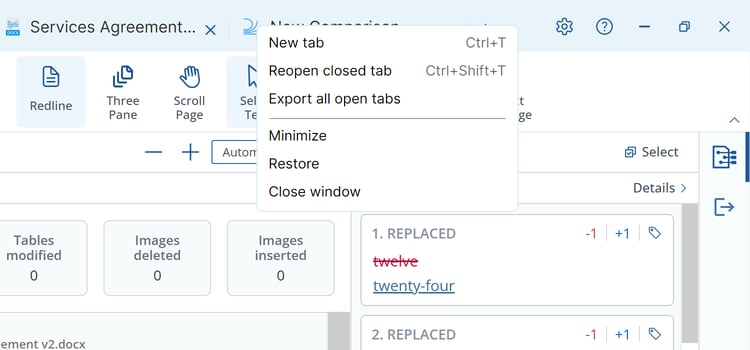
Choose a comparison under Recently closed comparisons, or press Ctrl+Shift+T to reopen the most recently closed comparison. You can also select Reopen closed tab from a tab’s right-click menu or the title-bar right-click menu. Draftable keeps up to 10 closed comparisons for the current session. The list is shared between your Draftable windows, and a comparison reopens in the window where you request it.This is not recovery after a restart or crash. The list is kept only until Draftable exits. New Comparison, Bulk Compare, Settings and Logs tabs are not remembered. A comparison closed before it has a result is not remembered either.
Use the right-click menus
Right-click a tab to see: