

What are Redline Comparisons?
Redline comparisons are a method to visually display the differences between two documents by highlighting the changes directly in the text within a single document view. In Draftable Legal, Redline comparisons show deleted, inserted, and moved text with distinct formatting and colors that make it easy to identify modifications at a glance. Additionally Draftable Legal also offers a Redline comparison output as Tracked Changes Word document.How to View Redline Comparison in Draftable Legal :
To view a Redline comparison in Draftable, follow these simple steps:1
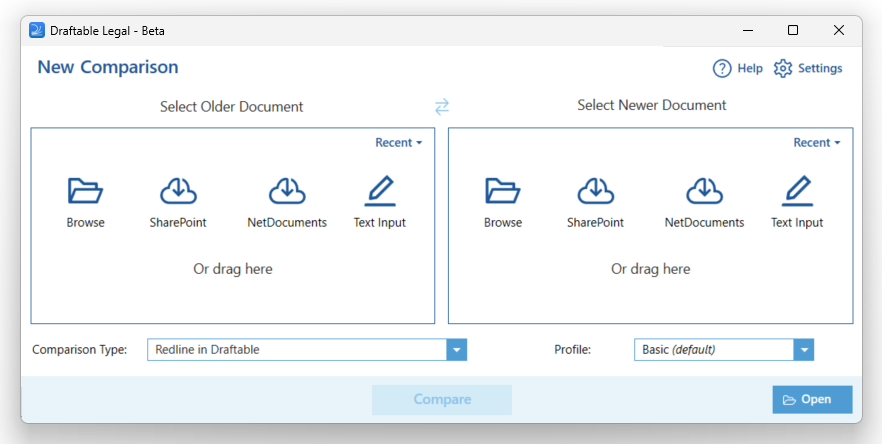
2
Select the two documents you want to compare, either by browsing your files or dragging and dropping them into the compare window
3
Once the documents are selected, tick the box for Redline (.pdf) in the comparison type row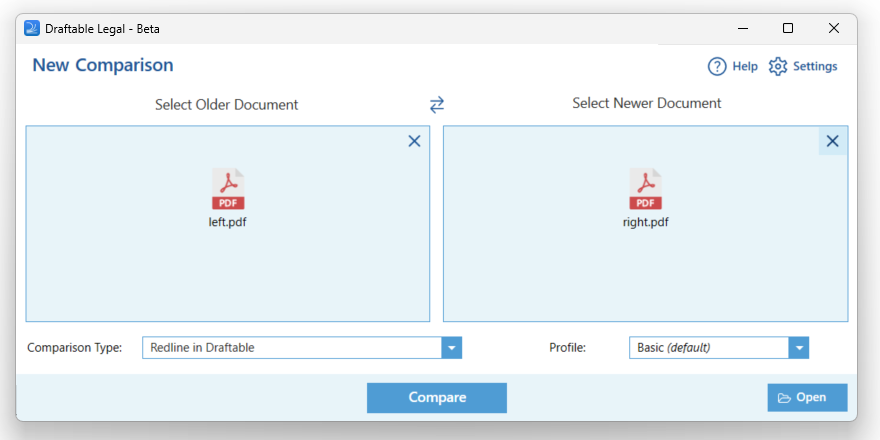
4
Click the Compare button to run the comparison
5
After the comparison is complete, Draftable will display the results in the Redline comparison view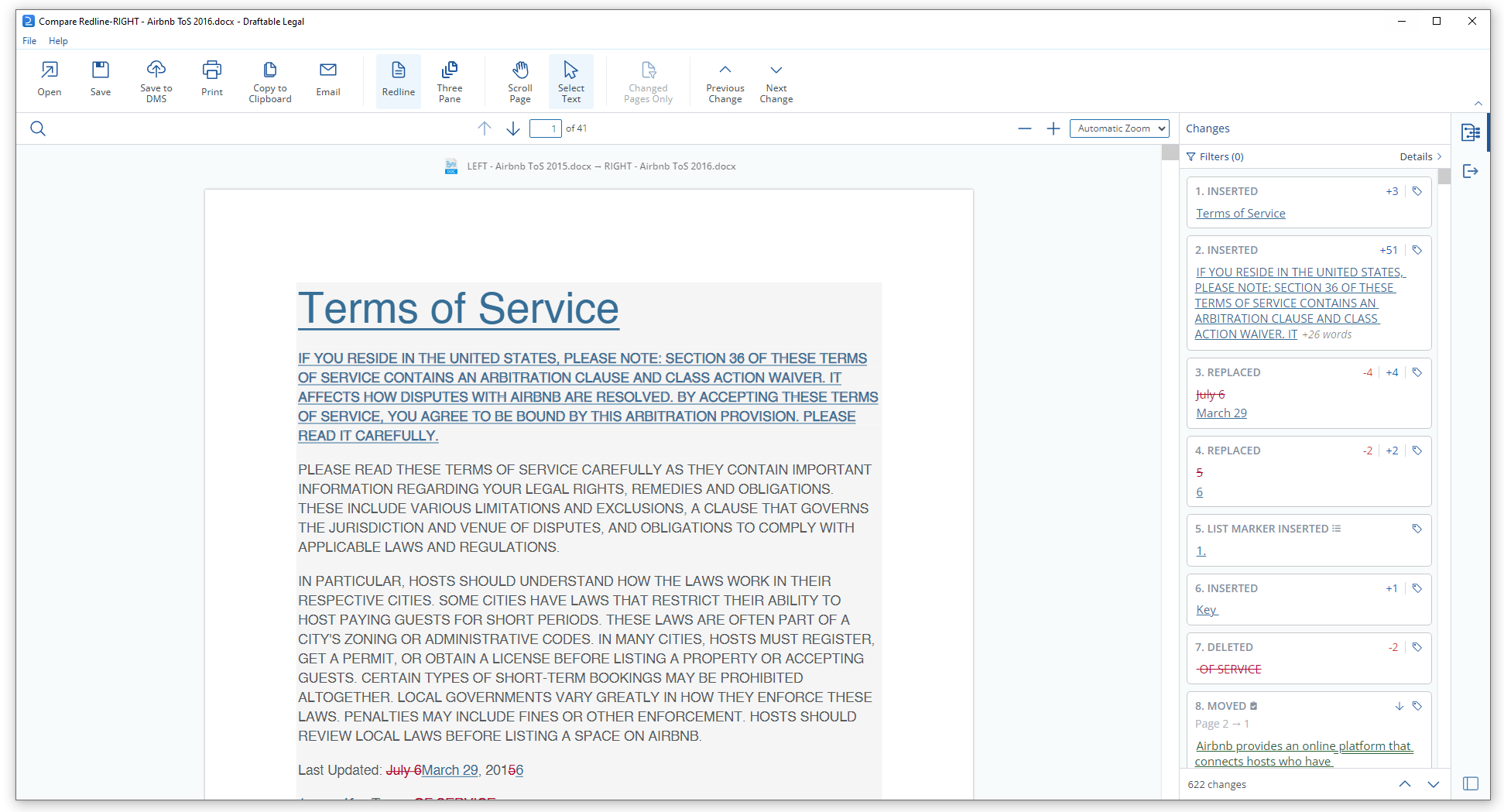
Creating Redline comparison outputs:
Redline comparison outputs are useful if you wish to have a portable comparison copy. There are a few different variants of these outputs which are:- Redline PDF - Output of the Redline comparison as a PDF file
- Changed Pages Only - Output of the Redline comparison as a PDF file, but only shows the pages that contain changed content
- Word with Tracked Changes - Output of a Redline comparison converted into a Word with Tracked changes document.
Video Resource
As an alternative option, this topic is included in our specially crafted explainer video.
1
2
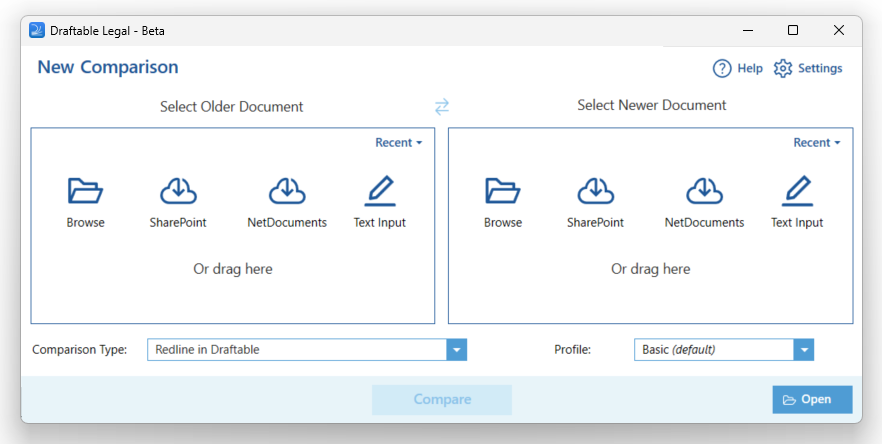
Select the two documents you want to compare, either by browsing your files or dragging and dropping them into the compare window
3
Once the documents are selected, tick the box for Redline (.pdf) in the comparison type row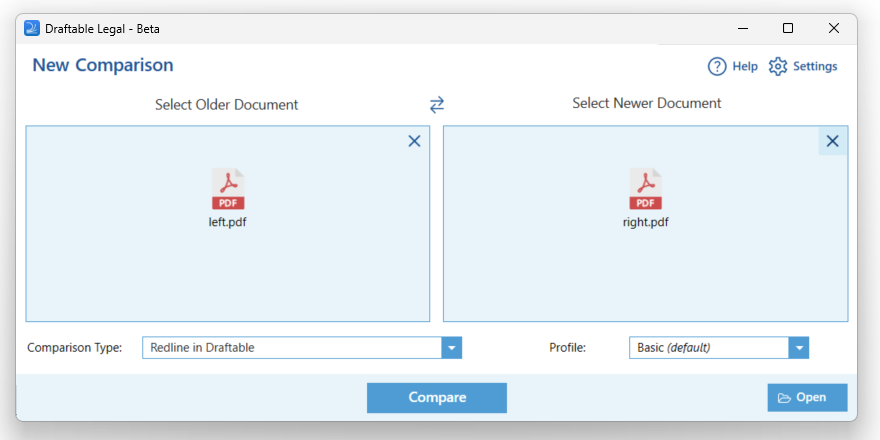
4
Click the Compare button to run the comparison
5
After the comparison is complete, Draftable will display the results in the Redline comparison view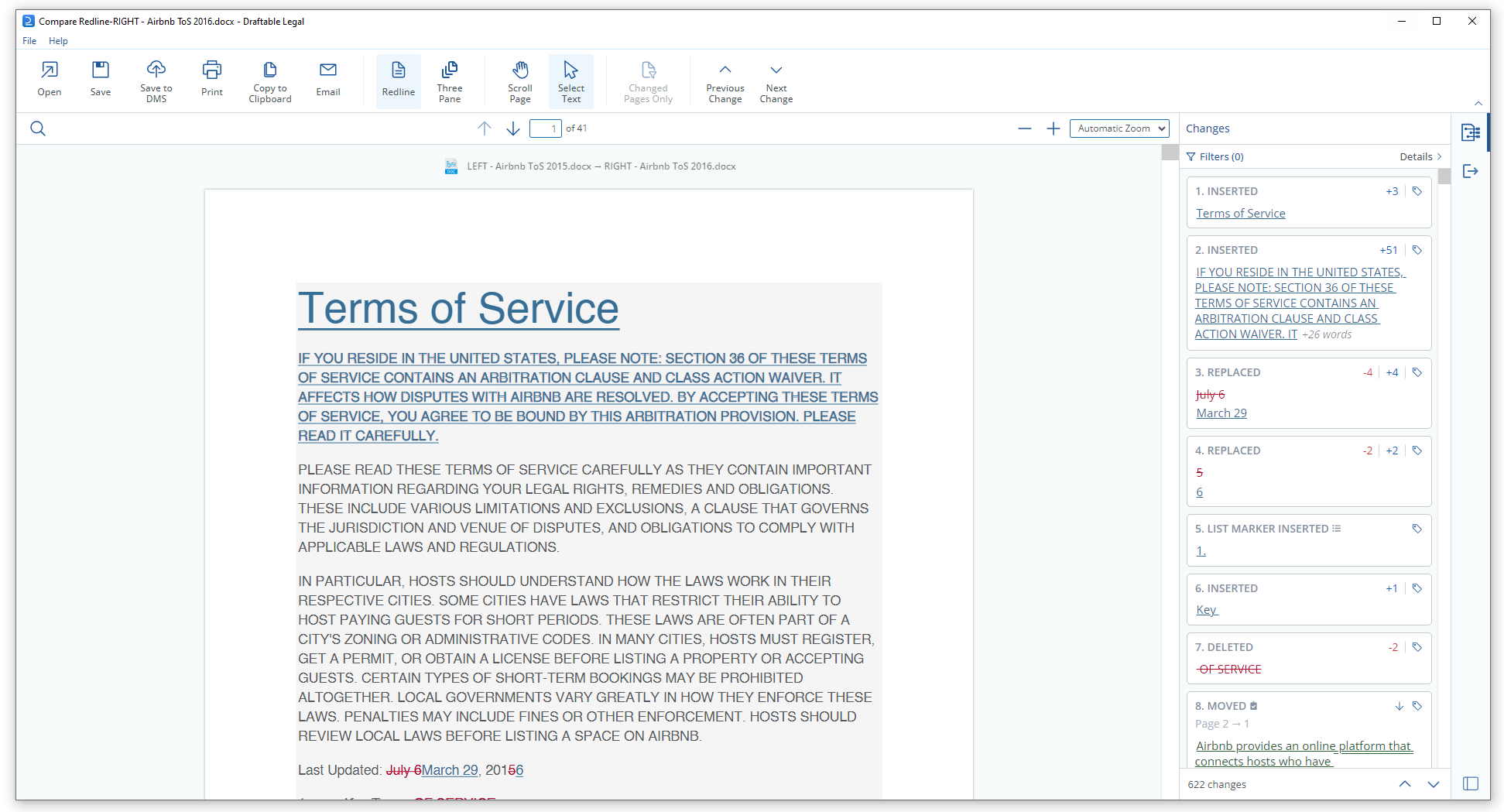
6
On the top ribbon menu you can select multiple options to save your comparison.
-
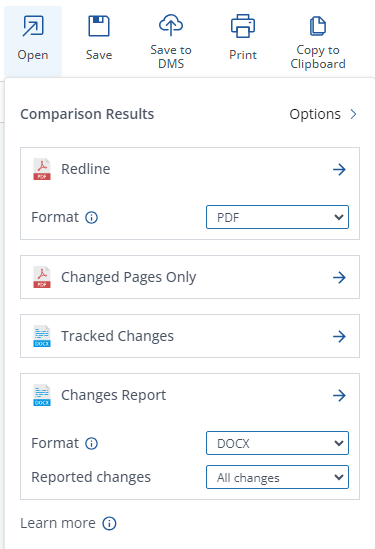
Open: Immediately open the output in another program (PDF viewer or Microsoft Word for tracked changes).
-
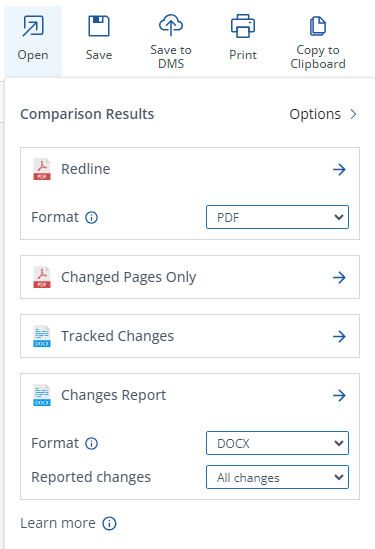
Save: Directly save the output to a location on your computer.
-
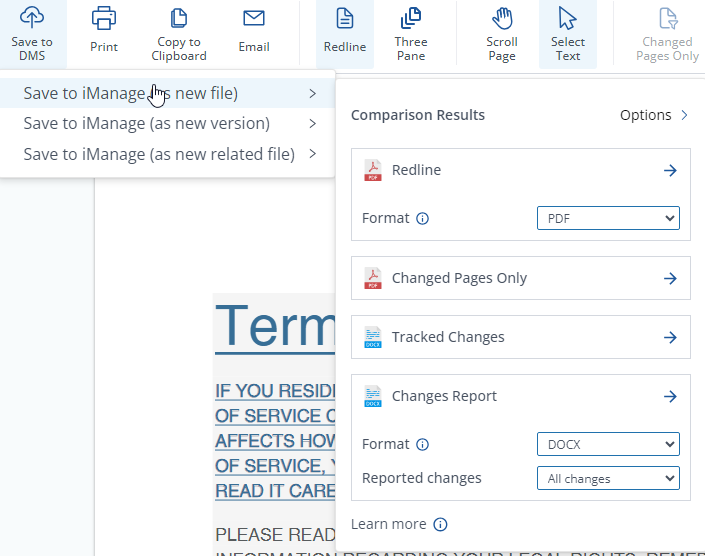
Save to DMS(As a new file or a new version): Directly save the output to your connected DMS option (i.e. iManage account). For example; Our article on iManage goes in-depth on this topic**.
-
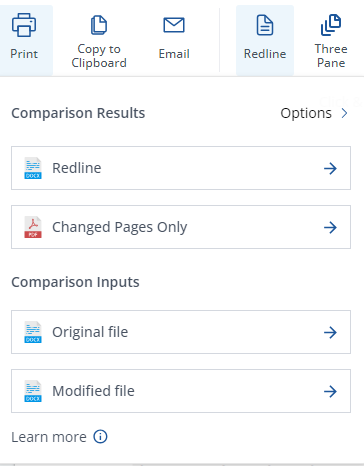
Print: Print the selected output to a printer device.
-
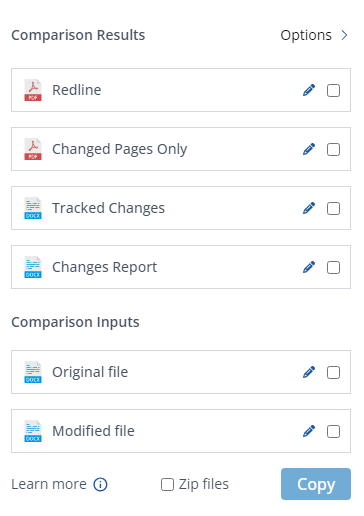
Copy to Clipboard: Directly copy the output to your PC’s clipboard.
-
Email: Automatically opens your email processor and attaches the desired output to a new email. We have an article here with more information.
Please note: This workflow is not supported for users using ‘New’ Outlook.
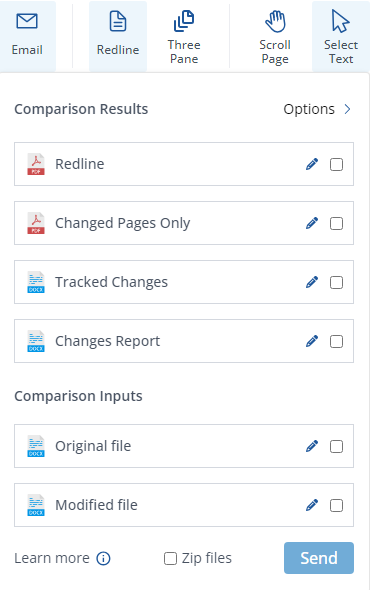
- Redline PDF/DOCX: This output shows the newer document and marks up all changes on top of that in the Redline view
- Changed Pages Only: This output shows only the changed pages between the older and newer document. It marks up all changes in the changed pages as a Redline view
- Tracked Changes: This output is an MS Office document with the changes shown in Track Changes (a Microsoft Office feature)
- Changes report: An output that generates a document that contains all changes within a series of tables, making it easy to quickly see what specifically has changed between the documents.
- CSV Change Report: Export the changes into a CSV file for detailed analysis or record-keeping.
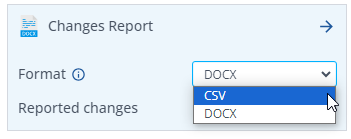
- AI-Ready Redline: Export a portable text representation of all changes (moves, insertions, and deletions) in a format designed for generative AI tools. The output is saved as a
.mdfile and can be pasted or uploaded into any AI tool. See our dedicated article on AI-Ready Redline for full details. - Original file: An copy of the older document
- Modified file: An copy of the newer document
Copying inserted or deleted text from mixed selections
When reviewing a Redline comparison in the Draftable viewer, you may select a portion of text that contains a mix of both inserted and deleted content. In these cases, Draftable provides a pair of buttons that allow you to copy only the inserted text or only the deleted text from your selection.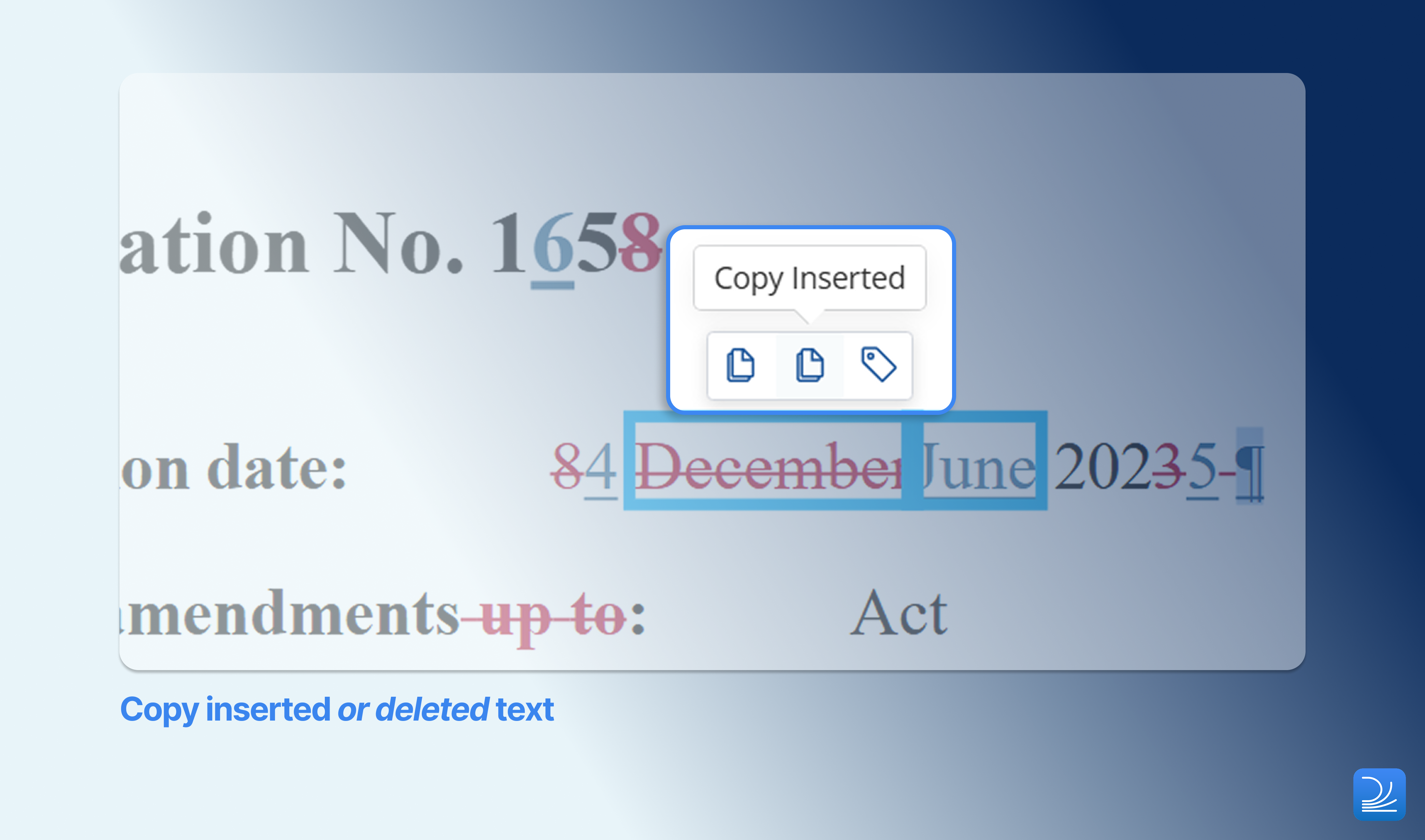
1
Select a range of text in the Redline comparison viewer that includes both inserted and deleted content
2
A toolbar will appear above your selection with options to Copy Inserted or Copy Deleted text
3
Click the appropriate button to copy only the text you need to your clipboard
Benefits of Redline Comparisons:
Redline comparisons in Draftable offer several benefits, including:- Clarity: By displaying the changes directly in the text, Redline comparisons provide a clear and easy-to-understand representation of the differences between the two documents.
- Efficiency: As Redline comparisons show changes in a single page, this enables users to quickly identify and review changes, which can be more efficient compared to side-by-side comparisons.
- Customization: Draftable allows users to customize the formatting and colors (markup schema) used in Redline comparisons, ensuring that the display meets their specific preferences and requirements.
Limitations of Redline Comparisons:
Despite their benefits, Redline comparisons also have some limitations:- Complexity: In documents with a high number of changes or complex formatting, Redline comparisons may become difficult to read and navigate.
- Non-Text Elements: Redline comparisons primarily focus on text changes
- Missing context: Redline changes cannot provide the full context of a change in the same way as a side by side output, making some changes harder to interpret